Mobile App
The Mobile app is designed to focus on performing the core Akiflow functions on the go, from your pocket. We have introduced quick ways through which you can routinely commit to the capturing, processing and execution of tasks.
Download and Set up
Download Akiflow for your phone:
iPhone and iPad: Download on the App Store (iOS 16 or later)
Android: Get it on Google Play
Sign in with your Akiflow account. New accounts are created on the web, see the FAQ below.
Tour of the Mobile App
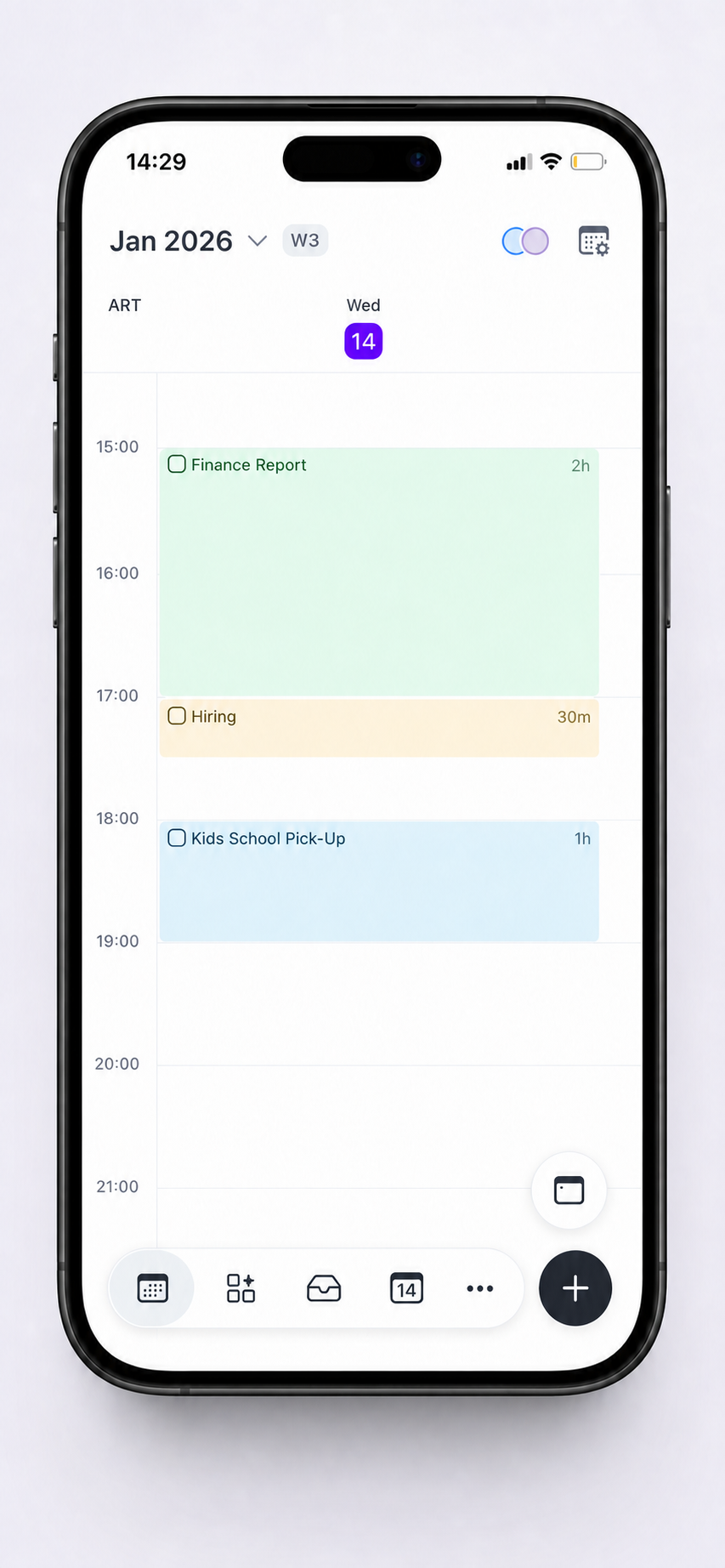
The main view of the app is your calendar, where you can see and edit your schedule. On this page, you have easy access to all the main features of Akiflow mobile.
Full Calendar icon (First on the left): Open a full screen view of your calendar.
Aki Feed icon (Boxes): Access your Daily Dashboard view and Aki Feed.
Inbox icon: Open your Inbox task list.
Specific date icon
(Showing a number): Access your today section and specific dates.
Three dots menu: Open the full mobile app menu with account settings, search, different task views, projects and tags.
Plus icon: Tap to create tasks, events, and slots. Press and hold to record a request for Aki.
Today Button: Jump back to today's date (Appears when today’s date view is not visible).
Calendar Icon (Above plus icon): Change calendar view
Calendar Settings (upper-right): Customize calendar preferences
Colored Circles: Toggle calendar visibility and notifications
Month & Year dropdown (upper-left): Access specific dates.
Tasks, Events and Time Slots
From the calendar, click on the
+icon at the bottom right to create tasks, events, and time slots. When creating a task, use natural language to plan it.→ For example, you can write “Call John tod 3pm for 1h”.
Use
!and#to add the priority and project of your tasks!TaporTap + hold+ drag in calendar to create your favorite element. The placeholder can be resized, moved and minimized to check your calendar (by swiping it down).Switch between elements while creating them. Basic information like title and time will be saved when switching from one element to another.
Go to: Settings → Tasks, Events, Slots
Here you can customize what happens when you tap your calendar:
Default action: choose whether tapping creates an event, task, or slot.
Default duration: set how long the new item will last by default.
You can also manage your Lock settings here (for both tasks and time slots). These will sync across desktop, web, and mobile.
How to create tasks
Create a task by opening any task list like Inbox and Today and clicking on
Add taskAutomatically import tasks from all your tools (Integrations).
Add the Akiflow widgets to quickly add tasks.
Enable Siri to capture tasks on the go.
Use Share with Akiflow on any webpage to create a task from there.
Long press the Akiflow icon to quickly add tasks to Akiflow directly from your home screen.
Capture with your voice
Press and hold the main + button to start recording.
Say what you want Aki to do. You can release your finger; recording continues.
Tap Send when you have finished. You can continue using Akiflow while Aki processes your request.
Tap View to open the Aki conversation and check the result.
Sent means Aki has received your recording. It does not mean your tasks or events have already been created.
Voice capture requires Aki to be enabled, microphone permission, and an internet connection. Tap the trash icon before sending to discard the recording.
Plan tasks
Click on a task and pick date & time or a timeframe (this week, next month). You can also choose to plan directly into a Time Slot.
Swipe left on a task to open the planning menu.
Swipe right on a task to enable multi-select and bulk plan tasks for a specific date. When you select tasks, a menu will appear at the bottom of your screen with planning options.
Natural language processing allows you to plan tasks when creating them.
Sort your Someday tasks
Open Someday and its sorting menu. Choose Newest on top, Priority, Projects, Deadline, or Oldest on top.
Newest on top is the default, and Akiflow remembers your choice. Newest and Oldest use the task’s creation date, so editing or dragging a task does not change its age. Plan Date is no longer a sorting option in Someday.
Inbox zero
The Mobile app accommodates the powerful concept of Inbox Zero.
If you find yourself with too many tasks in your Inbox, here’s what you can do:
Take bulk actions on them using the above steps.
Refine the import options of your integrations through the mobile app mentioned below.
Group your Inbox
In your Inbox, tap the view options button in the top-right corner and choose Group by. Pick No grouping (the default), Source, or Project. Your choice syncs with desktop and web.
Source groups tasks by the tool they came from.
Project groups tasks by project. Drag a task into another project's section to change its project.
Learn more in Your Inbox.
Calendar interactions
Pinch to zoom in and out of the calendar
The Location field also recognizes links, not just addresses. For example, you can paste a Google Maps link, and it will open directly in Google Maps or other compatible apps.
Create all day events: The mobile app supports All day event creation in one tap! Click on the all-day section of the calendar to create an all-day event.
Integrations
You can integrate new accounts from these apps directly through the mobile app:
Gmail & Superhuman
Outlook Email
Slack
Microsoft Teams
Zoom
The rest of our available integrations can be connected through the web or desktop versions.
To connect an iCloud account, open Settings → Calendars → Add calendar → iCloud Calendar. Complete the connection in your browser using your Apple Account email and an app-specific password, then return to Akiflow. See the iCloud Calendar setup guide for the full steps.
Notifications
Go to Menu → Settings → Notifications to customize your notifications on mobile.
Receive notifications to start your day right with a quick daily overview and for any task, event and time slot starting, so you won’t ever lose focus!
You can jump on a meeting on the go using mobile notifications!
Widgets
Upcoming: Add the Upcoming widget to your homepage to easily check your upcoming tasks, events and time slots. You can also create a task quickly using the + icon.
In each Upcoming widget’s settings, use Show all-day events to choose whether all-day events appear. It is on by default. Turn it off to hide all-day events while keeping tasks, timed events, and time slots visible.
This setting applies separately to each Upcoming widget on iOS and Android. It does not change your in-app calendar or Lock Screen widgets.
Create: Add the Create widget to your homepage to easily create tasks, events, or time slots.
Lock Screen: Add the Lock Screen (Upcoming, Create) widgets to quickly view your next task, event, or time slot, and create a new task right from your lock screen. You can also send a text or start a recording for Aki directly from here.
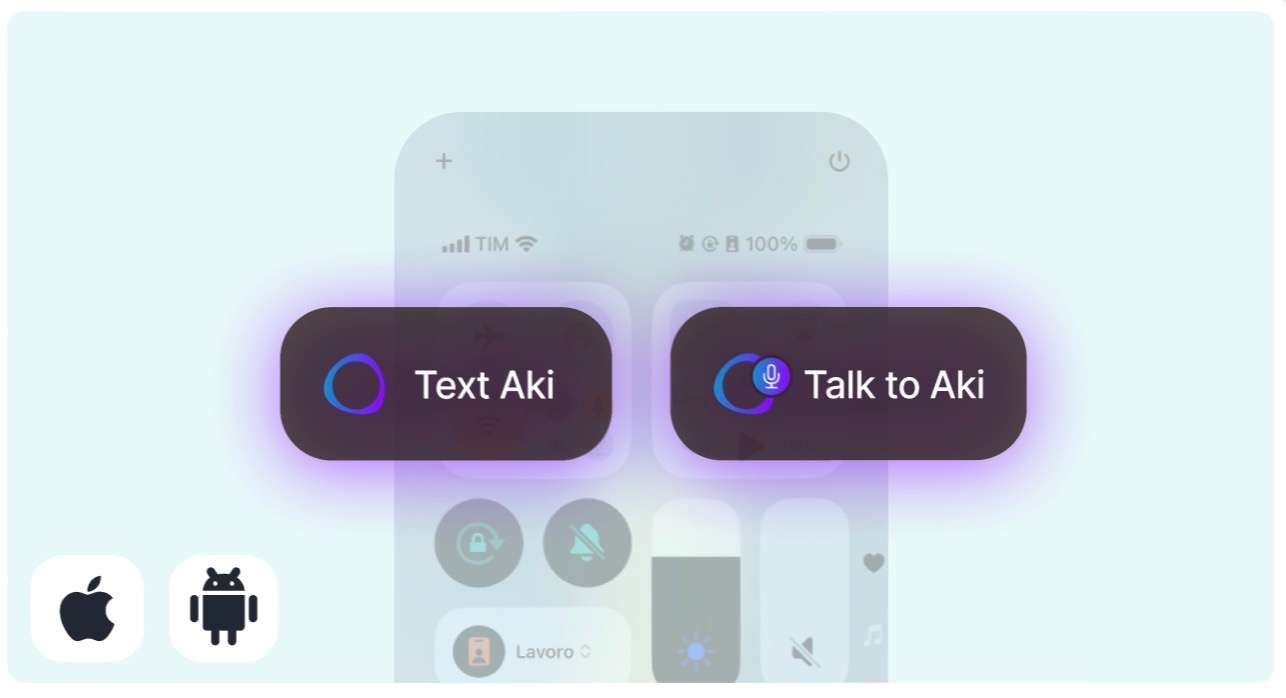
Text or Talk to Aki instantly: Text or Talk to Aki instantly from your home screen, both on Android & iOS.
Additional iOS features
Siri meets Aki
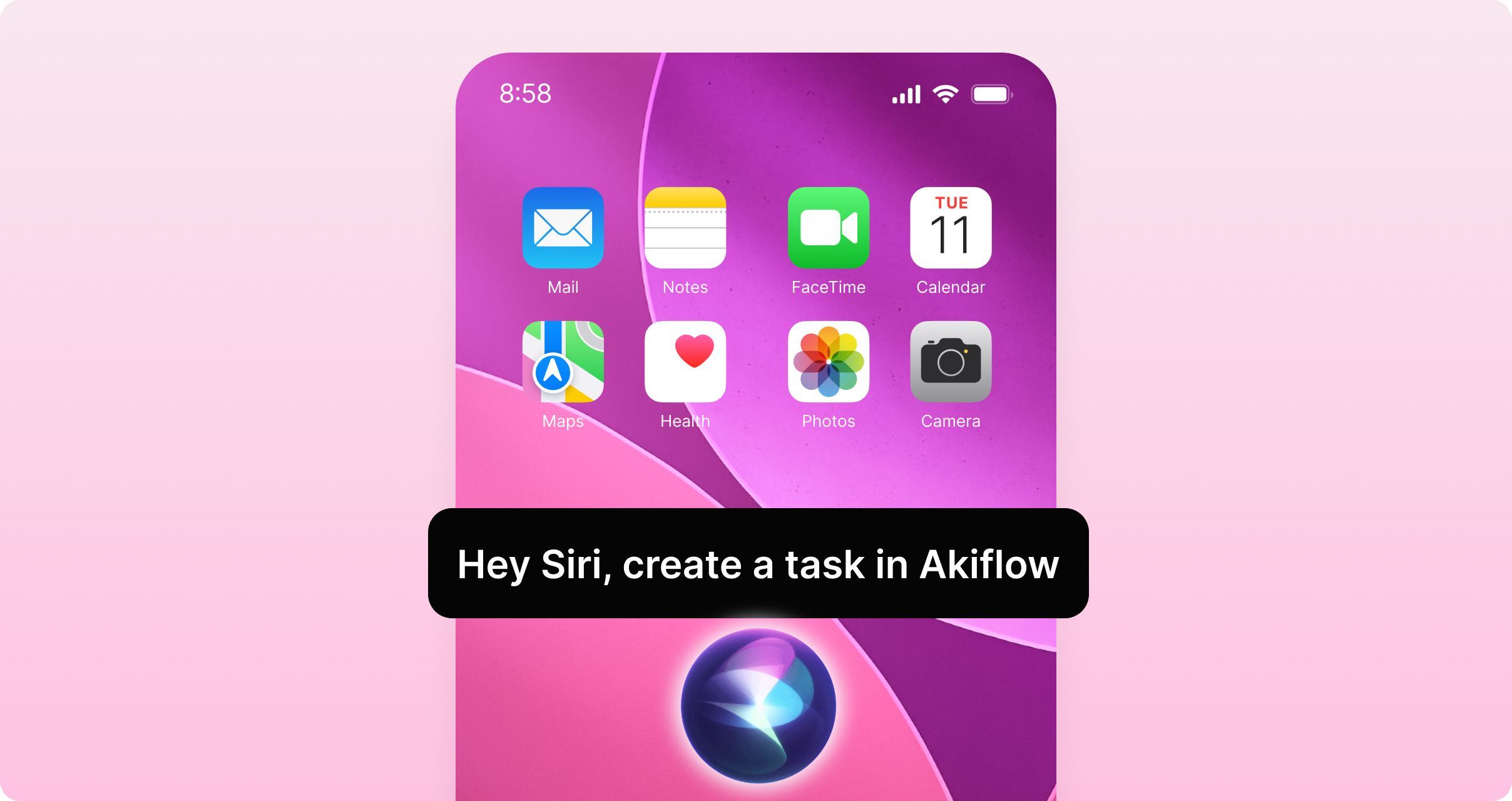
Siri integrates seamlessly with Aki, allowing you to create tasks and events hands-free with natural language. This upgrade brings the power of Aki's intelligence to voice commands, making it easier than ever to capture tasks and schedule events while you're on the go, driving, or multitasking.
How to use
How to use
Hey Siri, create a task in Akiflow
Hey Siri, use Akiflow, please add a task in my inbox called Review Report assigned to my Marketing project
Hey Siri, use Akiflow Assistant, create an event for tomorrow 10am called Running Session
Aki will understand your request and add it to your workflow.
Setup required & considerations
Setup required & considerations
Enable Akiflow for Siri in your iOS settings and the Akiflow Assistant shortcut
For now, this feature is only available in English
Siri may occasionally trigger the wrong app when you first start using this feature. The more you use Akiflow with Siri, the better it performs as Siri learns from your usage patterns.
For consistent performance, use a two-step command: say Use Akiflow or Use Akiflow Assistant first, then state your request.
iOS Shortcuts
Use iOS Shortcuts to quickly trigger Akiflow actions from Siri, your Home Screen, the Action Button, or automated workflows.
Available Akiflow Shortcuts
Available Akiflow Shortcuts
Akiflow provides several pre-built shortcuts you can use:
Akiflow Assistant - Your main interface for interacting with Akiflow through automation
Add task in Akiflow - Quickly capture tasks via Shortcuts or voice commands
Open Aki in Akiflow - Launch the Akiflow app directly
Akiflow voice - Use voice input for various Akiflow actions
How to Set Up Shortcuts
How to Set Up Shortcuts
1. Open the Shortcuts App. Launch the Shortcuts app on your iPhone or iPad.
2. Search for Akiflow. Use the search bar at the top to find Akiflow shortcuts.
3. Add Shortcuts to Your Library. Tap on any Akiflow shortcut to add it to your shortcuts library. You can customize the shortcut name or keep the default.
4. Use Your Shortcuts
With Siri: Say Hey Siri followed by the shortcut name
From the Shortcuts app: Tap the shortcut to run it
From your Home Screen: Add shortcuts as widgets or app icons
With automation: Trigger shortcuts based on time, location, or other conditions
Share with Akiflow
On both iOS and Android, you can use the native Share feature from any app (browser, email, messaging apps, etc.) to share content directly to Akiflow. When you tap Share and select Akiflow, a new task will be created automatically.
Akiflow will add the shared link to the task links automatically.
Live Activities
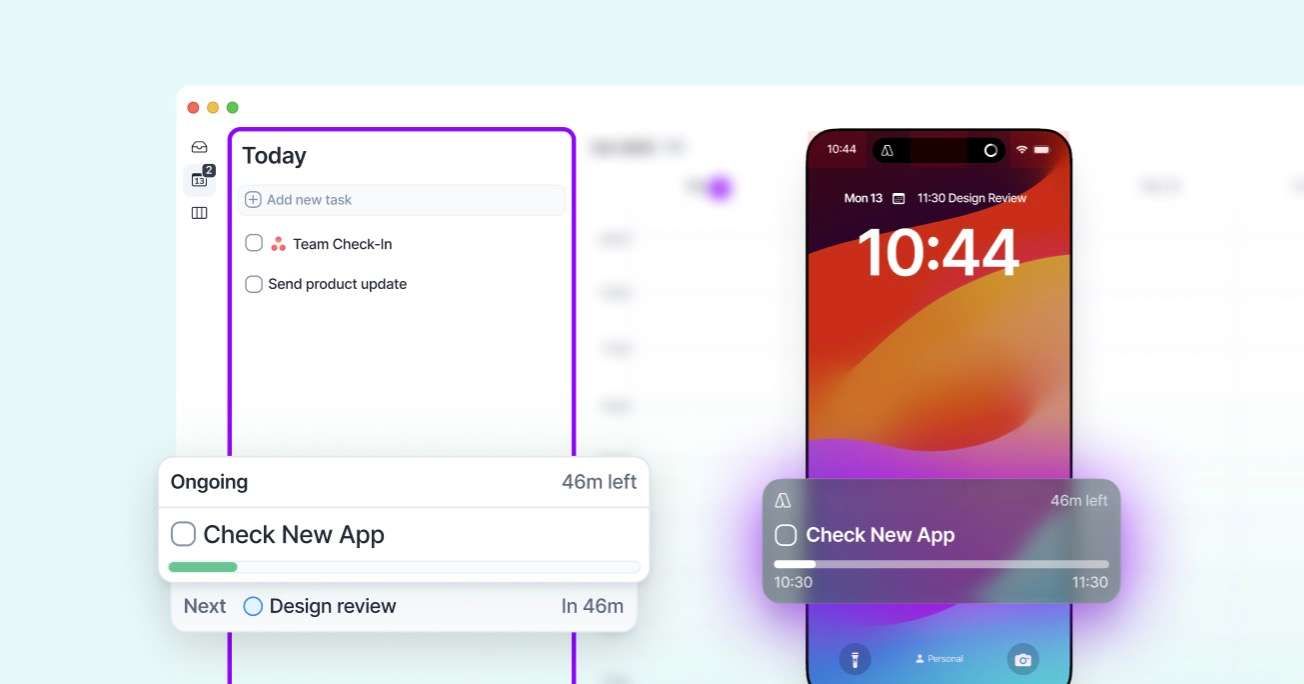
Live Activities keep your current activity visible at any time to help you focus executing what you planned!
iOS
iOS
Live activity is available via your Lock Screen and you can turn it off via system settings.
Live Activity and Dynamic Island show your current ongoing event, task, or slot directly on your iPhone’s Lock Screen or Dynamic Island. When the appointment ends, the activity disappears automatically. To view the next ongoing activity, open the Akiflow app. This is standard iOS behavior since Live Activities can’t start automatically from the background.
Android
Android
Sticky Notifications can be turned off in the Akiflow app settings.
Since Android doesn't support Live Activities, ongoing events appear as Ongoing Notifications instead. These notifications remain visible while your event, task, or time slot is active and disappear automatically when it ends.
To view your next ongoing activity, simply open the Akiflow app
Apple Watch
Akiflow on Apple Watch works together with the iPhone app. Capture tasks by voice or keyboard into your Inbox, check off tasks in Inbox, Today, This week, This month and All tasks, and see your current or next task, event or time slot on your watch face with a countdown.
It needs watchOS 10 or later and the Akiflow iPhone app 2.83 or later, signed in. The Watch app installs together with the iPhone app. Learn more about Akiflow for Apple Watch here.
Daily Dashboard
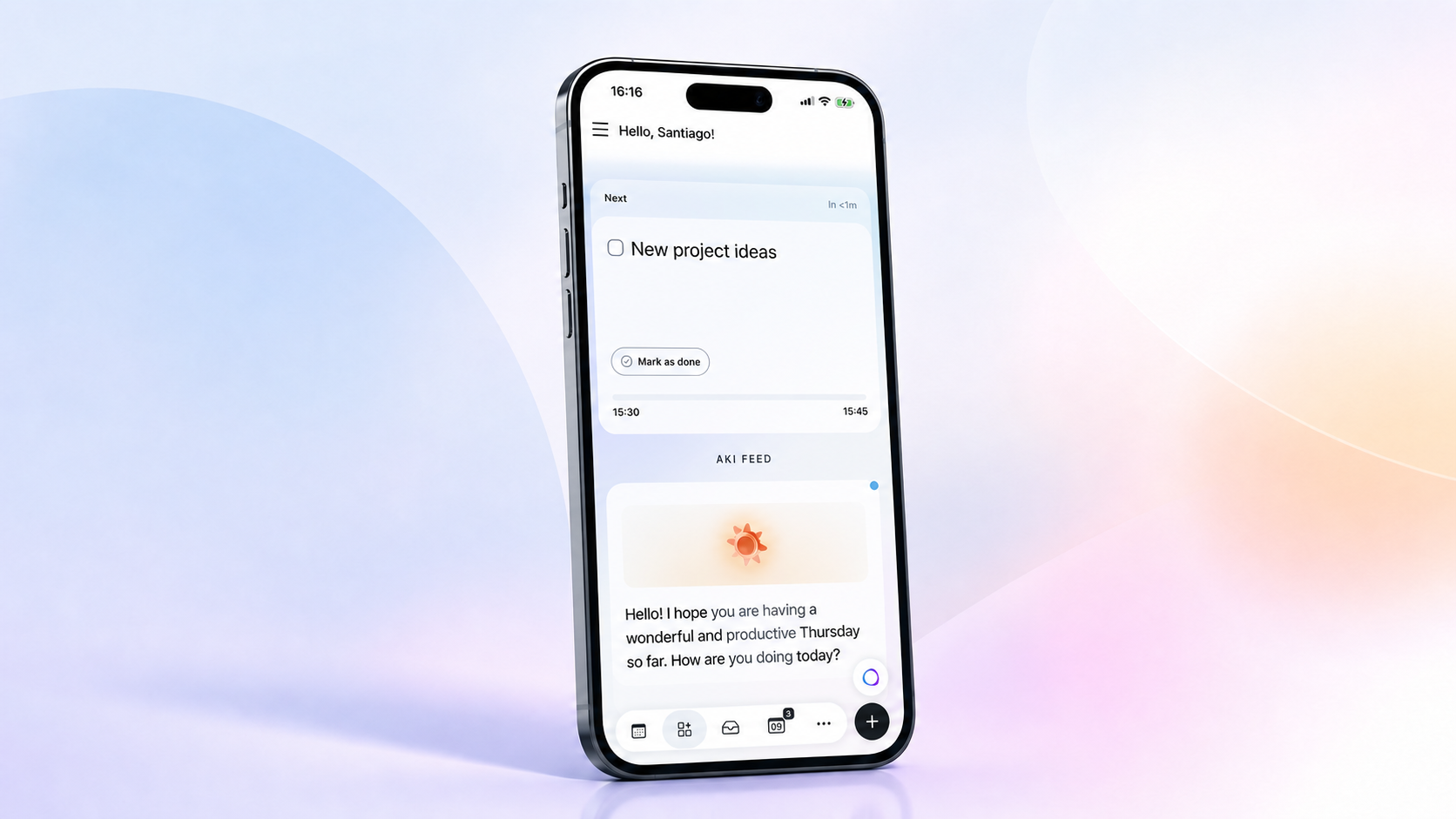
The Daily Dashboard is a quick way to see what is happening now, what is coming next, and what Aki has prepared for your day.
Use it to join meetings, complete planned tasks, open time slots, read your Daily Briefs, and review meeting documents from one place. Learn more about the Daily Dashboard here.
FAQ
Can I use the Akiflow mobile app offline?
Can I use the Akiflow mobile app offline?
Yes. You can make supported task and calendar changes offline, and they will sync when you reconnect. Aki voice capture requires an internet connection.
How can I report a bug directly from the mobile app?
How can I report a bug directly from the mobile app?
Shake your phone while the app is open to submit a bug report instantly. Share the reference number with us for faster resolution!
Long-press the Akiflow icon to book a call or report a bug effortlessly.
Shake-to-Report Bug Not Working?
Shake-to-Report Bug Not Working?
The shake-to-report feature needs available storage on your phone. If your device storage is full or nearly full, the bug report will fail with an error message.
Solution: Clear some storage space on your device, then try shaking to report the bug again.
Can I use the iPhone Action Button to perform actions in Akiflow?
Can I use the iPhone Action Button to perform actions in Akiflow?
Yes! You can use the iPhone Action Button with Akiflow (iPhone 15 Pro or later)
Set up an iOS shortcut and assign it to your Action Button to quickly:
Create tasks
Talk to Aki (voice or text)
Add task via voice recording
How to set it up:
Open the Shortcuts app on your iPhone
Find and add Akiflow shortcuts to your library:
Akiflow Assistant - Main interface for automation
Add task in Akiflow - Quick task capture
Akiflow voice - Voice input for actions
Open Aki in Akiflow - Direct access to Aki
Go to Settings > Action Button on your iPhone
Swipe to Shortcut and tap Select a shortcut
Choose your preferred Akiflow shortcut
Now you can press the Action Button to instantly interact with Akiflow without opening the app!
Why is my week start date not syncing to my mobile app?
Why is my week start date not syncing to my mobile app?
Your mobile app syncs with your desktop settings. To fix this:
Open Akiflow on desktop
Go to Settings → Appearance
Find Week starts on setting
If it's set to System Default, change it to your preferred day (e.g., Monday or Sunday)
The change will sync to your mobile app automatically
Why this happens: When set to System Default, the app uses your device's settings, which may differ between your desktop and mobile devices. Selecting a specific day ensures consistency across all platforms.
Why does the mobile app icon show pending notifications even if I don’t have overdue tasks?
Why does the mobile app icon show pending notifications even if I don’t have overdue tasks?
The notification badge on the mobile app icon reflects unread notifications, not overdue tasks or your activity inside the app.
This means the badge is not related to:
Overdue tasks
Pending tasks in your Inbox
Scheduled events or time slots
Your overall activity in Akiflow
Instead, it only counts notifications sent by the app, such as:
Messages from Aki
Upcoming events
Upcoming tasks
If you see a badge on the app icon, it simply means you have notifications that haven’t been opened or cleared yet.
Does the mobile app offer a monthly calendar view?
Does the mobile app offer a monthly calendar view?
We used to support it, but it’s not available at the moment. The mobile calendar is currently available in 1 day, 3 day, and week views.
Can I create an Akiflow account from the mobile app?
Can I create an Akiflow account from the mobile app?
Creating a new Akiflow account is currently only supported through the web.
To get started, visit akiflow.com from your browser and create your account there. Once your account has been created, you can sign in to the Akiflow mobile app on iOS or Android using the same credentials.
Was this helpful?
Still need help? Ask the team