Share your availability
Select your free calendar slots and share them with your guests with a booking link!
How does it work?
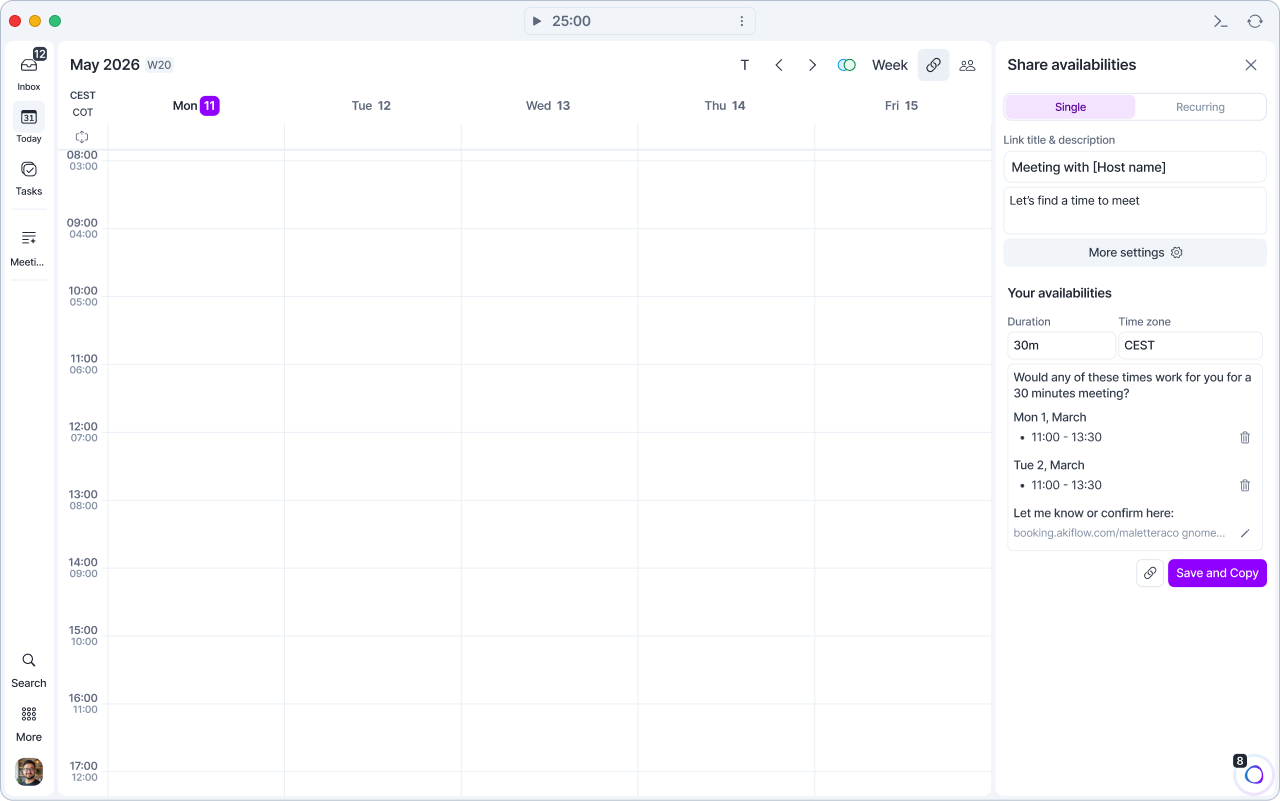
Press S or click the Share availability button (link icon) in the calendar header, next to Meet with. The panel opens on the right of your calendar. See where everything is in the new menu.
Here you can:
Check all your active availability slots
Your availability slots will stay active until:
There are no more available slots in the future
Your guest has booked a meeting if they are Single use slots
Create new ones
You can manually select your availability slots (Single slots) or pick recurring slots to use over the weeks (Recurring slots).
Single slots
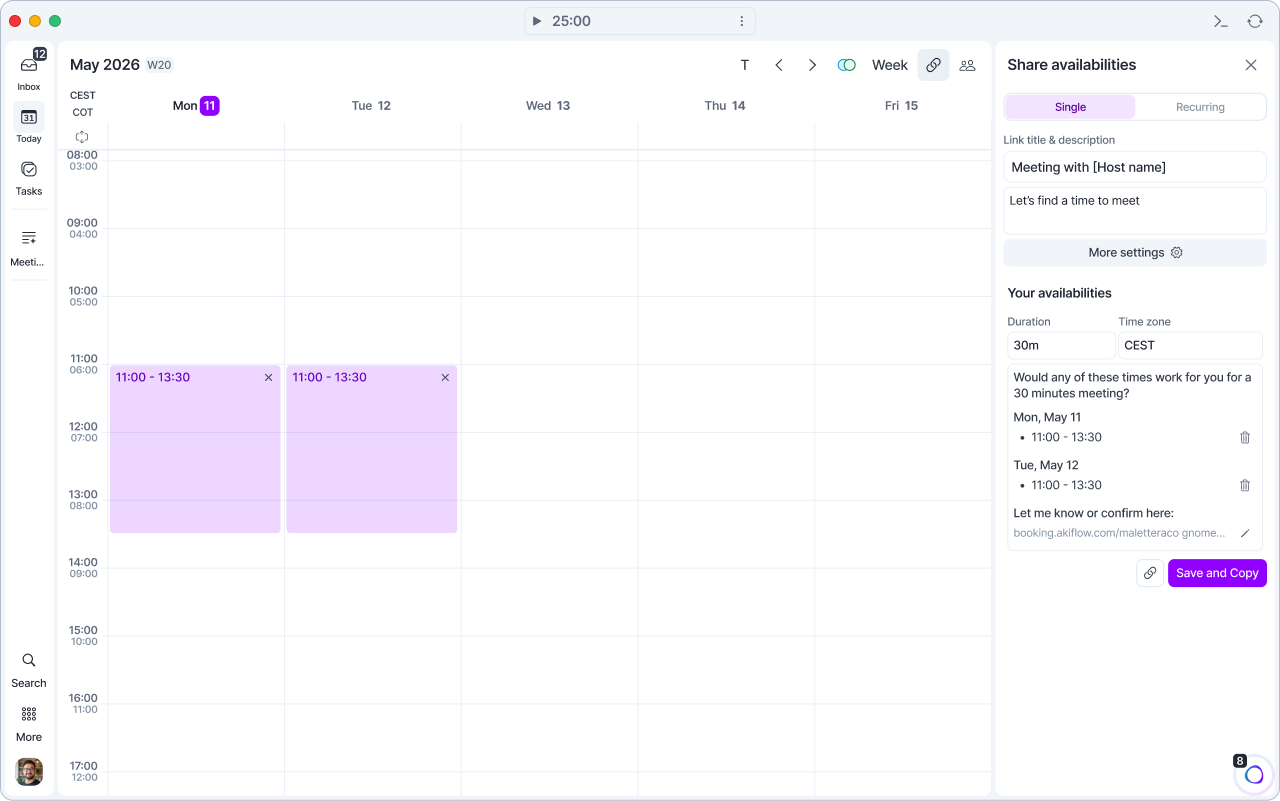
Once you open Share availability, click and drag across the slots you’d like to share. By default, the sharing mode is set to Single, meaning you’ll only share the specific slots you selected, with no recurrence.
Next, choose how you want to share it: copy only the booking link or include the availability details as well.
Recurring slots
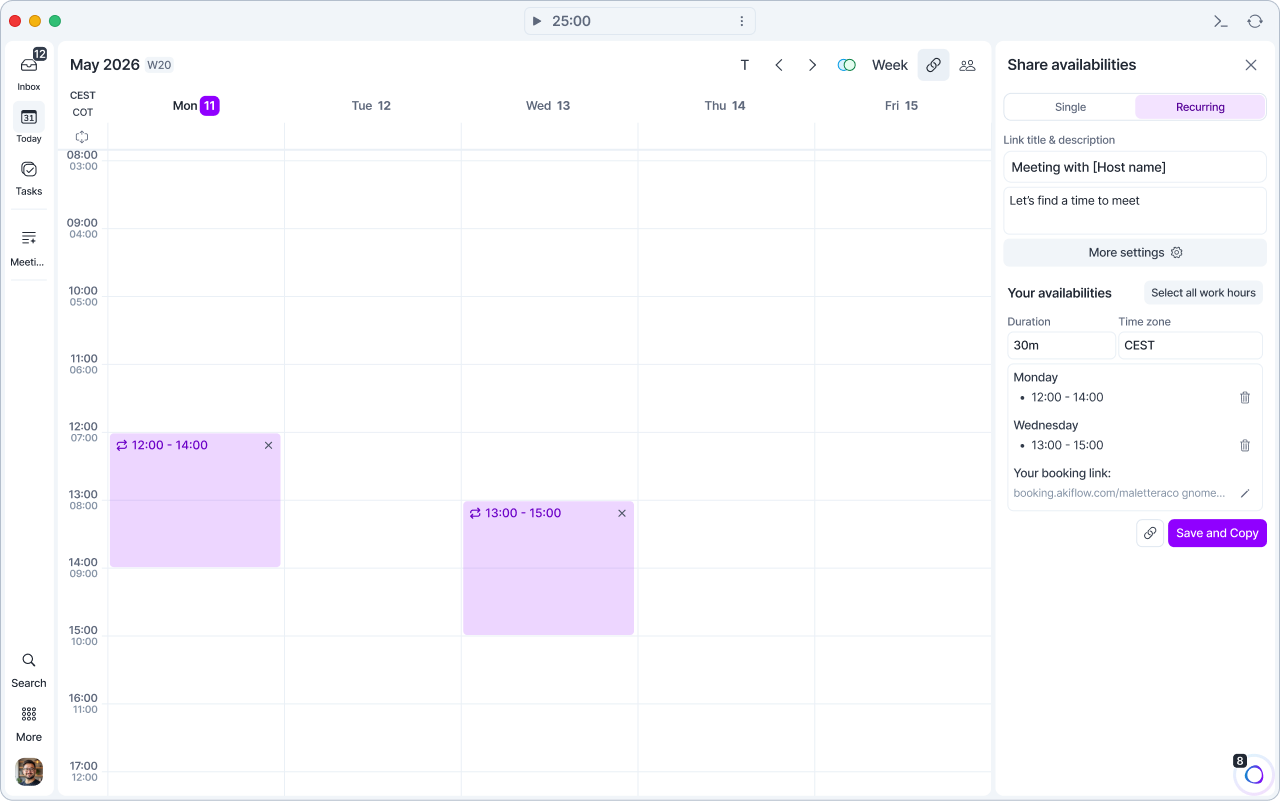
After selecting the slots you want to share, click Recurring. The slots you choose will repeat automatically every week, following the same days and times.
Share your whole calendar
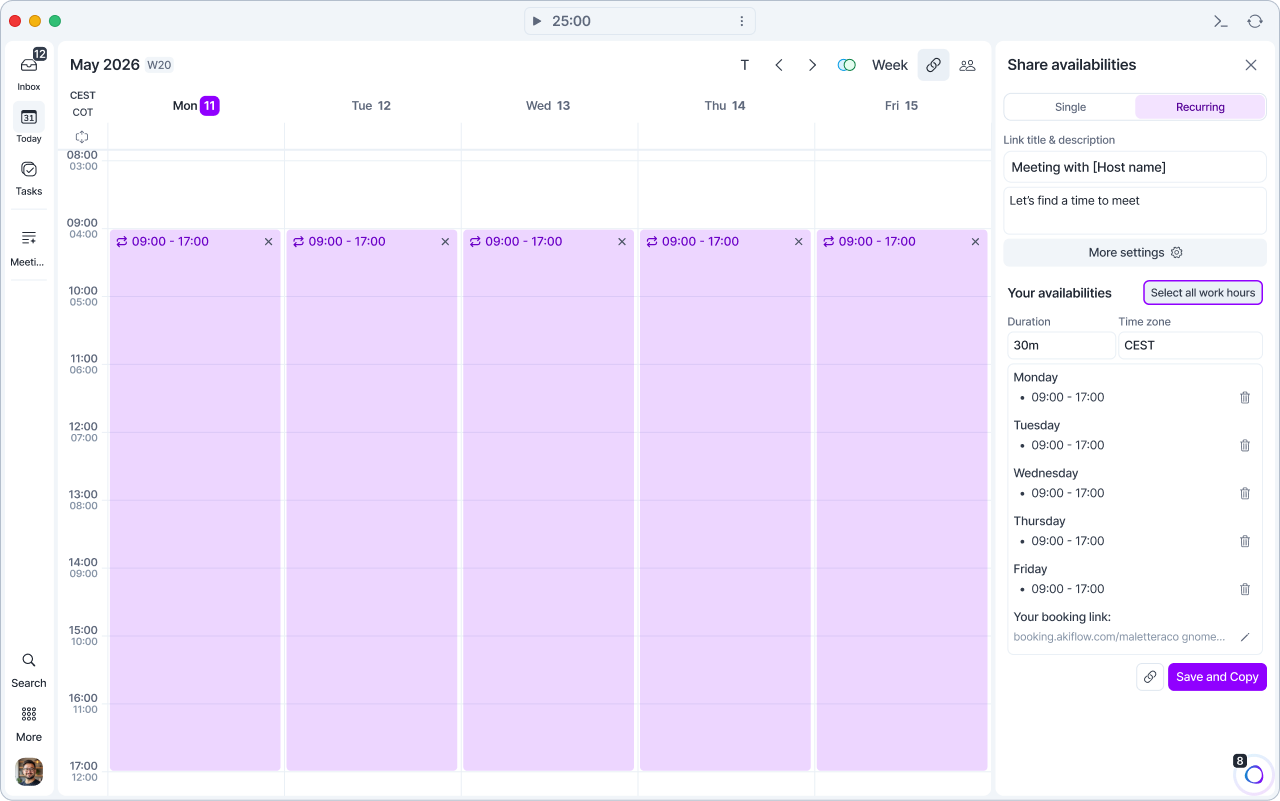
To share all your available work hours at once:
In the Recurring section, click and drag to select at least one time slot
The "Select all work hours" button will appear
Click it to automatically select your full work schedule
Customizing your work day hours
To define when your work day starts and ends:
Go to Settings → Appearance
Under View options, set your preferred start and end times
These times will determine what all work hours includes when sharing your calendar.
Ask your guests questions
Collect the information you need before the meeting. Guests answer your questions on the booking page.
Set up questions for a link
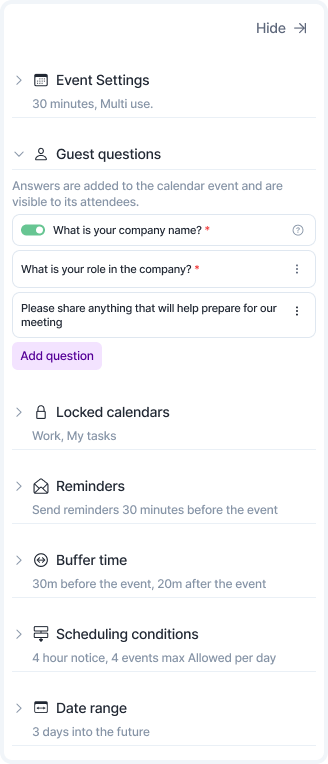
Open the link's More settings and expand Guest questions.
Turn on Company name to ask "What is your company name?". This question can't be renamed or deleted.
Click Add question, type your question (up to 255 characters) and click Save. New questions are Required by default. Uncheck Required to make a question optional.
Use the ⋮ menu on a question to Edit, Move Up, Move down or Delete it.
You can add up to 5 questions per link. Company name doesn't count toward the 5.
Add the company name to the event title
Type [company_name] in the Event title, for example "Intro call with [company_name]". This turns Company name on automatically.
What your guests see
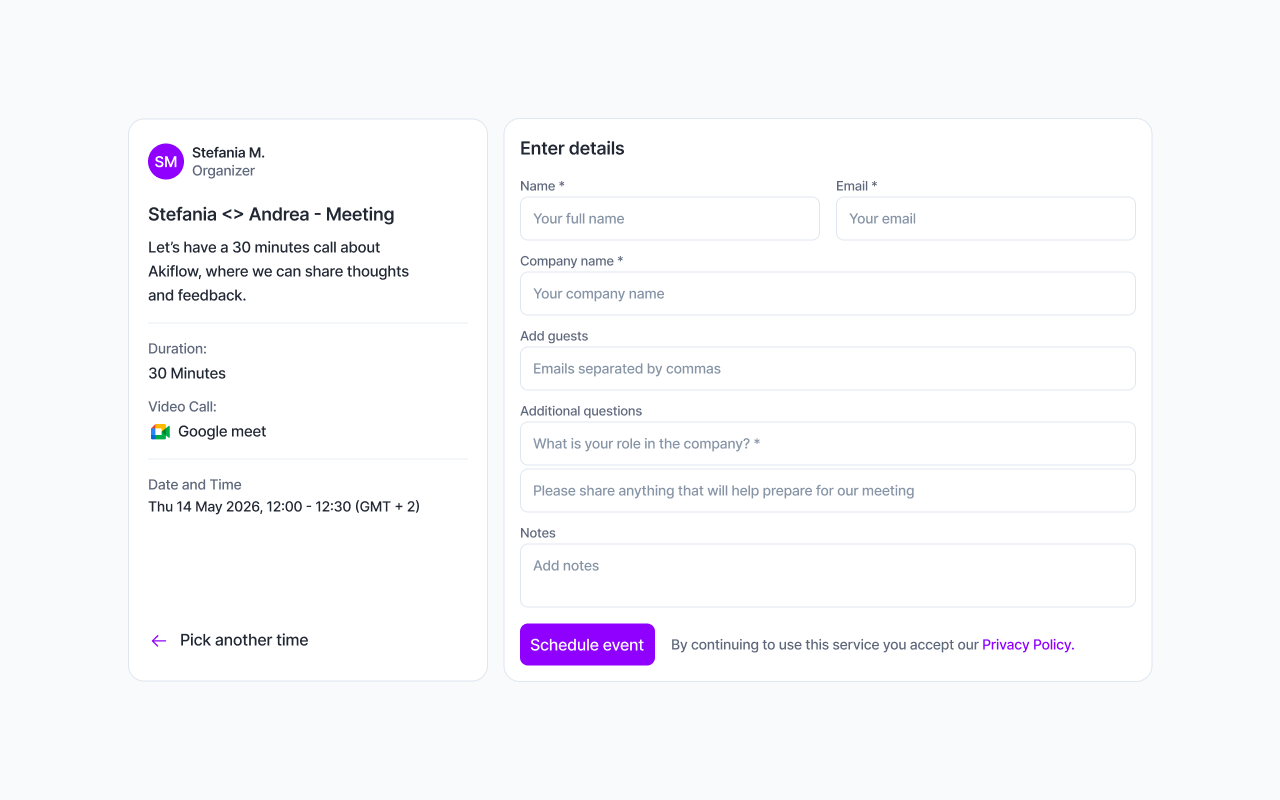
The booking form shows Company name and an Additional questions section before Notes. Required questions are marked with *.
Where you find the answers
In the calendar event, under Guest details in the description. Everyone invited to the event can see them.
In the booking confirmation emails, both yours and your guest's.
Set defaults for new links
Go to Settings → Share availability → Guest questions. Defaults apply only to links you create afterwards; existing links keep their own questions.
You set up guest questions in the desktop and web app.
Additional settings
Avatar
If you want to change your avatar, visible on your booking page, you can change your Google avatar (if you logged in with Google in Akiflow).
Event Settings
In this section of the settings you can choose the event Location, The Event Calendar account on which to schedule your booked meetings and personalize the Event title, Color and the Event link.
Guest questions
Ask guests for their company name and up to 5 custom questions. See Ask your guests questions above.
Locked calendars
Here you can pick which calendars Akiflow should check to see if you already have events on your calendar to prevent guests from booking that slot.
Buffer time
Keep some time between your meetings. You can set up different buffer time default settings from Settings → Share availability for single and recurring slots.
Scheduling conditions
Define a Minimum amount of notice for your guests to book a meeting with you, so you’ll have the time to organize yourself in advance.
You can also set up a Maximum number of events allowed per day, so you won’t end up overbooked.
You can set up different scheduling conditions default settings from Settings → Share availability for single and recurring slots.
Date range
Set a range of dates where guests can book a meeting with you. This will automatically change your availabilities on your booking link page.
Email Reminders
Here you can set up an email reminder for your event guests.
FAQ
Can I paste a link that's not Google Meet or Zoom to my event?
Can I paste a link that's not Google Meet or Zoom to my event?
Yes, you can also paste a link in the Location field (In person > Location) like your Zoom PMI, or any link from any other conferencing tool like Butter, etc.
Can I reactivate an inactive Share availability link? How?
Can I reactivate an inactive Share availability link? How?
Why is my created Share availability link not showing any available hours?
Why is my created Share availability link not showing any available hours?
What happens when someone books a call using your link?
What happens when someone books a call using your link?
When someone schedules a meeting through your booking link, two things happen automatically:
You and your invitee both receive a confirmation email with all the meeting details, including the invitee's answers to your guest questions
The event appears in your calendar instantly, with the answers under Guest details in the description
Currently, the calendar confirmation email sent to invitees uses a standard format and cannot be customized.
Who can see my guests' answers?
Who can see my guests' answers?
Everyone invited to the event, because the answers are added to the event description under Guest details.
Was this helpful?
Still need help? Ask the team