Subtasks
Subtasks let you break a larger task into smaller tasks you can plan, schedule, and complete independently. A parent task keeps the larger context, while each subtask remains a regular Akiflow task. Subtasks are available on desktop and mobile. Use subtasks when a task is too large for one work block, needs several steps, or has pieces you want to schedule across different days.
What you can do with subtasks
With subtasks, you can:
Create smaller tasks under a parent task
Schedule each subtask independently on your calendar
See progress on the parent task, such as 2/5 subtasks done
Open a subtask and navigate back to its parent
Move a subtask to a different parent
Detach a subtask and turn it back into a regular task
Find subtasks in Inbox, Today, Calendar, Search, and Focus Mode
Create a subtask
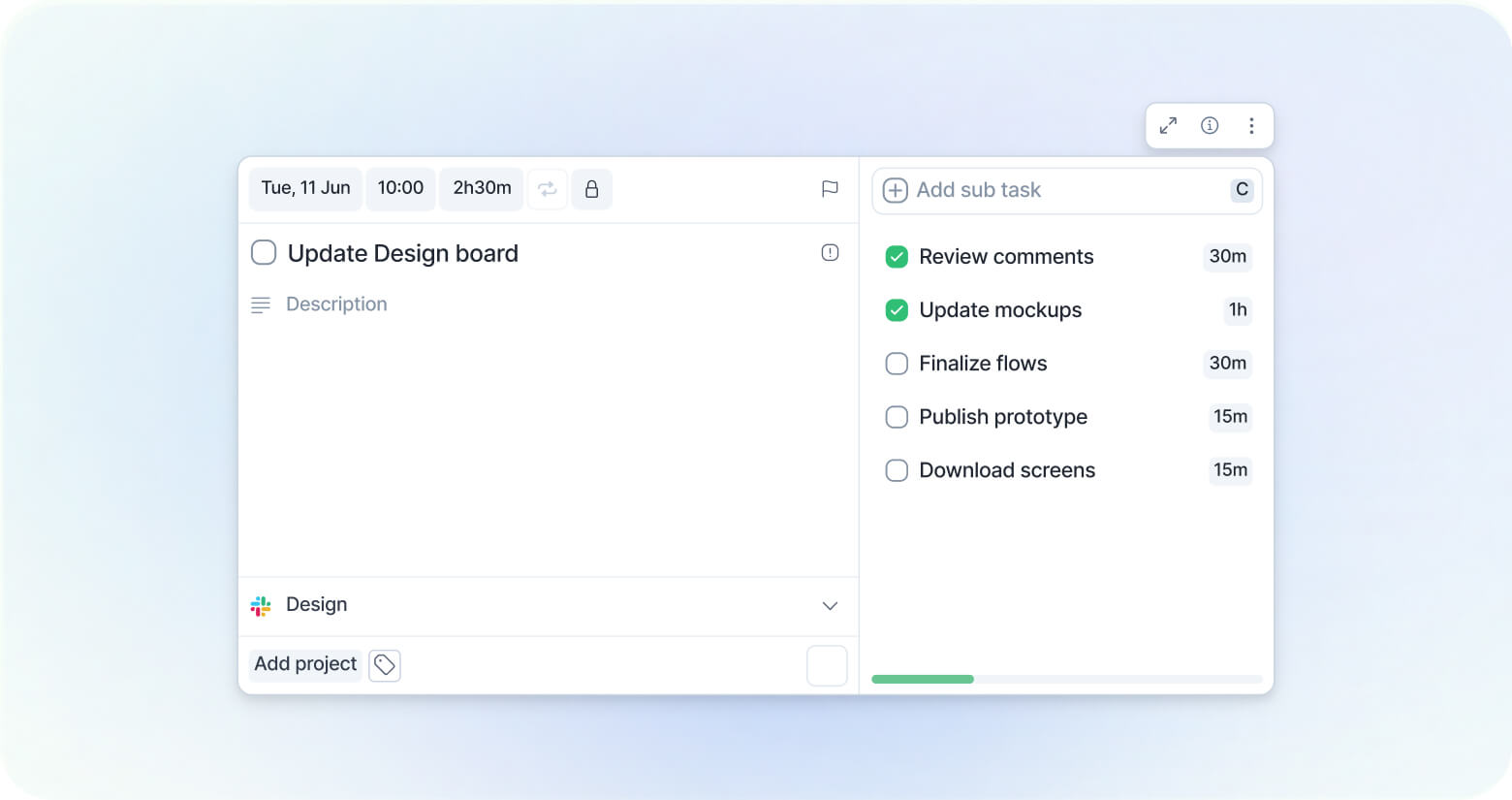
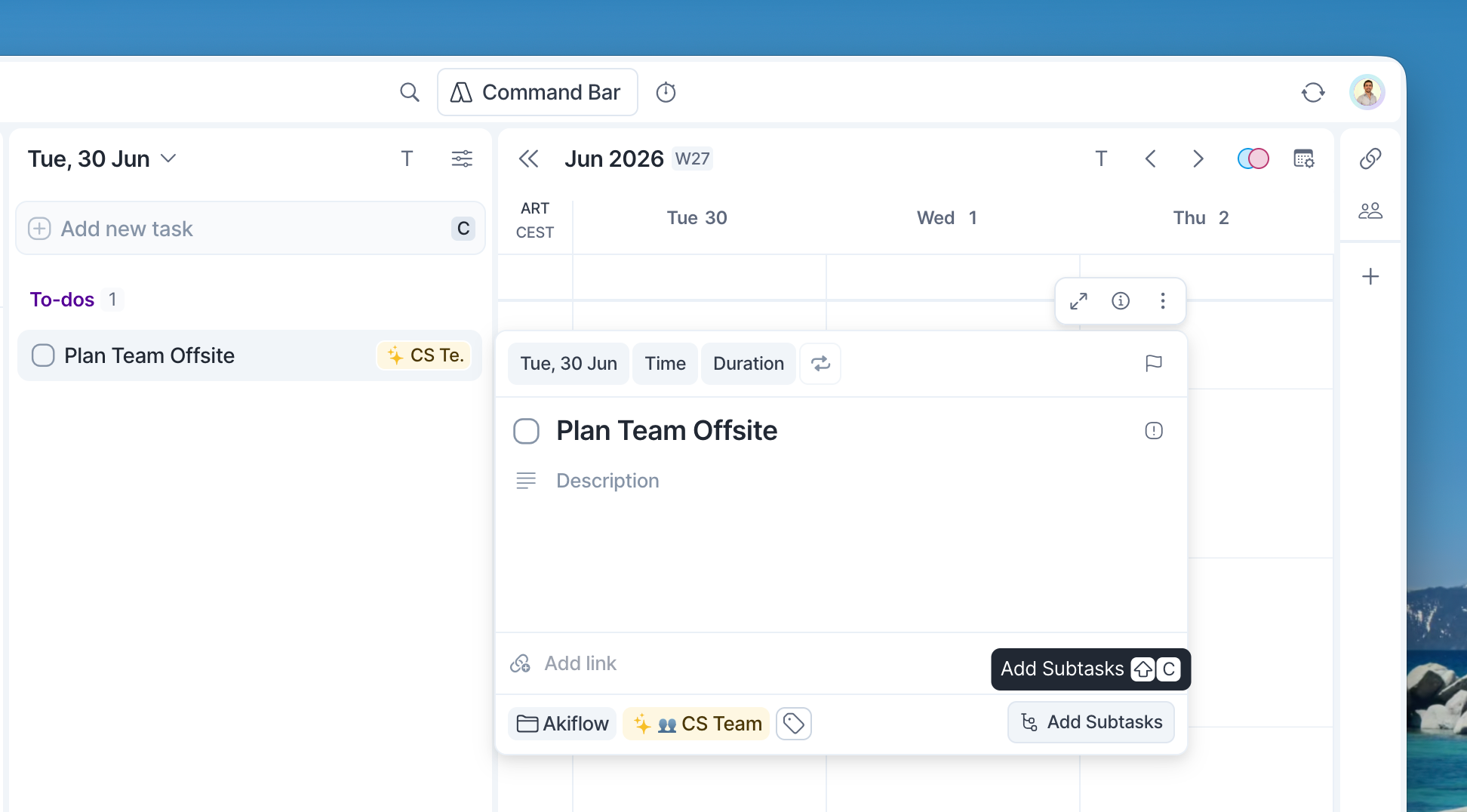
Open the task you want to use as the parent, then select Add subtask. On desktop, subtasks open in a side panel next to the task. On mobile, subtasks open inside the task details. Type the subtask title and create it. A subtask needs a title before it can be added.
When you create a subtask:
It is linked to the parent task
It inherits the parent task's project and tags when possible
If no date is set, it appears in Inbox
You can edit its date, time, duration, project, tags, and other task details later
How subtasks appear in Akiflow
On desktop and web, open a parent task to see the subtask list on the right. Each unfinished subtask shows its current plan, so you can check it without opening the subtask:
Inbox if it has not been planned.
Someday if you have moved it to Someday.
A planned date, time, or time window if you have scheduled it. Overdue styling and Time Slot indicators appear where relevant.
Click a subtask or its badge to open the subtask and edit its plan. Completed subtasks do not show these planning badges in the side panel.
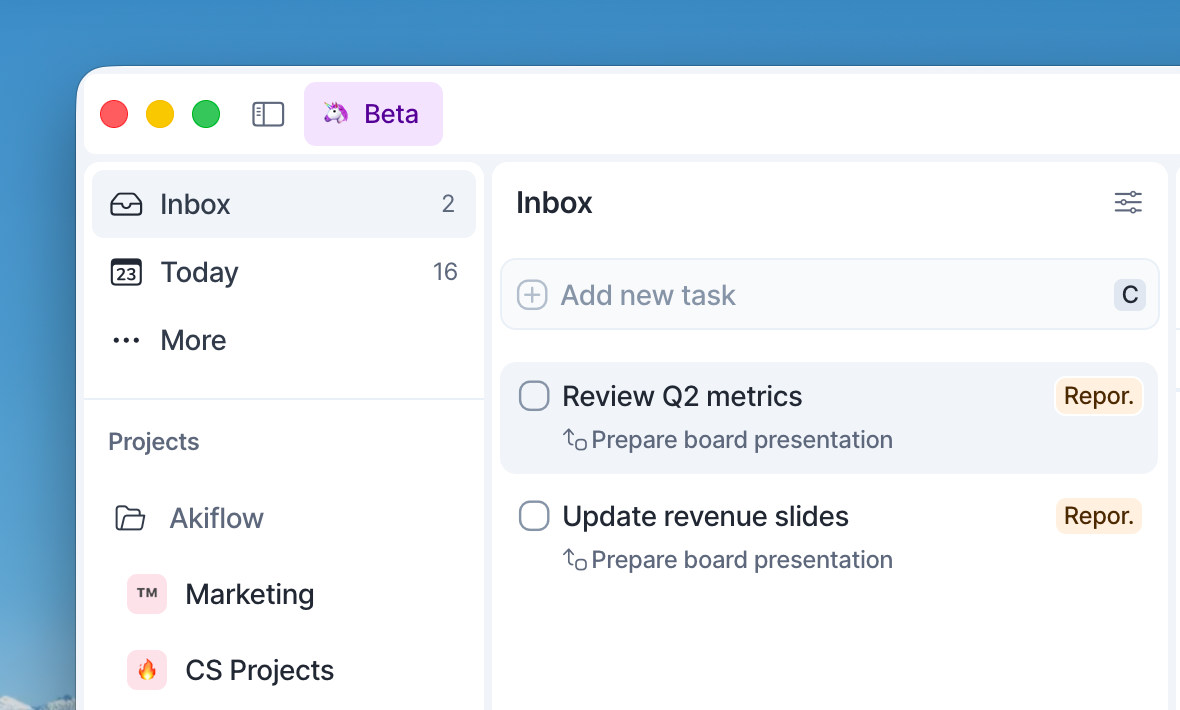
Parent tasks show a subtask counter, like 2/5. This means 2 subtasks are complete out of 5 total.
Subtasks appear as regular task rows with the p
arent task title shown as context. This helps you understand what the subtask belongs to without opening the parent task.
In Inbox and Today, subtasks are shown in the task list. They are not hidden inside the parent task, because each subtask can have its own schedule.
If a subtask is scheduled, it leaves Inbox like any other scheduled task.
On Calendar, a scheduled subtask appears as its own task with subtask context. If related parent and subtask work is scheduled together, Akiflow can show it in a time slot.
In Search and Focus Mode, parent tasks and subtasks keep the same context indicators so you can tell where each task belongs.
Schedule subtasks
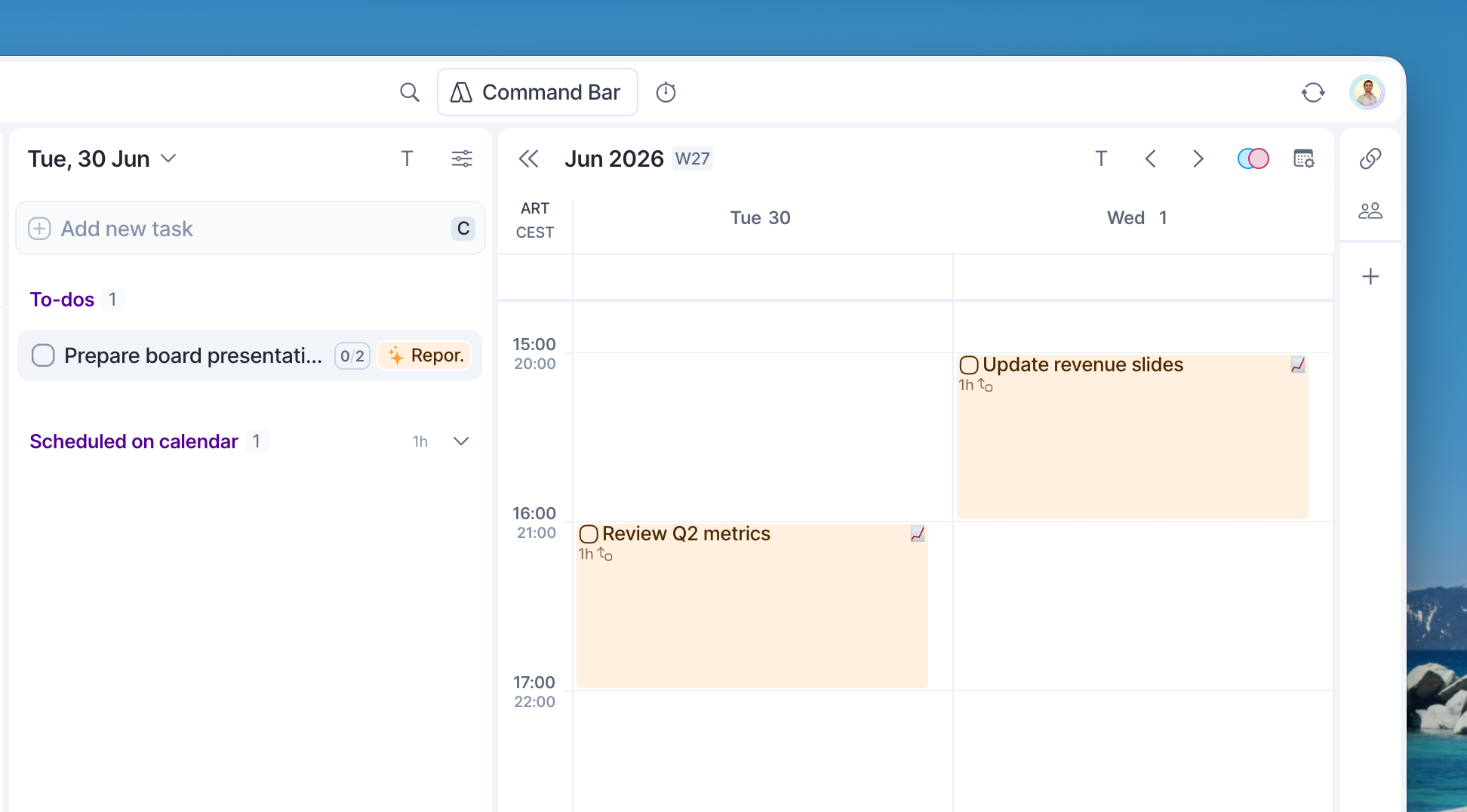
Subtasks are independent tasks. You can schedule a parent task and its subtasks at different times or on different days.
Moving a parent task does not move its existing subtasks. Moving a subtask does not move the parent.
This lets you plan each piece of work separately while keeping the larger task connected.
Change a task's parent
Use the task's three-dot menu to manage subtask relationships.
You can:
Make a task a subtask of another task
Move a subtask to a different parent
Detach a subtask from its parent
Detached subtasks become regular tasks and keep their schedule and details.
Akiflow only shows eligible tasks in the picker. For example, recurring tasks, the current task, and tasks that would create a circular relationship are not available as parent or subtask options.
On desktop, hold Shift while dragging one or more tasks onto another task to create or reorganize subtasks directly from your task lists or calendar.

Complete a parent task
If you complete a parent task while it still has open subtasks, Akiflow asks what to do.
You can:
Just complete the parent: the subtasks stay open and remain attached to the parent
Complete all subtasks: the parent and its immediate subtasks are marked done
When you complete the last open subtask, Akiflow can ask whether you also want to mark the parent task as done. You can mark the parent done or leave it open.
Completion actions affect one level at a time.
Delete a parent task
If you delete a parent task that has subtasks, Akiflow asks what to do.
You can:
Just delete the parent: the subtasks are detached and become regular tasks
Delete all subtasks: the parent and its immediate subtasks are deleted
Deletion actions affect one level at a time.
Recurring tasks
Subtasks and recurring tasks cannot be combined.
You cannot:
Add subtasks to a recurring task
Make a recurring task a subtask
Add recurrence to a parent task that already has subtasks
Add recurrence to a subtask
If an option is unavailable, Akiflow shows it as disabled.
Tips for using subtasks
Use the parent task for the larger outcome
Use subtasks for steps you want to schedule or complete separately
Use checklists for quick notes that do not need their own calendar block
Keep subtask titles clear so they are easy to find in search and schedule
Schedule subtasks across the week instead of duplicating the parent task
Use a parent task as your weekly goal, then create subtasks scheduled on specific days of that week to break the goal into actionable steps and track progress throughout the week.
FAQ
Are subtasks the same as checklists?
Are subtasks the same as checklists?
No. Checklists live inside a task. Subtasks are regular tasks connected to a parent task. They can be scheduled, completed, searched, and managed independently.
Can subtasks have their own date and time?
Can subtasks have their own date and time?
Yes. Each subtask can have its own date, time, and duration.
Does completing all subtasks complete the parent automatically?
Does completing all subtasks complete the parent automatically?
No. Akiflow asks whether you want to mark the parent as done. You can also leave the parent open.
Does completing a parent complete all subtasks automatically?
Does completing a parent complete all subtasks automatically?
No. Akiflow asks whether you want to complete only the parent or complete the subtasks too.
Can I create nested subtasks?
Can I create nested subtasks?
Yes. A subtask can also have its own subtasks. Completion and deletion prompts affect one immediate level at a time.
Can I import subtasks from Todoist, Asana, ClickUp, or another integration?
Can I import subtasks from Todoist, Asana, ClickUp, or another integration?
Not yet. This version supports native Akiflow subtasks. Import and sync for external subtask hierarchies are not included.
Why can't I select a task as a parent?
Why can't I select a task as a parent?
The task may not be eligible. Akiflow blocks options in some cases, such as recurring tasks, the same task, deleted tasks, or a circular parent-child relationship.
Why do new subtasks appear in Inbox instead of inheriting the parent task’s date or time slot?
Why do new subtasks appear in Inbox instead of inheriting the parent task’s date or time slot?
Subtasks can be scheduled independently from their parent task, which is why new subtasks are created in Inbox by default instead of inheriting the parent task’s date or timeframe. This gives you full control over when each subtask should be completed and encourages intentional planning. Since subtasks are designed to be worked on separately from the parent task, you can schedule them across different
Why doesn't the parent task's duration equal the sum of its subtasks' durations?
Why doesn't the parent task's duration equal the sum of its subtasks' durations?
Parent task durations are independent from subtask durations. Akiflow does not automatically add up the durations of subtasks and apply the total to the parent task. This is because subtasks are designed to be planned and scheduled completely independently from their parent task. If you want the parent task to reflect the total estimated work, you'll need to update its duration manually.
Can a subtask belong to a different project than its parent task?
Can a subtask belong to a different project than its parent task?
Yes. New subtasks inherit the parent task's project by default, but you can change a subtask's project at any time. Parent tasks and subtasks can belong to different projects without affecting their relationship.
Was this helpful?
Still need help? Ask the team