Gmail
Go to Settings → Integrations → And click on Gmail!
How to Integrate with Gmail
You can choose how to Import your emails into your Inbox:
Star an email - For every new account connected Akiflow won't import old starred emails. You'll start fresh every time.
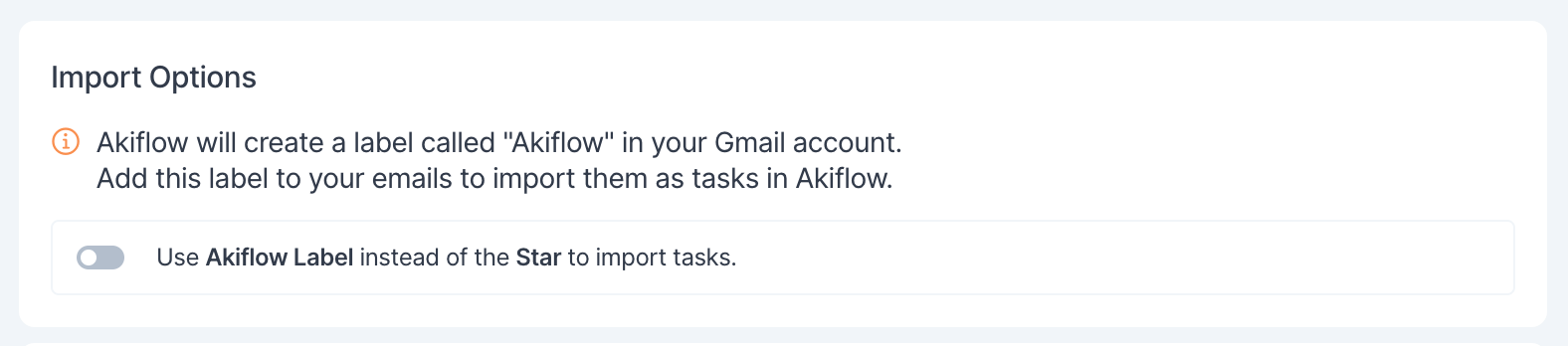
Label - Akiflow will automatically create the “Akiflow” label in Gmail for you.
If you remove a star (or the Akiflow label) from an email in Gmail, the corresponding task in Akiflow will be automatically marked as done!
Pro tip: If you accidentally import too many emails, you can multi-select your tasks to take bulk actions!
Which emails should I import into Akiflow?
Ask yourself: how long does it take to deal with this right now?
< 2 minutes → Do it right now!
> 2 minutes → It's a task! → Push it to your Akiflow Inbox.
Hit O as "Open" on a task to be redirected to the Gmail source email
Choosing Your Email Client
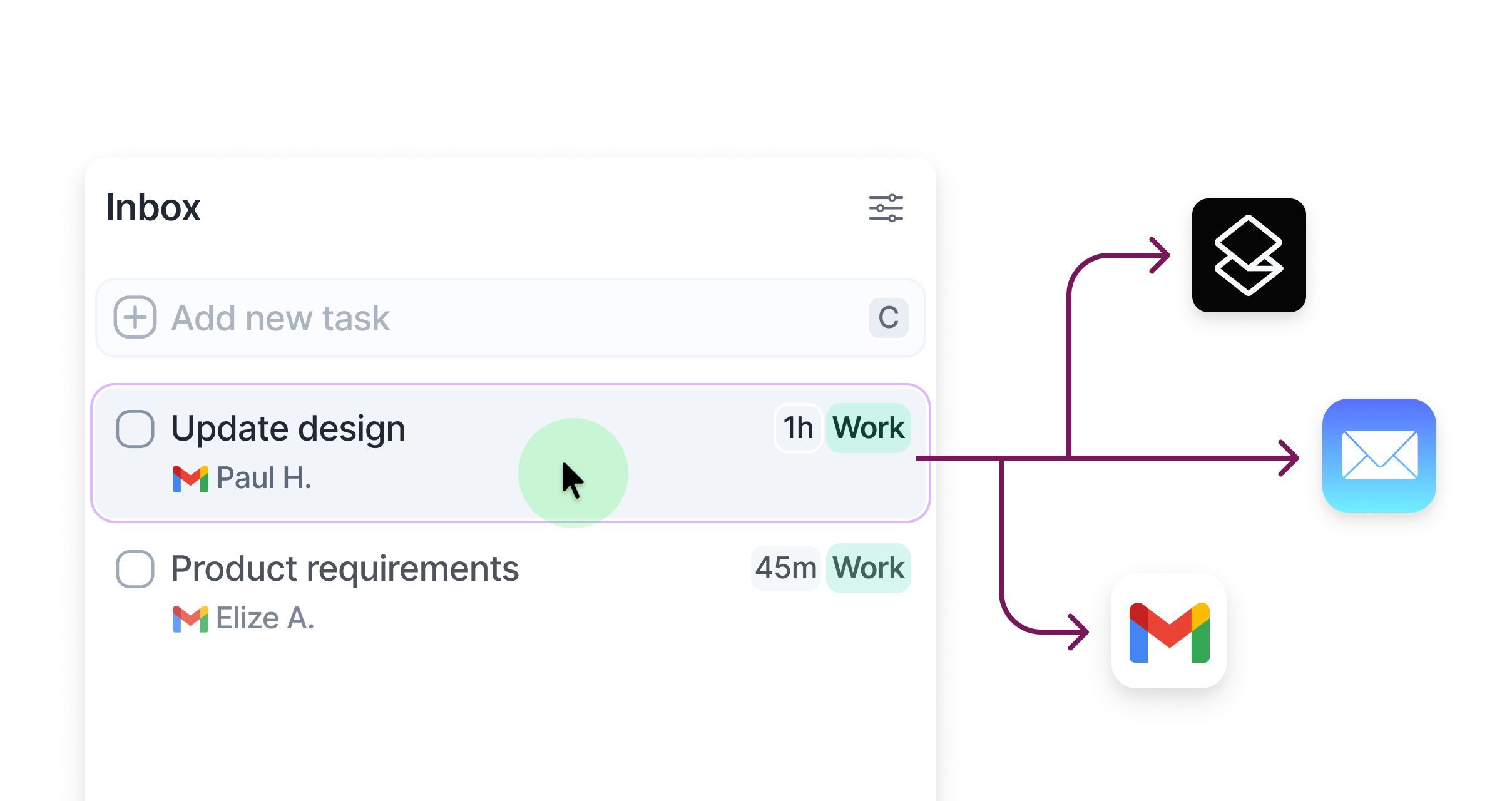
Akiflow lets you customize which email client opens when you interact with Gmail-based tasks, so you can work within your preferred email environment.
Available Email Clients
You can choose from three options:
Gmail - Opens emails in your web browser
Mail - Opens emails in the macOS Mail app
Superhuman - Opens emails in Superhuman
How to Configure Your Email Client
1. Click your avatar at the bottom of the menu and choose Integrations (or open Settings and click Integrations).
2. Select Your Gmail Account. Find your connected Gmail accounts and click on the account you want to configure.
3. Choose Your Preferred Client. Under Default Mail client, pick an option in Open emails with. Your choice is saved automatically.
This setting applies per Gmail account, so if you have multiple accounts connected, you can set different preferences for each. For now, this setting is available on Akiflow web and desktop applications only.
Work & Personal Tags
Work and Personal tags help Aki better understand your email accounts, so we require them to keep everything running smoothly.
To make things easier, Akiflow will automatically update the right tag based on your email provider. If your account is something like gmail.com or yahoo.com, we mark it as Personal. If it looks like a company domain, we mark it as Work.
You can set the tag during onboarding and change it any time in Settings → Integrations: open your Gmail account and pick Personal or Work in Account Type.
Your Work and Personal tags stay in sync across desktop and mobile.
FAQ
Why do you ask for permission to connect to Gmail?
Why do you ask for permission to connect to Gmail?
Akiflow asks for the Read, compose and send emails from your Gmail account permission to import your emails into Akiflow and unstar them or remove their label.
Can I connect more accounts?
Can I connect more accounts?
You can connect as many Gmail accounts as you want!
Can I use something else instead of stars to import my tasks?
Can I use something else instead of stars to import my tasks?
You can use the Akiflow Label. In Settings → Integrations, open your Gmail account and turn on Use Akiflow Label instead of the Star to import tasks.
What happens when I mark a task as done in Akiflow?
What happens when I mark a task as done in Akiflow?
You choose, per Gmail account. Go to Settings → Integrations, open your Gmail account and pick an option in On mark as done:
Unstar the email (Unlabel the email when you import with the Akiflow Label)
Go to Gmail
Do nothing
Ask me every time: a popup lets you choose each time
What happens if I label or star a thread?
What happens if I label or star a thread?
Initial labeling/starring: If you apply a label or star to an entire thread, Akiflow imports only the last (most recent) email in the thread as a task. This keeps your task list focused and avoids duplicating older messages.
New emails in the thread: If additional emails arrive in the same labeled/starred thread, Akiflow automatically imports the newest one as a separate task. This allows you to track ongoing conversations without manual intervention.
Why multiple imports? Threads can evolve with replies (e.g., you respond, the other person replies back), and importing only one email per thread could miss important updates. This design ensures you capture key developments in active discussions.
Managing updates: Each imported email gets its own task, so your list reflects the thread's progression without endlessly updating a single task (which could confuse completion status).
Opting out: If you're no longer interested in updates from a thread, simply remove the label or star from it in your email client. Akiflow can even automate this by removing the label when you mark the related task as done, preventing further imports.
I imported too many emails, what can I do?
I imported too many emails, what can I do?
Pick which emails to delete:
multi-selecting tasks and hit
backspace→ How to bulk edit tasks
Delete all your emails
Go to Settings → Integrations, open your Gmail account, click the ••• (Account options) button and choose Delete all imported tasks. This action will delete all the tasks imported so far from Gmail in Akiflow. Nothing will happen to your source emails in Gmail.
When I delete a task on Akiflow, what happens to my email?
When I delete a task on Akiflow, what happens to my email?
When you delete a task on Akiflow, nothing happens to the source task (your email).
How are Gmail and Akiflow synched?
How are Gmail and Akiflow synched?
Akiflow and Gmail are 2-way synched. Akiflow imports your emails when you star/label them.
You can unstar an email by marking the respective task as done.
If you remove a star (or the Akiflow label) from an email in Gmail, the corresponding task in Akiflow will be automatically marked as done!
How do I import tasks from Superhuman?
How do I import tasks from Superhuman?
In Akiflow: Go to Settings → Integrations, open your Gmail account and turn on the Use Akiflow Label toggle.
In Superhuman: Select the message you would like to label, then hit Cmd+K or Ctrl+K → Label or L.
Type Akiflow and add the label to your email.
You will see your email appearing as a task automatically in your inbox
How do I import Gmail messages while using Apple Mail?
How do I import Gmail messages while using Apple Mail?
These steps apply to a Gmail account viewed in Apple Mail. Connecting iCloud Calendar does not import iCloud Mail messages.
In Akiflow: Go to Settings → Integrations, open your Gmail account and make sure Use Akiflow Label is off, so emails are imported with a star.
In Apple Mail: Inside your email click on the flag you will find on the top section.
You will see your email appearing as a task automatically in your inbox.
Why am I still seeing the reconnect pop-up after removing my Google account?
Why am I still seeing the reconnect pop-up after removing my Google account?
Google Calendar and Gmail are connected to Akiflow as two separate integrations, even if they use the same Google account.
This means each integration has its own connection and permissions. If one of them becomes disconnected, you'll see a reconnect prompt specifically for that integration.
For example:
If your Gmail connection needs to be reconnected but your Google Calendar connection is still working, removing or reconnecting Google Calendar won't resolve the issue.
Likewise, if your Google Calendar connection requires attention, removing or reconnecting Gmail won't remove the pop-up.
To stop seeing the reconnect prompt, make sure you reconnect or remove the specific integration that is requesting authorization. You can check the status of each integration separately in Settings → Integrations.
Was this helpful?
Still need help? Ask the team