Command bar
The Command Bar is the fastest way to create and edit tasks/events in Akiflow. You can open it from anywhere on your laptop.
How to open it?
The desktop app’s default global shortcut is Cmd + E on macOS and Ctrl + E on Windows. You can change it in Settings → Shortcuts. While Akiflow is focused, you can also use Cmd + K on macOS or Ctrl + K on Windows. In the web app, Cmd/Ctrl + K is the default shortcut.
Desktop only: To open the Command Bar and capture your tasks from everywhere, download our desktop app. Download it here.
Tasks & Events in the Command Bar
Create a task
With the command bar opened, you can type the task's name and just hit ENTER to add the task straight to the Inbox.
Create an event
With the command bar opened, you can type the event's name and select the "New Event" option from the suggestions.
Create a Zoom meeting
Simply type “Zoom”, and the command bar will prompt you to create a new meeting.
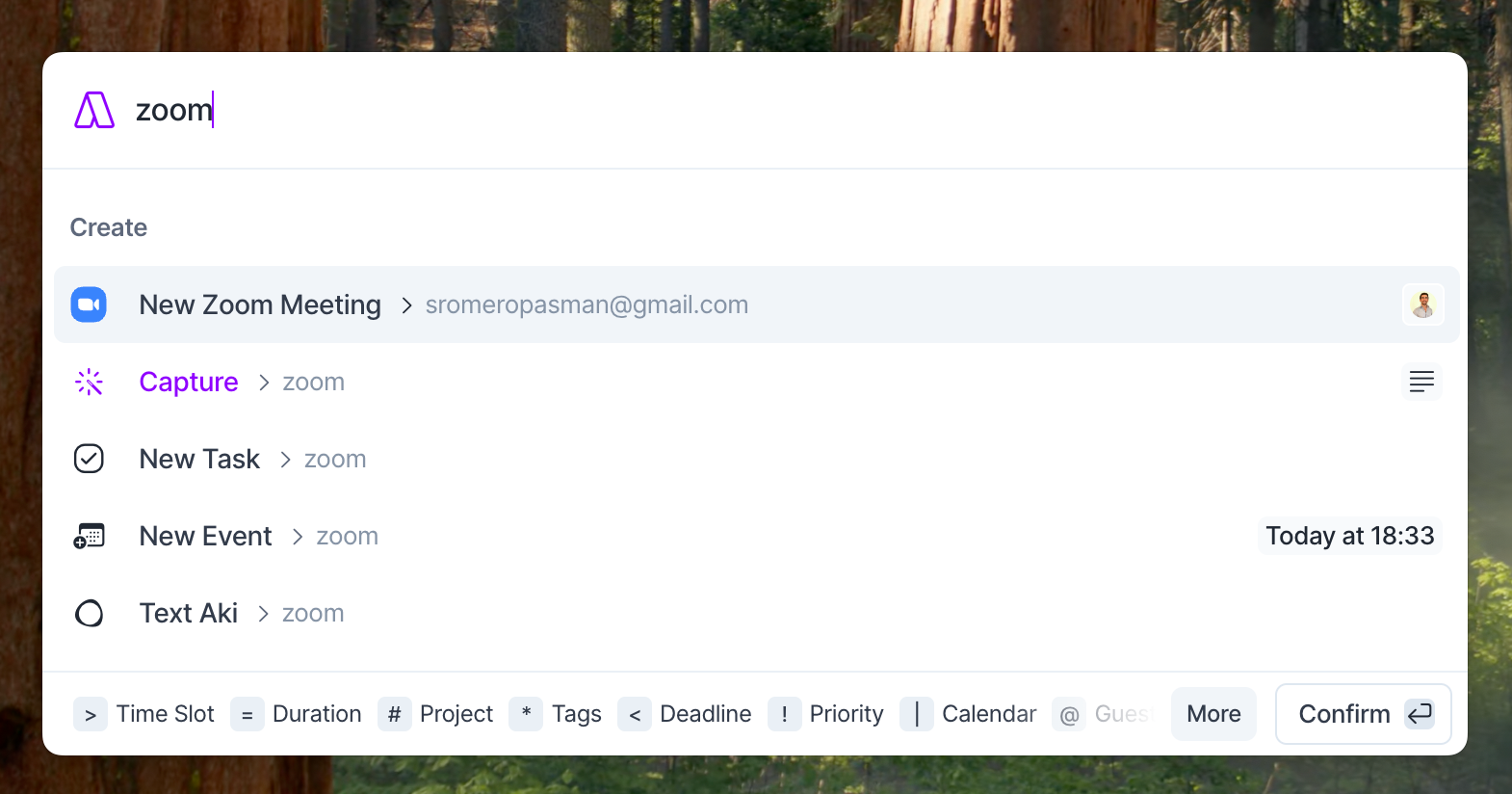
Join a meeting using the command bar: If a meeting is about to begin, you can open the command bar and the first suggestion would be to join the meeting.
Schedule Tasks, Time Slot and Events
You can add a date and time to schedule any elements while creating them. For tasks and slots, you can also use the shortcut P to plan and replan them.
Special Characters & Natural Language
Use the Special Characters and Natural Language to add information to tasks and events quickly in the command bar.
Special Characters
> assign task to time slot
= task/event duration
# task project
* task tags
< task deadline
! task priority
| task/event calendar (lock a task and change the event calendar)
@ event guests
// task/event description
ESC removes recognition
Natural Language
Specific date 6/6, June 6
Day of the week Monday, Tuesday
Expression Tomorrow, Every Week
You can find the special characters at the bottom of the Command Bar:
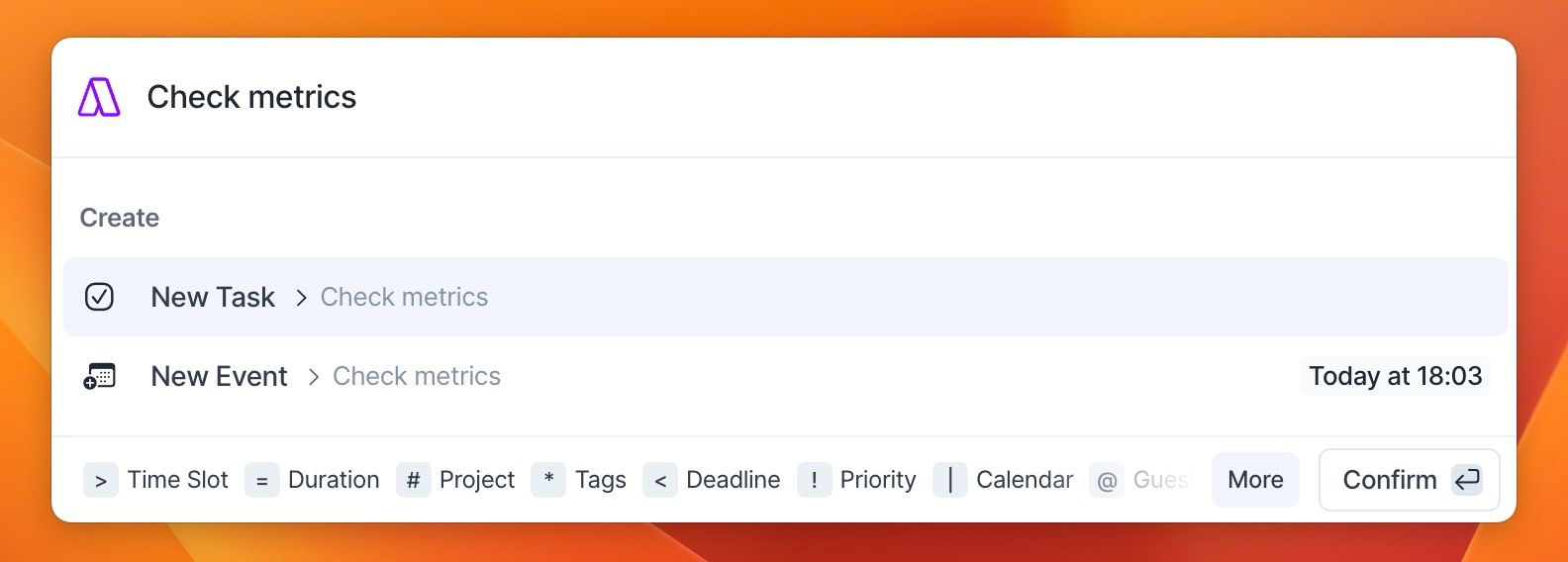
Tip: Combine special characters with natural language to create tasks and events in seconds!
The Capture feature
When to capture from your browser:
Save tasks from all tools not integrated with Akiflow yet.
Articles you want to read or tools you want to check.
How does it work?
Select any text on a web page and copy it to the clipboard (
Ctrl/Cmd + C).Now open the Command Bar (
Cmd + Eon macOS orCtrl + Eon Windows) and you'll see the Capture feature.Hit
ENTERto send it to your Inbox.
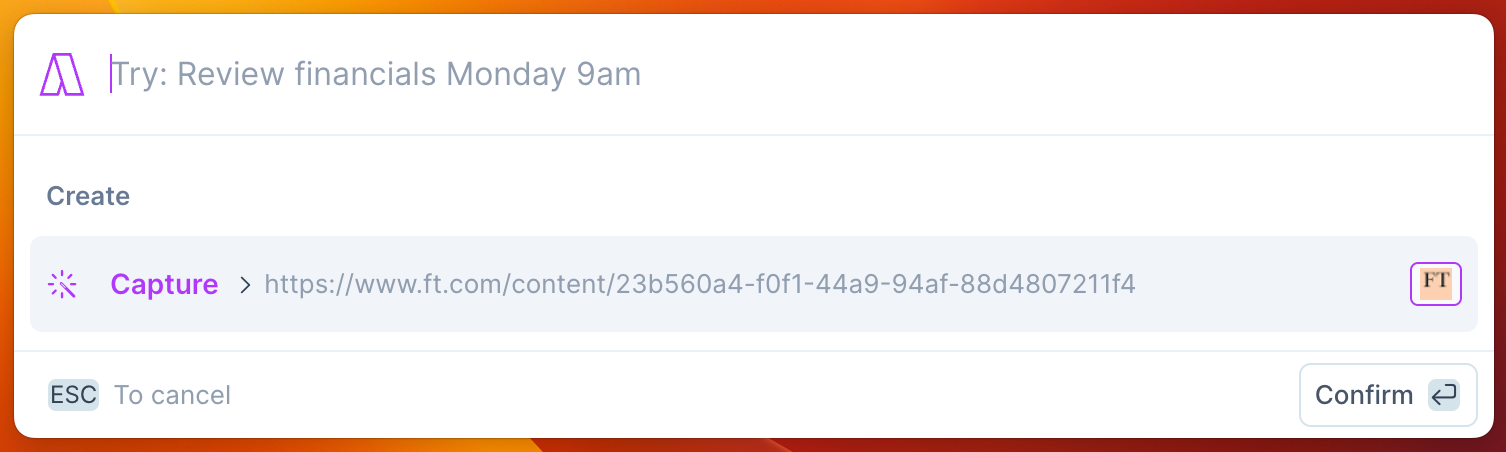
Whenever you need to get back to the source content from the task, just hitOas Open
The Command Bar inside Akiflow
The Command Bar inside of the app shows extra commands for the user to experience.
Go to: Navigate around your Akiflow App. You can pick a specific feature or go directly to a Project or a Tag.
Calendar settings: Quickly adjust your calendar view, time zones, and visibility preferences.
Dark/light Mode: Instantly switch between light and dark themes.
Support & Resources: Access shortcuts, guides, and support directly from the Command Bar.
FAQ
How can I stop Natural Language from being detected when I type?
How can I stop Natural Language from being detected when I type?
If Akiflow recognizes part of your text as Natural Language but you want to keep it as plain text instead (for example, writing "Today" without scheduling the task), simply press ESC while typing.
Pressing ESC cancels the Natural Language detection, allowing you to continue typing without Akiflow interpreting dates or scheduling keywords.
Was this helpful?
Still need help? Ask the team