Akiflow MCP
Akiflow's MCP server connects AI assistants like Claude, ChatGPT, Cursor, and Devin Desktop (formerly Windsurf) to your Akiflow account. Your assistant can manage tasks, subtasks, sections, and tags, read your schedule, create and edit events and time slots, find time with other people, work with files on tasks, and use Meeting Assistant transcripts.
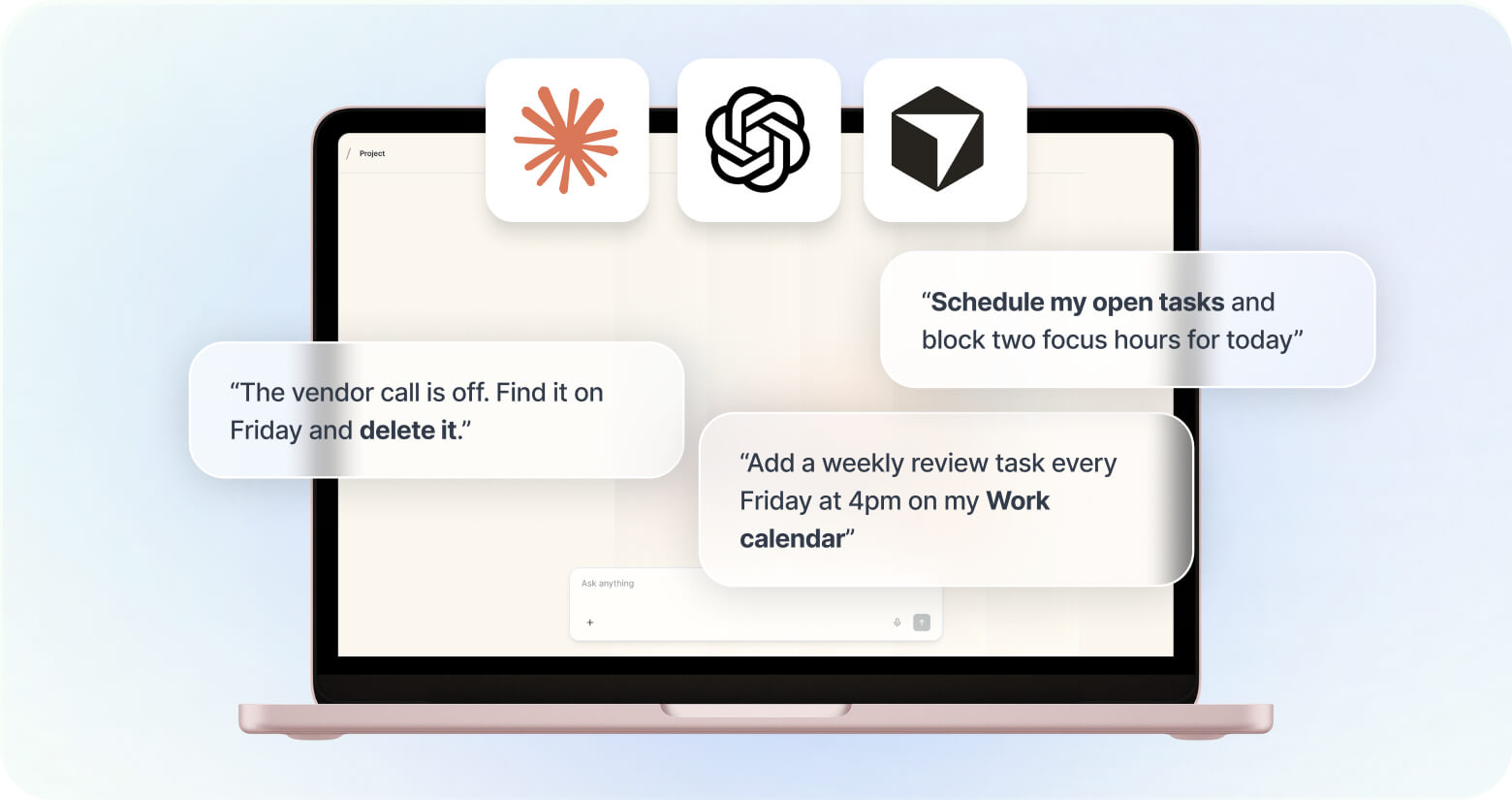
Akiflow MCP connects AI assistants like Claude, ChatGPT, Cursor, and Devin Desktop (formerly Windsurf) to your Akiflow account. Once connected, your assistant can manage tasks and subtasks, read your schedule, create and edit calendar events and time slots, find time with other people, work with files attached to tasks, and use your Meeting Assistant transcripts.
MCP stands for Model Context Protocol, the open standard AI tools use to connect to other apps.
Before you start
Plan: Akiflow MCP is available on all paid plans and during your free trial.
Where you connect: you set up the connection inside your AI tool, not inside Akiflow. Your AI tool asks you to sign in with your Akiflow account.
Server URL: some AI tools ask for a remote MCP server URL. Use the full URL below.
https://mcp.akiflow.com/mcpYou can also copy this URL in the Akiflow desktop app: click your avatar at the bottom of the menu, then Settings > Akiflow MCP.
Connect your AI tool
Pick your AI tool and follow the steps.
Claude
Akiflow is listed in Claude’s connector directory, so you do not need the server URL.
Open Claude in your browser or the desktop app.
Go to Customize > Connectors and open Discover.
Search for Akiflow, open it, and click Connect.
Sign in with your Akiflow account when prompted.
In any chat, check that Akiflow is enabled in the connectors menu.
On Claude Team and Enterprise plans, an owner has to enable Akiflow for the organization before members can connect.
Can’t find Akiflow in the directory? Add it as a custom connector instead: go to Customize > Connectors, click Add, hover Custom, and choose Web. Name it Akiflow, paste https://mcp.akiflow.com/mcp as the remote MCP server URL, and click Add. Free Claude accounts can add one custom connector.
Claude Code
Run this command in your terminal:
claude mcp add --transport http akiflow https://mcp.akiflow.com/mcpThen run /mcp inside a Claude Code session to complete the sign-in.
ChatGPT
ChatGPT connects to Akiflow as a custom app in Developer Mode, which is in beta on ChatGPT on the web. Full access, including creating and editing items, is available on ChatGPT Business, Enterprise, and Edu. On ChatGPT Pro, Developer Mode can only read your Akiflow data. On Business, an admin or owner has to turn on Developer Mode for the workspace first. On Enterprise and Edu, an admin grants it to members.
Open ChatGPT on the web.
Go to Settings > Apps > Advanced settings and turn on Developer mode.
In Settings > Apps, click Create.
Enter the name Akiflow and the MCP server URL
https://mcp.akiflow.com/mcp, and choose OAuth as authentication.Click Scan Tools and sign in with your Akiflow account when prompted.
Click Create.
In a new chat, select Akiflow from the tools menu.
Cursor
Open your Cursor MCP config file:
~/.cursor/mcp.jsonto use Akiflow in every project, or.cursor/mcp.jsoninside one project.Add this and save:
{ "mcpServers": { "akiflow": { "url": "https://mcp.akiflow.com/mcp" } } }Sign in with your Akiflow account when Cursor asks.
Start a chat in Agent mode and try “What’s on my schedule tomorrow?”
If the sign-in fails, check the MCP logs in Cursor’s Output panel.
Devin Desktop (formerly Windsurf)
In the Cascade panel, click the … menu in the top right.
In the MCPs section, click Open MCP config file.
Add this and save:
{ "mcpServers": { "akiflow": { "serverUrl": "https://mcp.akiflow.com/mcp" } } }Sign in with your Akiflow account when prompted.
Other AI tools
AI tools that support remote MCP servers with OAuth sign-in can connect to Akiflow. Point your tool to https://mcp.akiflow.com/mcp and follow its documentation for adding a custom MCP server.
If your tool only supports local (stdio) MCP servers, use the mcp-remote package as a bridge:
{ "mcpServers": { "akiflow": { "command": "npx", "args": ["-y", "mcp-remote", "https://mcp.akiflow.com/mcp"] } } }What you can do with Akiflow MCP
Once connected, ask your AI assistant in plain language. The examples below are things you can say.
Tasks
Create tasks in your Inbox, in Someday, or planned for a day, a time, a whole week, or a whole month. “Create a task to review the Q3 report, due Friday.”
Read your lists. “What is in my inbox right now?”, “Show my someday tasks”, “Show my overdue tasks”, “Show my high-priority tasks.”
Update tasks: priority, duration, deadline, description, links, project, section, and tags. “Set this to high priority”, “Add a 45 minute duration.”
Plan and reschedule. “Plan this for next week”, “Move this to June”, “Schedule this tomorrow at 9”, “Move this back to my inbox.”
Complete tasks, and review what you finished. “Mark the report task as done”, “Which tasks did I complete this week, and when?”
Create and manage subtasks. “Create a task called Launch website with the subtasks Write copy, Review pricing, and Publish page”, “Move Review pricing under Launch website.”
Create recurring tasks. “Create a task to send the weekly report every Friday at 4.”
Organize with projects, sections, and tags. Your assistant can assign tasks to them, and create or rename sections and tags. “Create an Ideas section in Marketing and move this task there”, “Create a tag called Waiting.”
Add a location: a street address, place name, or meeting link. “Add Via Roma 1, Milano to my dentist task.”
Files on tasks
See and read attached files. Your assistant can read images (JPEG, PNG, GIF, WebP) and text files such as plain text, CSV, JSON, and Markdown. For other files, such as PDFs, Word documents, and spreadsheets, it gets a download link but cannot read the content.
Attach a file to a task. This works in AI tools that can open files on your computer and upload them, such as Claude Code or Cursor. A task holds up to 10 files of 25 MB each, within your storage limit.
Delete a file. Deleting a file is permanent and cannot be undone.
A file attached to a recurring task is attached to the whole series.
Calendar events
Read your schedule across the calendars visible in Akiflow. “What does my day look like tomorrow?”, “Show meetings with guests next week”, “Who is invited to this meeting?”
Create events: timed, all-day, or recurring, on the calendar you name. “Block 2 hours tomorrow morning for deep work”, “Create that event on my work calendar.”
Edit or cancel events. “Move my 3pm meeting to tomorrow”, “Add Alex as a guest”, “Add a meeting link”, “Cancel this event.”
Find time with other people. “Find 30 minutes with alice@company.com tomorrow afternoon.” Give your assistant the email addresses, up to 10 people per request.
Respond to invitations on Google Calendar or Outlook: accept, decline, or Maybe. “Accept tomorrow’s team meeting”, “Decline my invitations next week while I’m away.”
About finding time: what your assistant sees depends on what your connected Google or Outlook accounts can see. For calendars shared with you, it sees event details. Otherwise it sees only busy and free blocks, and it tells you when someone’s availability is not visible at all.
About invitations: for recurring invitations, say whether you mean one occurrence or the whole series. Occurrences you already answered keep their own response. RSVP is unavailable for view-only calendars and for iCloud, and you cannot RSVP to an Outlook meeting you organize. Declining is never treated as canceling: canceling a meeting you organize is a separate request that affects everyone.
Time slots
Create and edit time slots. “Create a 90 minute time slot tomorrow at 9 for the report.”
Put tasks inside a time slot, or link a time slot to a project.
Choose which calendar a time slot is locked to. “Lock it to my work calendar.” This works for single time slots, not recurring ones.
Moving a time slot moves the tasks inside it.
Meeting transcripts
If Meeting Assistant recorded the meeting, your assistant can list recent recordings and read the full transcript. “Summarize my last meeting”, “What were the action items from my 10am call?”, “Find the transcript for this calendar event.” Transcript access is read-only.
Not supported yet
These actions are not available through Akiflow MCP today. Do them in Akiflow instead.
Showing all tasks in a project. Your assistant can list your projects, and each task it reads shows its project, but it cannot ask Akiflow for one project’s tasks. Some AI tools work around this by reading your tasks and filtering them on their side.
Creating, renaming, or deleting projects and folders.
Deleting or merging tags, deleting, reordering, or moving sections, and changing colors or icons.
Deleting time slots, unlocking a time slot from its calendar, and creating recurring time slots.
Editing a whole recurring series. Your assistant edits one occurrence of a recurring task, event, or time slot at a time, and cannot add or change the repeat rule of an existing task. It can cancel a whole recurring event series.
Recurring tasks as parents or subtasks, and reordering subtasks.
Reading the content of PDFs, Word documents, and spreadsheets attached to tasks.
Travel Time on events.
RSVP on iCloud and view-only calendars.
Tips for getting the most out of Akiflow MCP
Use clear task titles. Your assistant relies on titles to understand what each task is about.
Be specific about timing. Say whether you want a task planned for an exact time, a whole day, a whole week, or a whole month.
Name the project, section, tag, or calendar. Your assistant looks them up before creating or editing items.
Ask for a specific date range. Scheduled tasks, events, and time slots are read over a date range of up to about 90 days per request. If something is missing, ask for a period such as “last month” or “next quarter.”
Set task durations. With durations set, your assistant can fit tasks into open calendar time more accurately.
Tell it when not to notify guests. Invitations and updates are sent by default. Say “do not notify guests” for a silent change. Outlook meeting cancellations always notify attendees.
Point at an exact task. Right-click a task in Akiflow and choose Copy Task ID, then paste it into your AI tool.
Start from Akiflow. The Work with AI menu on any task, event, or time slot opens it in Claude or ChatGPT with its context.
Open results in Akiflow. When your assistant creates or finds an item, it returns a link that opens that item in Akiflow.
Confirm before deleting files. Deleted files cannot be restored, so ask your assistant to name the file before it deletes one.
FAQ
Access and privacy
Which Akiflow plan do I need?
Which Akiflow plan do I need?
Akiflow MCP is available on all paid plans and during your free trial.
What can my AI tool see, and is my data safe?
What can my AI tool see, and is my data safe?
Akiflow MCP uses OAuth 2.1. Your AI tool signs in as you and can only reach Akiflow data your account can reach. When it connects, Akiflow shares your name, email, and time zone so the assistant reads your dates correctly. Everything else is sent only when the assistant requests it while you use the connector.
How do I disconnect?
How do I disconnect?
Remove or disable the Akiflow connector in your AI tool’s settings.
Which calendars can my AI tool use?
Which calendars can my AI tool use?
All calendars visible in Akiflow on desktop or mobile, not only the one linked to your sign-in email. A calendar that is connected but hidden is not synced, so MCP cannot read or create events on it. Make the calendar visible in Akiflow and try again. Events on view-only calendars can be read but not changed.
Calendar
Can the AI invite people to calendar events?
Can the AI invite people to calendar events?
Yes. It can invite up to 200 people, and by default Akiflow emails them an invitation, as when you create an event in the app. To add the event without notifying anyone, tell your assistant not to send invites. You can also ask for silent edits. Outlook meeting cancellations always notify attendees.
Can the AI add conference links?
Can the AI add conference links?
Yes. When you create an event with guests, Akiflow attaches the default conference tool of that calendar account, such as Google Meet, Zoom, or Microsoft Teams. If the account’s default is no conferencing, nothing is added. You can also ask your assistant to add or remove a meeting link on an existing event.
Can the AI edit recurring tasks or events?
Can the AI edit recurring tasks or events?
It can create them, and it can edit, move, or cancel a single occurrence. It can also cancel a whole recurring event series and RSVP to a whole event series, but it cannot edit a whole series. State the scope clearly, especially when responding to or canceling recurring events.
Tasks
Can the AI delete my tasks, files, or events?
Can the AI delete my tasks, files, or events?
Tasks are moved to Trashed instead of being deleted. Restore them in the desktop or web app: hover Tasks in the menu and open Trashed. A restored task goes back to your Inbox. Trashed tasks are removed automatically after 30 days.
Files attached to tasks are deleted permanently.
Calendar events are canceled, which removes them from your calendar. Whether they can be recovered depends on your calendar provider, not Akiflow.
What is the difference between planning a task and setting a deadline?
What is the difference between planning a task and setting a deadline?
Planning is when you intend to do the task: a date, a specific time, a whole week, or a whole month. A deadline is when the task is due, and a task can have one even while it sits in your Inbox or Someday. In MCP, overdue views are based on missed planned dates or times, not on deadlines alone.
Can the AI plan work in the past?
Can the AI plan work in the past?
Yes, when you explicitly ask. This is useful for backfilling, correcting records, or organizing work that already happened.
How do subtasks work through MCP?
How do subtasks work through MCP?
Subtasks are regular Akiflow tasks connected to a parent, not a checklist in the description. Your assistant can create, read, edit, plan, complete, delete, move, and detach them. Subtasks stay independent: completing a parent does not complete its subtasks, and trashing a parent detaches its direct subtasks instead of deleting them.
Troubleshooting
I connected successfully but my AI cannot find my tasks.
I connected successfully but my AI cannot find my tasks.
Inbox and Someday tasks are always available. Scheduled tasks, events, and time slots are read over a date range of up to about 90 days per request. If something falls outside the range the assistant checked, ask it to look at a specific period, for example “look at last month.” If you have the item’s ID, ask the assistant to open that item directly.
My AI tool says a parameter was invalid. What should I do?
My AI tool says a parameter was invalid. What should I do?
Akiflow MCP rejects unknown or contradictory fields instead of guessing. Rephrase the request and make the placement clear. Say “put this in my inbox” or “plan this for tomorrow at 9”, but not both in the same instruction.
My AI tool is not listed here. Can I still connect?
My AI tool is not listed here. Can I still connect?
Yes, if it supports remote MCP servers with OAuth sign-in. See Other AI tools above.
Was this helpful?
Still need help? Ask the team