How to create tasks
Learn all the ways to create new tasks in Akiflow using the Command Bar, integrations, or quick actions to plan your work faster.
You can create tasks from different sources
Integrations
Import tasks automatically from your favorite tools into Akiflow. Once connected, new tasks will appear in your Inbox or on their scheduled dates if already planned.
For example, capture emails as tasks from Gmail, or import existing tasks from Todoist and ClickUp to keep everything organized in one place.
Dropping files on desktop or web
Drag local files into Akiflow’s main window to create tasks in your Inbox. Each accepted file creates a separate task named New task with attachment. The file is attached to the task. You can rename the tasks afterward.
One drop creates up to 10 tasks. Dropping a file over the calendar does not schedule it. Dropping files inside an open task window adds them to that task instead.
Stay online to upload the files. If you drop files while offline, Akiflow can create the tasks without their attachments. Add the files again after reconnecting.
Sharing files on iOS or Android
Open a file or select files in another app.
Open that app’s Share menu.
Choose Akiflow.
Akiflow opens your Inbox and creates one task containing the accepted files, up to 10 attachments. Tap View in the creation message, or open the task from Inbox, to review the files and edit the title.
Both methods use your account’s attachment availability and storage limits, with a maximum of 25 MB per file. Check any warnings for skipped files, and keep Akiflow open until uploads finish. Read more in Attach files to a task.
Command Bar
Press Cmd E on Mac / Ctrl E on Windows from anywhere (desktop app), or Cmd K / Ctrl K inside Akiflow, to open the Command Bar. Type what you need and hit Enter to create a new task.
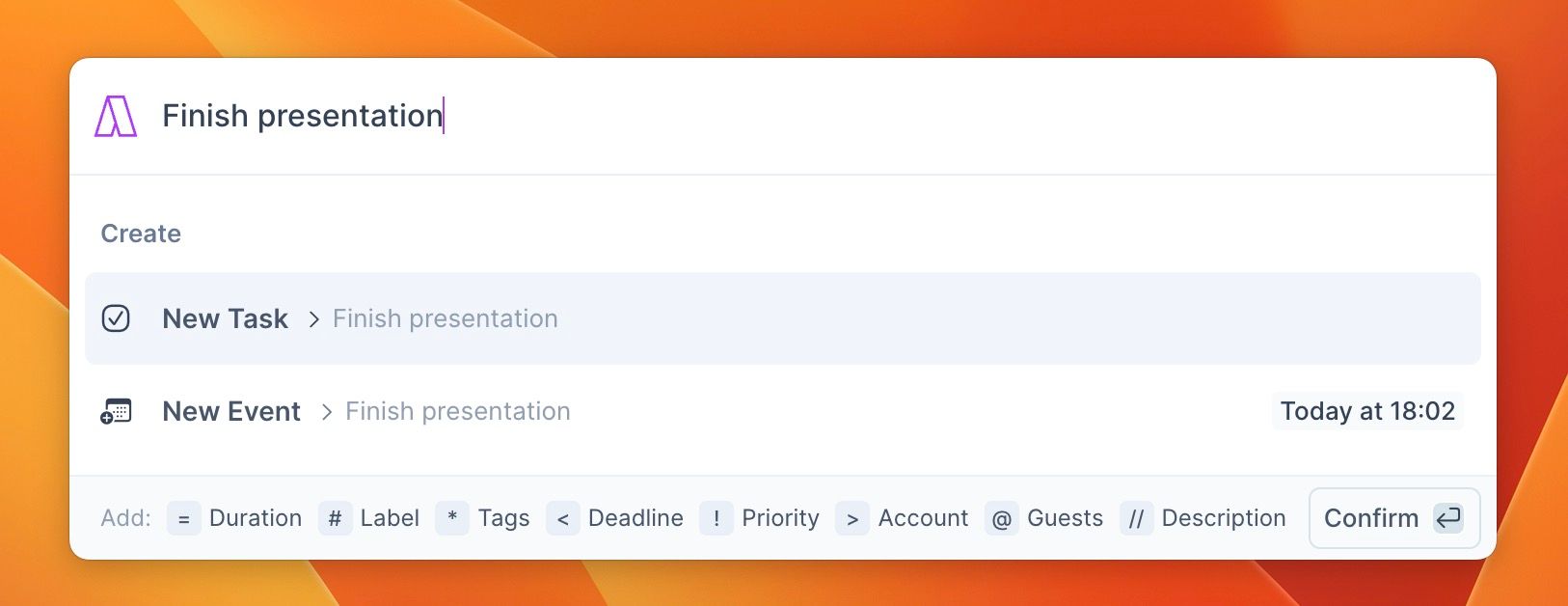
The Capture feature
Use the Command Bar to quickly fetch links by only copying a short text from the website. Check out how it's done here: Command Bar
Using shortcuts
In the task list: press
Cor click the Add new task field.In the calendar:
Cmd+ click on Mac /Ctrl+ click on Windows to start creating a task.
Directly from the calendar
Right-click on the calendar and pick Add new task.
By default, a click creates an event,
Cmd/Ctrl+ click a task, andOption/Alt+ click a time slot. You can change these in Settings > Shortcuts.
Deleted Tasks
To recover deleted tasks, hover Tasks in the left menu and open Trashed in the Tasks panel. Select the tasks, right-click and choose Restore to move them back to your Inbox.
When deleting a project, you can choose one of the following options:
Just delete the project → Tasks will remain active, but the project will be removed from them.
Mark all tasks as done → All tasks inside the project will be marked as completed.
Delete incomplete tasks → Only incomplete tasks will be deleted. Deleted tasks can still be recovered from Trashed in the Tasks panel.
FAQ
Can I disable Natural Language Processing for dates like Today or Tomorrow?
Can I disable Natural Language Processing for dates like Today or Tomorrow?
No. At the moment, Natural Language Processing (NLP) for date and time detection cannot be disabled in Akiflow.
Akiflow automatically recognizes keywords and date expressions such as:
• “Today” or “Tomorrow”
• Shortened versions like “Tod” or “Tom”
• Other natural language time frames like “This Week,” “Next Week,” or “This Month”
This behavior is built into Akiflow’s task scheduling system and currently cannot be turned off.
Was this helpful?
Still need help? Ask the team