Settings
The Settings page allows you to manage your account, connect your integrations, and fine-tune your notifications and other details based on your workflow. This guide will walk you through each setting.
Click your avatar at the bottom of the menu on the left and choose Settings, or press Cmd , on Mac (Ctrl , on Windows).
Account
Here you can see everything related to your account: your name, the email associated to your account, etc. Read more about it here: Your Account
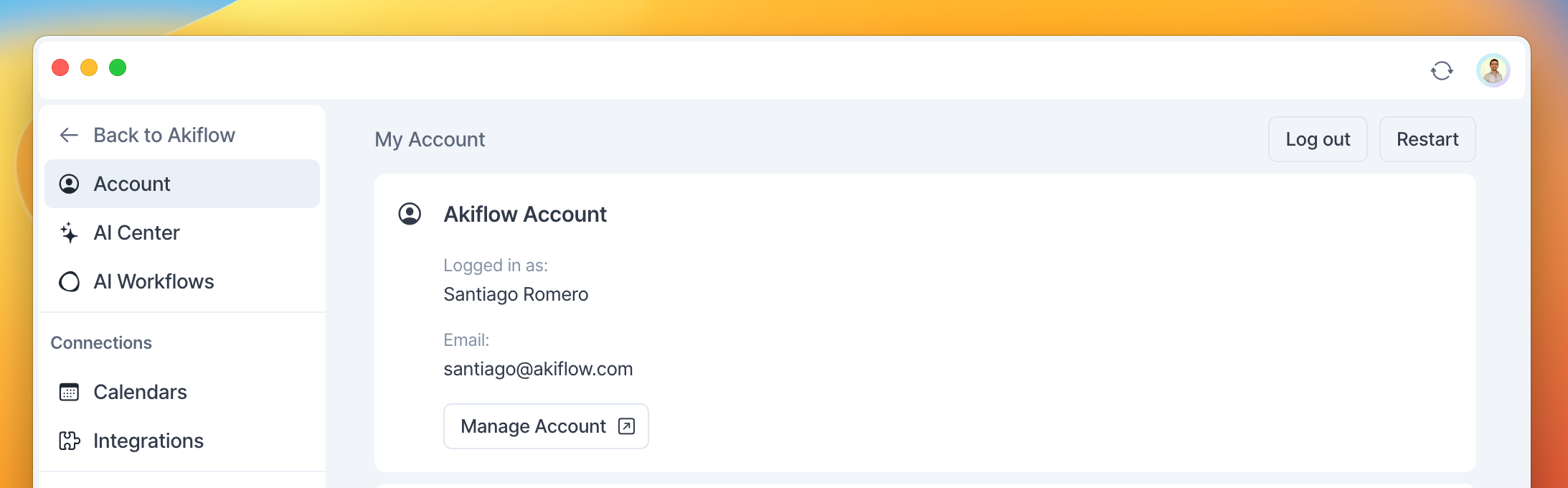
AI Center
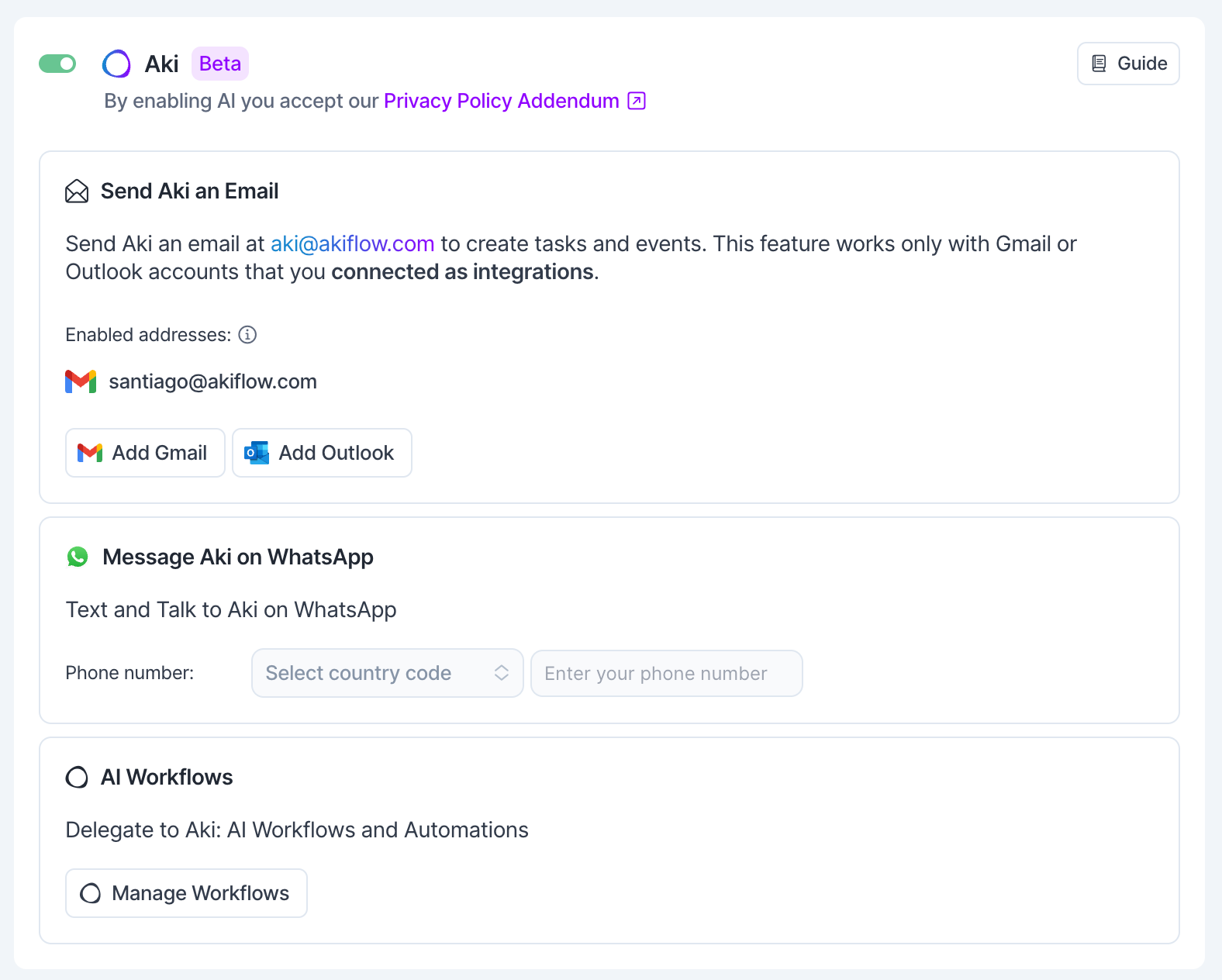
Set your settings related to Aki and AI Project Assignment.
On Mobile: One master switch controls all AI features, so you can enable or disable everything Aki-related from a single setting.
AI Workflows
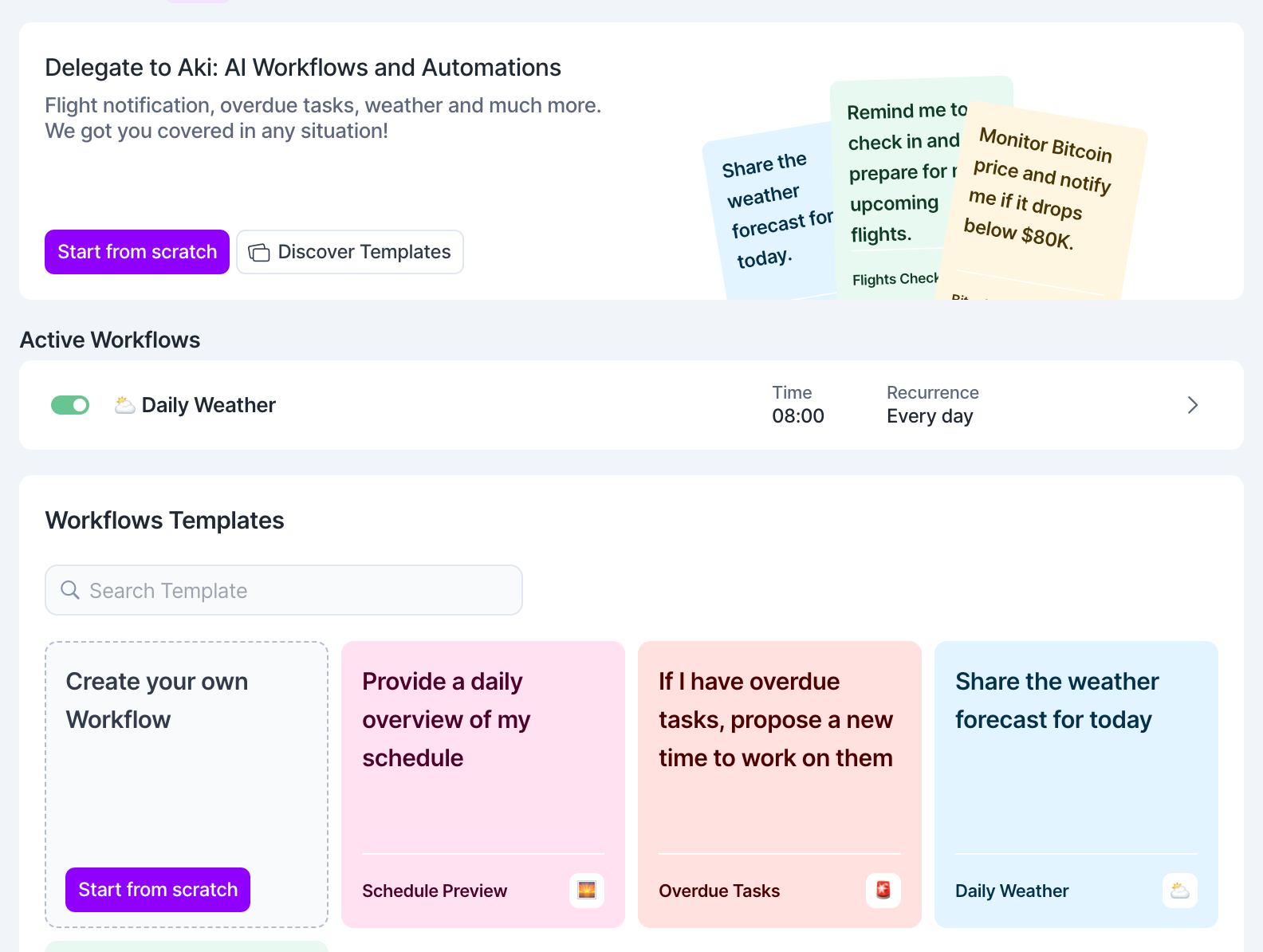
Access and manage all your automated workflows with Aki in one place. See your active workflows and access a library of workflows templates.
Calendars
Connect Google Calendar, Outlook Calendar, and iCloud Calendar. Open Settings → Calendars → Add calendar to connect an account. Choose which calendars to display, customize their colors, set shortcuts to show or hide them, and control reminders for calendar events. Follow the linked guides for connection steps and supported calendars.
Integrations
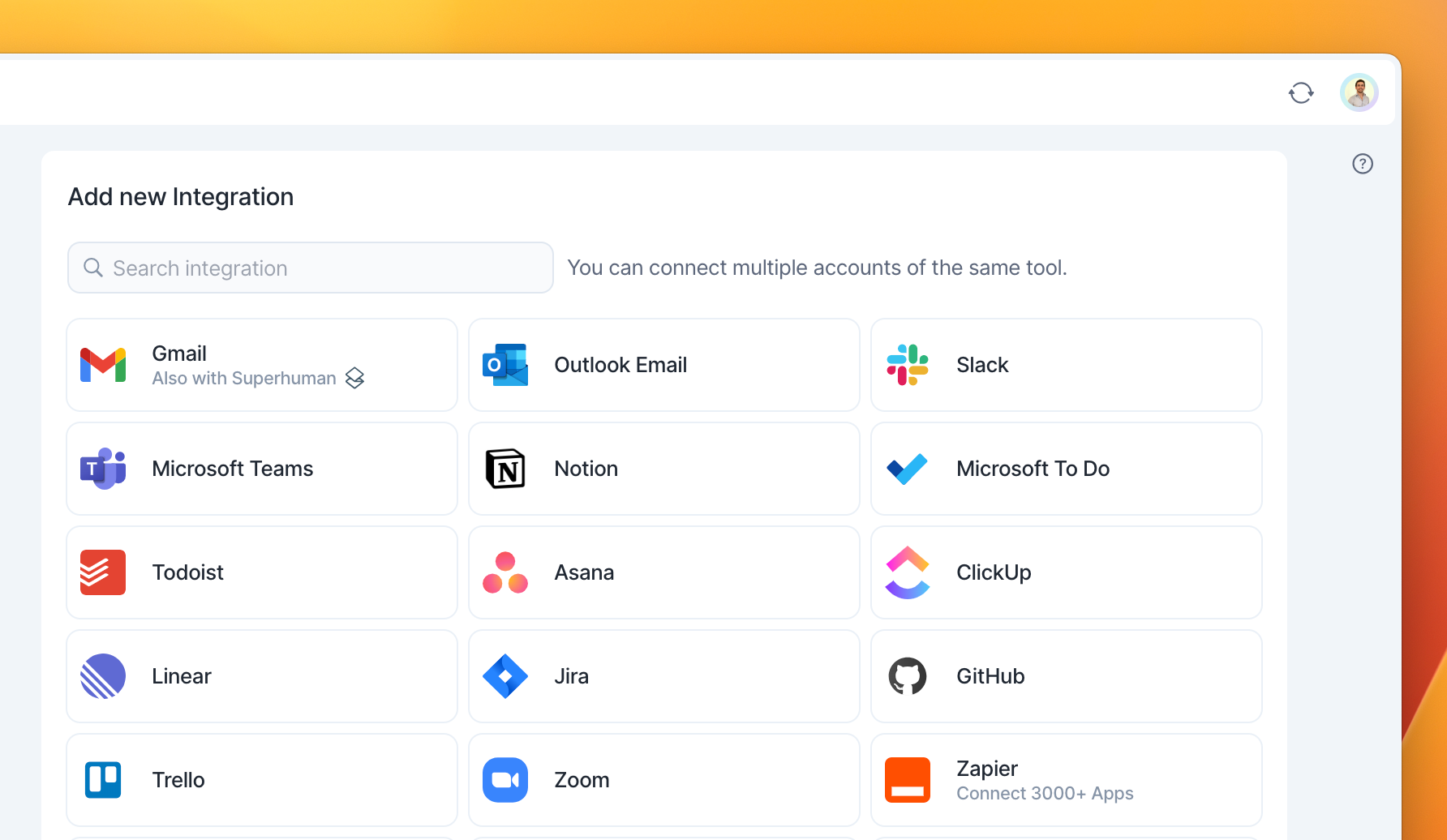
Connect and manage all your other external app integrations.
Appearance
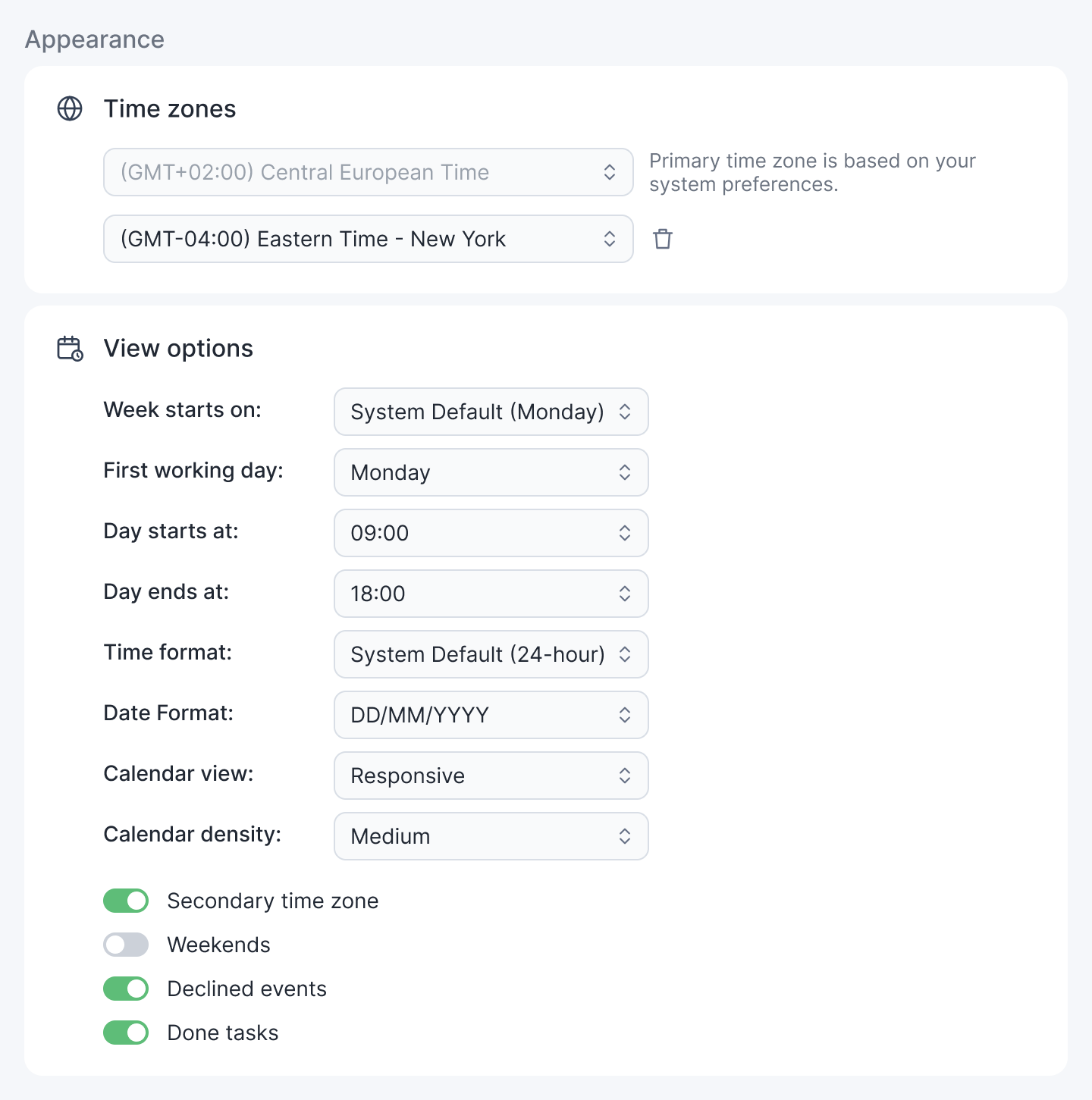
Set your time zones and view options in Akiflow: what day your week starts, what time your day starts and ends, your time and date format, your calendar view (including Responsive and Dynamic) and calendar density. Learn more in Customize Your Calendar.
Tasks, Events, Slots
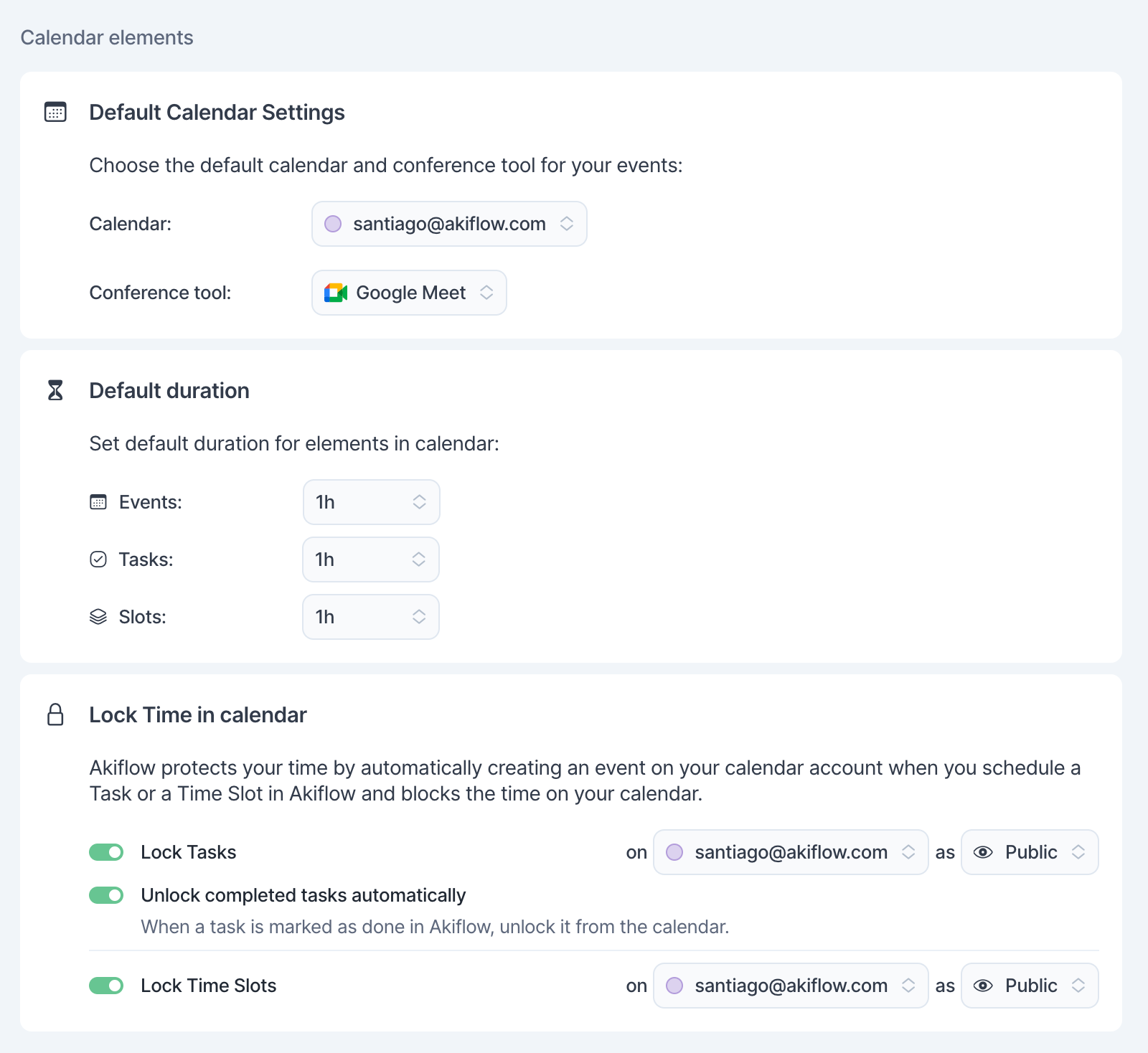
Refine your default calendar settings, durations for your events, tasks, and slots, and the default lock behavior and time in your calendars.
Share Availability
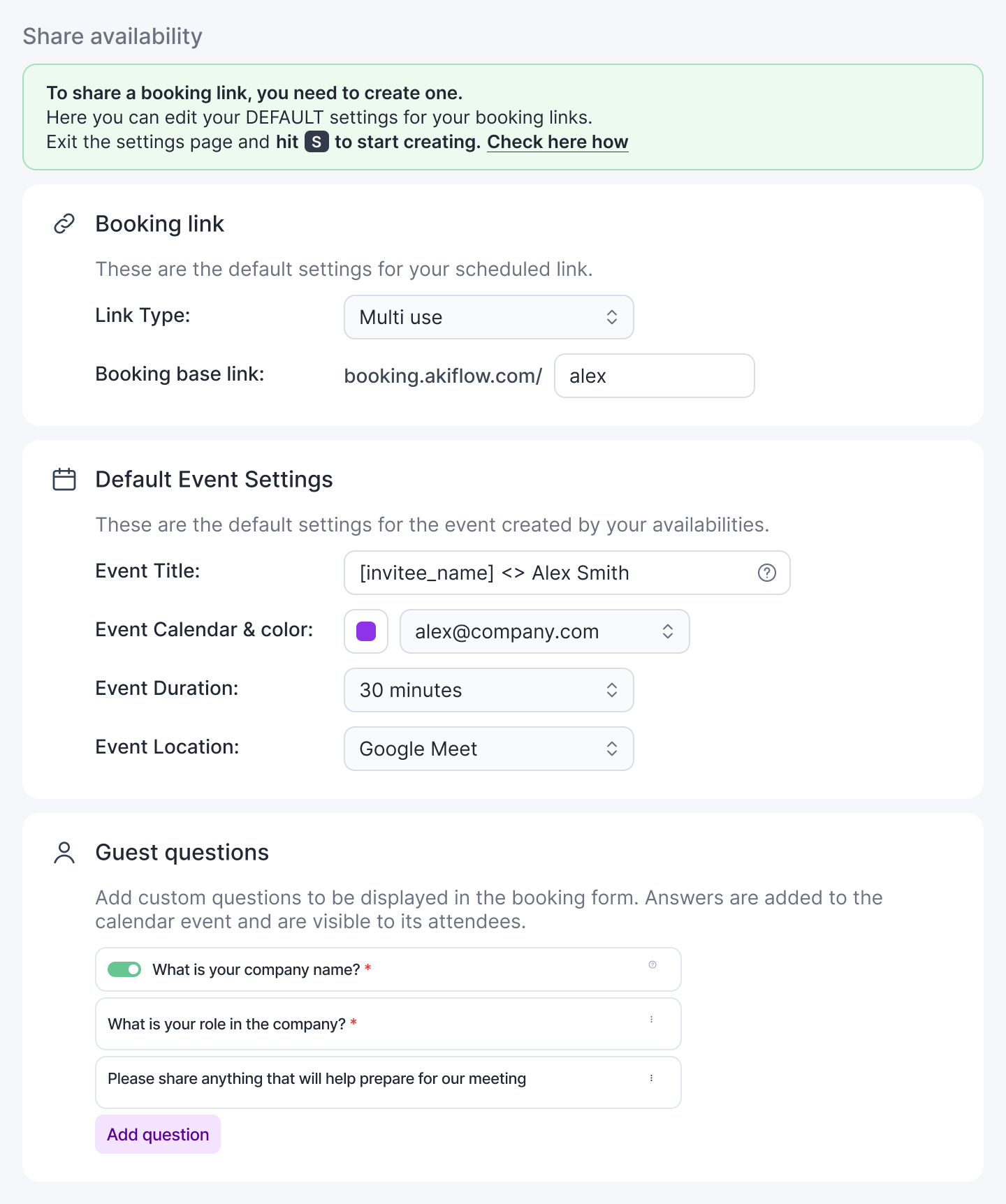
Set your default Share Availability settings here. These preferences will apply automatically whenever you share your availability.
General Settings
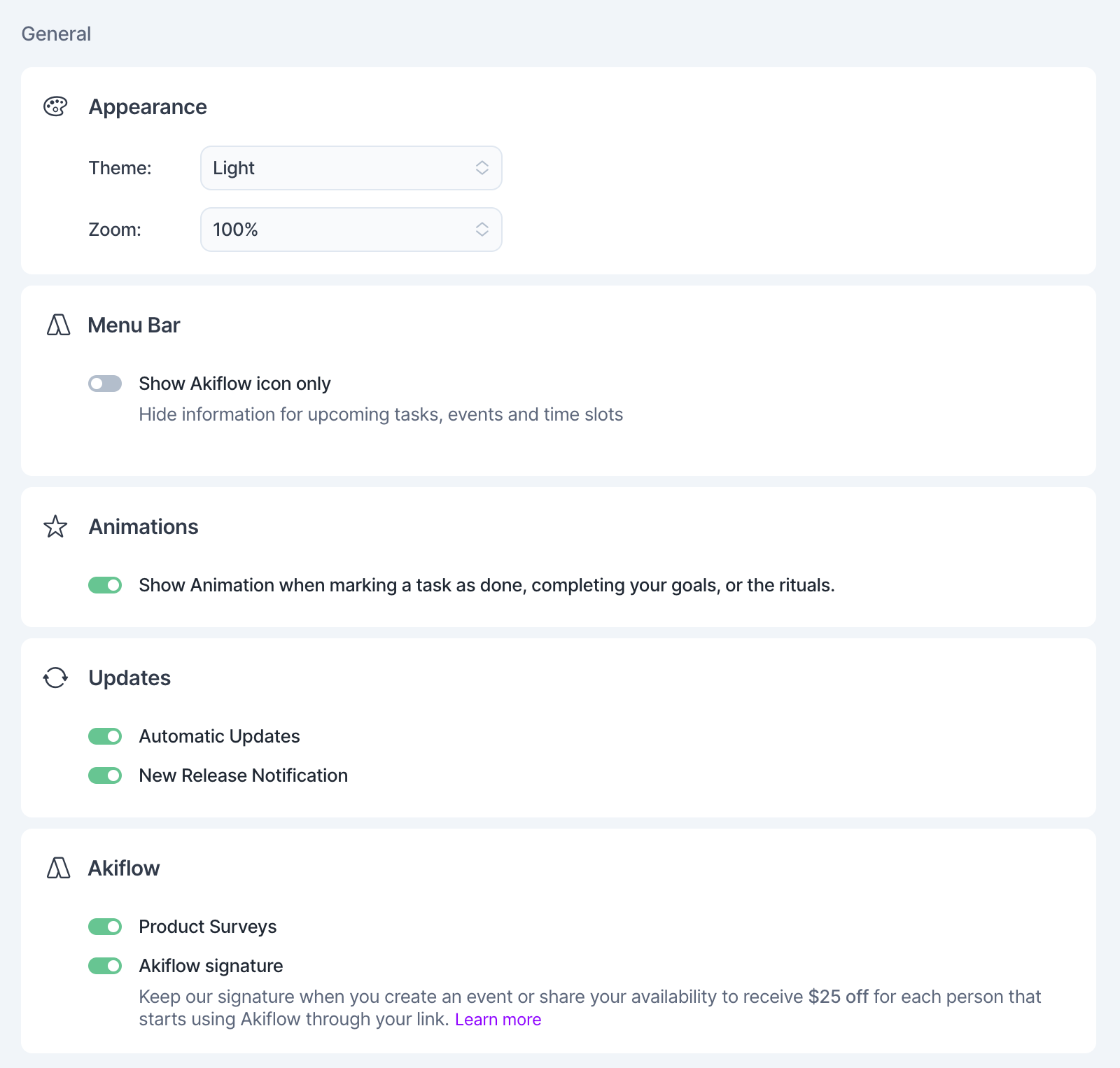
Adjust global preferences such as appearance, menu bar display, animations, updates, and Akiflow signature settings.
Rituals
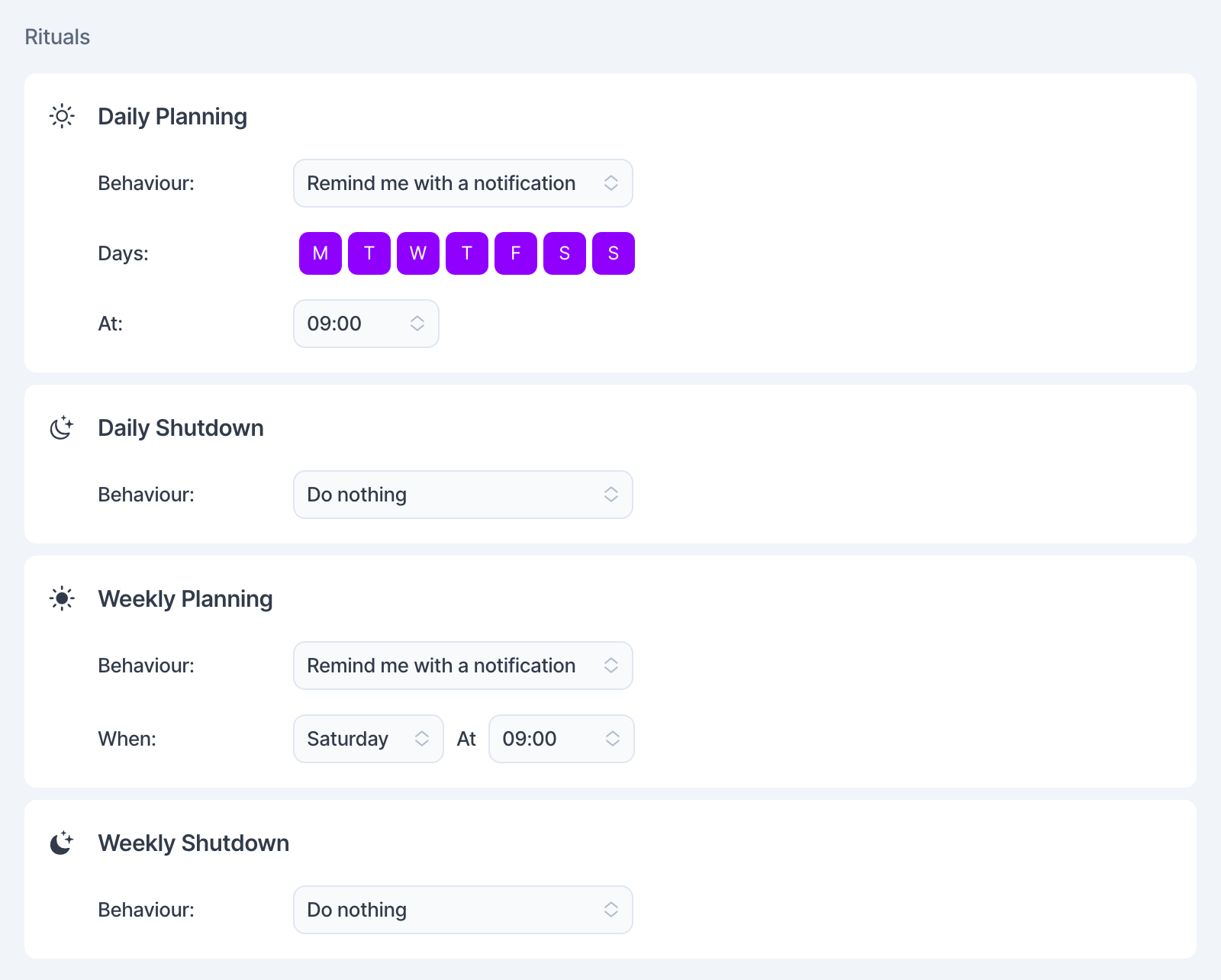
Set your default Rituals settings here. Create daily and weekly rituals to plan, review, and close your work with ease.
Shortcuts
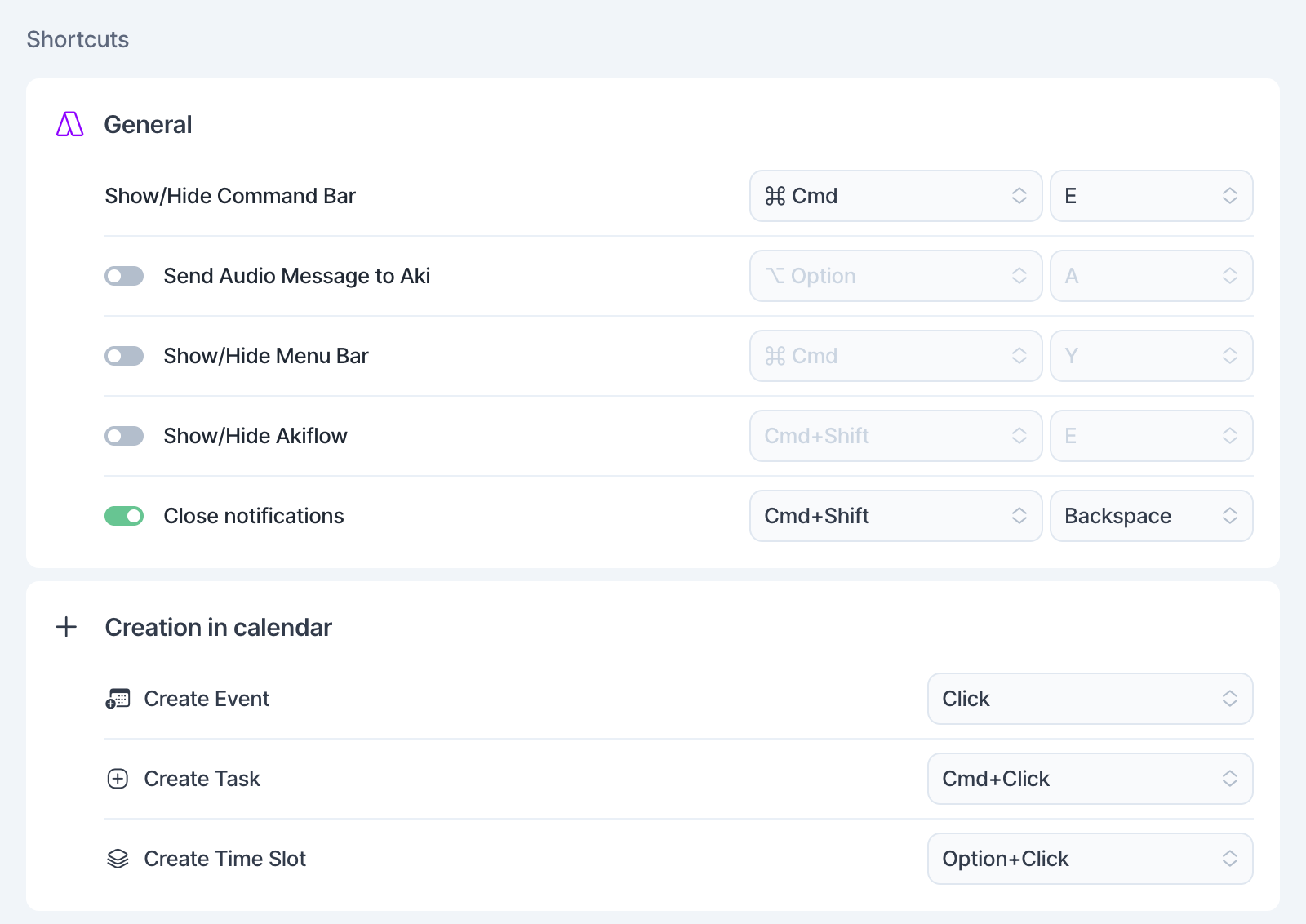
Set up and customize keyboard shortcuts to quickly access features, manage notifications, and create events, tasks, or time slots in your calendar. Browse and search all available keyboard shortcuts to quickly navigate Akiflow, use Aki, and access the Command Bar.
Notifications
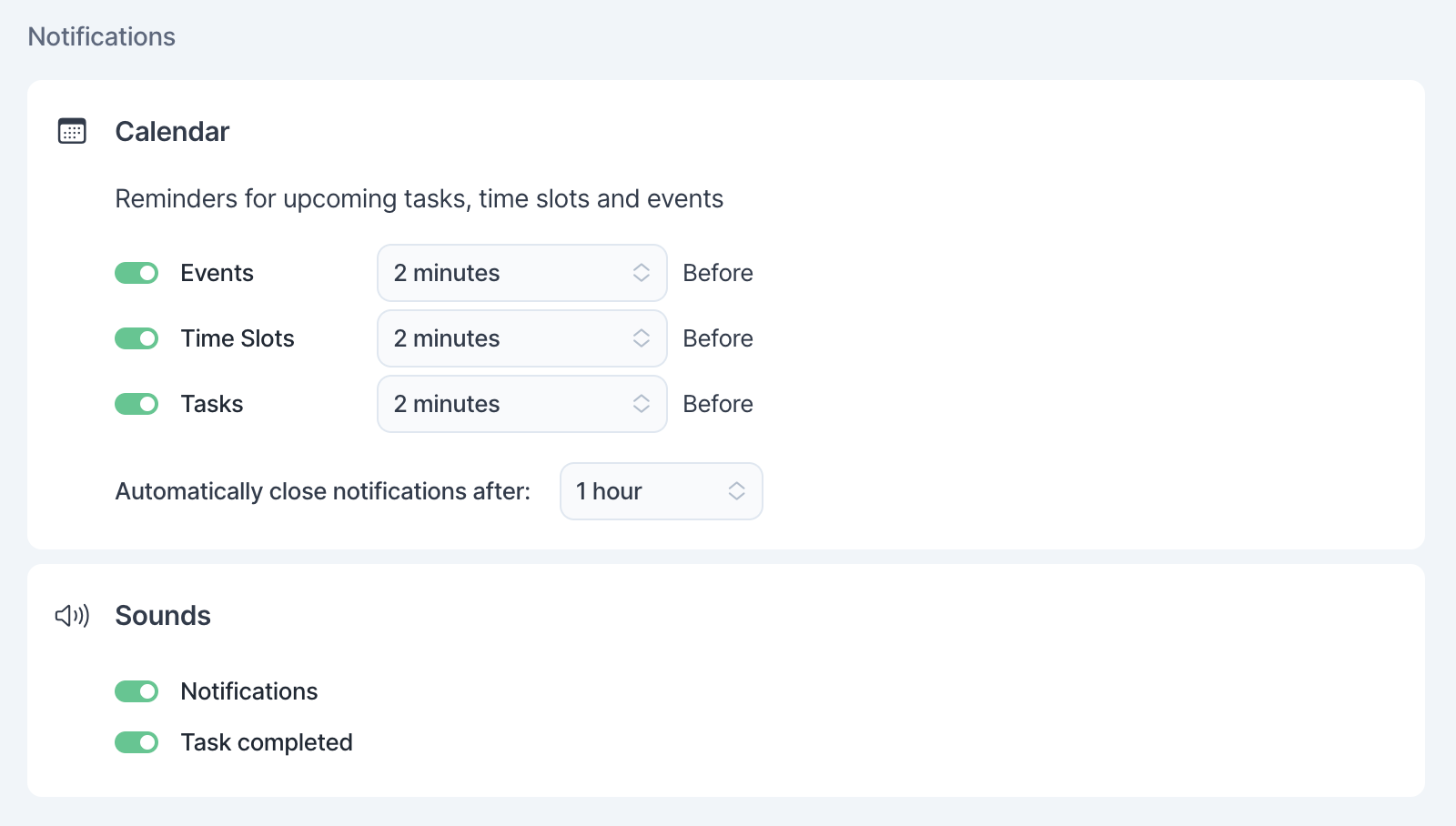
Manage reminders for tasks, time slots, and events, set auto-close timing, and control sound alerts for notifications and completed tasks.
On desktop and mobile, reminder controls work as follows:
Calendar events: Enable event reminders in Settings → Notifications and enable the bell for the event’s calendar in your calendar account settings. Both settings must be on.
Tasks and Time Slots: Use their respective reminder settings and timing in Settings → Notifications. Turning off a calendar’s bell does not turn off reminders for tasks or Time Slots locked to that calendar.
Tasks inside a Time Slot: The Time Slot sends the reminder, rather than each task inside it. Use the Time Slot reminder setting to control it.
The bells in Google Calendar, Outlook Calendar, and iCloud Calendar account settings only control reminders for calendar events.
Need help?
Reach out to our team at support@akiflow.com. We're happy to help!
Join our community to ask questions, share your workflow tips, and connect with other Akiflow users who can help you get even more out of Akiflow.
Was this helpful?
Still need help? Ask the team