Undo and restore removed task attachments, start Zaps from Akiflow, and let your AI assistant organize your projects
Release 2.86 lets you undo removing a task attachment, or restore it later, and a new Files view shows all your task attachments in one place. Akiflow can now start your Zaps, and AI assistants connected to Akiflow can organize your folders, projects, sections and tags.
We're rolling out 2.86 gradually: it reaches everyone by Wednesday, November 25, so your update may arrive a little later.
🗂️ Undo and restore removed attachments, and see them all in Files
Removed an attachment by mistake? You can now get it back.
Undo right away - Removing a file from a task no longer asks you to confirm. Click Undo in the message, or press Cmd + Z (Ctrl + Z on Windows) on desktop and web, to put it back.
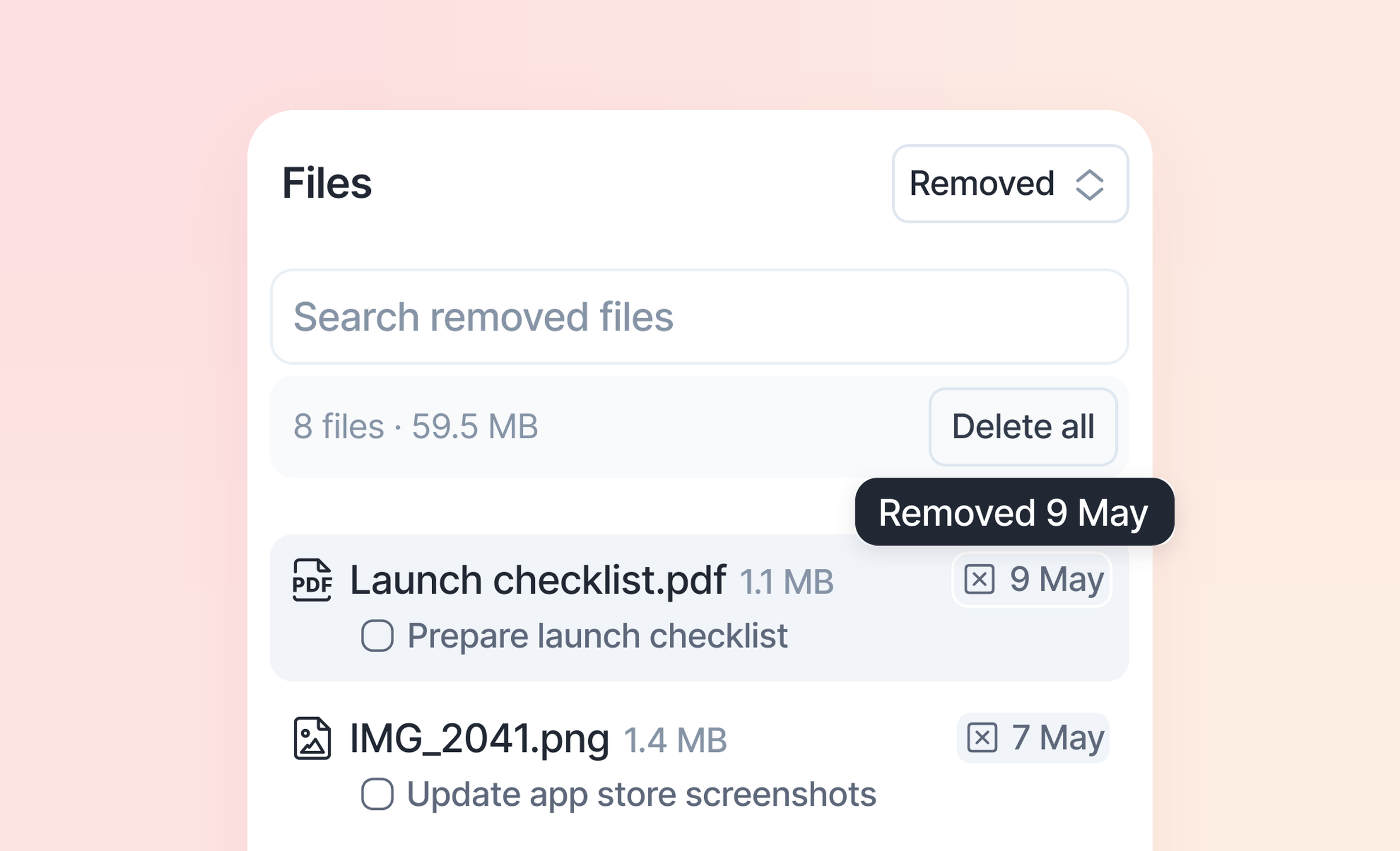
All your files in one place - The new Files view lists every file on your tasks, and you can search by file name. On desktop and web, open it from More in the menu or with the Go to command. On iPhone and Android, it's the last row of the Menu tab.
Restore it later - Removed files wait in Files › Removed until you delete them. Restore puts a file back on its task, even a task in Trash.
See your storage - Files shows how much space your attachments use, so you can free some up before you run out.
Nothing lost when tasks disappear - If tasks are cleared out, for example when you tidy up an integration, their attachments wait in Removed, so you can still download them.
Available on desktop, web, iPhone and Android. Learn more in our Attach files to a task guide.
⚡ Start a Zap when you create or complete a task
Akiflow can now start your Zaps, not only receive tasks from them. Find both triggers in the latest version of the Akiflow app on Zapier.
Task Created - Starts a Zap as soon as you create a task in Akiflow, for example to copy it into another app. Choose a project or a tag to run it only for matching tasks. Tasks imported from your connected apps don't start it.
Task Completed - Starts a Zap when you complete a task, for example to log it in a spreadsheet or let your team know.
✨ Also new
Your AI assistant can organize Akiflow - AI assistants connected to Akiflow, like Claude and ChatGPT, can now create, rename and delete your folders, projects, sections and tags, and move projects in and out of folders. "Create a Clients folder and move my Acme project into it" just works.
Notifications close themselves - On desktop, a task's notification now closes when you mark the task done, delete it or move it to another time, so you don't have to close it by hand.
Go back and forward - In the desktop app, press Cmd + ← and Cmd + → (Ctrl on Windows) to go back and forward between the pages you opened, like in a browser.
A calendar that uses its space - Overlapping events, tasks and time slots now spread across the free columns and share the width equally, and short items that don't overlap are no longer squeezed side by side.
Know when a connection needs you - Akiflow now tells you right away when connecting an account didn't fully work, for example when a permission was left unchecked, so you can fix it instead of waiting or wondering why nothing shows up.
🖥️ Desktop and web app
New
Work with AI is easier to find - The Work with AI button is now the highlighted one, so you can spot it at a glance. Inbox Plan is still there as a plain icon.
Faster time entry - Type the first digits of a time and Akiflow suggests the rest. Keep typing to replace the suggestion, without deleting anything first.
Bug Fixes
Notion - "Only pages assigned to me" works again, so pages assigned to other people are no longer imported. After you switch database, the planned-date setting no longer keeps the old database's property.
Asana - Opening Asana settings no longer saves them and shows "Settings saved".
Jira - The Jira settings no longer keep reloading when a team or project is empty.
Pressing T when the calendar isn't on today now scrolls it to today, instead of collapsing the planner.
Lock on another calendar - Your lock rules now keep up when your calendars change. If you can no longer edit a calendar, or you remove an account, the rules that use it stop on their own. After you disconnect a calendar, its rules still show which calendar it was, with a button to reconnect it. Changing a recurring event for this and future events keeps the right events locked, and switching a new event to another calendar no longer asks you to unlock it first.
iCloud - With only iCloud connected, creating an event from the calendar no longer sends you to Settings. Adding a meeting link to a repeating iCloud event works.
A meeting notification now counts down as your meeting gets closer, instead of showing "Starts in 2 minutes" the whole time it's open.
Command bar - "All actions" no longer selects the first task in your planner, Cmd + 1–9 (Ctrl on Windows) picks the right result after you type, and the P command works again.
Cmd + C (Ctrl + C on Windows) copies a saved Share Availability link again.
Creating a tag from a task's tags menu no longer loses or duplicates the tag.
Settings pages scroll sideways on narrow windows, and calendar names stay readable.
The desktop app no longer crashes when your connection drops while it downloads an update.
Faster and lighter - Akiflow opens faster and stays quick even when you keep it open all day, and the focus timer keeps the right time when you switch to another browser tab.
📱 Mobile app
New
Undo right away - Removing a file from a task no longer asks you to confirm. Tap Undo in the message to put it back.
All your files in one place - The new Files view lists every file on your tasks. Find it in the last row of the Menu tab, then open, download or remove a file, or jump to its task.
Restore it later - Removed files wait in Files › Removed until you delete them, so you can put them back on their task.
See your storage - Files shows how much space your attachments use, so you can free some up before you run out.
Improvements
Locking a single task or time slot now offers Busy, along with Public and Private, the same as on desktop.
Adding or removing a file now counts as an edit, so the task moves to the top of All Tasks.
The calendar works with VoiceOver and TalkBack: buttons, dates and events are read out, and you can swipe between days.
Akiflow uses less battery when it runs in the background.
Bug Fixes
If a file upload fails, the app retries it on its own and shows a message with Retry, even when the task isn't open.
Events moved or cancelled by others now update in the app instead of staying out of date for days, and events on two of your calendars no longer show twice.
With automatic locking on, a task now locks on your calendar when you give it a time, even if it was unlocked before. Tasks captured on Apple Watch lock the same way.
Editing a repeating event for this and future events keeps its locks on your other calendars.
Lock rules show the calendar's name after you disconnect that calendar, instead of "the selected calendar".
You can move an event to a calendar of another connected account, the same as on desktop.
New events no longer go to a calendar you can only view.
Tasks in a project show in the same order as on desktop with the same sort setting.
Deleting a repeating time slot with "This and all future time slots" no longer splits its repeating tasks into a new series.
"This week" is no longer a year off in the days around January 1, and tasks are saved in the right week.
The keyboard opens when you create a new tag.
Multi-select closes when no tasks are left selected.
Android: the 1x1 widgets fit their space.
Akiflow MCP
New tools:
create_folder,edit_folder,delete_folder,create_project,edit_project,delete_project,create_section,edit_section,delete_section,create_tag,edit_taganddelete_tag- Your AI assistant can organize your folders, projects, sections and tags. A project or section that still has open tasks isn't deleted: the assistant tells you how many open tasks are in it, so you can move or finish them first.Upgraded:
delete_attachment- Files your AI assistant deletes now go to Removed in Akiflow, where you can restore them, instead of being deleted for good.Upgraded:
list_projects,list_calendars,list_tasks,get_taskandget_schedule- Project, folder and calendar names now come as separate fields, so your assistant no longer mistakes a folder or an account for part of a name. Schedule answers cover every calendar visible in Akiflow, not only your primary one.Upgraded:
edit_event- On events Google creates from Gmail, like flight bookings, your assistant now knows which changes are allowed (color, busy or free, visibility) and gets a clear refusal for anything else, instead of a change that looked saved but never happened.Fixed: Reading your schedule and events now shows whether each event marks you as busy or free.
Aki (Akiflow's built-in assistant)
Aki can create an event with a location: "Dinner Friday at 6 at Three Legged Crane Pub" saves the place with the event.
Calendar Sync
Google Calendar - Accounts that asked to reconnect every time the app opened stay connected again. A primary calendar that was missing from Akiflow's calendar list shows again. Teammates' calendars you pin show on weekends and Mondays too. An event's color no longer reverts after you move it.
Outlook and Microsoft 365 - Moving a repeating Office 365 event no longer creates duplicate occurrences at the wrong times, and dragging one keeps its color. Deleting an occurrence you moved works. Meetings you organize no longer show as unanswered invitations with a Zoom error, and accepting an invitation on an Outlook.com calendar sticks. Changing a meeting's time updates its Zoom meeting too.
iCloud - iCloud accounts no longer disconnect when iCloud is having trouble of its own.
Nothing lost during outages - Edits you make while Google or Outlook is down are no longer lost.
Locked tasks - When you change a locked task, its copy in Google Calendar updates too. Deleted locked tasks leave Google Calendar, a repeating locked task no longer shows twice, and tasks that couldn't be locked to any calendar lock again.
Lock on another calendar - Copies now block the event's travel time too, and on Outlook, copies merge with the original event instead of showing as separate cards.
Booking links - Booking pages no longer show "no times available" when there are open slots, repeating slots no longer go missing on the first day for time zones east of UTC, and an updated meeting link reaches meetings already booked from a repeating availability.
Integrations
Microsoft To Do - Accounts that had stopped syncing import tasks again, due dates no longer show one day early, and changing a repeating task's date in Akiflow no longer makes To Do create a copy.
Trello - Syncing works again for accounts where it had stopped. Completing a repeating Trello task in Akiflow imports its next occurrence, and completed Trello tasks are no longer imported again.
Todoist - Imported tasks get your default task duration instead of the default event duration.
Linear - Syncing no longer removes the time from tasks you already planned, and changes you make in Akiflow reach Linear more reliably.
Outlook email - The integration no longer shows as disconnected, and the Outlook desktop add-in loads and creates tasks again.
Zapier - Zaps that create tasks in Akiflow are more reliable.
As always, your feedback helps us keep improving. Let us know what you think! 🙏