Lock on another calendar, Month view on mobile, and Akiflow on Wear OS
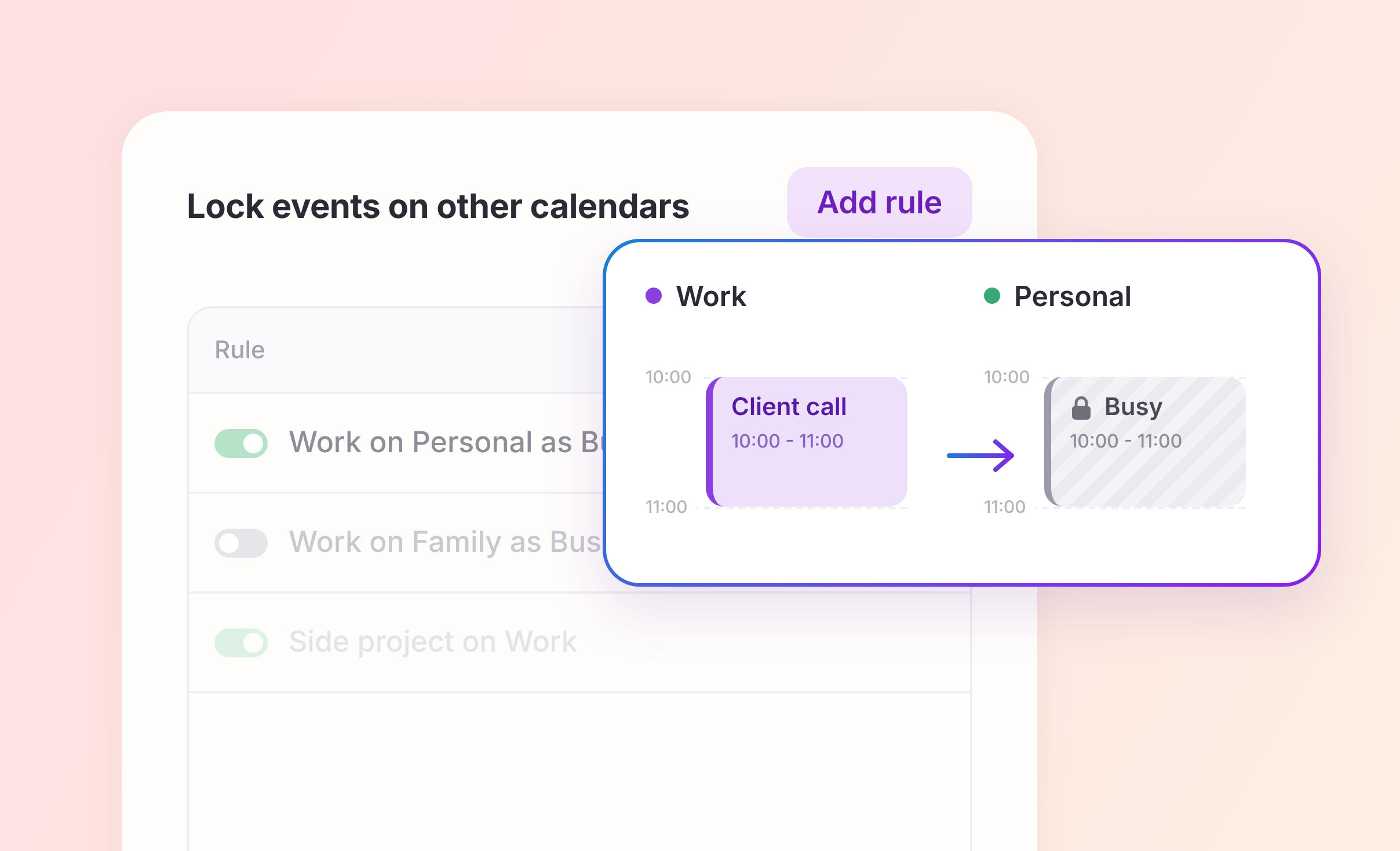
Release 2.85 answers one of your longest-standing requests: stop getting double-booked across your calendars. Month view is also back on mobile, and Akiflow arrives on Wear OS watches.
We're rolling out 2.85 gradually: it reaches everyone by Wednesday, November 11, so your update may arrive a little later.
🔐 Lock on another calendar
A meeting on your work calendar doesn't stop people from booking you on your personal one. Lock on another calendar blocks the same time on your other Google, Outlook or iCloud calendars, so you look busy everywhere you can be booked.
Busy by default - The copy shows only "Busy" and the time. No title, description, location, guests or meeting link. Turn off Hide event details to show the details instead, and anyone who can see that calendar will see them.
Lock an event by hand - Right-click an event, or open it and choose ⋯, then Lock on another calendar and pick a calendar. For a recurring meeting, lock only that event or that event and every later one.
Or lock every event automatically - In Settings → Tasks, Events, Slots → Lock events on other calendars, add a rule such as "Events from Work on Personal as Busy". A rule covers every event that hasn't started yet, including new ones. Events marked Free are skipped.
Kept up to date - When the meeting moves, changes or is cancelled, Akiflow updates or removes the copy, even when Akiflow isn't open.
No one gets notified - Guests, RSVP answers and attachments stay on the original, and locking never sends invitations or updates.
Up to 4 other calendars per event - Events you lock by hand and rules count together.
Available on desktop, web, iPhone and Android, for Google, Outlook and iCloud calendars you can edit. Learn more in our Lock on another calendar guide.
📅 Month view is back on mobile
See your events, tasks and time slots for the whole month on iPhone and Android, swipe between months, and tap a day to open it.
⌚ Akiflow on Wear OS
Akiflow now has an app for Wear OS watches. Capture tasks, check them off your lists, and see what's next, right from your wrist. Install it from Google Play on your watch, together with the Akiflow Android app. Learn more in our Akiflow for Wear OS guide.
✨ Also new
Your AI assistant knows how you work - Tell Akiflow once how you like to plan and work, and AI assistants connected to Akiflow, like Claude and ChatGPT, follow it, so you don't have to repeat yourself in every chat. You decide whether they can read it, and you can edit it anytime.
Notion tasks land in the right project - Track client work in Notion with a Client property? Pick that property when you connect the database, and every imported task goes straight into that client's Akiflow project, created for you if it doesn't exist yet. No more sorting imported tasks by hand.
A clearer GitHub setup - Working in a busy repository? Choose to import every issue and pull request, or only the ones with certain labels or milestones (for example your team's "bug" label, or any milestone, including ones added later). A short summary shows exactly what will land in your Inbox, and Akiflow won't save a setup that would import nothing.
Put your best Someday ideas first - Drag your Someday tasks into the order you want, so the ones you're most likely to pick up next are at the top when you have time for them. Works on desktop, web and mobile, just like in Inbox.
Work with AI in one click - Hover a task and click the AI button to run your saved Work with AI action (Claude, ChatGPT or Copy as prompt), or pick one if none is saved.
Apple Watch - Add a task with Siri by saying "Capture in Akiflow", mark a task as done or reopen it from the task screen or its checkbox, and feel a tap when you complete or capture a task.
More in 2.85
🖥️ Desktop & Web
New
Get back to any task in one click - Copy a link to a task and paste it into a Slack thread, an email or a doc. Clicking it later takes you straight to that task.
Jump to anything by its ID - Paste a copied task, event or time slot ID into Search and Akiflow takes you straight to it, now on desktop and web too. Handy when your AI assistant or a teammate hands you an ID instead of a link.
Find the task you were just working on - Sort search results by Last edited to find the task you changed a minute ago, or by Plan date to see what's coming up first.
Set your Travel Time starting point once - When you pick where you're leaving from, Akiflow offers to save it as your default, so travel estimates start from home or the office without typing it again. Location search also shows more of each address, so you pick the right place.
Asana setup that matches what you get - Instead of picking sections to import, pick the ones to leave out, like Done or Backlog. What you see in setup is exactly what lands in Akiflow.
See which task you just moved forward - When you complete subtasks, the confirmation names their parent task, so you know which bigger piece of work just got closer to done.
Task titles stay readable - Long project names on task rows are now shortened sooner, so your task titles get more room in Inbox, Today and other narrow lists. Hover a shortened project name to see it in full.
Integrations
When Zoom disconnects Akiflow, the Zoom popup explains what happened and Needs attention shows a row to reconnect.
Back after a break? Apps you connected to Akiflow, like Todoist or Asana, disconnect when you haven't used Akiflow for some time. The message you see when you come back now says so, so you know why your tasks stopped updating and can reconnect right away.
If an app like Notion or Linear is disconnected, its settings in Akiflow are now greyed out with a note to reconnect it first. You won't spend time changing settings that can't take effect.
In ClickUp integration settings, we removed the "Mark as done in Akiflow if status is" option because it didn't do anything. Every option you see there now works.
Bug Fixes
Time zones - Akiflow uses the new permanent time offsets for British Columbia, Alberta and Manitoba, Windows no longer shows Yukon time for Alberta, and repeating events, tasks and time slots keep their local time there and in Morocco.
Typing on a date, time, duration, repeat, lock or deadline field in a popup now opens that field instead of triggering a shortcut.
After closing a task's popup on the calendar, Backspace no longer deletes a different task.
Accepting an external Google invite no longer marks the event as edited or offers to email all guests.
A task now gets locked on your calendar when it receives a time, not only when it's new, and keeps its lock when you edit it right after planning.
The Today button opens Today instead of closing the task sidebar, and going to This Week or This Month no longer hides past tasks from Overdue.
Tasks you planned for a whole week and didn't finish now show in Overdue once that week ends, instead of disappearing from Today.
On Windows, the week arrows change weeks again. New events no longer open with a pre-filled title, titles of 10-minute events aren't cut off, and switching from Inbox to Today no longer scrolls the calendar.
Setting a duration while creating a task keeps the cursor in the input, so Return works right away.
If you drag tasks into your own order in a project, that order now stays put and shows the same on your phone. Going back to the default order in one project no longer resets your other projects.
Aki no longer reopens the same chat after hours of inactivity.
Fixed crashes when quitting or reloading with a time slot open, hiding the tray window, and resizing or dropping tasks, and time slot changes are no longer lost while syncing.
Web: password manager extensions, like Proton Pass, no longer pop up "Sign in as…" suggestions over Akiflow's search boxes and text fields while you type.
Web: users who were logged out for inactivity no longer land in onboarding again.
📱 Mobile
New
Lock on another calendar - Lock events on another calendar by hand from the event's ⋯ menu, or with automatic rules in Settings → Tasks, Events, Slots.
Month view - See the whole month, from 12 months back to 24 months ahead.
Your day at a glance, without opening the app - The Upcoming widget now shows today's date. On iPhone it also opens your calendar in one tap, the lock screen widget marks what's happening "Now" so you know where you should be, and a new small Create widget lets you add a task straight from your home screen.
Put your best Someday ideas first - Drag your Someday tasks into the order you want, so the ones you're most likely to pick up next are at the top when you have time for them. New tasks you move into Someday or Inbox land at the top.
Your AI assistant knows how you work - Tell Akiflow once how you like to plan and work, and AI assistants connected to Akiflow, like Claude and ChatGPT, follow it, so you don't have to repeat yourself in every chat. You decide whether they can read it, and you can edit it anytime.
Set your Travel Time starting point once - When you pick where you're leaving from, Akiflow offers to save it as your default, so travel estimates start from home or the office without typing it again. If no estimate shows yet, Akiflow now tells you why.
Bug Fixes
Changing or deleting a recurring time slot with "This and all future time slots" keeps the right tasks in place, and choosing "Just delete the slot" keeps its recurring tasks.
Time slot edits made outside the calendar are saved, and a deleted slot stays deleted.
Reordering tasks in a project now sticks, and project lists match the order on desktop.
Tasks lock on your calendar the same way as on desktop and keep their lock when you edit them right after planning.
The Overdue list follows the default sort order, by plan date, and filtering Today by project no longer crashes.
Logging out is fast again, always takes you to the login screen, and the app stays usable while it happens.
Tapping Save several times no longer causes errors.
Inbox and Today counts in the bottom bar are no longer cut off at the largest text size.
Apple Watch: when the Akiflow Watch app needs an update, it now always tells you, instead of quietly showing old lists that may be out of date.
Android: in Upcoming, the week picker starts on this week again. It used to jump to next week with no way to scroll back, so you couldn't see this week's plan.
🔧 Infrastructure
Akiflow MCP (AI assistants like Claude and ChatGPT)
New tool:
delete_time_slot- Your AI assistant can delete an empty time slot, including a single occurrence of a recurring one, for example when it re-plans your day. A slot with tasks in it is never deleted.New tool:
get_user_context- Your AI assistant reads your Akiflow Memory (when you turn on sharing in Memory), plus your week start and the current week, so it plans the way you like from the first message.Upgraded:
create_task,edit_taskandplan_task- Tasks planned for a week, including recurring ones, now land in the week you asked for and follow your own week start. Before, they could end up one week early if your week starts on Sunday. When a task goes into a time slot, the reply also says that its time now matches the slot.Upgraded:
get_scheduleandget_time_slot- Show how many tasks are in each time slot.
Aki (Akiflow's built-in assistant)
Aki's Morning Brief no longer lists tasks planned for this week or this month as today's tasks.
Aki now uses your week start, so "this week" and "next week" mean the same weeks you see in the app.
If your work week starts on Sunday, Aki no longer suggests free time on your days off.
Aki automations in places that changed their clocks in 2026, like Vancouver or Edmonton, run at the right hour again.
Aki also follows the workflow preferences you add to Memory.
Calendar Sync
Google Calendar colors - Colors you give events in Google Calendar now show in Akiflow too, so your calendar looks the same in both places.
No more duplicate events - Moving a recurring task that's locked to your Google Calendar no longer creates extra copies of it. And after you disconnect a calendar that's also shared with you, Akiflow no longer shows empty "Busy" copies of its events.
Repeating events keep their length - Moving the start date of a repeating Google Calendar event no longer makes one of its occurrences longer than the rest.
Outlook and iCloud - Calendars from your Outlook groups now sync to Akiflow, and iCloud Calendar now works with Apple Accounts in China.
Travel Time stays in place - When you quickly change a recurring event that has Travel Time, the travel block in Google Calendar moves with it, so colleagues still see you as busy while you're on the way.
Integrations
Gmail - Emails you label "Akiflow" in Gmail turn into tasks again, including in accounts where they had stopped coming in, even after reconnecting.
Microsoft To Do - Your Today and Tomorrow lists now match To Do. Tasks you delete or reschedule in To Do no longer linger in Akiflow, missing ones show up, and repeating tasks from your own lists now import too.
Todoist - Todoist tasks you drag onto your Akiflow calendar now stay there, even when you change how long they take or edit them in Todoist. Before, they could drop off the calendar a few seconds later.
Asana - For accounts where it was slow, tasks you complete in Asana now show as done in Akiflow within minutes, not up to an hour later. On Asana's free plan, your edits from Akiflow reach Asana again, and tasks you plan in Akiflow no longer get un-planned.
As always, your feedback helps us keep improving. Let us know what you think! 🙏