Lock on another calendar
Stop getting double-booked and block a meeting's time on your other Google, Outlook or iCloud calendars, shown as Busy with no details shared.
Stop getting double-booked
When you have a meeting on one calendar, your other calendars still show you as free, so people can book over that time. Lock on another calendar blocks the same time on your other Google, Outlook or iCloud calendars, so you look busy everywhere you can be booked.
By default the copy shows as Busy: only the time, with no title or details. Akiflow keeps it up to date when the meeting moves or changes.
There are two ways to lock:
By hand, from an event: one event, or a recurring meeting from a chosen occurrence onward.
Automatically, with a rule: every upcoming event from one calendar blocks time on another.
Before you start
Akiflow 2.85 or later on desktop, web, iPhone or Android.
At least two connected Google, Outlook or iCloud calendars that you can edit. They can be in the same account or in different accounts.
Lock an event by hand
On desktop and web: right-click the event on your calendar, or open it and click ⋯. On mobile: open the event and tap ⋯.
Choose Lock on another calendar and pick a calendar.
In Lock event on [calendar], keep Hide event details (show as "Busy") on to share only the time, or turn it off to copy the event's details (see Busy or Public below).
Select Lock event. For a recurring meeting, choose Only this event or This and future events.
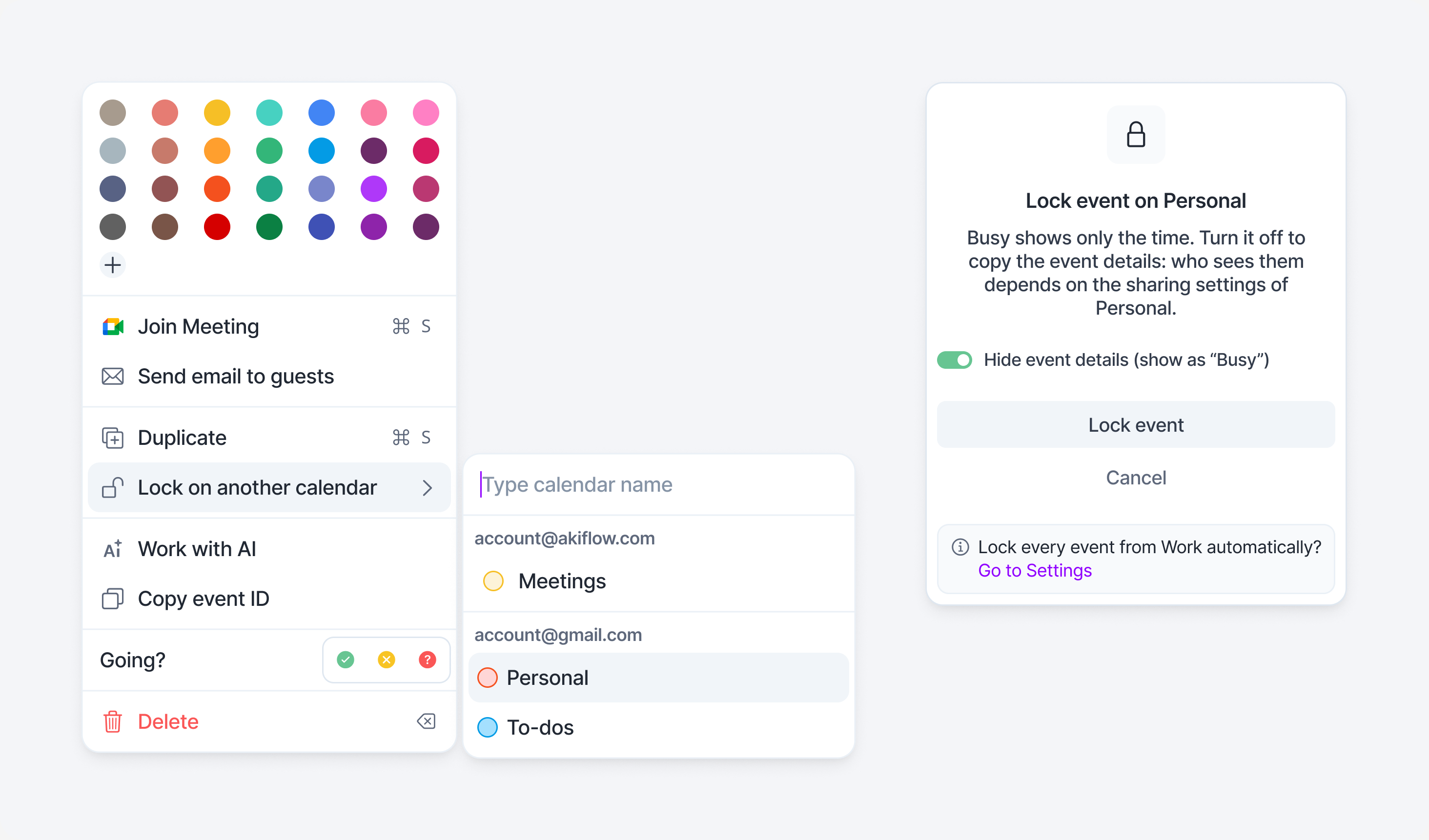
To lock the event on more calendars, repeat these steps and pick another calendar each time. An event can be locked on up to 4 other calendars.
Once an event is locked, the menu item reads Locked on: [calendar], or Locked on: [number] calendars, and the event shows a bar in the color of each calendar it's locked on. The copies themselves don't appear as separate events in Akiflow.
Recurring meetings
This and future events starts at the occurrence you selected and covers every later one, including occurrences added later. Earlier occurrences aren't locked. Your original series isn't changed, and its guests aren't notified.
Busy or Public
Only Busy hides the details. Public doesn't mean published on the internet: it follows the sharing settings of the calendar the copy is on.
To change it later, open the lock menu again and select the eye icon next to the locked calendar. Each calendar keeps its own choice. For a recurring meeting you locked by hand, the change applies to every copy of that series on that calendar, past ones included.
Lock every event from a calendar automatically
A rule blocks time on another calendar for every event from one calendar, without you locking each meeting.
On desktop and web: open Settings → Tasks, Events, Slots and find Lock events on other calendars. Click Add rule, choose Events from [calendar] on [calendar] as Busy or Public, then click Save.
On mobile: open Settings → Tasks, Events, Slots and find Lock events on other calendars. Tap Add rule, choose Events from and Lock on, set Visibility, then tap Save rule.
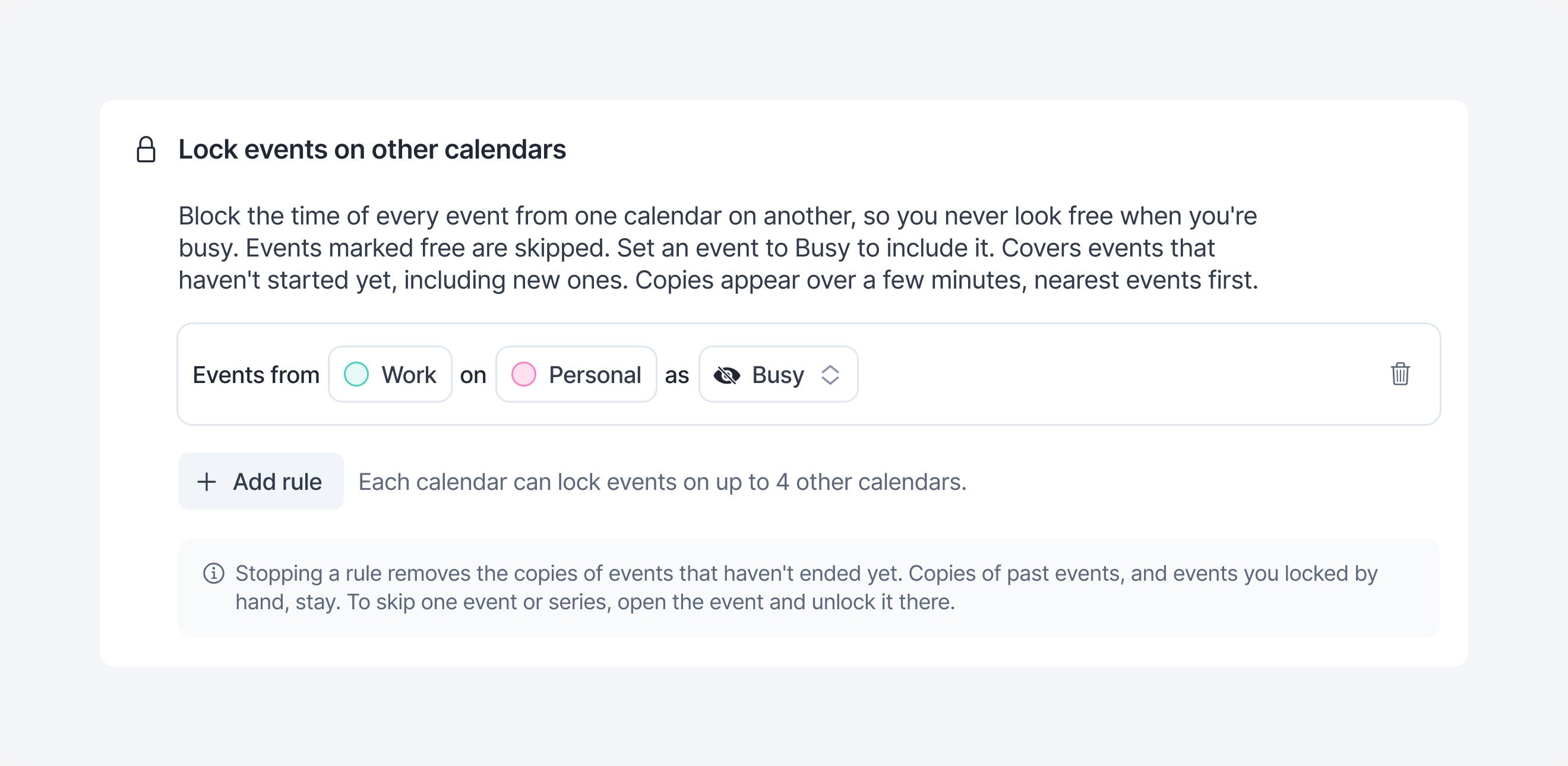
You can also get there from the popup that opens when you lock an event: select Go to Settings next to Lock every event from [calendar] automatically?
What a rule covers
Every event from that calendar that hasn't started yet, including new ones. Past meetings and meetings already in progress aren't covered. To block one of those, lock it by hand.
Copies appear over a few minutes, nearest events first.
Events marked Free are skipped. Set an event to Busy to include it. You can still lock a free event by hand.
An event already locked on 4 calendars is skipped.
Each calendar can lock its events on up to 4 other calendars.
Change or stop a rule
Busy or Public: on desktop and web, change it in the rule's row. On mobile, tap the rule, then Visibility. The change applies to every copy the rule made. Events you locked by hand keep their own choice.
Calendars: a saved rule's calendars can't be changed. Stop the rule and add a new one.
Stop a rule: on desktop and web, click the trash icon next to the rule. On mobile, tap the rule, then Stop locking. Copies of events that haven't ended yet are removed. Copies of past events, and events you locked by hand, stay.
Adding, changing and stopping rules needs an internet connection.
Paused rules
If one of the rule's accounts needs reconnecting, the rule shows as Paused with a Reconnect link. It also shows as Paused if Akiflow can no longer add events to the other calendar, for example because it became read-only. A paused rule stays on and starts locking again once the problem is fixed.
Unlock an event
Open the lock menu on the event and select the locked calendar. Akiflow shows what kind of lock it is and your options:
Unlocking affects only that calendar. Other calendars stay locked. To stop a rule completely, select go to Settings at the bottom of the popup.
How copies work in Google Calendar, Outlook and iCloud
Copies go one way, from the original event. When the meeting moves, changes or is cancelled, Akiflow updates or removes the copy, even when Akiflow isn't open.
Change copies only from Akiflow. Edits or deletions made directly to a copy in Google Calendar, Outlook or iCloud aren't synced back. Akiflow puts the copy back to match the original, at the latest the next time the original event changes. To remove a copy, unlock the event in Akiflow.
Guests aren't copied. Guests, RSVP answers and attachments stay on the original. Creating, changing or removing a copy never sends invitations or updates.
Each copy's description says it was created by Akiflow to block the time.
If you decline one occurrence of a recurring meeting, its copy is removed. Accept it again and the copy comes back.
All-day and multi-day events work too. A Busy copy blocks the whole day.
When a meeting is over, its copy stays in your calendar history.
Which events and calendars can I lock?
You can lock Google, Outlook and iCloud events, past or future, including all-day and recurring events, on any other connected Google, Outlook or iCloud calendar you can edit. Calendars you've hidden in Akiflow work too.
This includes meetings you were invited to, as long as they're on a calendar you can edit. Locking one never notifies the organizer or the other guests.
You can't lock:
Events on read-only calendars, or onto a read-only calendar
Tasks and Time Slots on your calendar
Declined or cancelled events
Events on other calendar services
An event can be locked on up to 4 other calendars, counting events you lock by hand and rules together. At 4, unlock one to add another: on desktop and web, the other calendars are greyed out; on mobile, you'll see a message.
Good to know
Locking works offline. Locking, unlocking and changing Busy or Public from an event work offline and sync when you're back online. Rules in Settings need an internet connection.
If a lock you made from an event fails, it goes back to how it was. On desktop and web you'll see why in Needs attention; on mobile, in a short message. Try again.
Locks follow your account. Your locks and rules are the same on every device, and come back after you log in on a new one.
FAQ
Does this sync my calendars both ways?
Does this sync my calendars both ways?
No. Copies go one way, from the original event to your other calendars. Changes you make to a copy in Google Calendar, Outlook or iCloud aren't synced back, and Akiflow puts the copy back to match the original, at the latest the next time the original changes.
Will the meeting's guests be notified?
Will the meeting's guests be notified?
No. Guests aren't copied, and creating, changing or removing a copy never sends invitations or updates. This is also true when you lock a meeting someone else invited you to.
Can people see what my meeting is about?
Can people see what my meeting is about?
Not with Busy, the default: the copy shows only "Busy" and the time. With Public, the details are visible to anyone who can see that calendar, according to its sharing settings.
Why didn't my rule lock a past meeting, or one already in progress?
Why didn't my rule lock a past meeting, or one already in progress?
Rules cover only events that haven't started yet. Lock past or ongoing meetings by hand from the event.
Why did my rule skip an event?
Why did my rule skip an event?
A rule skips events marked Free, events that had already started when you turned it on, events already locked on 4 calendars, and events or series you unlocked from the rule. To include a free event, set it to Busy.
I deleted a copy in Google Calendar. Why is it back?
I deleted a copy in Google Calendar. Why is it back?
Copies are managed from Akiflow, so Akiflow puts a deleted copy back, at the latest the next time the original changes. Unlock the event from that calendar in Akiflow to remove it.
Can I lock an event on more than 4 calendars?
Can I lock an event on more than 4 calendars?
No. An event can be locked on up to 4 other calendars, counting events you lock by hand and rules together.
Can I change the calendars of a rule?
Can I change the calendars of a rule?
No. You can change only Busy or Public. To use other calendars, stop the rule and add a new one.
I still need help
I still need help
Contact support@akiflow.com with your device, Akiflow version, the calendars involved (Google, Outlook or iCloud), and what you expected to happen.
Was this helpful?
Still need help? Ask the team