Events Management
Create and manage events across your connected calendars. Choose a default calendar and conference tool in Settings → Tasks, Events, Slots, manage connected accounts in Settings → Calendars, and customize reminders in Settings → Notifications.
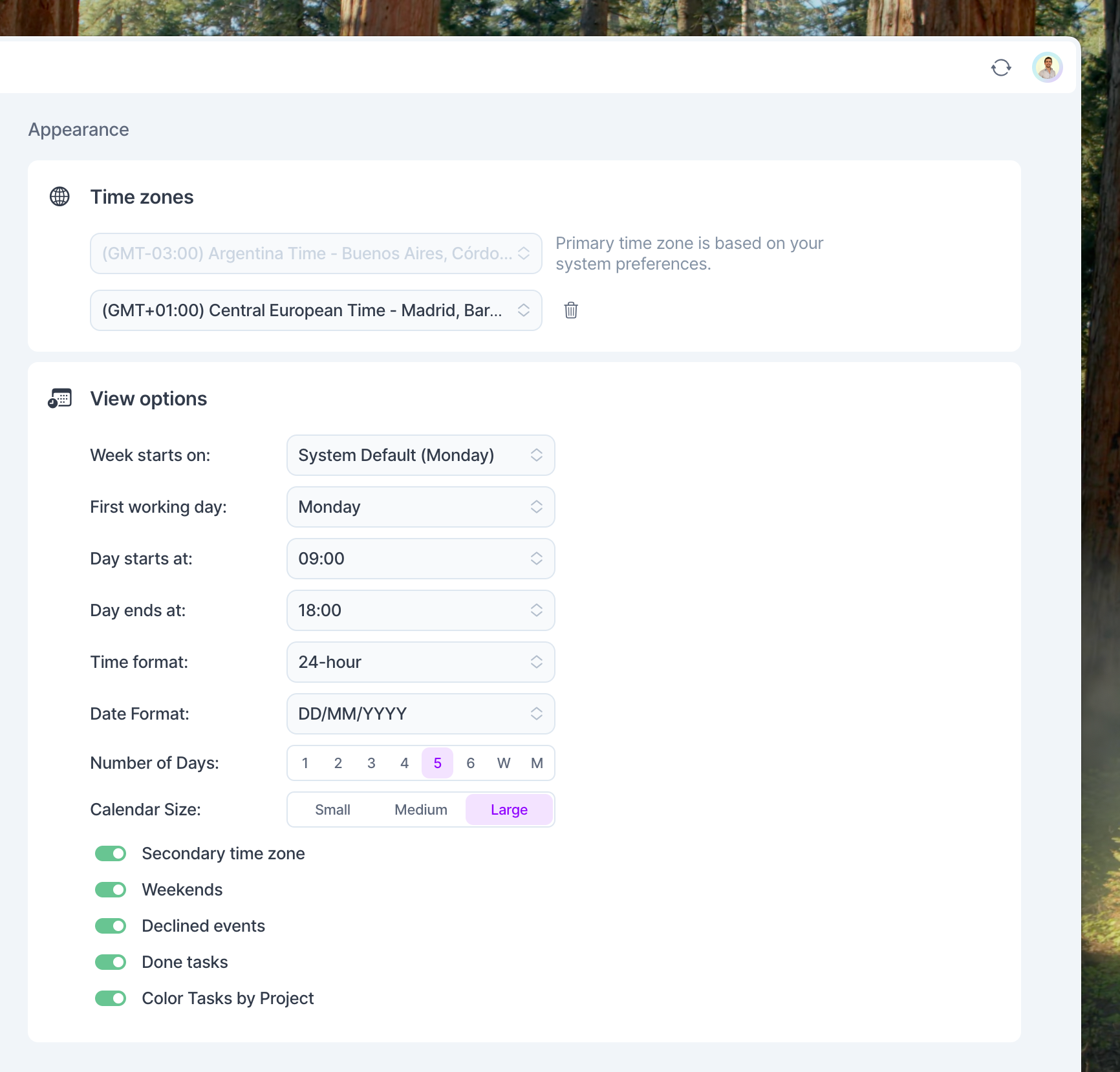
How do I set my work hours?
Go to Settings > Calendar and under View options you can set what time your day starts and ends. This will also be the basis of Share Availability ‘s Select all work hours setting for recurring availabilities.
Event creation
In Akiflow, you can create events from the Command Bar or the calendar.
From the Command Bar
Hit CMD/CRTL + E to open the Command Bar and start typing! Cmd/Ctrl + K on the web app.
Use @ to add guests, = to edit the duration, and > to change account, then hit ENTER to create a new event.
You can customize your shortcut from the shortcut settings.
Directly from the calendar
Click on the calendar to create an event. You can then drag down to edit the duration.
You can also use the shortcut N to start creating an event.
By default, clicking on your calendar creates an Event. If you'd prefer to create Tasks or Time Slots instead, you can customize these actions in Settings → Shortcuts → Creation in calendar. Assign a simple click or keyboard shortcuts (such as Cmd/Ctrl + Click or Option/Alt + Click) to create Events, Tasks, or Time Slots directly from your calendar.
Event Features
Search
If you are looking for a specific event, or for any event related to a contact of yours, you can use the Search Page.
Calendar account
Open an event and click its calendar account at the bottom of the event popup to choose another calendar you can edit. If you move an event with a generated Google Meet or Microsoft Teams conference to iCloud Calendar, check its meeting details: that generated conference is not retained. Add Zoom or paste the meeting link you want to use into the Location field.
Recurrence
You can create a recurrent event by selecting the event recurrence. You can try Every day or Weekly on Tuesday, as examples.
Conference & Location
You can create Google Meet links for Google Calendar events, Microsoft Teams links for Outlook Calendar events, and Zoom links for Google Calendar, Outlook Calendar, or iCloud Calendar events when Zoom is connected. You can also add a physical location or paste an existing meeting link into the Location field.
Availability & Visibility
You can define the event visibility as public or private and if you want to be shown as free or busy during the time of the event.
Guests
Add your guests from your contacts or type their email directly. After closing the popup, an icon on the left side of the event will show you if your guests have replied to the invitation. You can send them an email by hitting on the mail button in the event popup. For iCloud Calendar events, Apple handles invitation and update emails. Akiflow cannot suppress those notifications when you change an event with guests.
Colors
You can personalize your event color by right-clicking on the event or by clicking the colored circle next to its title.
Pro tip: Akiflow saves your last three used custom colors for you. You can use Tab or Shift Tab to move from one field to another in the event popup.
FAQ
Can I customize my Event Notifications?
Can I customize my Event Notifications?
Go to Settings > Notifications to customize your events’ notifications
How do I remove the Akiflow Signature?
How do I remove the Akiflow Signature?
You can go to your Settings > General and turn the toggle off.
Do you have a meeting notepad? How do I take meeting notes?
Do you have a meeting notepad? How do I take meeting notes?
We don´t have a private meeting notepad. Here´s some workarounds:
Create a task side by side with your meeting event to capture action items or reminders.
Use the Command Bar to note down any tasks or follow ups based on your meeting.
Create Time Slots beside your event and write down any tasks or agenda items you need to discuss.
Was this helpful?
Still need help? Ask the team