Meeting Assistant
Focus on the conversation, we'll capture the rest. Meeting Assistant automatically records and transcribes your online meetings, extracts action items, and helps you follow up with attendees in just a few clicks.
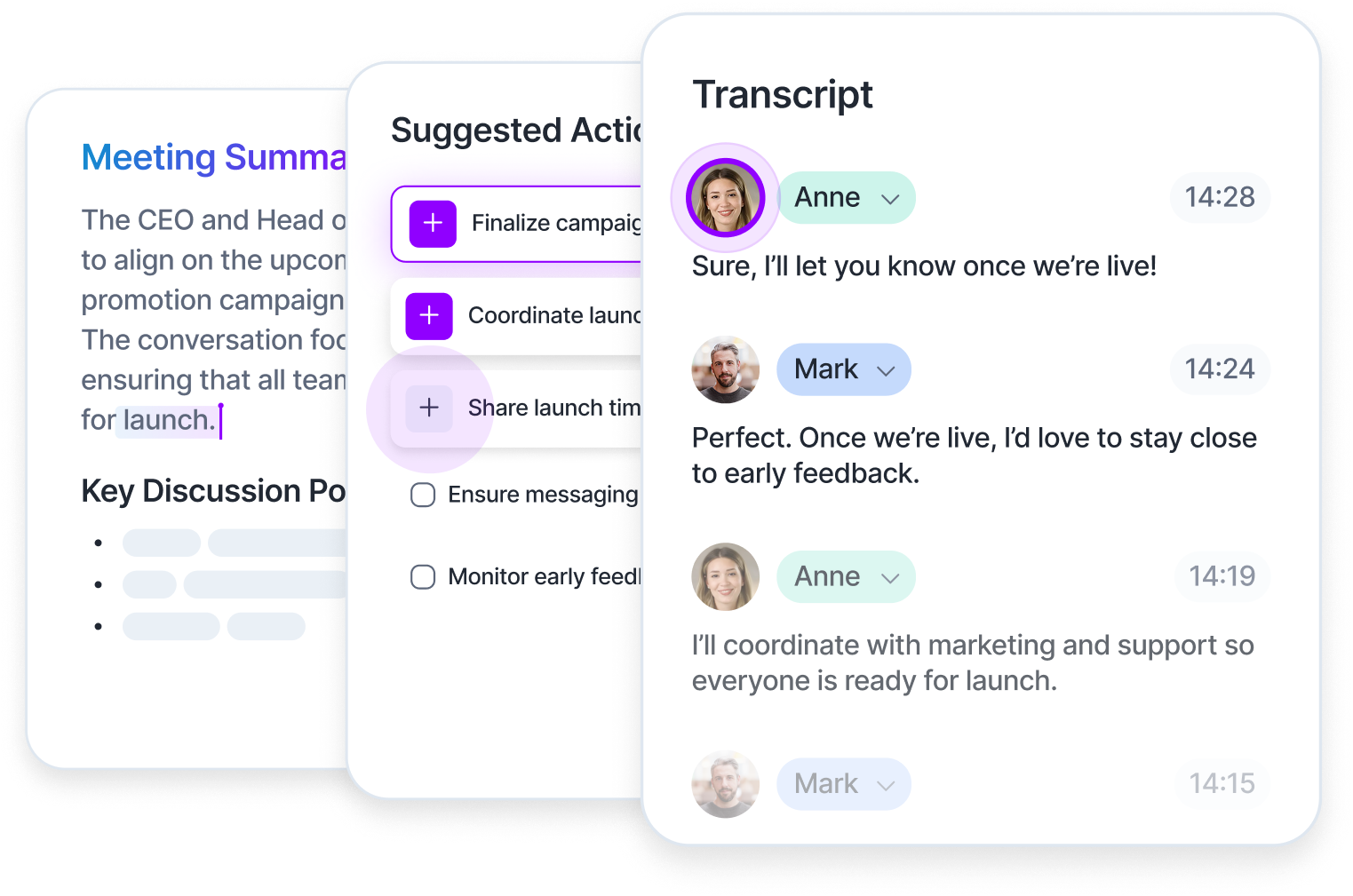
Automatic Recording & Transcription
Meeting Assistant joins your online meetings on Zoom, Google Meet, and Microsoft Teams, then automatically records and transcribes them. Within minutes of your meeting ending, you'll have a complete transcript ready to review with speaker identification.
Simply enable Meeting Assistant in your settings, and it handles the rest!
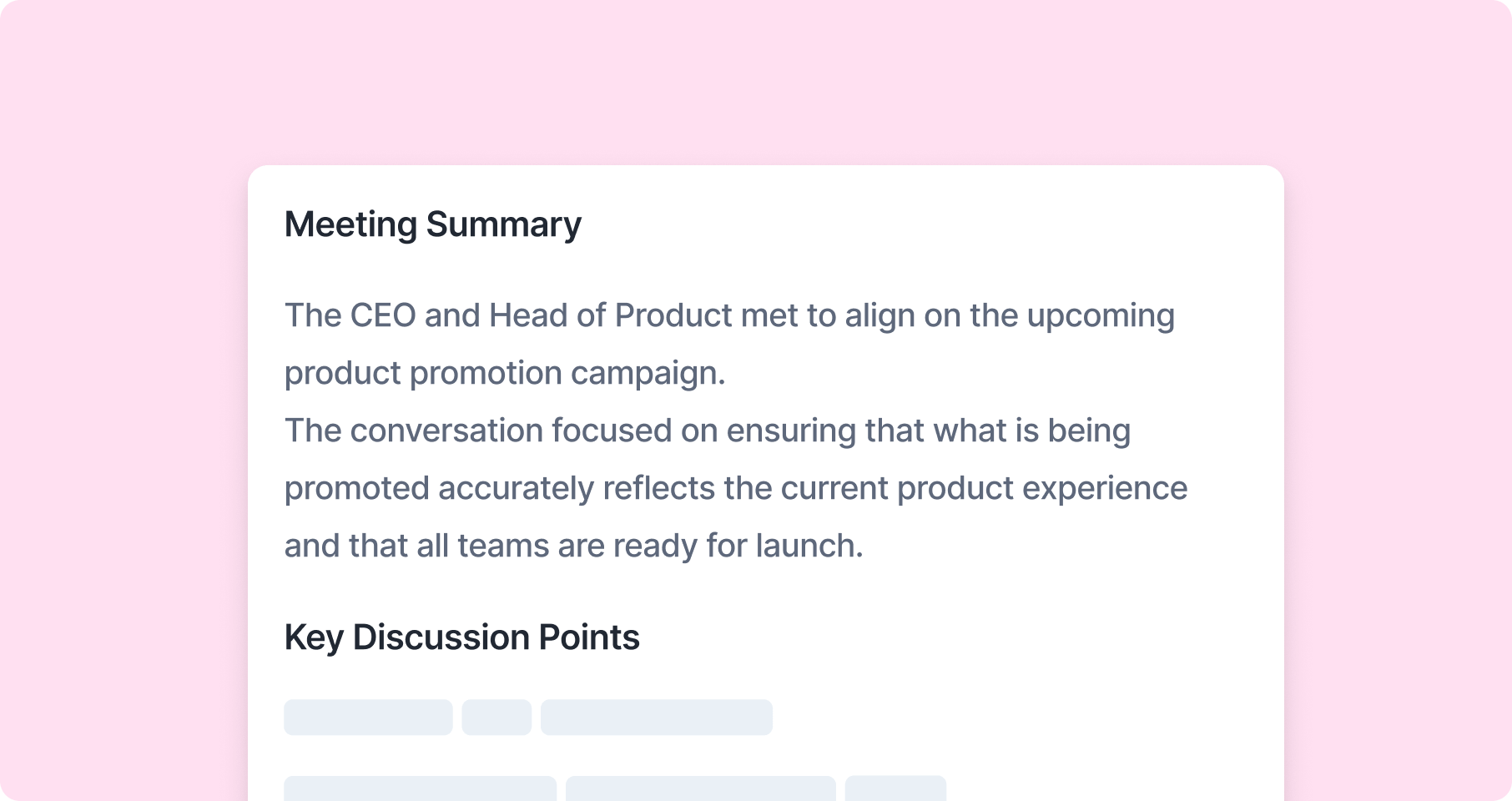
AI-Generated Meeting Summary
Every transcript includes an AI-generated summary that gives you a quick overview of what happened. The summary is displayed by default when you open a transcript, making it easy to quickly review key points without reading the entire conversation.
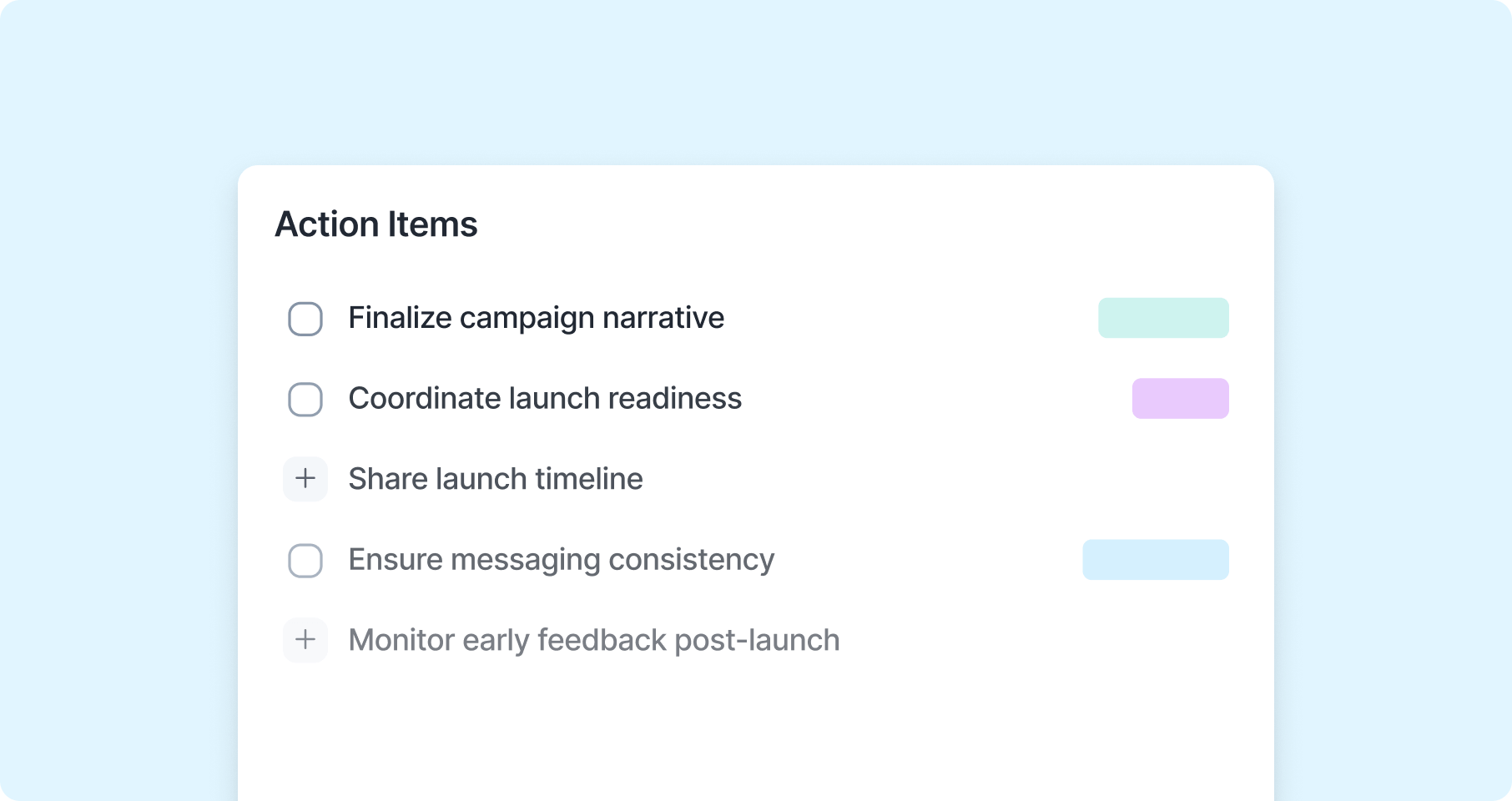
Action Items
Meeting Assistant automatically identifies action items discussed in your meetings and presents them in a dedicated Action items tab. With one click, you can create tasks directly in your Akiflow without typing anything.
Each action item has a Create task button that:
Creates the task in your Inbox instantly
Prevents duplicates
Changes to Go to Task after creation so you can navigate back to it anytime
All tasks are created without dates, so you can schedule them in your workflow as needed.
Follow-Up Emails
Send follow-up emails to all meeting attendees with just a few clicks. Meeting Assistant generates an AI-drafted email that includes the meeting summary and action items.
When you click Send follow-up email:
You can add optional custom instructions (e.g., Make it more formal or Focus on action items only)
Preview the generated email draft
Choose to open it in your email client or copy to clipboard
Edit before sending from your email client
The email automatically includes all meeting attendees (except you) in the To field and follows a professional format.
Email Notifications
Get notified when your meeting transcripts are ready! Meeting Assistant sends you an email when a transcript with action items is processed, so you never miss important follow-ups.
The notification email includes:
Meeting title and date
Number of action items suggested
You can enable or disable email notifications per calendar account in Settings.
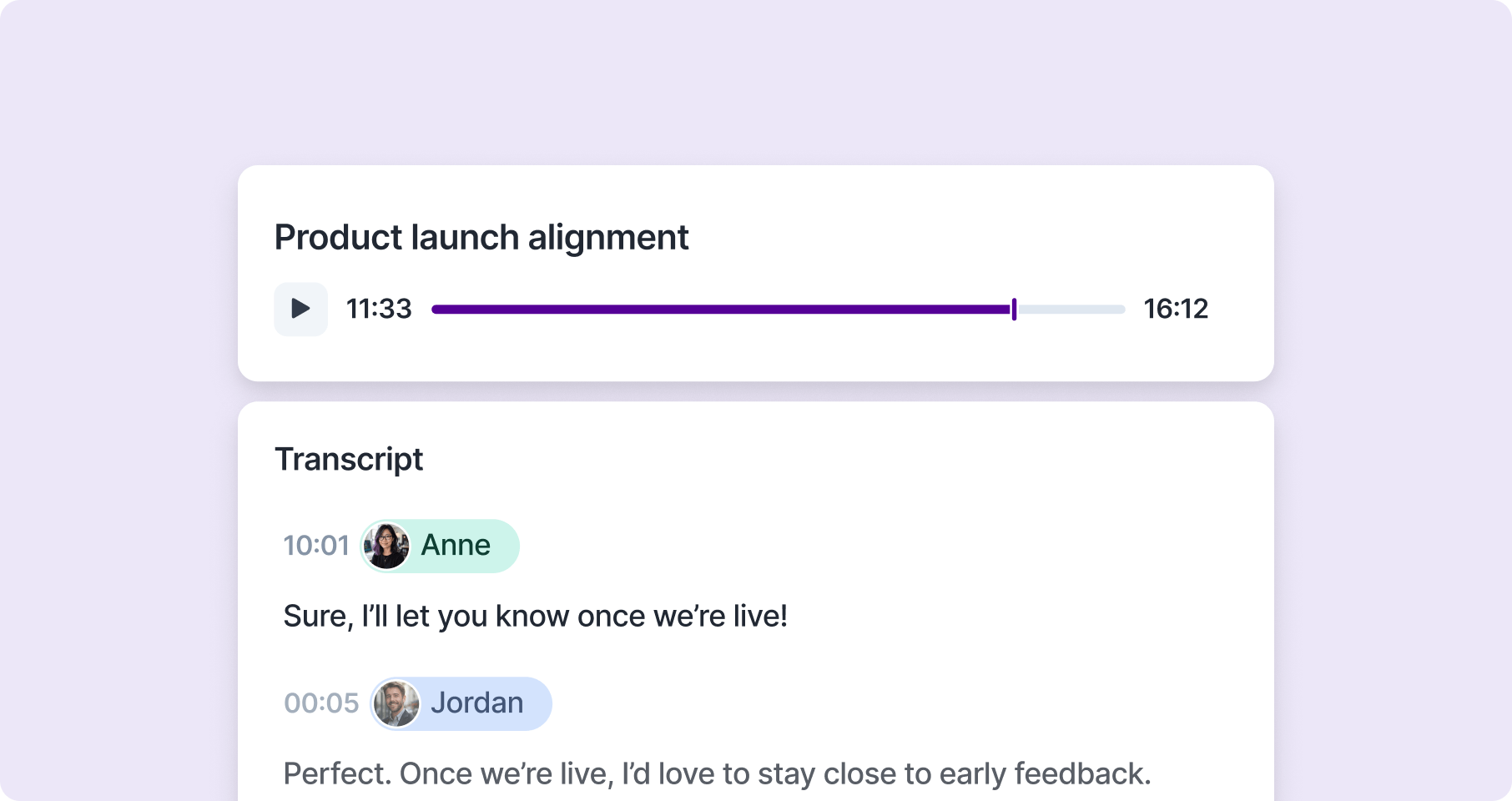
Audio Playback
Listen to your meeting recordings directly in Akiflow with the audio player. The player stays visible while you browse the transcript, making it easy to reference specific moments.
Getting Started
Enable Meeting Assistant by going to Settings → AI Center → Meeting Assistant (or clicking the gear icon, Transcript settings, at the top of the Meeting Assistant list) and selecting which calendar account should be recorded.
Once enabled, Meeting Assistant will automatically join meetings from your selected calendar. After the meeting ends, your transcript will be ready within minutes, and you'll receive an email notification when it's ready.
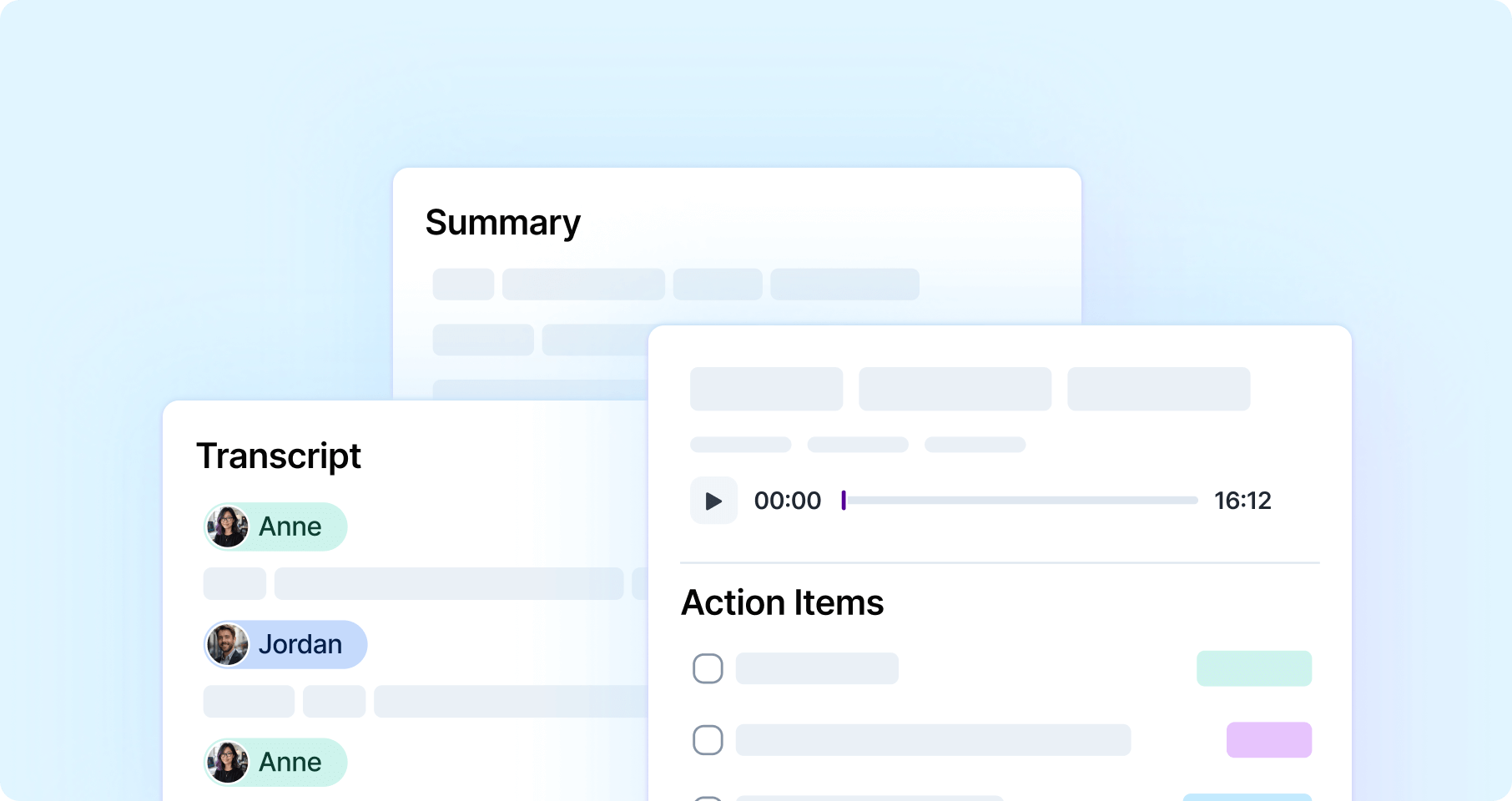
Viewing Your Transcripts
To see your transcripts on desktop and web, click Meeting Assistant in the left menu. Your meetings are listed with their date; type in Search Meeting to find one by title, and use ↑ / ↓ (or J / K) to move between them. You can also open a meeting on your calendar and click Open Meeting Summary once its transcript is ready.
On desktop and web, open a meeting, select the Transcript tab, and click Copy Transcript beside Send follow-up email. You can also choose Copy Transcript from the meeting’s three-dot menu.
This copies the full transcript with speaker names, regardless of your scroll position, so you can paste it into another app. The summary and action items are not included.
Each transcript has three tabs:
Summary: AI-generated overview (default view)
Action items: Checklist of suggested tasks you can create with one click
Transcript: Full word-for-word transcript with speaker identification
Try: Open your latest meeting transcript and switch between the tabs to explore!
Creating Tasks from Action Items
When you open the Action items tab:
Hover over (Desktop) or tap (Mobile) any action item
Click the
+icon buttonThe task is instantly added to your Inbox
The task is created without a date, giving you flexibility to schedule it in your workflow.
Dismissing a suggested action item from your Inbox only hides that suggestion. The action item remains in the meeting’s Action items tab, where you can create a task later.
If you dismiss a suggestion by mistake, use Undo in the confirmation message.
Try: Create a task from your most recent meeting's action items!
Sending Follow-Up Emails
After reviewing your transcript:
Click Send follow-up email
Optionally add custom instructions to customize the tone or focus
Click Generate email to create the draft
Review the preview showing all attendees, subject, and body
Choose to Open in email client or Copy to clipboard
If needed, click Regenerate to create a new version
Your default email client will open with a pre-filled draft including the meeting summary and action items. You can edit it before sending.
Try: Generate a follow-up email from your last team meeting!
Settings & Preferences
Go to Settings → AI Center → Meeting Assistant, or click the gear icon (Transcript settings) at the top of the Meeting Assistant list, to customize your experience.
Email Notifications
Toggle email notifications on or off for each calendar account. When enabled, you'll receive an email when your transcript is ready.
Default: Enabled (ON) Email sent to: Your calendar provider email
Calendar Selection
Choose which calendar account should have meetings automatically recorded. You can enable Meeting Assistant for specific accounts while keeping others private.
Fair Usage Limits
Your account includes 1,800 minutes (30 hours) of meeting recording per month.
Per-meeting limit: 3 hours maximum per individual meeting
When you reach your limit, you'll receive notifications at:
80% used: Email notification
95% used: Email notification
100% used: Email notification
Once you reach your limit, new meetings will not be recorded until your limit resets.
Data Retention
All meeting recordings are automatically deleted after 30 days.
If you cancel your Meeting Assistant subscription, you'll have 30 days of read-only access to review and save your transcripts before they're permanently deleted.
Mobile vs Desktop
Meeting Assistant is available on both desktop and mobile, with each platform optimized for its use case:
Desktop: Full-featured experience with usage tracking, all settings, and complete controls.
Mobile: Streamlined interface for quick review. View transcripts, create tasks from action items, send follow-up emails, and toggle notifications.
FAQ
Which meeting platforms does Meeting Assistant support?
Which meeting platforms does Meeting Assistant support?
Meeting Assistant works with Zoom, Google Meet, and Microsoft Teams.
How long does it take to get my transcript?
How long does it take to get my transcript?
Transcripts are typically ready within minutes of your meeting ending. You'll receive an email notification when it's available (if you have email notifications enabled).
Can I edit the transcript?
Can I edit the transcript?
Transcripts are read-only.
What counts toward my 1,800-minute limit?
What counts toward my 1,800-minute limit?
Every minute of recorded meeting time counts toward your monthly limit, based on the actual recording duration (not the calendar event duration). The limit resets on your billing cycle anniversary date.
What happens when I reach my limit?
What happens when I reach my limit?
Once you reach 1,800 minutes, Meeting Assistant will not record new meetings until your limit resets. You can still view all past transcripts.
Can I disable recording for specific meetings?
Can I disable recording for specific meetings?
Yes, select among different meeting types in the Settings.
Do I get notified for every transcript?
Do I get notified for every transcript?
Yes, when notifications for this feature are enabled.
What happens if I cancel my Meeting Assistant subscription?
What happens if I cancel my Meeting Assistant subscription?
When you cancel, you immediately lose the ability to record new meetings, but you'll have 30 days of read-only access to view your existing transcripts. After 30 days, all transcripts are permanently deleted.
Can I manually invite the Meeting Assistant to an ad-hoc meeting?
Can I manually invite the Meeting Assistant to an ad-hoc meeting?
Yes. On desktop and web, click Invite Aki Bot at the top of the Meeting Assistant list, paste the link of an ongoing Google Meet, Zoom or Microsoft Teams meeting, and click Send invite. This works for calls that aren't on your calendar too.
For a meeting on your calendar that's happening now, you can also open the event and click Invite Aki Bot. On mobile, this button appears when Meeting Assistant is turned off for that calendar account.
For automatic joining, make sure the meeting exists as a calendar event at least 10 minutes before it starts. If a calendar event was just created and the meeting begins immediately, the bot may not have enough time to join on its own.
Can I use Meeting Assistant for offline or in-person meetings?
Can I use Meeting Assistant for offline or in-person meetings?
Meeting Assistant is designed to work exclusively with online meeting platforms: currently Zoom, Google Meet, and Microsoft Teams. It joins the virtual call to record and transcribe the conversation, so it requires an active online meeting link to function.
Is Meeting Assistant available on all plans?
Is Meeting Assistant available on all plans?
Meeting Assistant is available on individual Akiflow plans only, it is not available on Team Plans. If you're on a Team Plan and see the Meeting Assistant option in your settings but can't activate it, this is expected behavior.
Is it included in my individual plan or a separate add-on? Meeting Assistant is a paid add-on and is not bundled with your base individual subscription. You can activate it separately from your billing settings.
How to activate or cancel Meeting Assistant:
Go to Settings → Billing
Under Add-ons, find Meeting Assistant
Click Activate to start your subscription, or Manage to end it
If you cancel, you'll keep access until the end of your current billing period and will have 30 days of read-only access to your existing transcripts before they're permanently deleted.
How do I cancel the Meeting Assistant add-on?
How do I cancel the Meeting Assistant add-on?
To cancel your Meeting Assistant add-on:
Go to Settings
Click on Account
Select Manage Account
Open the Billing section
Scroll down to the Add-ons section
Click Manage next to Meeting Assistant
Select Edit subscription
Click Remove add-on to confirm
Once canceled, you'll keep access until the end of your current billing period. After that, you’ll have 30 days of read-only access to your transcripts before they are permanently deleted.
How much does Meeting Assistant cost?
How much does Meeting Assistant cost?
Meeting Assistant is available as a separate paid add-on for individual Akiflow plans.
Pricing:
• $19/month
• Monthly subscription only (currently no yearly billing option)
At the moment, additional usage cannot be purchased. Once you reach your monthly limit, new meetings will not be recorded until your usage resets at the beginning of the next billing cycle.
What happens to my transcripts after the Meeting Assistant trial ends?
What happens to my transcripts after the Meeting Assistant trial ends?
The Meeting Assistant trial includes your first 3 recorded meetings. Once you've used those three trial meetings, you'll lose access to all transcripts, summaries, recordings, and action items created during the trial.
If you later decide to activate the Meeting Assistant add-on, access to your trial transcripts will be restored.
In short:
Your first 3 recorded meetings are included in the trial.
After the trial ends, transcripts from those meetings become inaccessible.
Activating the Meeting Assistant add-on restores access to all transcripts created during the trial.
Can Meeting Assistant join a meeting that requires a passcode?
Can Meeting Assistant join a meeting that requires a passcode?
No. Meeting Assistant cannot join meetings that require participants to enter a passcode before joining.
To allow Meeting Assistant to join and record the meeting automatically, make sure the meeting link does not require a passcode. Once participants can join directly from the meeting link, Meeting Assistant will be able to join as expected.
Was this helpful?
Still need help? Ask the team