Microsoft To Do
Import all your Microsoft To Do tasks in Akiflow automatically!
How to integrate with Microsoft To Do
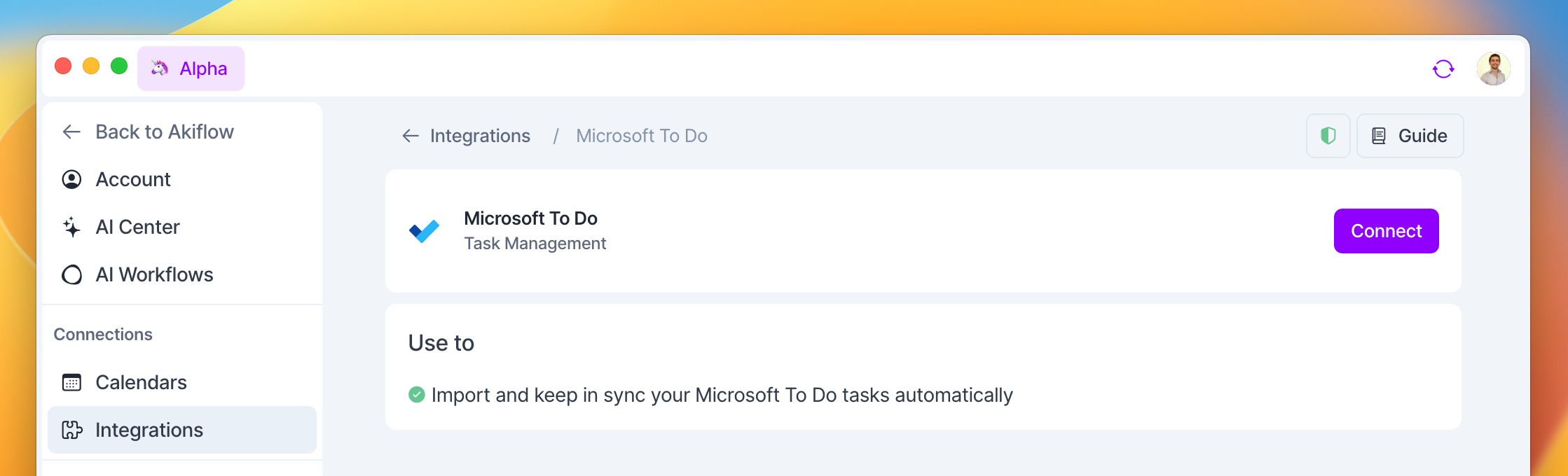
Go to Settings → Integrations → And click on Microsoft To Do!
You can now keep track of all your Microsoft To Do tasks directly from Akiflow.
Importing tasks from Microsoft To Do
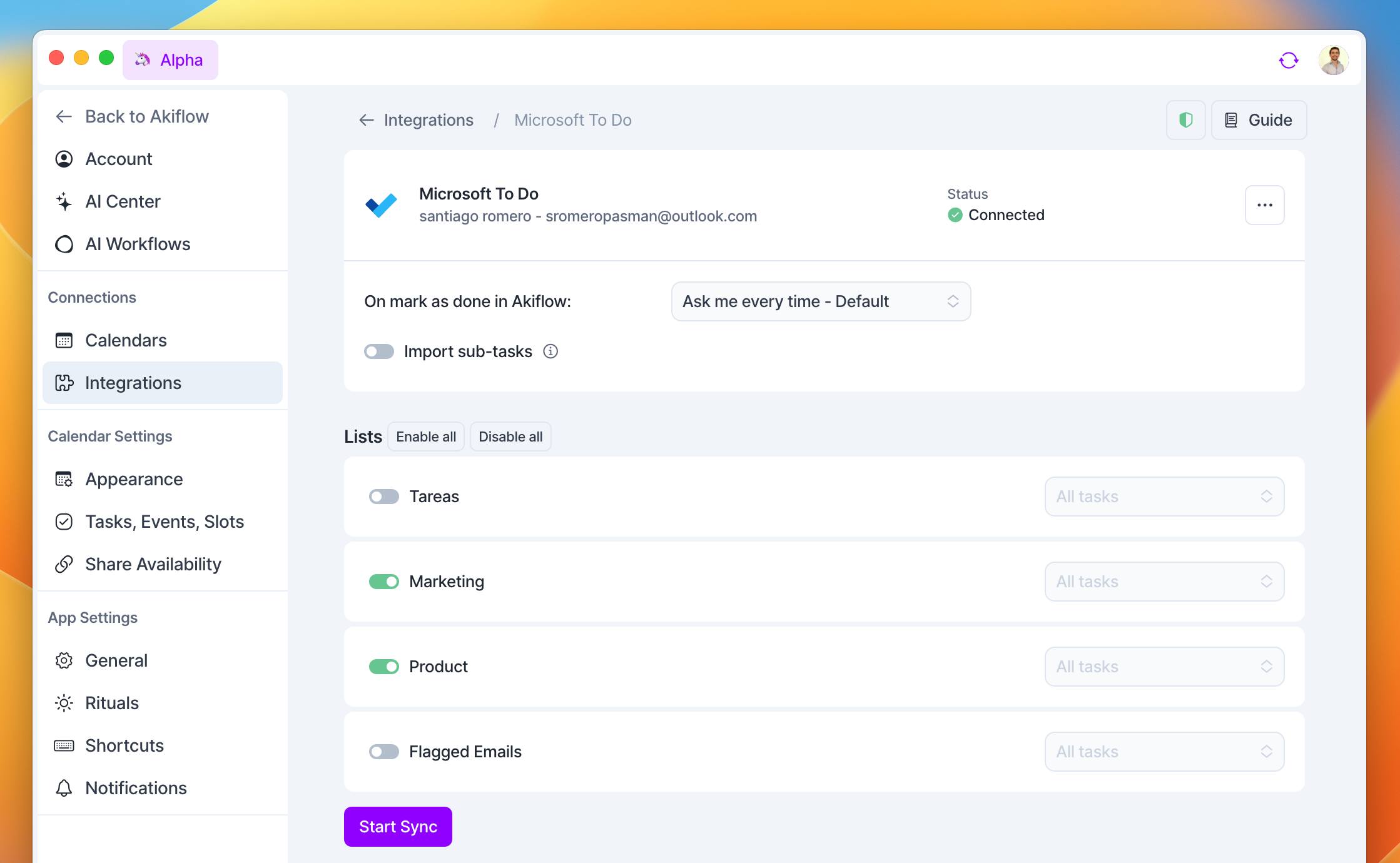
You can choose:
Which lists to import
Import subtasks as Akiflow tasks
If to import Flagged Emails and Tasks as Akiflow tasks
Be sure to click the Start Sync button after selecting your import option!
Pro tip: if you accidentally import too many tasks, you can multi-select your tasks to take bulk actions!
Where do my imported tasks go?
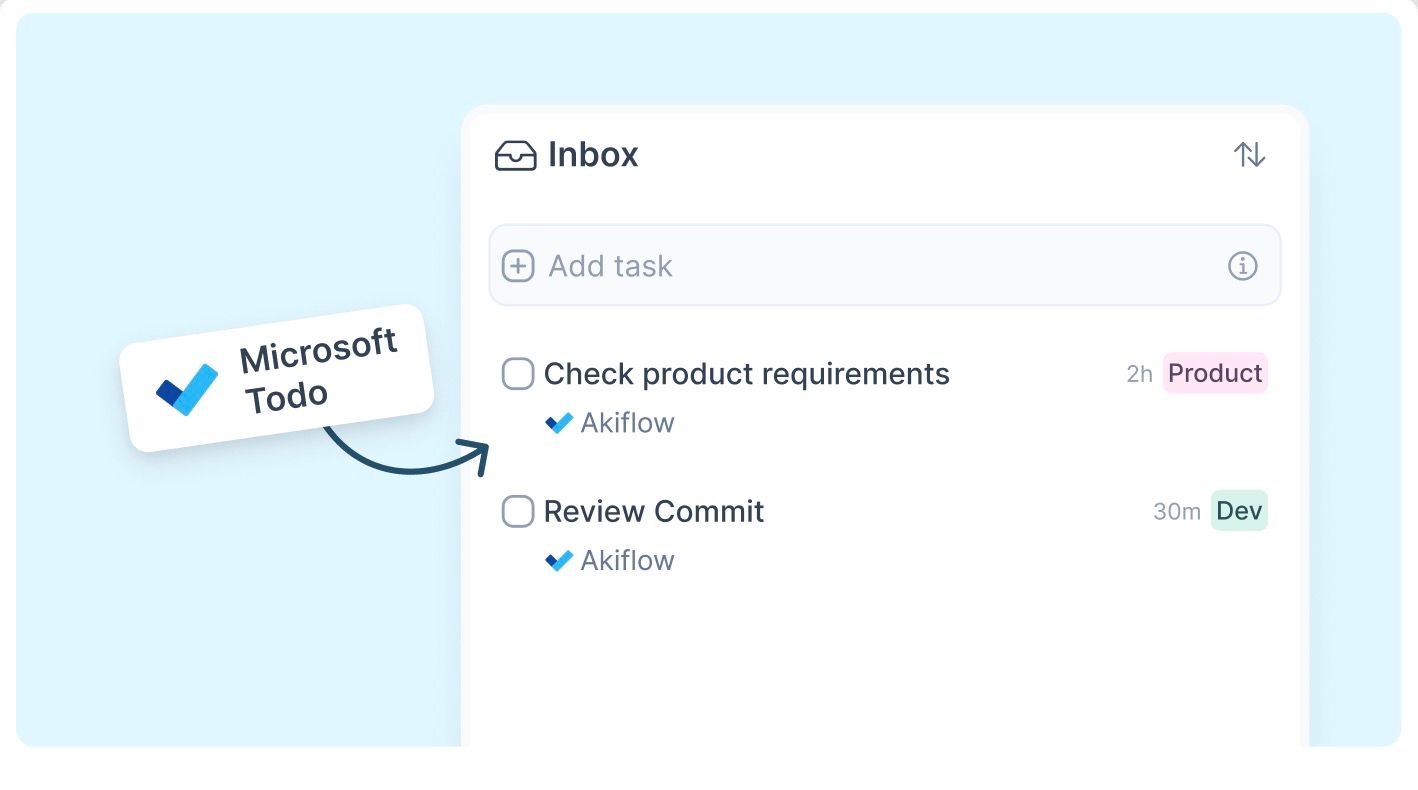
Tasks automatically imported from Microsoft To Do will appear in your Inbox
Tip: Hit O as Open on a selected task to be redirected to your Microsoft To Do task
FAQ
Can I connect more accounts?
Can I connect more accounts?
You can connect as many Microsoft To Do accounts as you want!
What happens when I complete a Microsoft To Do task in Akiflow?
What happens when I complete a Microsoft To Do task in Akiflow?
A popup will appear with the following options:
Mark as Complete in MS To Do
Go to MS To Do
Do nothing
I imported too many tasks, what can I do?
I imported too many tasks, what can I do?
Pick which Microsoft To Do tasks to delete:
Multi-selecting tasks and hit
backspace→ How to bulk edit tasks
Delete all your tasks
Go to Settings → Integrations → Connected → Microsoft To Do
Click on the button “Delete all imported tasks”. This action will delete all the tasks imported so far from Microsoft To Do in Akiflow. Nothing will happen to your source tasks in Microsoft To Do.
Start from scratch
Click on the option Reset integration. This action will delete all the tasks imported so far from Microsoft To Do in Akiflow and then re-import them again according to the new import options. Nothing will happen to your source tasks in Microsoft To Do.
When I delete a task on Akiflow, what happens to my Microsoft To Do tasks?
When I delete a task on Akiflow, what happens to my Microsoft To Do tasks?
When you delete a task on Akiflow, nothing happens to the source task in Microsoft To Do
How does Akiflow behave with recurrent tasks from Microsoft To Do?
How does Akiflow behave with recurrent tasks from Microsoft To Do?
Whenever you mark a Microsoft To Do recurrent task as complete, Akiflow’ll duplicate the task and mark it as done, so you'll be able to track your tasks in Akiflow while the parent task is still synched with Microsoft To Do and will be moved to the next recurrence date.
How are Microsoft To Do and Akiflow synched?
How are Microsoft To Do and Akiflow synched?
When you create a task in Microsoft To Do, it’ll be shown in your Akiflow Inbox.
Akiflow and Microsoft To Do are 2-way synched: any changes you make in Akiflow to the task's title and status (done/undone) will be reflected on Microsoft To Do and the other way around!
Is My Day list synced to Akiflow?
Is My Day list synced to Akiflow?
Yes. Tasks you add to My Day in Microsoft To Do will automatically sync to your Akiflow inbox.
Note: You won't see "My Day" as a selectable list in the MS To Do integration settings, but the sync works automatically in the background.
Why don’t tasks assigned to me in shared lists sync to Akiflow?
Why don’t tasks assigned to me in shared lists sync to Akiflow?
Was this helpful?
Still need help? Ask the team