Time Slots
Open your calendar and design your ideal week using Time Slots. Allocate time for all the activities you need (admin, marketing, fundraising, personal time), and you can later allocate the specific tasks for that activity.
What are Time Slots?
Time Slots are your new best friend in Akiflow. Think of them as containers within your calendar where you can neatly organize your tasks. Whether you're planning your day or setting aside time for specific activities like admin work or fundraising, Time Slots have got you covered.
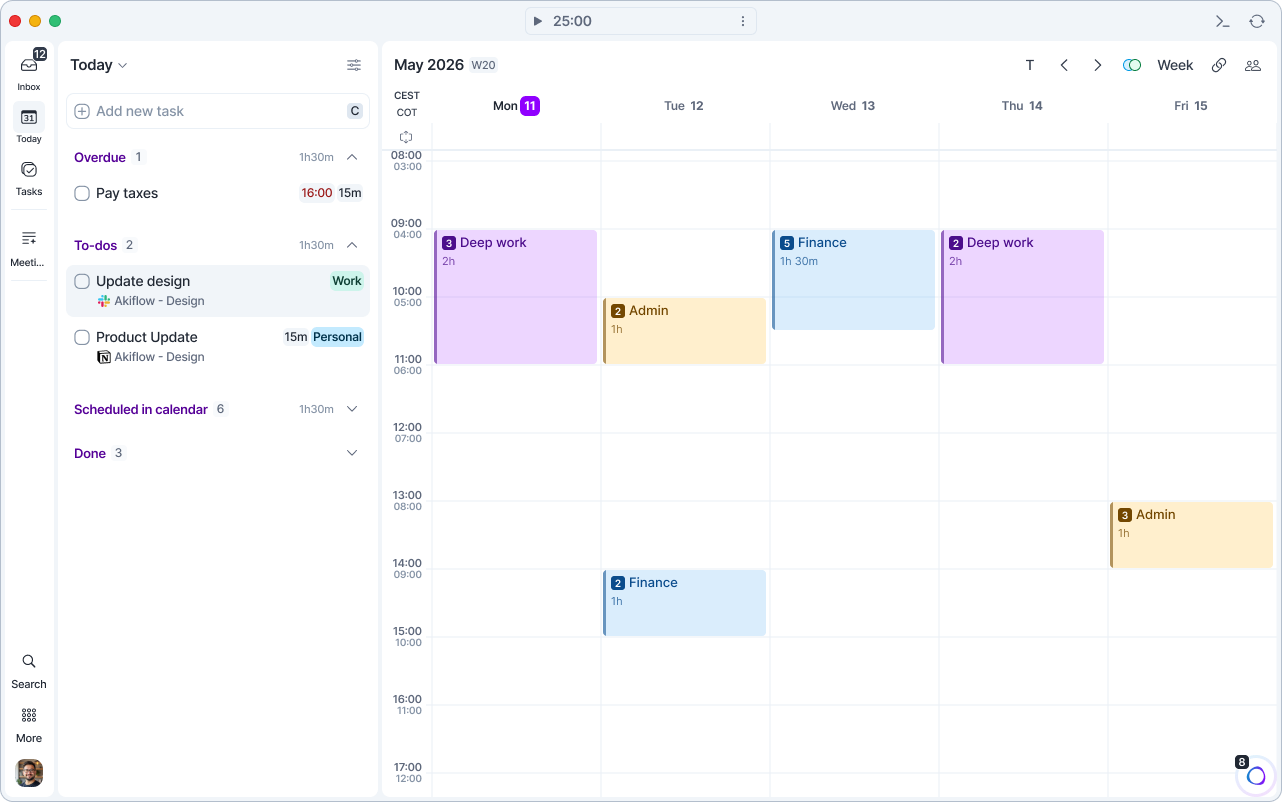
Open your calendar and design your ideal week using Time Slots. Allocate time for all the activities you need (admin, marketing, fundraising, personal time), and you can later allocate the specific tasks for that activity.
How to create Time Slots
There are 3 ways to create a Slot:
Hold
Option ⌥ + Clickand design the slot in the calendar. You can customize this option in Settings > Shortcuts.Alton Windows.Right-click on calendar.
Click on the calendar to start creating a task/event and switch to Slot.
Projects in Time Slots
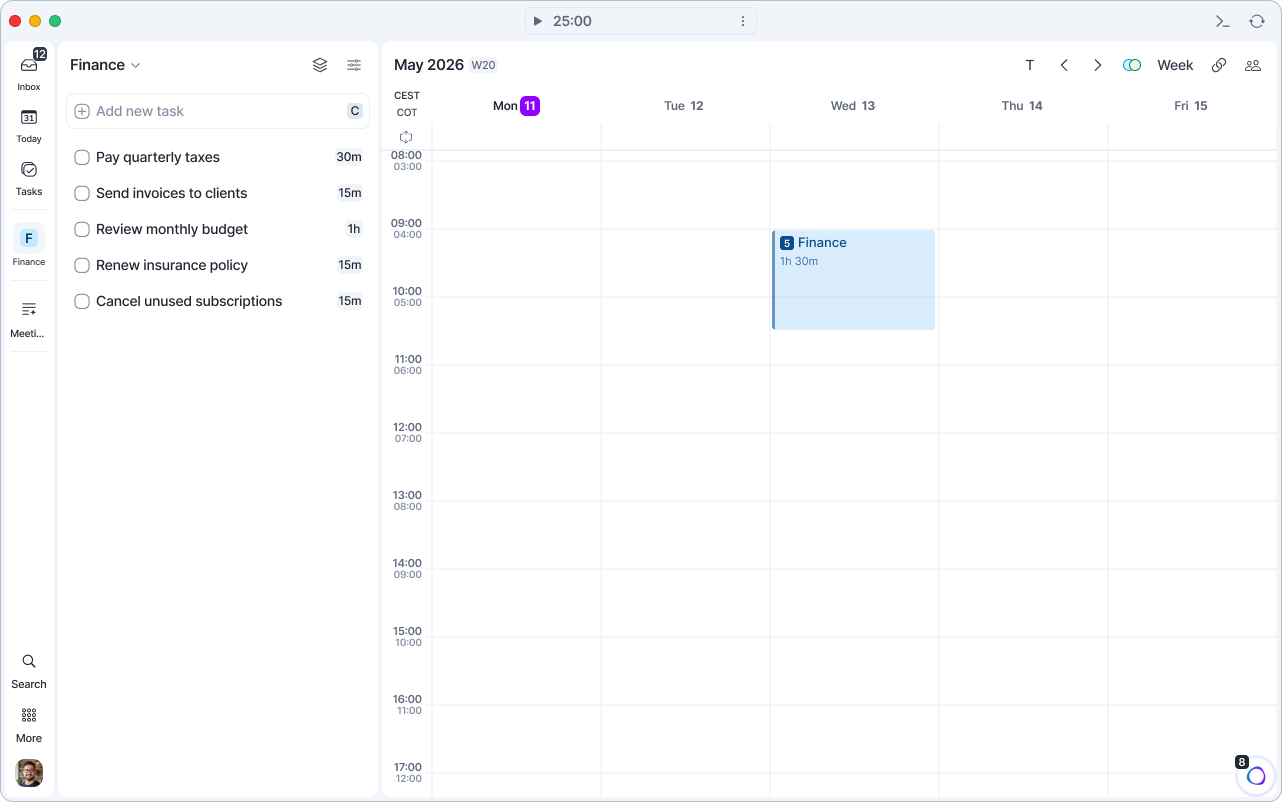
There are 2 ways to create a new project-specific Time Slot. Both ways, new tasks added to the slot will inherit the project and its name as the title.
From the Tasks panel or a pin: drag a project from the Tasks panel, or a pinned project from the menu, onto the calendar.
From the Project Page: Click on the “Slot” icon and drag it onto the calendar.
Features
Tasks
The appearance of a Slot is not affected by the time, duration, or project of its tasks. Tasks within a Slot are sorted by their planned time.
In the task list, you can see if a task is inside a Slot by the presence of the Slot icon and the color associated with that Slot.
Date & Time
Time Slots have a specific date, time, and duration.
Recurrence
Slots can be set to recur, just like tasks and events. You can have recurring tasks inside a recurring Slot: select Copy the Slot recurrence to always find this task in the slot. Editing the Slot’s date and time will also affect the tasks inside.
Lock Option
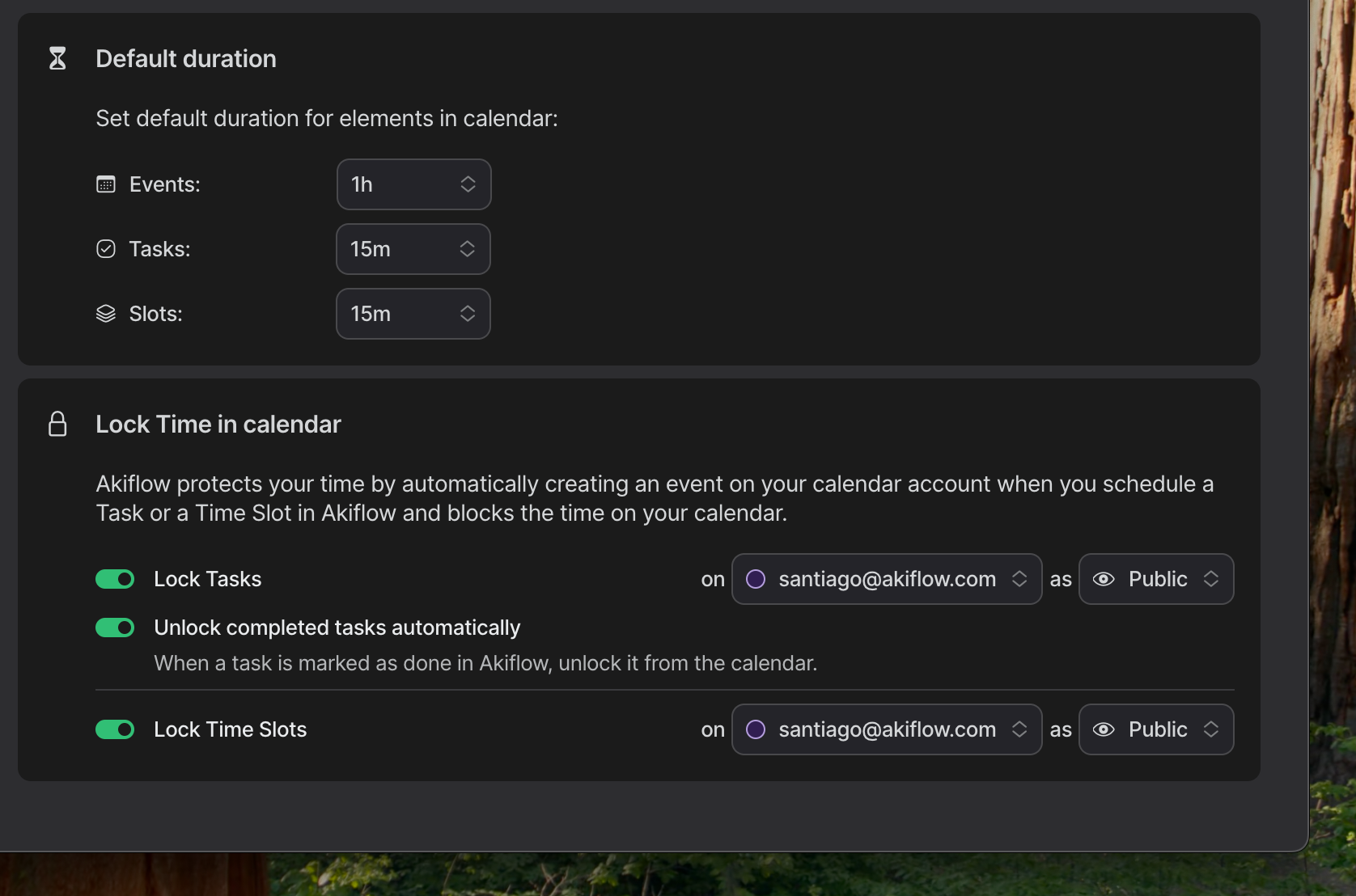
Just like tasks, you can lock your Time Slot to a specific calendar account. By default, lock for time slots is disabled. You can enable it in Settings → Tasks, Events, Slots and enable Lock Time Slots.
Task Locking: Tasks within a Time Slot are automatically unlocked. If you drag a locked task into an unlocked Time Slot, the Time Slot gets locked.
Why?
You can lock a Time Slot to create one event on your selected Google Calendar, Outlook Calendar, or iCloud Calendar.
Imagine a two-hour task placed inside a one-hour Time Slot. Locking the slot creates a single one-hour calendar event. Tasks inside the slot are not also locked as separate events, so your external calendar shows one block of time.
Projects & Color Coding
You can assign Projects to Time Slots. The project will automatically color-code the Slot in the calendar for easy identification. Tasks assigned to a time slot automatically inherit its project.
Drag a project from the Tasks panel or a pin onto the calendar to instantly create a slot linked to it.
Note: Time Slots do not have an independent color. Their color is entirely determined by the Project assigned to them.
Magic Button
Use Replan Undone Tasks to seamlessly move the tasks you didn’t complete. Akiflow will suggest you the next slots of the same series or with the same project already planned in your calendar.
Focus mode
Select a slot and press F, or click the Focus mode button in its popup, to open it in Focus Mode. There you can add tasks straight into the slot and tick them off. Learn more in Focus Mode.
Time slot details
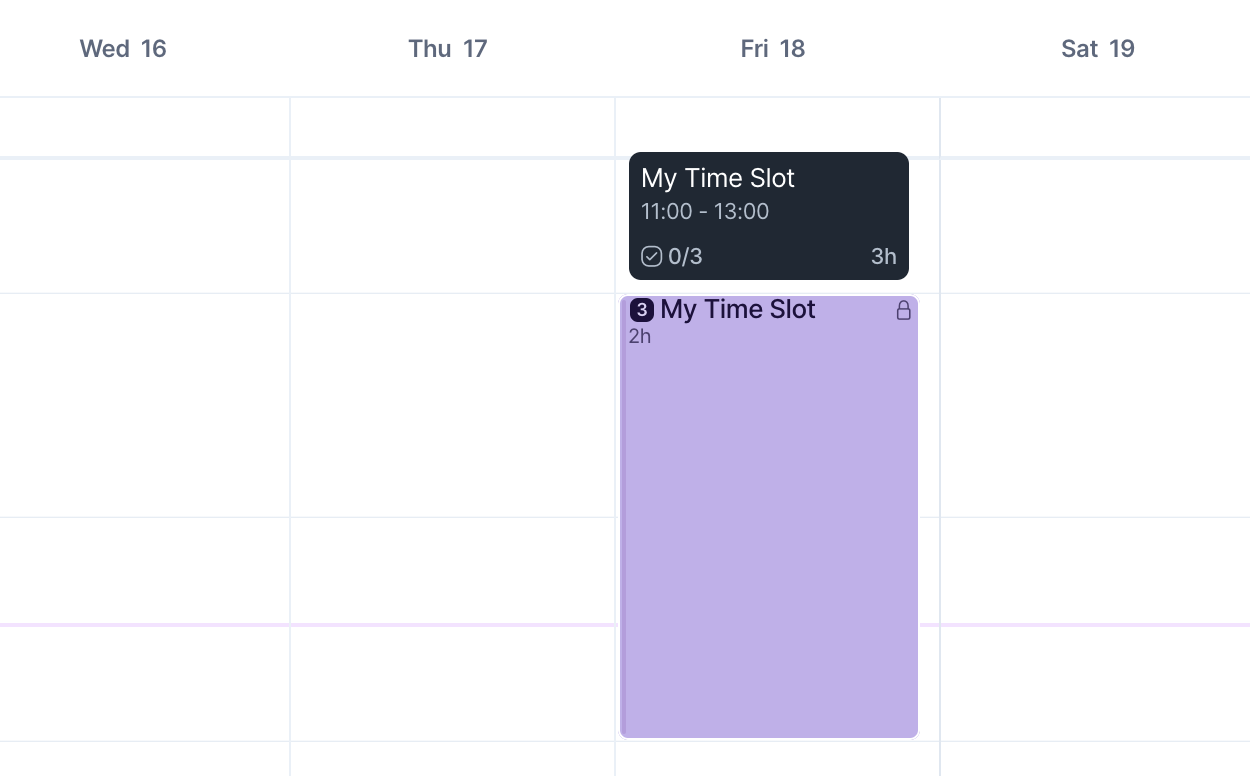
Hover over your time slots to view your progress: see how many tasks you’ve completed versus what’s pending, and check the total slot duration based on your planned tasks.
Task Countdown
The number of tasks within a Time Slot is visible on the calendar and decreases as you complete them. Completed tasks are moved to the bottom of the tasks list inside the Slot.
Completion bar
You can see a task completion bar at the bottom of the Time Slot.
Auto‑Group Tasks into Time Slots
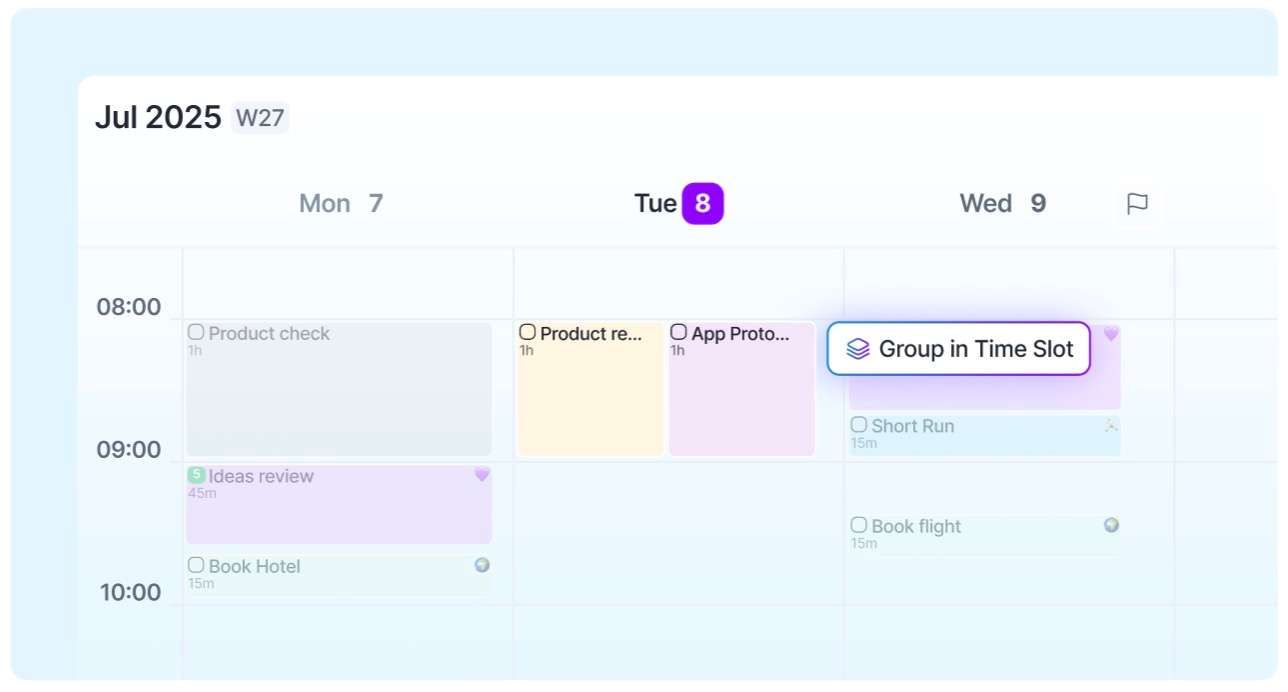
What happens if you overlap tasks in calendar? Aki bundles tasks scheduled at the same time into a single Time Slot or suggests you to do so in 1 click.
Adding Tasks to Time Slots
Drag & Drop: simply drag tasks into a Time Slot.
Inside the Slot: Click Add new task or use the shortcut C to jump to the Add new task box within the Time Slot.
Command bar: use P on a task to open the plan command. Type the name of the slot or its project to see all the related slots available for you to plan your tasks in.
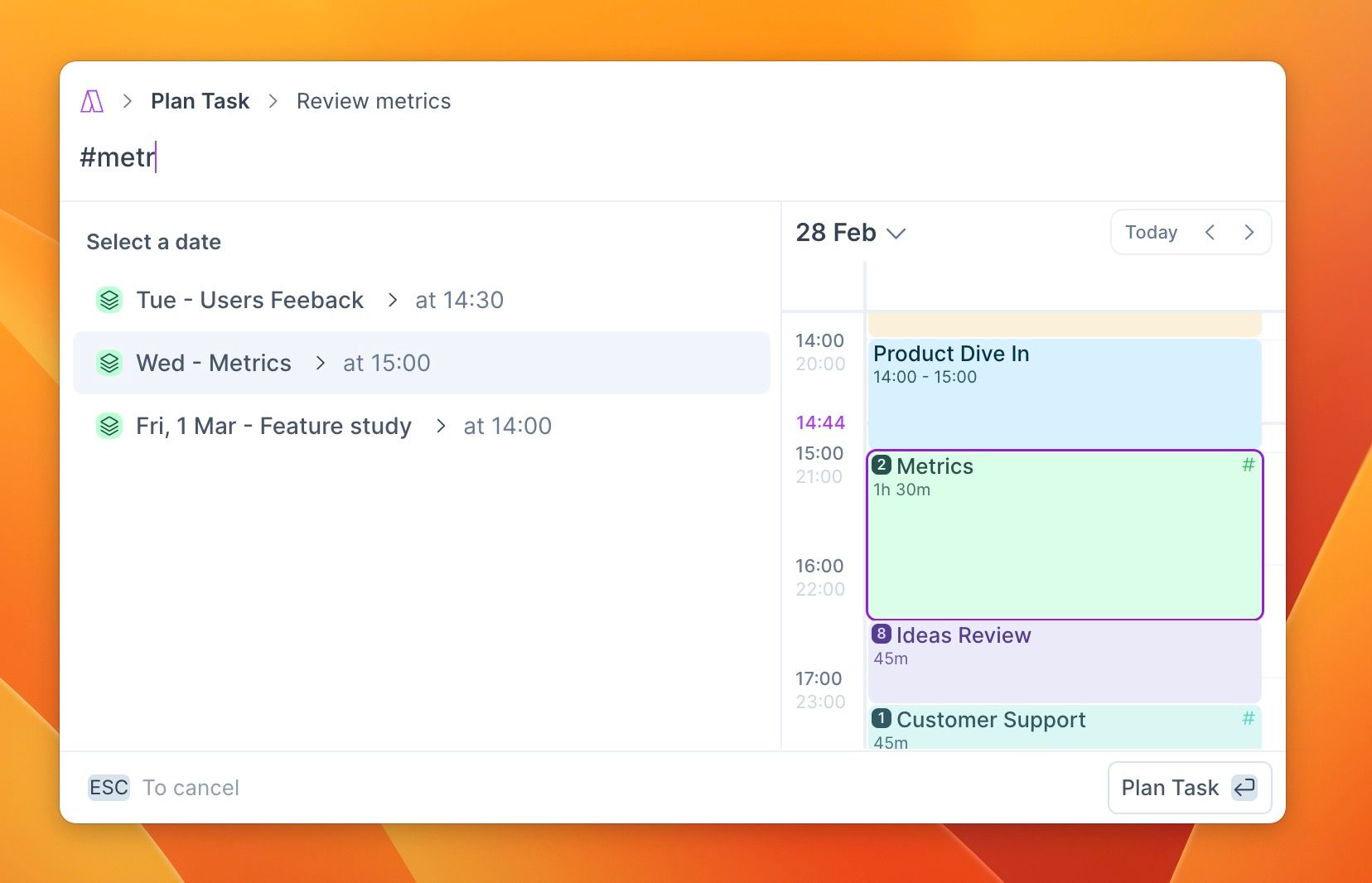
Editing a Time Slot
Drag & drop: move a Slot in the calendar to replan the slot and its tasks.
Command bar: Select a Time Slot and open Command Bar to edit the Slot and the tasks within them.
Right-click on a Time Slot to open the options menu.
Settings
Go to Settings → Tasks, Events, Slots to:
Set their Default Duration
Lock Behavior: Lock is disabled by default for both tasks and time slots. This setting syncs across all platforms. You can turn the lock feature
onfor Time Slots here.
Go to Settings > Notifications to customize your Time Slot notifications.
Working on a Task Across Multiple Sessions
If you have a task that requires more time than you can dedicate in a single session, for example, 2 hours of work split across two days, the recommended approach is to use Time Slots together with the Replan Undone Tasks feature.
Here’s how to do it:
Add the task to a Time Slot on your calendar for today and work on it as usual.
At the end of your session, if you didn’t finish the task, click the Magic Button on the Time Slot and select Replan Undone Tasks or select the task and use the
Pshortcut. Akiflow will suggest a Time Slot matching the same project on the following days, simply confirm to reschedule it.Repeat until the task is complete. The task stays as a single item throughout, no need to split it into multiple tasks.
Pro tip: For better stats tracking, you can duplicate the task (Cmd/Ctrl + D), mark the original as complete for today’s session, and plan the duplicate to the next slot. This way, Akiflow’s stats accurately reflect the time you actually worked on each session.
FAQ
Why can I not lock tasks inside a Time Slot?
Why can I not lock tasks inside a Time Slot?
You can lock the Time Slot to block time on your connected Google Calendar, Outlook Calendar, or iCloud Calendar. Tasks inside it are not exported as separate locked events, which prevents duplicate blocks.
Here’s an example: a two-hour task placed inside a one-hour Time Slot does not create an extra two-hour event beside the slot.
How can I change the Time Slot color?
How can I change the Time Slot color?
Assign a project to a Time Slot to automatically color the Time Slot in calendar!
Does changing the Lock Time Slots setting affect existing time slots?
Does changing the Lock Time Slots setting affect existing time slots?
No, changing the Lock Time Slots setting does not retroactively update existing time slots. This setting is trigger-based and only applies to time slots created after the change. Any previously created slots will retain their original visibility settings and must be updated manually if needed.
Was this helpful?
Still need help? Ask the team