Projects & Tags
Tasks can arrive in Akiflow from various sources, such as the command bar or integrations. To help you keep your tasks organized, we offer two options: Projects and Tags.
Discover the power of Projects and Tags
At Akiflow, we understand the importance of managing your tasks effectively. That's why we've designed our product to provide you with flexible tools to organize your tasks in a way that feels comfortable to you.
Projects
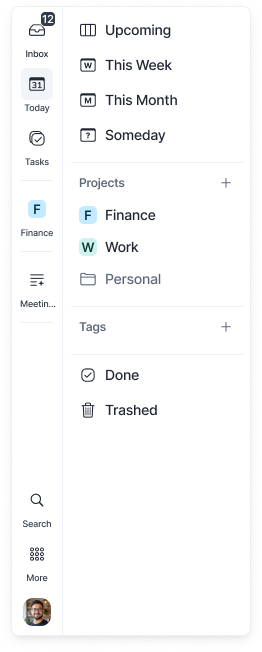
Projects are the # you can assign to your tasks and time slots. You can organize them in Folders and divide them into Sections.
For example, you can create a Project called "Marketing" and another called "Home". The Project page is where you can view all tasks assigned to a particular Project.
Projects & Time Slots
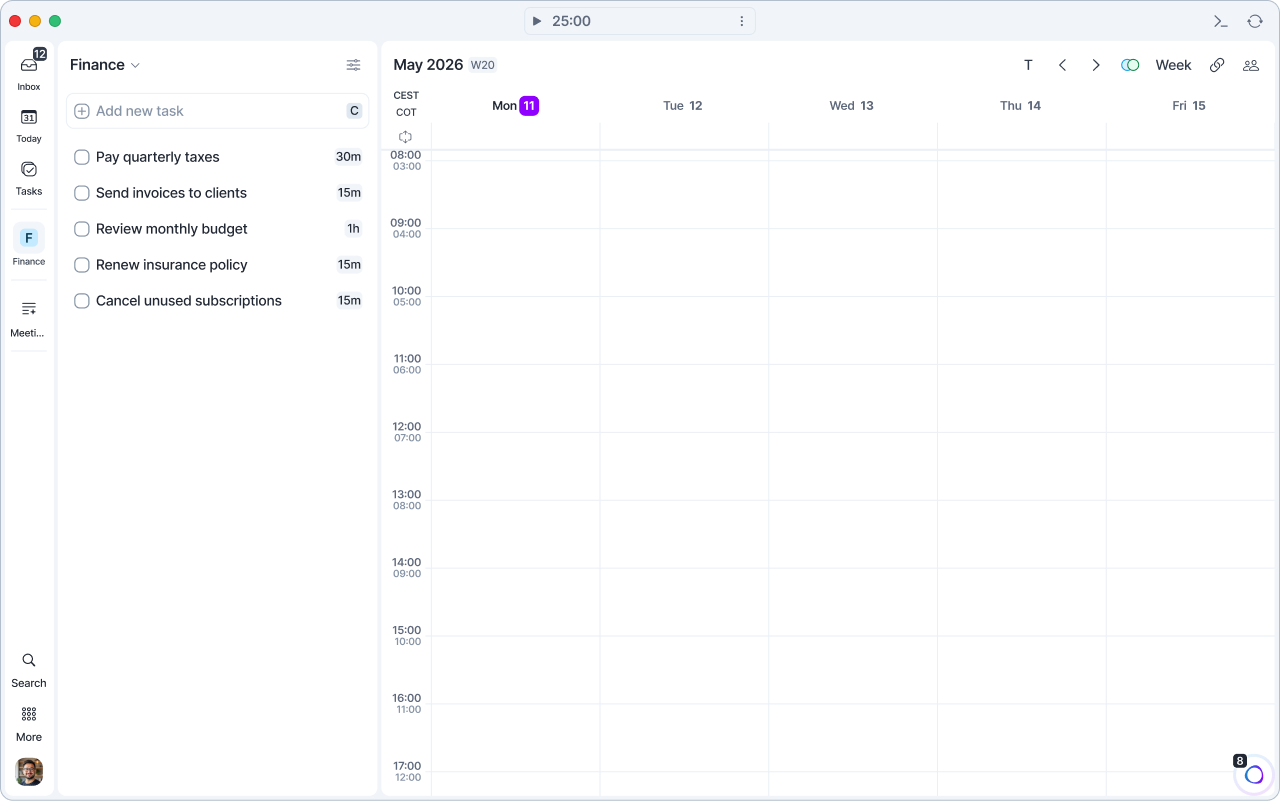
There are 2 ways to create a new project-specific Time Slot. Both ways, new tasks added to the slot will inherit the project and its name as the title.
From the Tasks panel or a pin: drag a project from the Tasks panel, or a pinned project from the menu, onto the calendar.
From the Project Page: Click on the “Slot” icon and drag it onto the calendar.
Color-code tasks by project
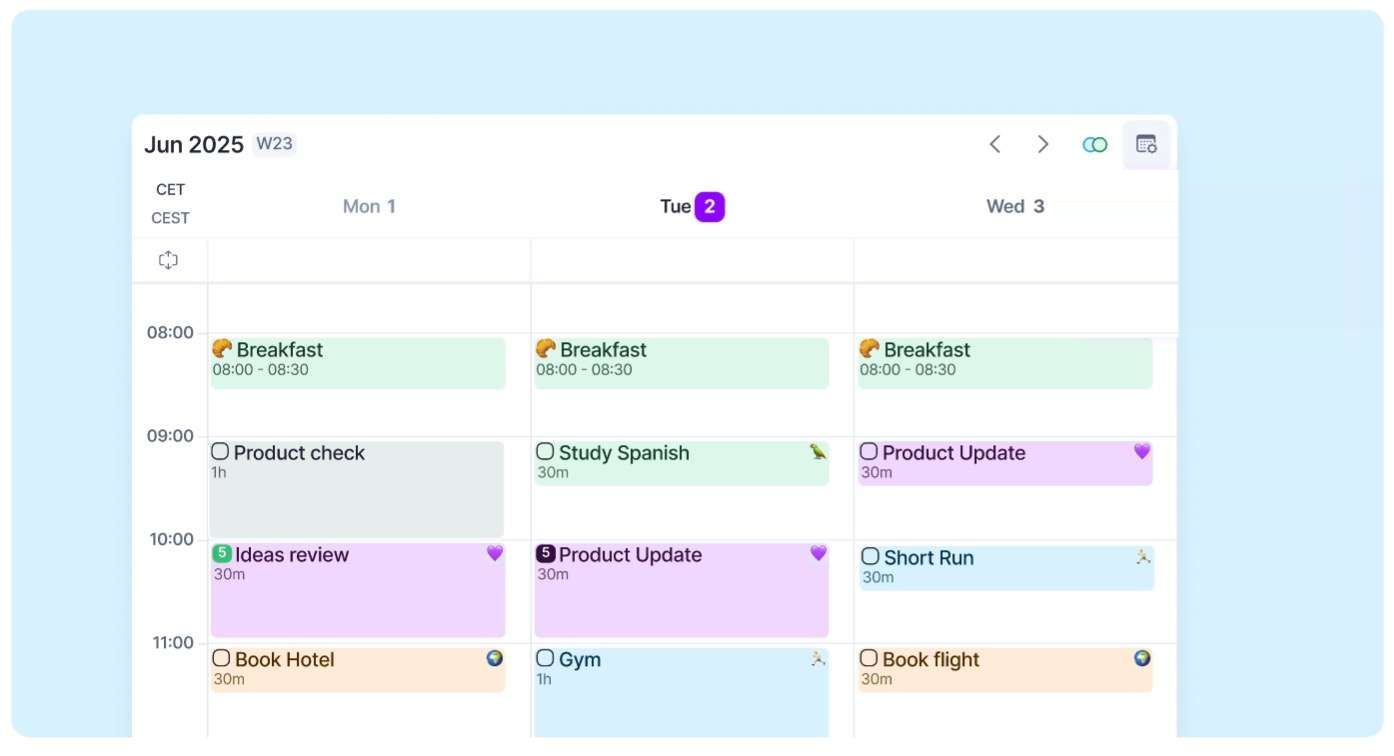
Your tasks will inherit the color of their assigned project, making your calendar more organized and visually easier to scan. Keep in mind that a task must be assigned to a project for its color to appear.
Project colors are only visible when tasks are time blocked on your calendar and will not be displayed in task lists such as Today, Inbox, or other planned time frames.
Tags
Tags are a great way to categorize tasks and filter your view to sharpen your focus. Hit * to assign a tag to a task, or click on the Tag icon in the task popup. Then type in the name of the tag you want to add and press enter. You can add multiple tags to a task!
Once you assign a tag to a task, that task will also appear on the corresponding Tag page, accessible from the Tasks panel (hover Tasks in the menu on the left), or from its pin if you pinned it. Use the Go to feature to jump to a Tag page. Just hit G!
Bulk edit tags: select multiple tasks, press * and choose the tag you want to add or remove.
Creating Projects & Tags
Organizing your tasks becomes much easier when you can quickly create new Projects and Tags as you work. In Akiflow, you can create them from several places, whether you’re planning through the Command Bar, browsing the Tasks panel, or editing a specific task.
Command Bar: use the shortcut
*or#and type the name of your new tag or project.Tasks panel: hover Tasks in the menu, then use the
+next to Projects (Add project or folder) or Tags (Add tag).Task Popup: use the shortcut
*or#and type the name of your new tag or project.
Filter views by Project & Tags
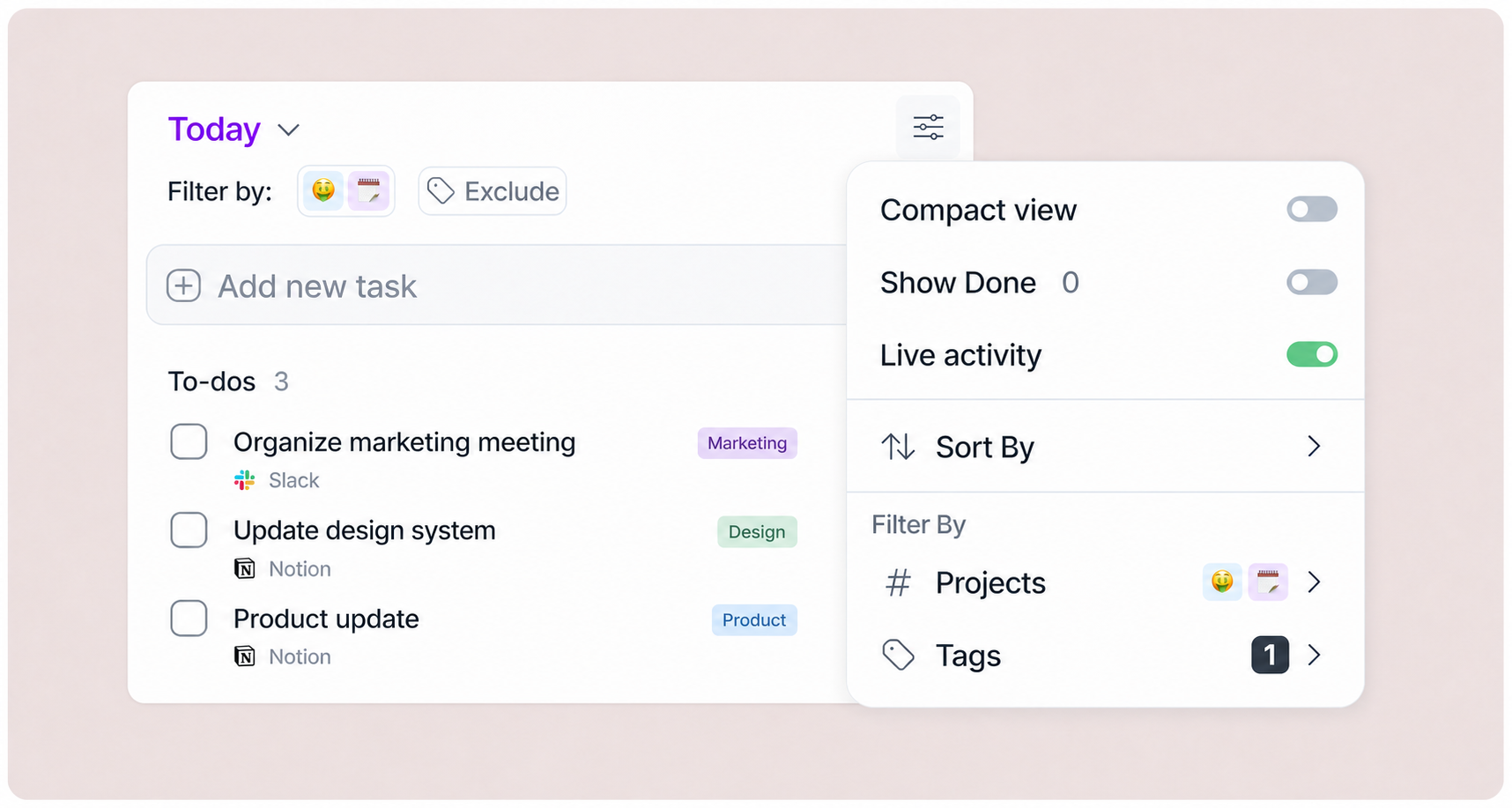
You can filter your task lists by Projects or Tags to focus on what matters most.
Click the filter icon at the top-right corner of your view, then choose:
Projects to display only tasks from one or more selected projects.
Tags to show tasks labeled with specific tags.
You can combine both filters to refine your view even further. Use the Reset option anytime to clear your filters and return to the full list.
Pin projects and tags
Right-click a project or tag in the Tasks panel and choose Pin to menu to keep it one click away (up to 5 pins). Drop tasks on a pinned project or tag to assign it.
Deleting Projects & Tags
Right-click the project or tag in the Tasks panel and select Delete. Deleted Projects and Tags cannot be restored.
When deleting a project, you can choose one of the following options:
Just delete the project → Tasks will remain active, but the project will be removed from them.
Mark all tasks as done → All tasks inside the project will be marked as completed.
Delete incomplete tasks → Only incomplete tasks will be deleted. Deleted tasks can still be recovered from Tasks panel → Trashed.
Managing completed projects
If you have projects that are already completed but don’t want to delete them, you can hide them from the Tasks panel instead.
Right-click an empty spot in the menu and choose Edit Views. Click the eye button next to a project to hide it from the Tasks panel. It stays in Akiflow, and you can show it again the same way.
Need help?
Reach out to our team at support@akiflow.com. We're happy to help!
Join our community to ask questions, share your workflow tips, and connect with other Akiflow users who can help you get even more out of Akiflow.
Was this helpful?
Still need help? Ask the team