Today Page
The Today page shows all the tasks you’ve planned for the day, helping you focus only on what matters today.
What is the Today Page?
The Today Page is your space to focus and get things done. It shows all the tasks you’ve planned for the day, helping you stay organized and in flow.
You can drag and drop tasks from here into your calendar to time block specific hours for focused work. When you move a task to your calendar, it remains in the Today Page under Scheduled on calendar, so you can still track it as part of your daily plan.
Tasks assigned to this week appear under the Week button at the bottom of the Today section. The button shows how many tasks you have this week. Click it to open the week overview, where you can add tasks or drag them in to plan them for the week. Press Esc or click the header again to close it. If you drag a task from the week overview into Today or directly onto your calendar, it will be removed from the Week section because it is now scheduled for a specific date.
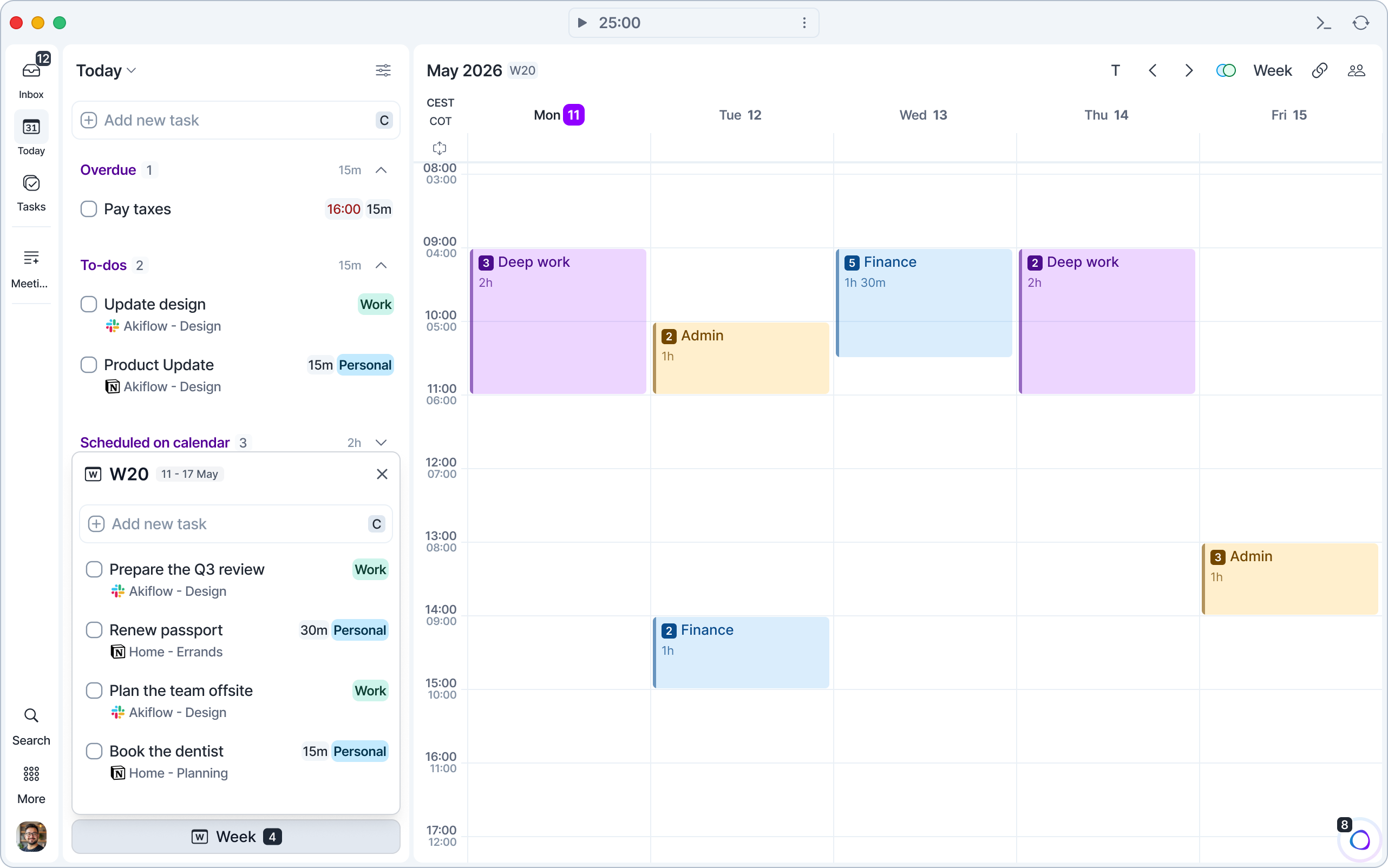
Press T to open Today from anywhere in the app. If Today shows another day, T takes you back to today. If you're already on today, T hides or shows the task list. Same key on Mac and Windows.
To look at another day, use the ← and → arrow keys, or click the Today title and pick a date. When you're on another day, a T button appears next to the title to bring you back to today.
Inbox vs Today
Creating a task with a date will go on the Today page, not the Inbox, because you decided when to execute it.
Call Mike → Inbox
Call Mike Today → Today
Call Mike Today 5 pm → Today & Calendar
How to Plan tasks from integrations
When a task is imported from an integration such as Asana or Slack, it will appear either in your Inbox or on your Today Page, depending on your integration settings in Akiflow. If the task includes a planned date, it will appear in the Today section when that date matches the current day.
What if I don’t complete a task?
If you don't complete a task on the day planned for it, it'll get carried over to the next day so you don't forget about it. Overdue tasks are the first visible on the Today page, so you won’t miss them. Each one shows a red badge with how long ago it was planned, for example 2d ago.
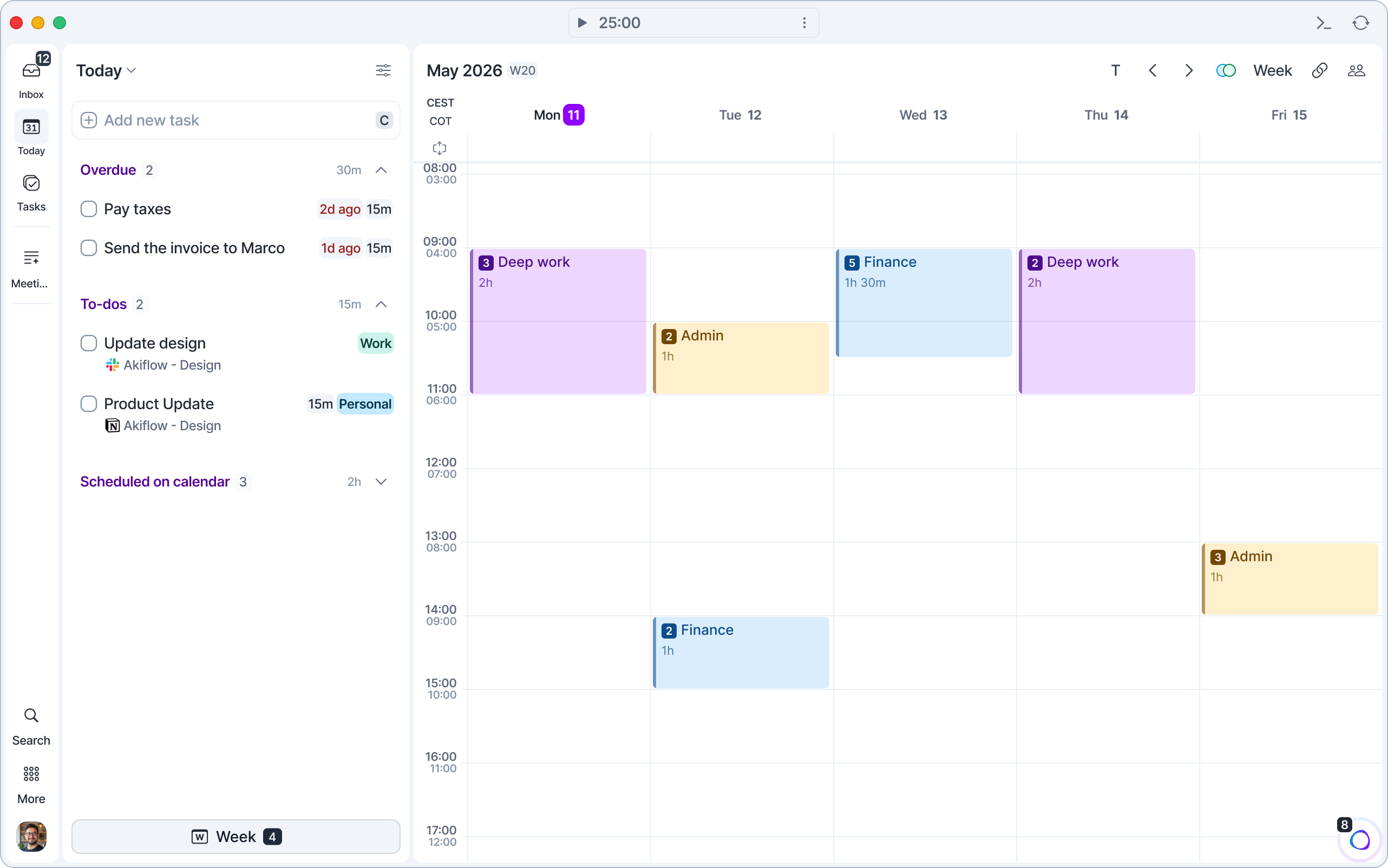
When does a task become overdue?
Akiflow does not mark a task as overdue right after its end time. This gives you some buffer and prevents your Today Page from being cluttered with overdue tasks.
A task becomes Overdue one hour after its scheduled end time. For example, if you schedule a 30-minute task at 1 PM, it will be marked as Overdue at 2:30 PM.
For weekly tasks (those planned within a week time frame, such as W11), they will appear as Overdue on your Today Page on the first day of the following week, according to your Week starts on setting.
For example, if your week starts on Monday, then on the Monday of W12, all tasks planned for W11 will appear as Overdue in the Today section.
View options
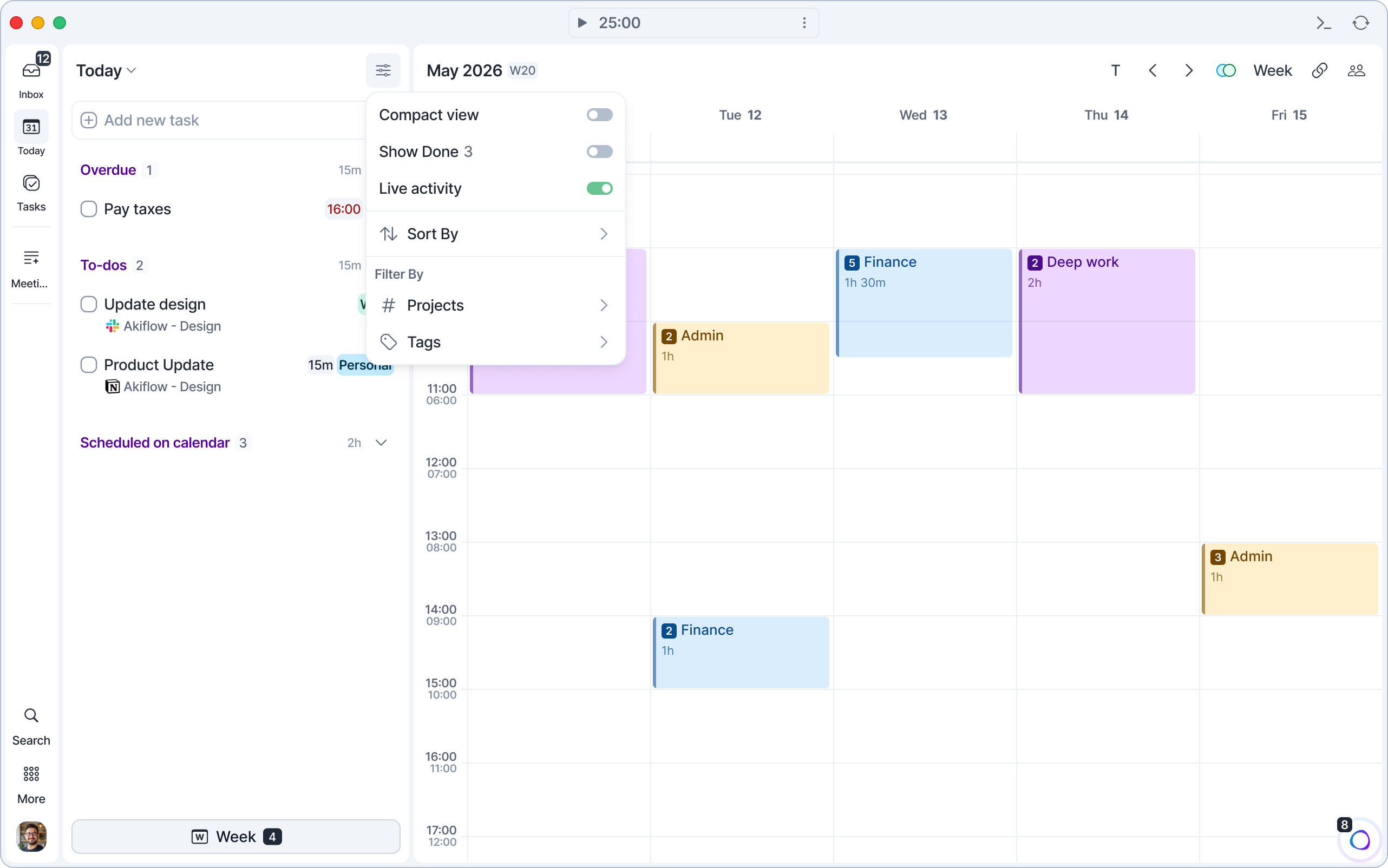
The view options button (top right corner of the Today Page) lets you customize how your tasks are displayed and organized.
Compact view
Turns on a more condensed layout, reducing space between tasks so you can see more items at once.
Show Done
Shows or hides completed tasks. The number beside it indicates how many completed tasks you currently have for today.
Live activity
Shows or hides the Live activity cards at the bottom of the Today Page (on by default). See Stay in Flow with Live Activities below.
Sort By
Allows you to reorder tasks by different criteria. You can sort by Plan Date, Priority, Projects and Deadline.
Filter By
Lets you display only specific groups of tasks based on:
Projects: view tasks belonging to selected projects.
Tags: filter tasks by one or more tags to focus on a particular context or type of work.
Press Shift S to open Sort By and Shift F to open Filter By (same keys on Mac and Windows).
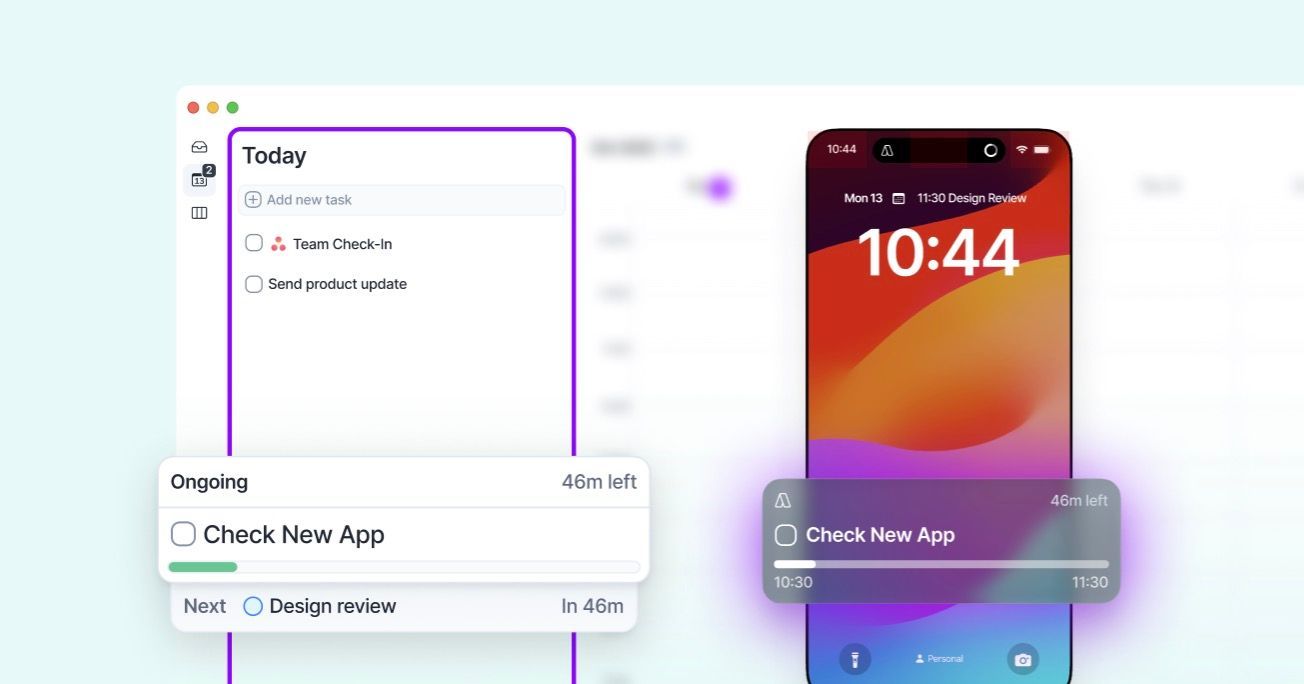
Stay in Flow with Live Activities
At the bottom of the Today page, Live activity cards show what's ongoing and what's next on your calendar within the next hour: a task, an event or a time slot. The ongoing card shows a progress bar and how much time is left. Click a card to open the item, or use the meeting button on an event card to join the call.
Live activity is on by default. Turn it off with the Live activity toggle in the view options menu.
FAQ
Why don't I see my calendar events in the Today section?
Why don't I see my calendar events in the Today section?
Calendar events do not appear in the Today section.
The Today section is designed specifically for tasks that are planned for today, helping you manage and complete your planned work for the day. Calendar events are displayed only on your calendar and are not included in the Today task list.
Tasks will only appear in Today when they are scheduled for a specific date and that date is the current day. Tasks without a planned date remain in your Inbox, while tasks planned for future dates will appear in Today when their scheduled date arrives.
If you'd like something to appear in Today, create it as a task instead of a calendar event. You can then schedule that task on your calendar while still keeping it visible in your Today list.
Examples:
Team Meeting (Calendar Event) → Appears only on your Calendar.
Call Mike (Task without a date) → Appears in your Inbox.
Call Mike Tomorrow (Task planned for tomorrow) → Appears in Today tomorrow.
Prepare presentation (Task planned for today) → Appears in Today and can also be scheduled on your Calendar for Today.
Was this helpful?
Still need help? Ask the team