iCloud Calendar
Connect iCloud Calendar to Akiflow to manage your events alongside your tasks and other calendars.
Connect iCloud Calendar
You’ll need an Apple Account with iCloud Calendar enabled, two-factor authentication, and an app-specific password.
1. Create an app-specific password
Sign in to your Apple Account.
Open Sign-In and Security → App-Specific Passwords.
Choose Generate an app-specific password and follow the steps. Give it a name such as Akiflow.
Copy the generated password.
Use this password when connecting Akiflow, rather than your usual Apple Account password or a verification code. For more help, see Apple’s app-specific password guide.
2. Connect your account
On desktop and web
Open Settings → Calendars to find your Calendar Accounts.
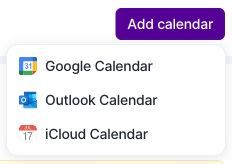
Click Add calendar → iCloud Calendar.
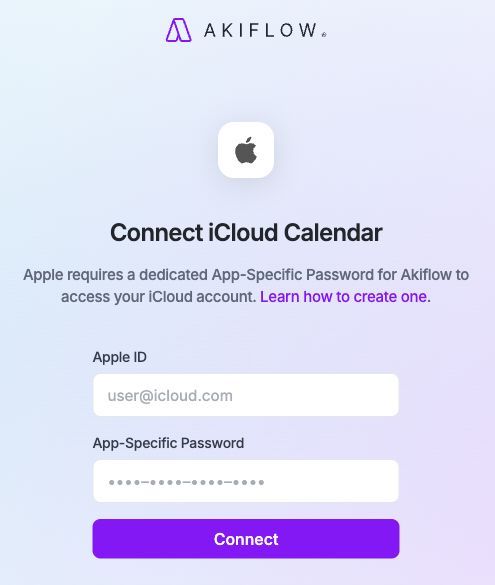
On the connection page, enter your Apple Account email in Apple ID.
Paste the generated password into App-Specific Password, then click Connect.
Return to Akiflow and allow time for the first sync.
On mobile
Open Settings → Calendars → Add calendar → iCloud Calendar. Complete the same connection page in your browser, then return to Akiflow.
Which calendars does this connect?
This integration connects calendars stored in iCloud.
Apple Calendar can also display Google, Outlook, subscribed calendars, and calendars stored only on your device. Seeing a calendar in Apple Calendar does not mean it belongs to iCloud. Connect Google Calendar and Outlook Calendar through their own integrations.
Apple Reminders, iCloud Mail, device-only calendars, subscribed calendar feeds, and the Birthdays calendar are not included.
Features
Multiple calendars and accounts
See your iCloud calendars alongside your other connected calendars. To connect another Apple Account, repeat the connection steps with that account’s email and app-specific password.
Two-way event sync
Create, edit, reschedule, and delete events in Akiflow, and sync those changes to iCloud. Changes made in iCloud also sync back to Akiflow. Recurring events are supported.
Your calendar permissions still apply: calendars marked read-only can be viewed, but their events cannot be edited in Akiflow.
Invitations and contacts
Add guests by entering their email address or selecting a synced contact. You can also respond to event invitations from Akiflow.
iCloud manages invitation and update emails. Changes to events with guests can notify them; Akiflow cannot turn off those iCloud notifications.
Zoom meetings
Connect Zoom to create Zoom meeting links for your iCloud events. You can also paste an existing meeting link into the event’s Location field.
Akiflow does not generate Google Meet, Microsoft Teams, or FaceTime links for iCloud events.
Set up your preferences
Open Settings → Calendars to choose which calendars to display and manage their event reminders. You can also show or hide calendars using the colored calendar circles.
Go to Settings → Tasks, Events, Slots to choose your primary calendar and configure the default conference tool for your calendar accounts.
To receive iCloud event reminders, enable the calendar’s bell in Settings → Calendars and event reminders in Settings → Notifications. The calendar bell controls event reminders only. Configure task and Time Slot reminders separately in Settings → Notifications.
Work & Personal tags
Set your calendar account to Work or Personal to help Aki understand how you use it. You can review and change this tag in your calendar account settings.
FAQ
How can I see my Akiflow tasks in iCloud Calendar?
Use Lock to create a calendar event for a task or Time Slot on a calendar you can edit. Scheduling a task in Akiflow alone does not put it on iCloud Calendar.
Open the task or Time Slot, select the lock icon, and choose your iCloud calendar. For automatic locking, open Settings → Tasks, Events, Slots. On desktop and web, enable Lock Tasks and/or Lock Time Slots, then select your iCloud calendar for each. On mobile, enable Lock task by default and/or Lock time slot by default, then choose your iCloud calendar.
When a Time Slot is locked, it blocks time as one event. Tasks inside it are not also exported as separate locked events. Learn more in Time Blocking 101.
How quickly do changes sync?
Changes made in iCloud may take a few minutes to appear in Akiflow. Sync runs periodically, so it is not instant. Newly created calendars can take longer to appear than changes to existing events.
Why is a calendar or event missing?
Check that:
You connected the correct Apple Account.
The calendar is stored in iCloud.
The calendar is enabled in Akiflow’s calendar settings.
Your account does not show a reconnect request.
Allow time for syncing. Older non-recurring events may also fall outside the sync range: Akiflow currently imports these events from one year in the past to five years in the future. Recurring series are handled separately.
If a shared calendar is missing or appears read-only, check your access in iCloud and contact support with the calendar name and your sharing permissions.
Why did my account stop syncing after I changed my Apple password?
Changing or resetting your main Apple Account password revokes existing app-specific passwords. Generate a new app-specific password and reconnect your iCloud account in Akiflow.
The same applies if you manually revoke the password used by Akiflow. See Apple’s guide.
Can other people see my tasks?
Connecting iCloud does not give other people access to your Akiflow workspace.
When you lock a task or Time Slot to a shared calendar, Akiflow creates an event on that calendar. What others can see depends on the event’s visibility and the calendar’s sharing permissions. A public event can include task details, so check those settings before locking private work.
Does signing in to Akiflow with Apple connect my calendar?
No. Signing in to Akiflow and connecting iCloud Calendar are separate steps. Connect your calendar from Settings → Calendars.
Can I use iCloud with Meet with your Team?
iCloud Calendar does not currently support looking up another person’s availability through Meet with your Team. That feature supports Google and Outlook calendars.
I still need help
Contact support@akiflow.com with your device, Akiflow version, the last step that worked, and any error message. Do not include your password or verification codes.
Was this helpful?
Still need help? Ask the team