Keyboard Shortcuts
Akiflow has a wide range of shortcuts to optimize your flow when planning and acting on your tasks and events.
The secret to being 10x faster
Shortcuts help you maintain the flow throughout the day by enabling you to take actions faster and without taking your hands off the keyboard.
Using Akiflow shortcuts can save up to 15 seconds at a time, and that adds up at the end of the day. This will render time to complete more tasks or better yet free you to do the things you love!
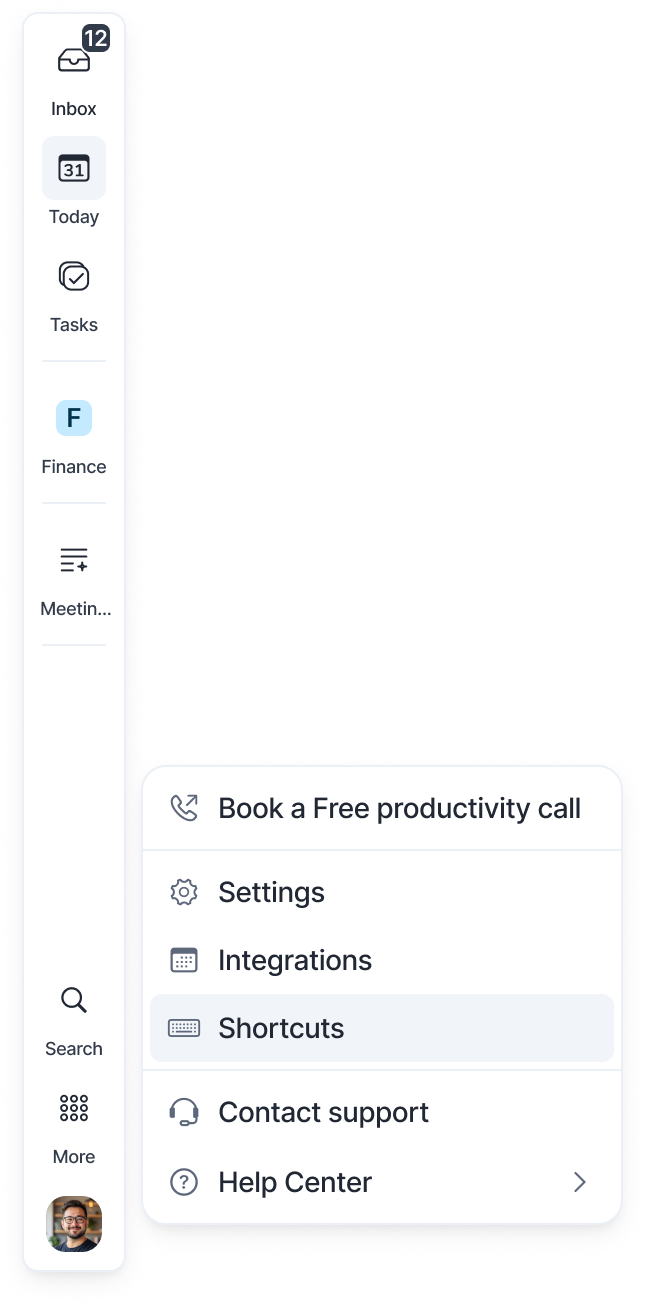
You can find the full Shortcut list in your avatar menu > Shortcuts (at the bottom of the left menu), in Settings > Shortcuts, or by typing "shortcuts" in the Command Bar.
The complete shortcut list
Below we listed all Akiflow shortcuts, be mindful of these elements:
Mac and Windows: where a shortcut is different on each, both are listed. In general, Cmd on Mac is Ctrl on Windows, and ⌥ (Option) on Mac is Alt on Windows.
General Navigation
Go to Inbox:
I, orCmd1on Mac /Ctrl1on Windows ıDesktop App. PressIagain on the Inbox to hide or show the task list.Go to Today:
T, orCmd2on Mac /Ctrl2on Windows ıDesktop App. On Today,Tbrings you back to today; press it again to hide or show the task list.Go to Upcoming:
U, orCmd3on Mac /Ctrl3on Windows ıDesktop App. PressUagain on Upcoming to hide or show the task list.Go to feature, view or page:
GSearch for Tasks and Events:
/, orCmdFon Mac /CtrlFon Windows. On the Search page, press/again to collapse or expand it.Open Aki Chat:
ARecord a message to Aki:
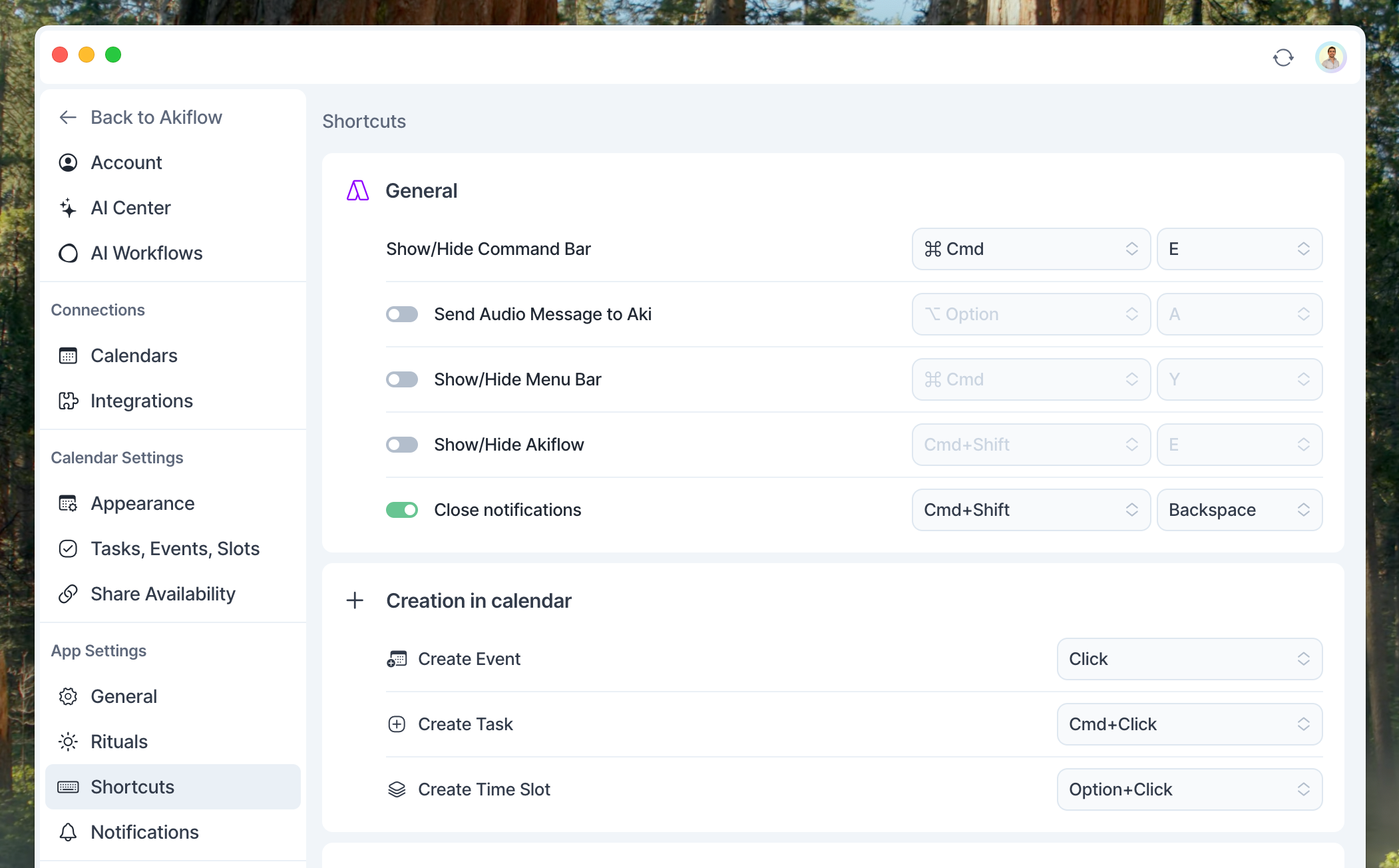
⌥Aon Mac /AltAon Windows ıDesktop AppCustomizable(off by default, turn it on in Settings → Shortcuts)Share Availability:
SMeet with:
@Show/hide Tasklist:
0(on Upcoming,0shows or hides the calendar instead)Show/Hide Akiflow:
CmdShiftEon Mac /CtrlShiftEon Windows ıDesktop AppCustomizable(off by default)Settings:
Cmd,on Mac /Ctrl,on WindowsZoom in:
Cmd+on Mac /Ctrl+on Windows ıDesktop AppZoom out:
Cmd-on Mac /Ctrl-on Windows ıDesktop AppReset Zoom:
Cmd0on Mac /Ctrl0on Windows ıDesktop AppClose notifications:
ShiftCmdBackspaceon Mac /ShiftCtrlBackspaceon Windows ıDesktop AppCustomizable(off by default)
Task Navigation
Previous/Next Task:
JK, or↑↓Move up/down:
Cmd↑↓on Mac /Ctrl↑↓on WindowsFocus mode:
FFocus mode while working on a task:
CmdShiftFon Mac /CtrlShiftFon WindowsOpen Filters:
ShiftFOpen Sorting:
ShiftSSelect all:
CmdAon Mac /CtrlAon WindowsMove to Inbox:
CmdIon Mac /CtrlIon Windows
Task
Create Task:
CCreate Tasks in Calendar:
CmdClickon Mac /CtrlClickon Windows ıCustomizablePlan:
PPlan for Someday:
CmdSon Mac /CtrlSon WindowsDuplicate Task:
CmdDor⌥Dragon Mac /CtrlDorCtrlDragon WindowsChange field in task popup:
Tab, orShiftTabOpen Link:
OCopy Link:
CmdOon Mac /CtrlOon WindowsCopy titles of selected tasks:
CmdCon Mac /CtrlCon Windows
Edit Task
Edit:
EnterMark as done:
EUndo action:
CmdZon Mac /CtrlZon WindowsAssign Project:
#Assign or remove Tag:
*Assign a Deadline:
<Set as priority Goal:
HEdit Priority:
!Edit Duration:
Cmd=on Mac /Ctrl=on Windows → this may be different in certain keyboard layoutsEdit Links:
LEdit time/duration for all instances when moving recurring tasks in calendar:
ShiftClick
Event
Create Event:
ClickıCustomizableDelete Event:
BackspaceDuplicate Event:
CmdDor⌥Dragon Mac /CtrlDorCtrlDragon WindowsChange field in event popup:
Tab, orShiftTabOpen link
OFocus mode:
FEdit time/duration for all instances when moving recurring tasks in calendar:
ShiftClick
Time Slot
Create Time Slot in Calendar:
⌥Clickon Mac /AltClickon Windows ıCustomizablePlan:
PDuplicate Time Slot:
CmdDor⌥Dragon Mac /CtrlDorCtrlDragon WindowsAssign Project:
#Delete Time Slot:
BackspaceFocus mode:
FOpen Project Page:
OEdit time/duration for all instances when moving recurring tasks in calendar:
ShiftClick
Calendar View
Day View:
12 Days View:
23 Days View:
34 Days View:
45 Days View:
56 Days View:
6Week View:
W, Alternate:7Month View:
MResponsive View:
R(adapts the number of days to your calendar width; press again to switch back)Dynamic View:
D(shows the remaining days of your week; press again to switch back)Show/hide Weekends:
ShiftWShow/hide Calendar in Upcoming:
0
Calendar Navigation
Go Back to Today:
CmdTon Mac /CtrlTon Windows ıDesktop AppPrevious/Next time period:
-=or‘ì→ this may be different in certain keyboard layoutsEdit Secondary Time Zone:
ZJoin Upcoming Meeting:
CmdJon Mac /CtrlJon Windows
Project Page
Create Section:
CmdShiftCon Mac /CtrlShiftCon Windows
Akiflow Command Bar
Open Command Bar:
CmdEon Mac /CtrlEon Windows ıDesktop AppCustomizableOpen Command Bar inside Akiflow:
CmdKon Mac /CtrlKon Windows, or the Open Command Bar shortcutExit command:
ESC
Akiflow Menu Bar
Open Menu Bar:
CmdYon Mac /CtrlYon Windows (opens the Akiflow window from the system tray) ıDesktop AppCustomizable(off by default)
Customizing your shortcuts
You can personalize your workflow by changing or adding new shortcuts directly from Settings → Shortcuts. This lets you adapt Akiflow to your own habits and make your daily actions even faster.
Need help?
Reach out to our team at support@akiflow.com. We're happy to help!
Join our community to ask questions, share your workflow tips, and connect with other Akiflow users who can help you get even more out of Akiflow.
Was this helpful?
Still need help? Ask the team