Time Blocking 101
Time blocking consists of blocking time for your tasks on your calendar to schedule exactly when you're going to work on them. If your day unravels through meetings and you need to focus on your tasks, this is the right time management technique for you.
Plan your tasks
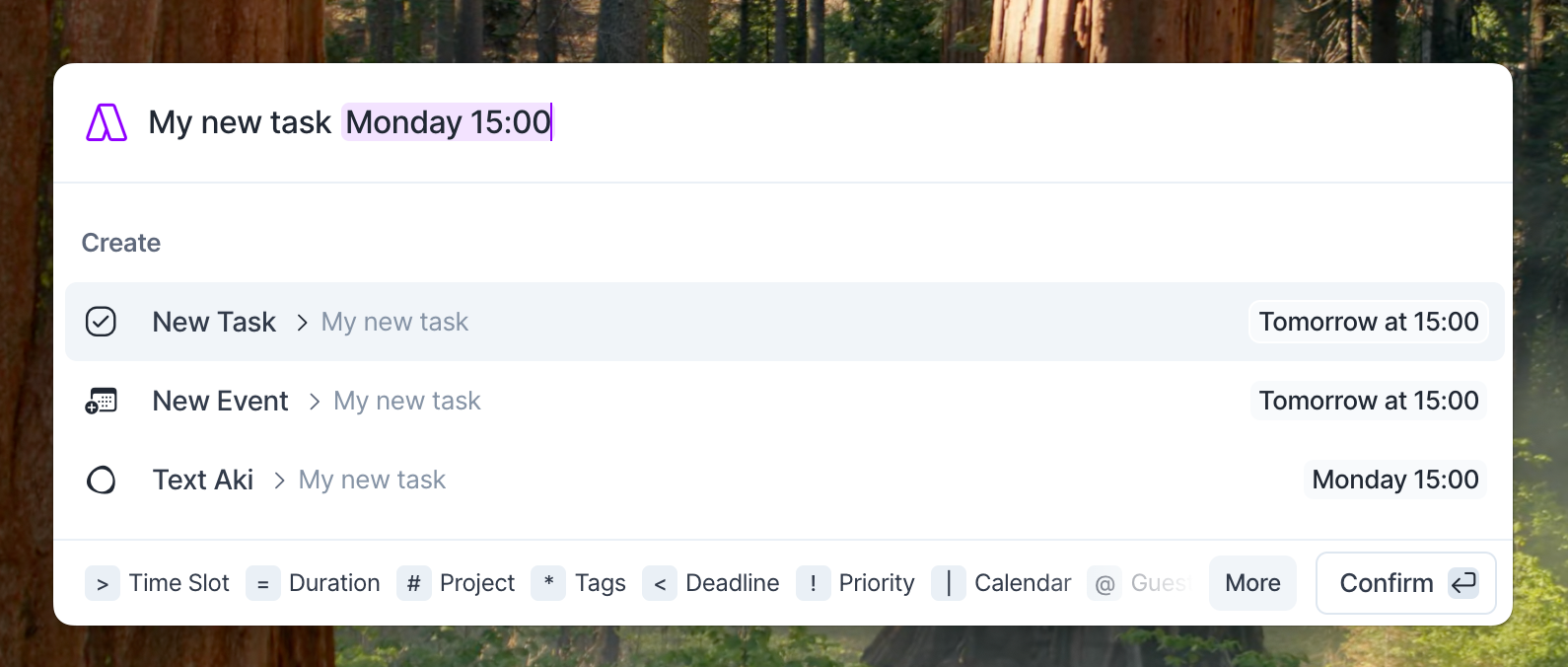
Stay on top of your tasks by adding a date and time to each one of them. This can be done easily and intuitively, whether you're creating a task using natural language or later on, by using the shortcut P.
Planning is crucial in ensuring you focus on what's most important. Start your day off right by taking just 5 minutes to plan your day during the Daily Planning session in Akiflow (More → Rituals → Daily Planning). Learn more in Rituals.
Lock your tasks
Locking a task creates an event on a connected Google Calendar, Outlook Calendar, or iCloud Calendar that you can edit.
To lock a task, open it, click the lock icon, and choose the calendar where you want to block time.
Visibility options
Public: Includes the task title and description in the calendar event. Who can see those details depends on your calendar provider’s sharing permissions.
Private: Includes the task title and description, but marks the calendar event as private. Who can still see its details depends on your calendar provider’s permissions.
Busy: Creates a calendar event titled “Busy” without the task’s title or description.
Before locking private work to a shared calendar, check the visibility option and your calendar provider’s sharing permissions.
Recurrent tasks will be locked in the calendar 15 instances in the future at a time. You won't need to take further action.
Lock your planned tasks automatically
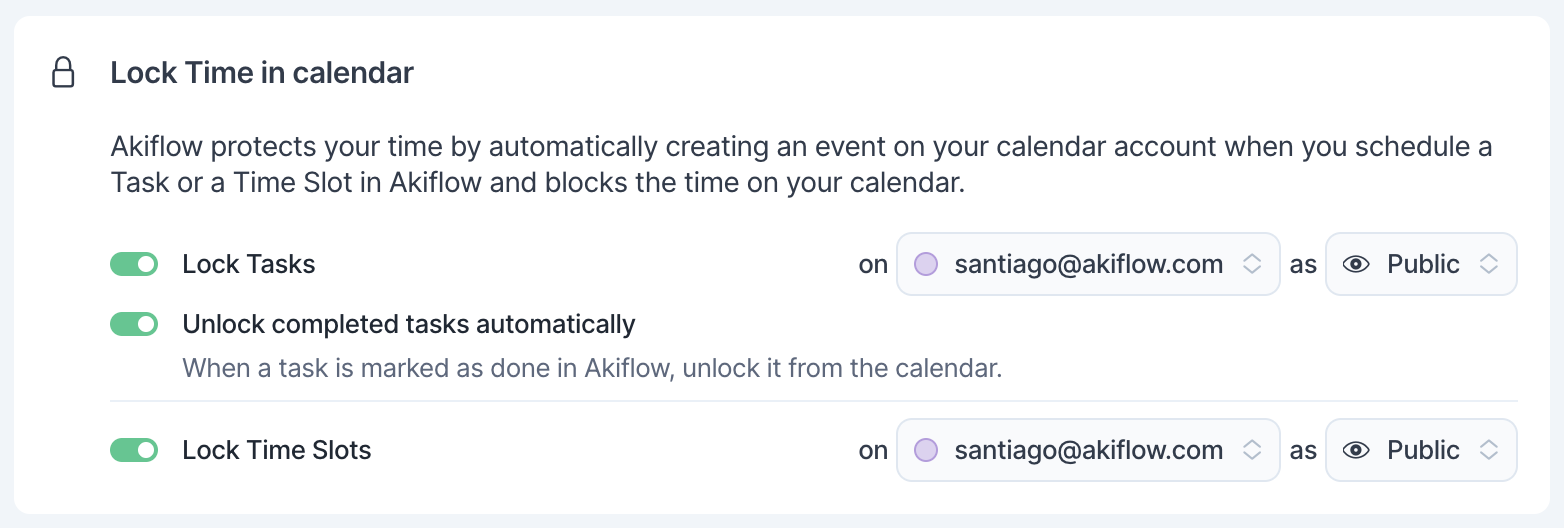
By default, lock is disabled for tasks and Time Slots. If you want Akiflow to automatically lock your planned tasks on your calendar, go to Settings → Tasks, Events, Slots → Lock Time in calendar and turn on Lock Tasks and Lock Time Slots. Each has its own toggle, calendar and visibility (Public, Private or Busy). This setting syncs across desktop, web, and mobile, so you only need to set it once.
Leverage Time Slots for effective Time Blocking
Time Slots are not just a feature; they're a revolution in approaching time blocking. Why? Because they act as dedicated containers within your calendar, ensuring that every task has its rightful place.
Why Use Time Slots?
Time blocking is about allocating specific chunks of time to tasks, ensuring you stay on track. Time Slots take this a step further. They allow you to:
Organize multiple tasks within specific periods, ensuring clarity.
Set aside dedicated times for varied activities, be it admin tasks, marketing efforts, or personal needs.
Visualize your day or week, making adjustments as needed.
Use Time Slots Effectively
Design Your Week: Open your calendar and start by creating Time Slots for all the activities you foresee:
Option/Altclick on the calendar, or right-click and choose Add new time slot. This could be work-related tasks, personal chores, or even leisure time.Assign Project: Enhance your visual feedback by assigning projects to your Time Slots. Akiflow will automatically change the slot color into the project one, so you can quickly understand what you have to work on at a glance, making your calendar more intuitive and organized. You can also drag a project from the Tasks panel, or a pinned project, onto the calendar to create a Time Slot for it.
Task Allocation: Once your Time Slots are in place, begin allocating tasks to them. Remember, the appearance of a Slot isn't affected by the time, duration, or project of its tasks. It's all about organization.
Recurring Needs: Have a regular activity every Monday? Set the Time Slot to recur, ensuring you don't have to recreate it every time.
Stay Flexible: The beauty of Time Slots is the flexibility they offer. Need to adjust a Time Slot? Simply drag and drop. Want to edit tasks within a Slot? Use the Command Bar or right-click options.
Focus on one Slot: Select a Time Slot and press
F, or click Focus mode in its popup. Only that slot's tasks are shown, with a field to add more. PressEscto exit. Learn more in Focus Mode.
FAQ
Does changing the visibility setting affect existing Tasks and Slots?
Does changing the visibility setting affect existing Tasks and Slots?
No, changing the visibility setting does not retroactively update existing Tasks and Slots. This setting is trigger-based and only applies to items created after the change. Any previously created Tasks and Slots will retain their original visibility settings and must be updated manually if needed.
What happens with overdue tasks which were time blocked?
What happens with overdue tasks which were time blocked?
If a task was time blocked, either directly on the Calendar or inside a Time Slot, and it becomes overdue, the task will automatically appear in the Overdue section within Today.
This behavior is the same regardless of:
• Whether the task was scheduled directly on the Calendar or inside a Time Slot
• Whether the task was locked/time blocked or not
The task will remain visible in the Overdue section until it is completed, rescheduled, or its date is updated.
How can I stop Natural Language from being detected when I type?
How can I stop Natural Language from being detected when I type?
If Akiflow recognizes part of your text as Natural Language but you want to keep it as plain text instead (for example, writing "Today" without scheduling the task), simply press ESC while typing.
Pressing ESC cancels the Natural Language detection, allowing you to continue typing without Akiflow interpreting dates or scheduling keywords.
Was this helpful?
Still need help? Ask the team