Upcoming Page
The Upcoming page is where you can preview all tasks planned for the following days, weeks and months and easily adjust your reschedule.
How to use it?
The Upcoming section gives you a clear, organized view of all your planned tasks across different time frames. It lets you easily preview what’s scheduled for today, this week, next week, and beyond, so you can stay ahead and manage priorities effectively. You can quickly add new tasks, review existing ones, and make adjustments to your schedule with a simple drag-and-drop.
Open Upcoming
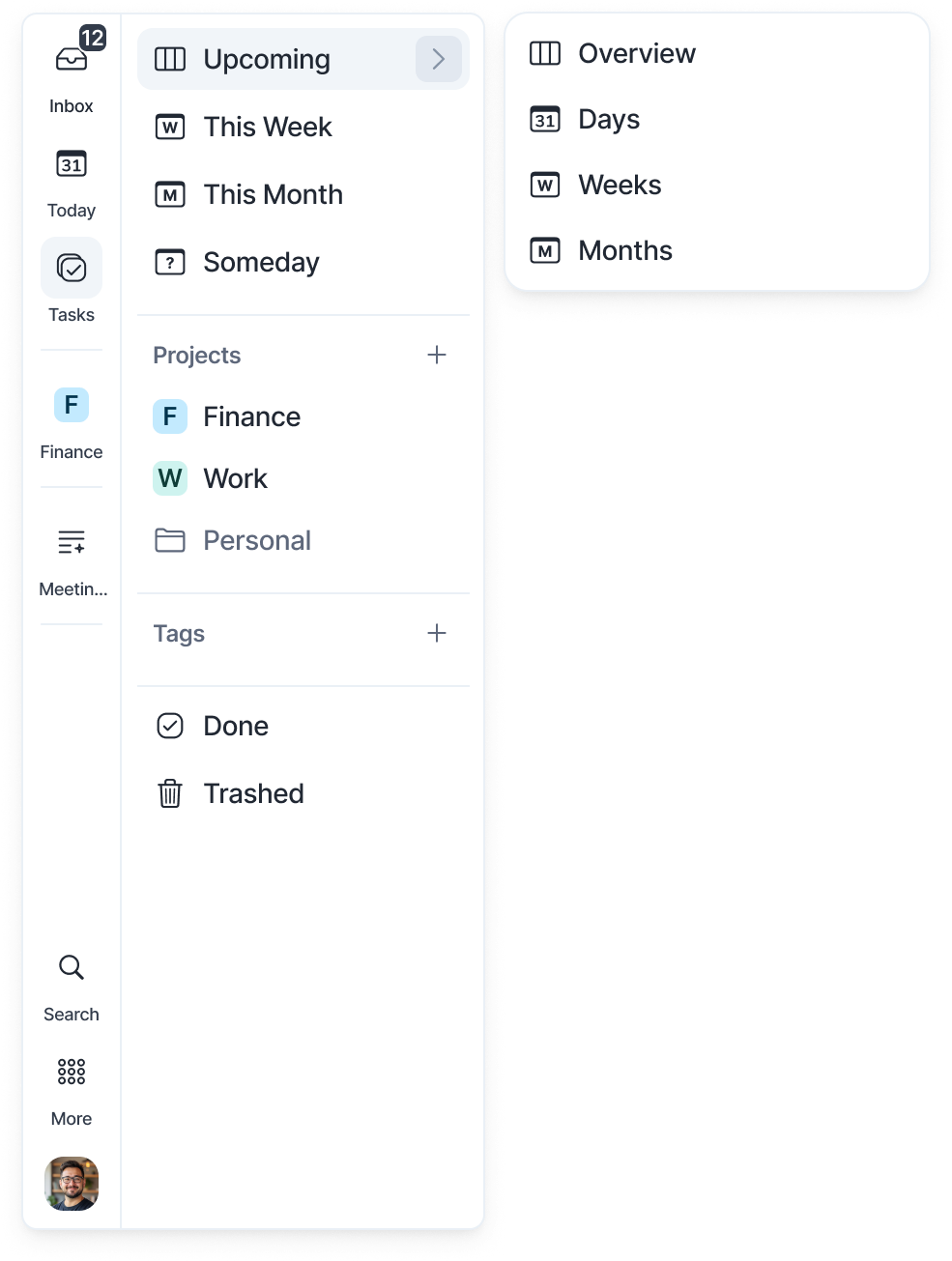
Open the Tasks panel in the left sidebar and click Upcoming. Hover the arrow next to Upcoming to jump straight to Overview, Days, Weeks or Months.
Press U to open Upcoming from anywhere in the app (same key on Mac and Windows).
Pick your favorite view
There are 4 views to manage your tasks: Overview, Days, Weeks and Months.
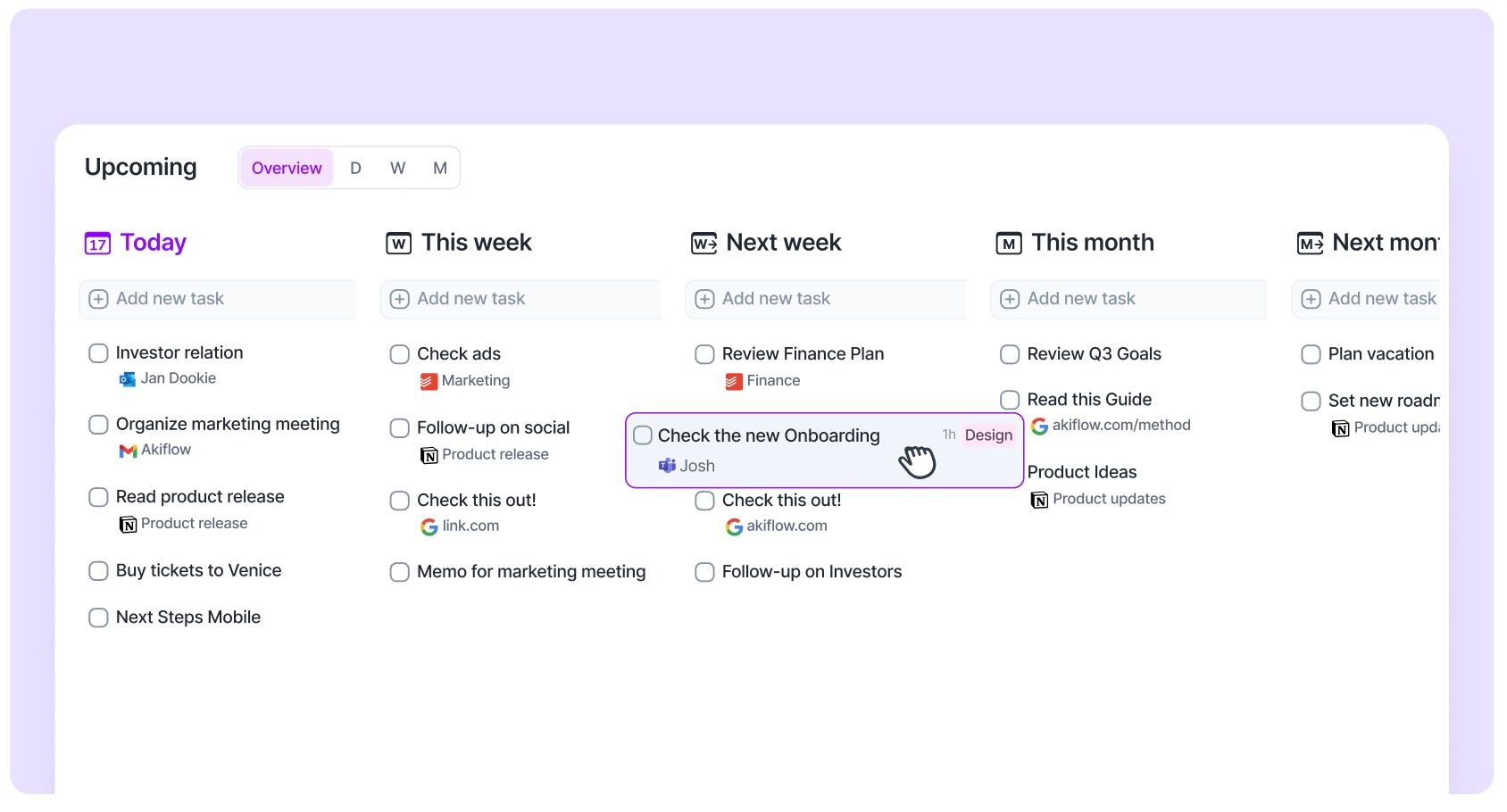
Overview: Shows your current and upcoming time frames side by side: Today, This Week, Next Week, This Month, Next Month and Someday.
Days: Shows every upcoming day, one column per day.
Weeks: Shows every week, one column per week.
Months: Shows every month, one column per month.
Switch views with the buttons next to the Upcoming title. Click the view you're already on to jump back to today.
View options
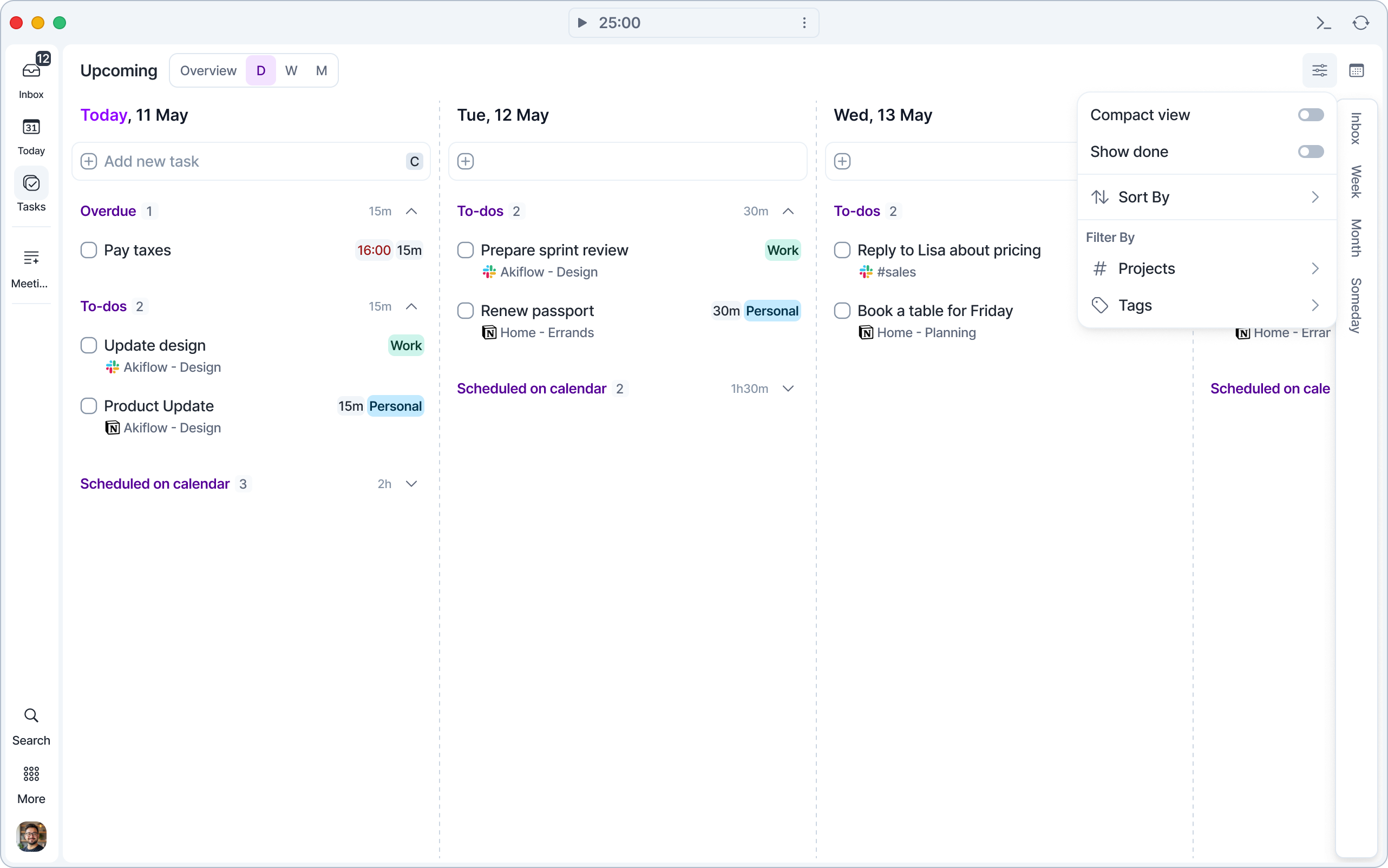
Click the view options button in the top right of Upcoming to adjust what you see:
Compact view: show more tasks on screen with a denser layout.
Show done: show completed tasks (Overview and Days only).
Sort By: Plan Date, Priority, Projects or Deadline.
Filter By: Projects and Tags.
Press Shift S to open Sort By and Shift F to open Filter By (same keys on Mac and Windows).
Use the Sidebar Timeframe
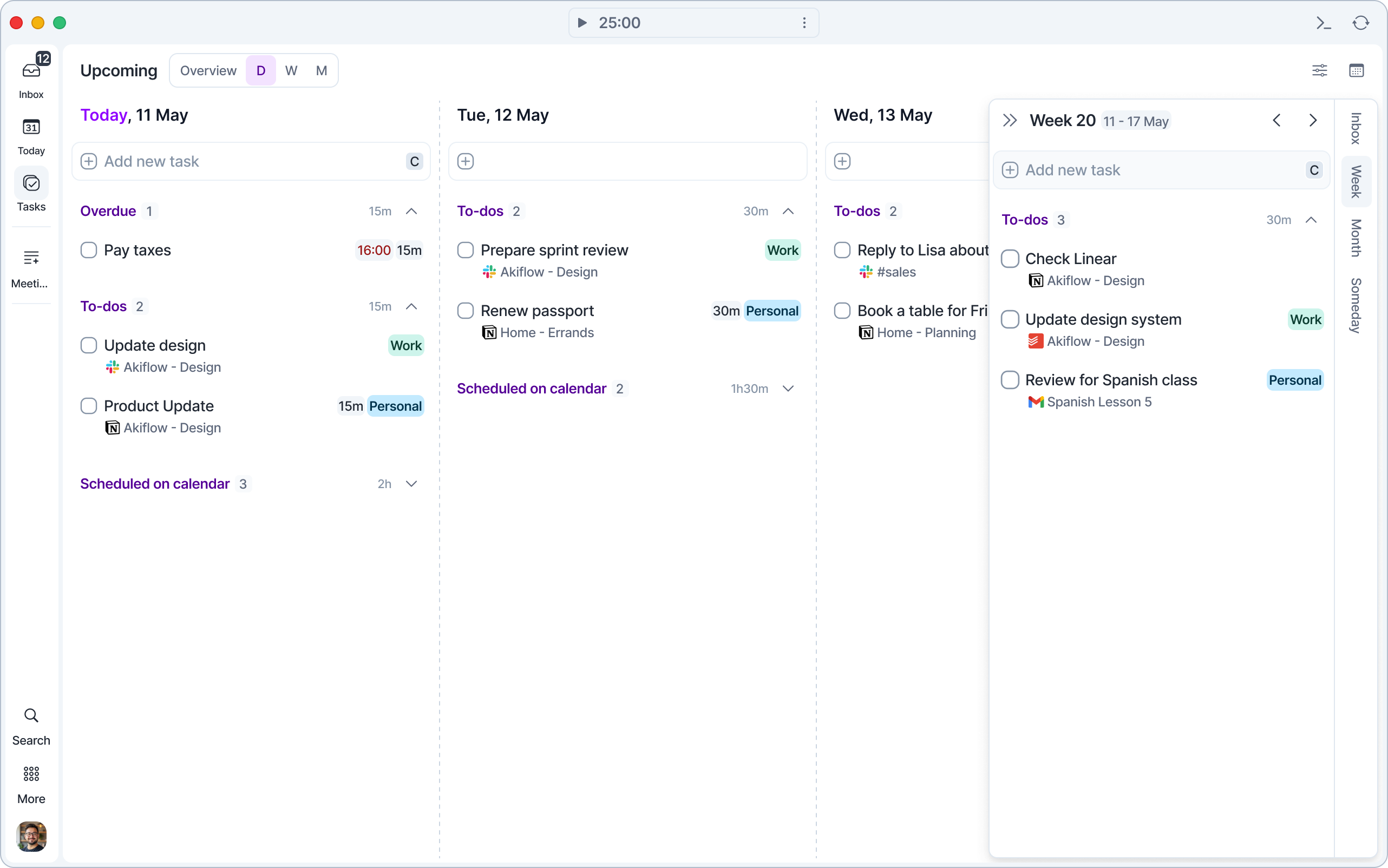
On the right edge of Upcoming you'll find four tabs: Inbox, Week, Month and Someday. Click a tab to open its panel next to your timeline, from any view. Click the same tab again, or the close button in the panel, to hide it.
In the Week and Month panels, use the arrows to move to the previous or next week or month.
Drag tasks from your timeline into a panel to plan them for that time frame, or drag them out of a panel onto a specific day.
You can also add a task straight into a panel.
This helps you plan the tasks you've set for a broad time period, so nothing important gets forgotten.
The tabs are visible while the calendar is hidden. Press 0 to hide the calendar and bring them back.
Check your Calendar
Check your already scheduled events, tasks and time slots in the calendar to plan some tasks for the days to come.
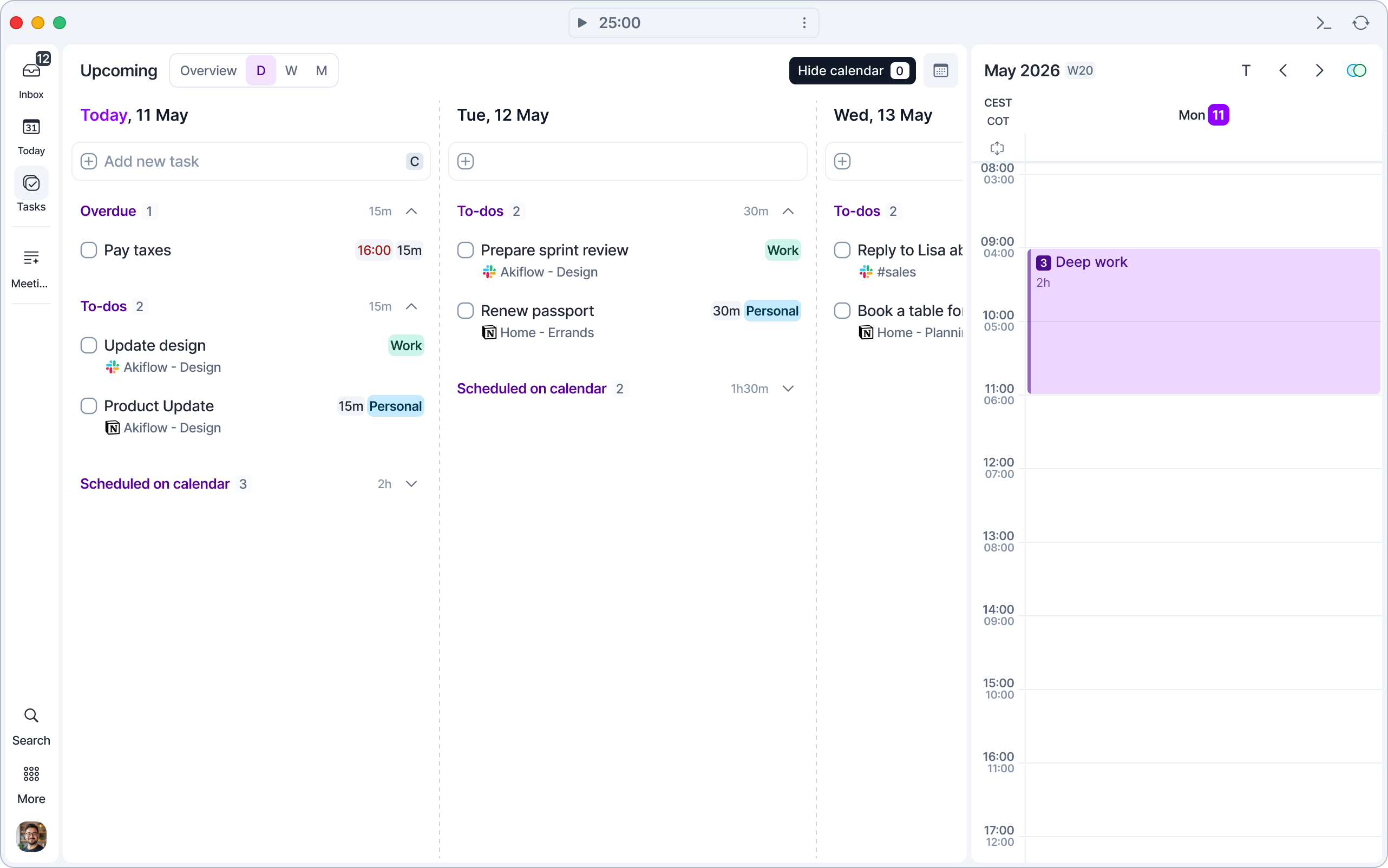
Press 0 to show or hide the calendar (same key on Mac and Windows). Drag the edge of the calendar to resize it so it takes all the space you need. While the calendar is open, the Sidebar Timeframe tabs are hidden.
FAQ
How should I use a Time Frame?
How should I use a Time Frame?
Tasks planned for a time frame like This Week, are not those planned for specific days like Tomorrow. You should plan for a Time Frame (Weeks, Months) if you cannot assign a precise date to the task yet. Then, in the Upcoming Page or when you're doing your Rituals, time block your tasks.
How do I plan my upcoming tasks i.e. how do I plan my tasks for next week? For next month?
How do I plan my upcoming tasks i.e. how do I plan my tasks for next week? For next month?
You can use Time Frames to plan for tasks that do not have a specific date yet but you already have a broad idea of when you need to complete those tasks (for example: next week, next month, in 2 weeks, Q3, etc.)
Can I customize the Time Frames i.e. Next Quarter, Next Weekend?
Can I customize the Time Frames i.e. Next Quarter, Next Weekend?
Not at the moment!
Where else can I see my Weekly tasks?
Where else can I see my Weekly tasks?
You can check your Week’s tasks at the bottom of the Today Page and easily plan them for a specific day when you have time. You can also open Week from the Tasks panel in the left sidebar, or use the Week tab on the Upcoming page.
Why don't I see my calendar events in the Upcoming section?
Why don't I see my calendar events in the Upcoming section?
Calendar events do not appear in the Upcoming section.
The Upcoming section is designed specifically for tasks, helping you plan and organize your future work across days, weeks, months, and broader time frames. Calendar events are displayed only on your calendar and are not included in the Upcoming task lists.
Tasks will appear in Upcoming when they are planned for a future date or time frame, such as Tomorrow, Next Week, This Month, or Someday. Tasks planned for today are shown in the Today section, while tasks without a planned date remain in your Inbox.
If you'd like something to appear in Upcoming, create it as a task instead of a calendar event.
Examples:
Team Meeting (Calendar Event) → Appears only on your Calendar.
Call Mike (Task without a date) → Appears in your Inbox.
Prepare presentation Tomorrow (Task planned for tomorrow) → Appears in Upcoming.
Quarterly review Next Month (Task planned for next month) → Appears in Upcoming.
Submit expense report Today (Task planned for today) → Appears in Today.
Was this helpful?
Still need help? Ask the team