Notion
Go to Settings → Integrations → And click on Notion!
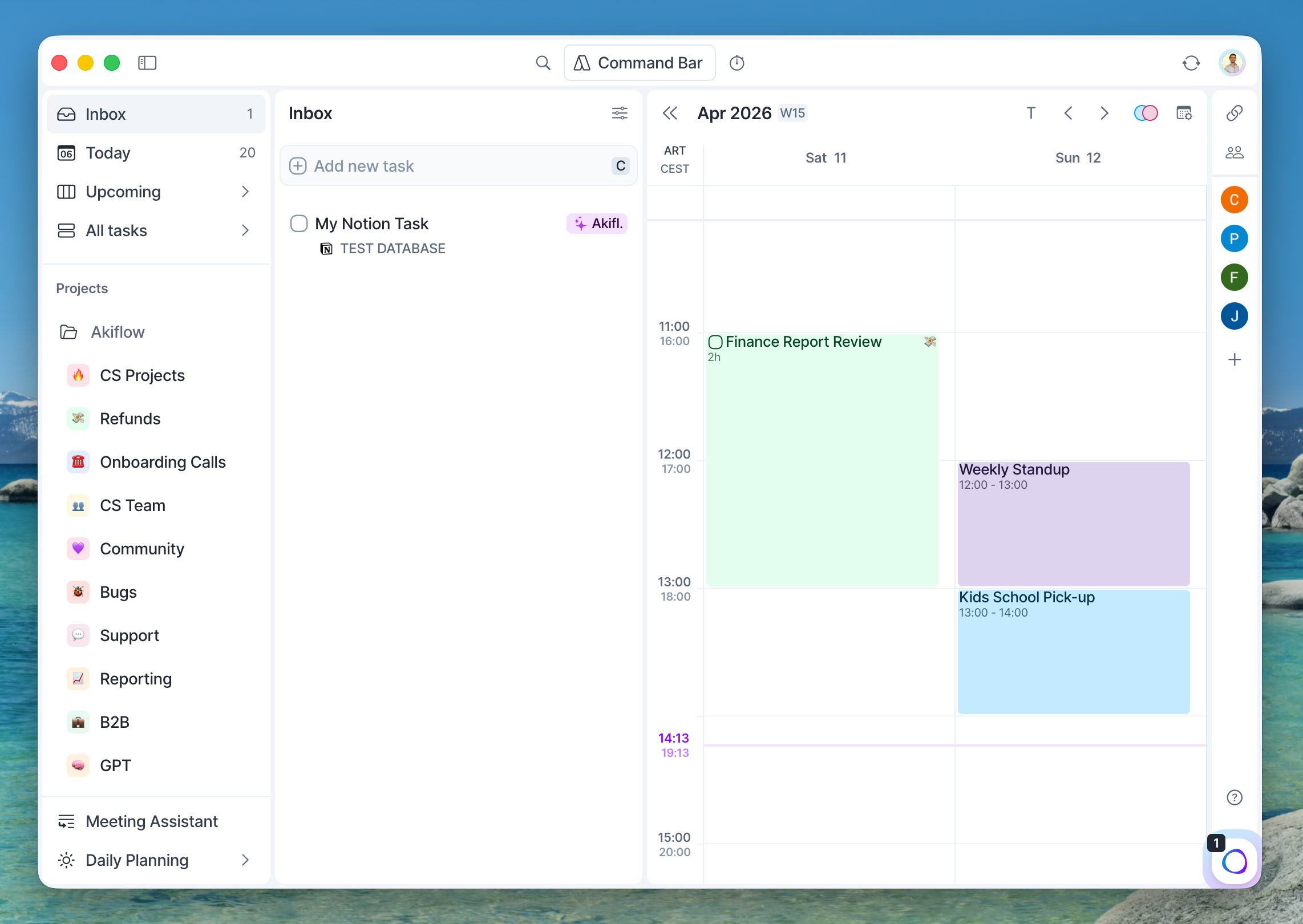
How to integrate with Notion
Import your Notion pages
Hit on Connect and then choose the pages Akiflow will import your tasks from. Remember, you’ll be able to only import pages from databases as tasks.
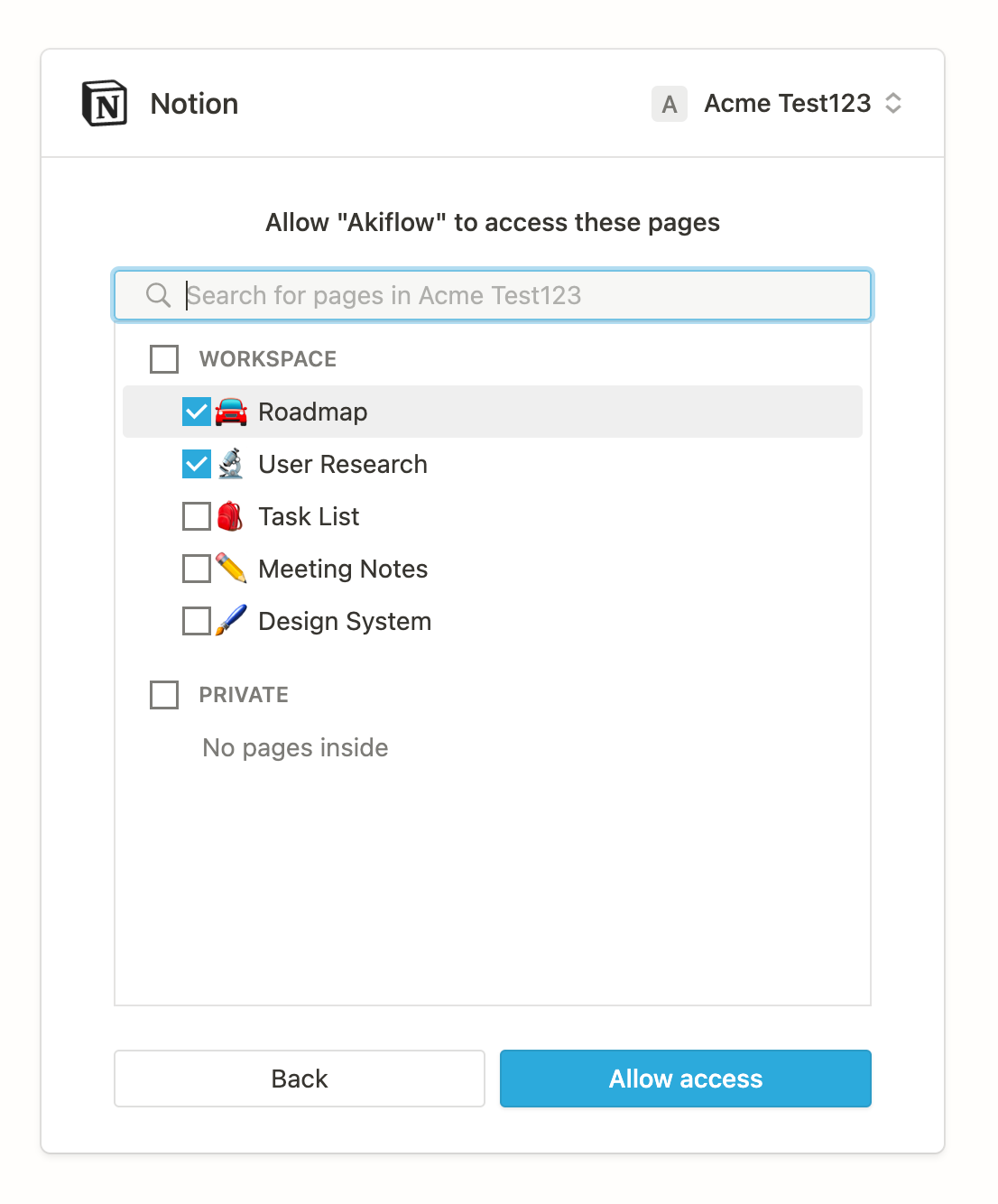
Import Filters
Pick your Source Database and choose whether to import all tasks or only those assigned to you. You can also filter by task status or add custom rules to refine your import.
Important clarifications:
Tasks Assignee: This filter option activates only if your database includes a person column/field. If you added this field after connecting your database, delete the database using the basket icon and reconnect to ensure it syncs.
Task status: Only supports the following field types from your Notion database: Status, Select, and Checkbox. If you don’t see any of your fields available as status options, it may be because that field type isn’t supported as a status import filter in Akiflow.
Add Custom Rule: The same logic applies: only the status and select fields in your Notion Database can serve as filtering criteria for Custom Rules when importing tasks into Akiflow. If your fields don’t appear as Custom Rules options, that field type isn’t supported as a Custom Rule import filter.

Sync Dates
You can choose which date column in your Notion database will set the planned date or the deadline of your Akiflow tasks.

Sync Completion Status
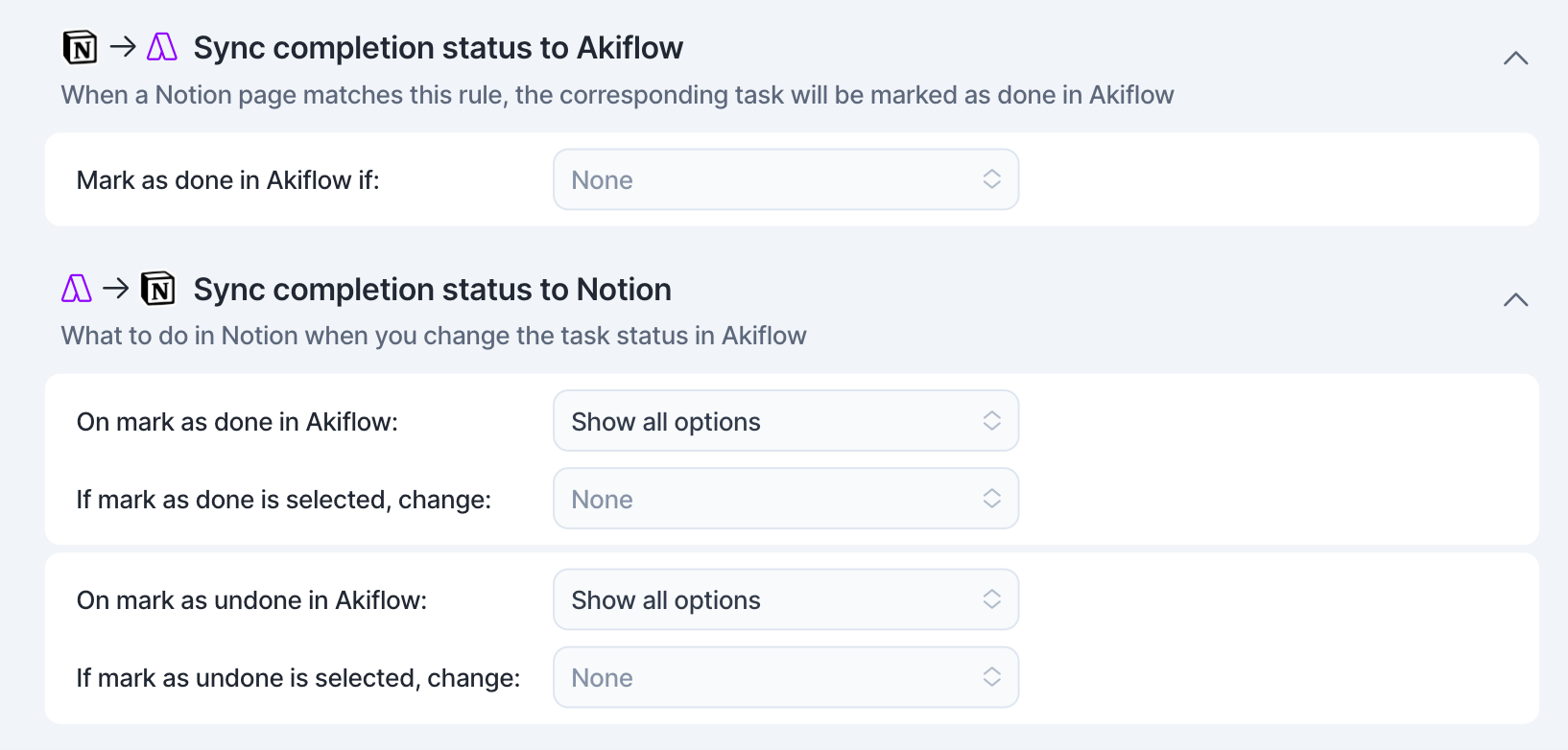
Notion → Akiflow:
Choose when a task in Notion should be marked as done in Akiflow (e.g., when a certain status is selected).
Akiflow → Notion:
Define how Notion should react when you mark a task as done or undone in Akiflow. You can update specific properties or statuses based on these actions.
Tip: Hit O as Open with a selected task to be redirected to the Notion source page
FAQ
Can I connect more accounts?
Can I connect more accounts?
You can connect as many Notion accounts as you want!
What happens when I complete a Notion task in Akiflow?
What happens when I complete a Notion task in Akiflow?
You can trigger a change of status in Notion when you mark a task as done in Akiflow just by setting up a Completion property in the settings.
The same can be achieved when you uncheck a marked as done task in Akiflow.
To ensure that tasks you set to complete in Notion are also synced back to Akiflow as completed, you have to configure it in the Settings.
When you mark as done a task imported from Notion, a pop-up will appear with the following options:
Mark as done in Notion
Go to Notion
Do nothing
I imported too many tasks, what can I do?
I imported too many tasks, what can I do?
Pick which Notion tasks to delete:
Multi-selecting tasks and hit
backspace→ How to bulk edit tasks
Delete all your tasks
Go to Settings → Integrations → Notion
Click on the button Delete all Imported tasks. This action will delete all the tasks imported so far from Notion in Akiflow. Nothing will happen to your source pages in Notion.
Disconnect your Notion account by clicking on the three dot icon in the top right corner of this page and selecting Disconnect Integration
Reconnect Notion by going back to Integrations → Add Native Integration → Notion
Start from scratch
Click on the option Reset Integration. This action will delete all the tasks imported so far from Notion in Akiflow and then re-import them again according to the new import settings.
When I delete a task on Akiflow, what happens to my Notion tasks?
When I delete a task on Akiflow, what happens to my Notion tasks?
When you delete a task on Akiflow, nothing happens to the source task in Notion.
How are Notion and Akiflow synched?
How are Notion and Akiflow synched?
Akiflow and Notion are 2-way synched. The sync happens every 5 minutes.
Any change you make to the task title, deadline date, completion property, and scheduled date in Akiflow will be reflected in Notion and vice-versa.
Can I automatically assign imported Notion tasks to a specific Akiflow project or tag?
Can I automatically assign imported Notion tasks to a specific Akiflow project or tag?
No. At the moment, Akiflow does not support automatically assigning imported Notion tasks to a specific Akiflow project or tag during the import process.
When connecting a Notion database, you can use import filters to control which tasks are imported into Akiflow. However, imported tasks cannot be automatically mapped to a particular Akiflow project or tag based on database properties, statuses, or other Notion fields.
As an alternative, you can use AI Project Assignment, which automatically assigns tasks to projects based on their content and context after they have been imported into Akiflow.
If you need to organize imported tasks into projects or tags manually, you can use Bulk Editing to update multiple tasks at once and assign them to the desired project or tag more efficiently. See How to Bulk Edit Tasks for detailed instructions.
What happens to tasks imported from Notion if I disconnect the integration?
What happens to tasks imported from Notion if I disconnect the integration?
Disconnecting the Notion integration only stops future imports. Tasks that were already imported from Notion into Akiflow will remain in your Akiflow workspace even after the integration is disconnected.
If you'd like to remove those imported tasks before disconnecting the integration, you have two options:
Use Delete all imported tasks from the integration menu to remove all tasks imported from that Notion account in a single action.
Use Bulk Editing if you'd like to delete only a specific subset of imported tasks.
Disconnecting the integration does not delete tasks from Notion. Your original tasks and databases will remain unchanged in Notion.
If your goal is to completely remove imported Notion tasks from Akiflow, it's recommended to use Delete all imported tasks before disconnecting the integration.
Was this helpful?
Still need help? Ask the team