Trello
You can keep track of all your Trello boards directly from Akiflow.
How to integrate with Trello
Go to Settings → Integrations → And click on Trello!
Hit on “Connect”
Add your boards
Configure your import options
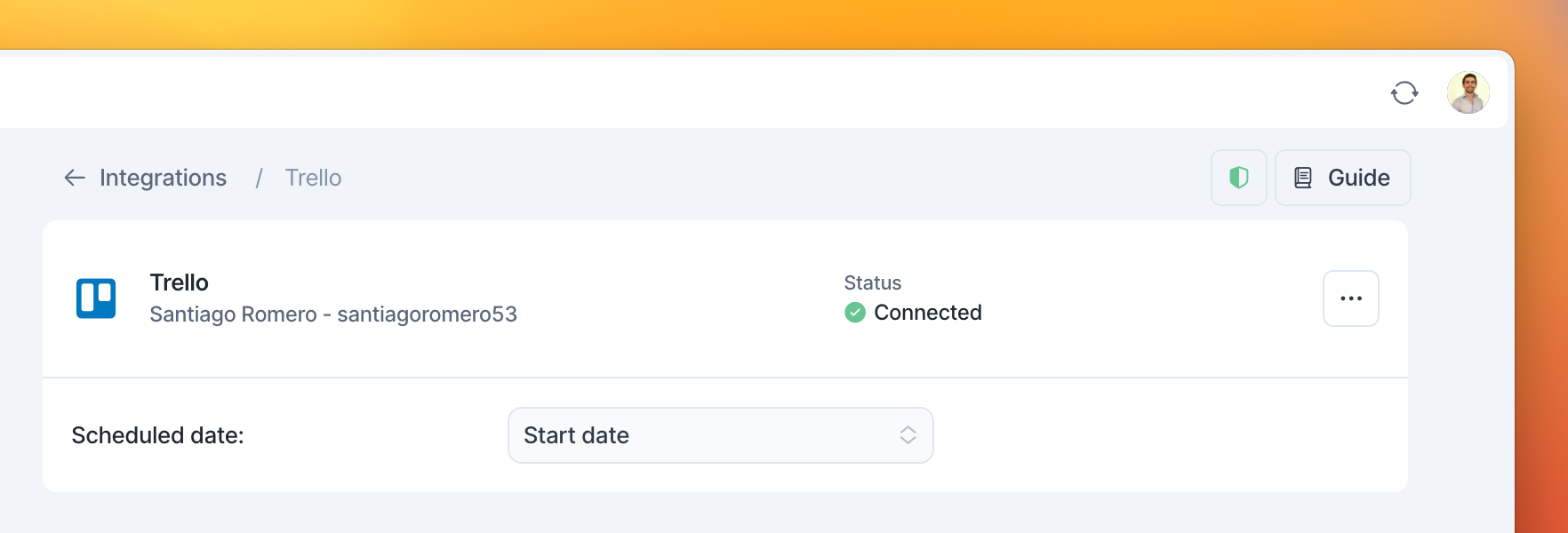
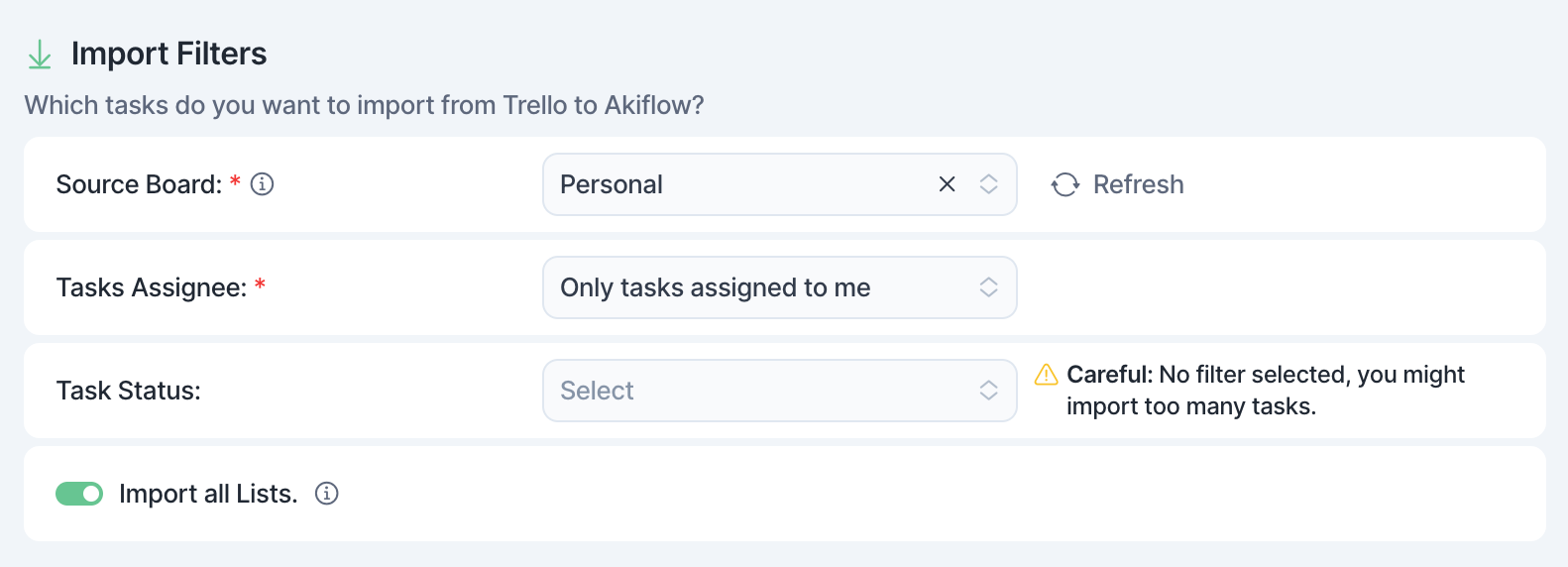
How to configure your Boards in Akiflow
Once you have connected your Trello account, you can:
Choose the board and lists you’d like to import.
Import only tasks assigned to you, or import all tasks.
Select a Scheduled date to plan automatically your tasks for their start date or due date.
Define the behavior on the mark as done of your tasks imported from Trello
The due date of your Trello cards will be imported in Akiflow as the task deadline.
Tip: Hit O as Open on a selected task to be redirected to your Trello task
FAQ
Can I connect more accounts?
Can I connect more accounts?
You can connect as many Trello accounts as you want!
What happens when I complete a Trello card in Akiflow?
What happens when I complete a Trello card in Akiflow?
You have two options:
Move the source card in Trello to a different list when you mark it as done in Akiflow just setting up a Completion List Value in the settings.
Vice versa can be achieved when you uncheck a marked as done task in Akiflow.
Archive the source card on Trello
When you mark as done a task imported from Trello, a pop-up will appear with the following options:
Change list in Trello
Archive in Trello
Mark as done in Trello
Go to Trello
Do nothing
We can remember your choice if you select that option!
What happens when I archive or unarchive a Trello card?
What happens when I archive or unarchive a Trello card?
Archiving a Trello card marks the corresponding task as done in Akiflow. Unarchiving removes the archive completion signal. The task is marked as undone if its due-date checkbox is unchecked and it is not in a list configured as completed.
I imported too many cards, what can I do?
I imported too many cards, what can I do?
Pick which Trello cards to delete:
Multi-selecting tasks and hit
backspace→ How to bulk edit tasks
Delete all your tasks
Go to Settings → Integrations → Trello
Click on the button “Reset integration”. This action will delete all the tasks imported so far from Trello in Akiflow. Nothing will happen to your source tasks in Trello.
Disconnect your Trello account by clicking on the bin icon in the top right corner of this page.
Reconnect Trello by going back to Integrations → Trello
When I delete a task on Akiflow, what happens to my Trello tasks?
When I delete a task on Akiflow, what happens to my Trello tasks?
When you delete a task on Akiflow, nothing happens to the source task in Trello.
How are Trello and Akiflow synched?
How are Trello and Akiflow synched?
Akiflow and Trello are 2-way synched.
Any changes you make in Akiflow to the task's title, planned date, deadline, and status (done/undone) will be reflected on Trello and the other way around!
How are my Trello recurring tasks imported into Akiflow?
How are my Trello recurring tasks imported into Akiflow?
Tasks are imported as single instances, not as recurring tasks.
Imported tasks cannot be set as recurring.
When the Trello recurring task is marked as done, the corresponding Akiflow task is moved to the next recurrence.
This is the same task, marked as undone and placed in the new recurrence; a new task is not created.
Remember, you can configure the integration to automatically mark a Trello card as done when you complete the corresponding Akiflow task.
What happens when I mark a card as done in Trello?
What happens when I mark a card as done in Trello?
A Trello card is marked as done in Akiflow when any of these conditions applies:
• The card is moved to a list you configured as completed.
• The card’s due-date checkbox is checked, even when the card is not in a configured completed list.
• The card is archived.
These methods work independently. When none of these conditions applies, the task is marked as undone in Akiflow.
Was this helpful?
Still need help? Ask the team