Zoom
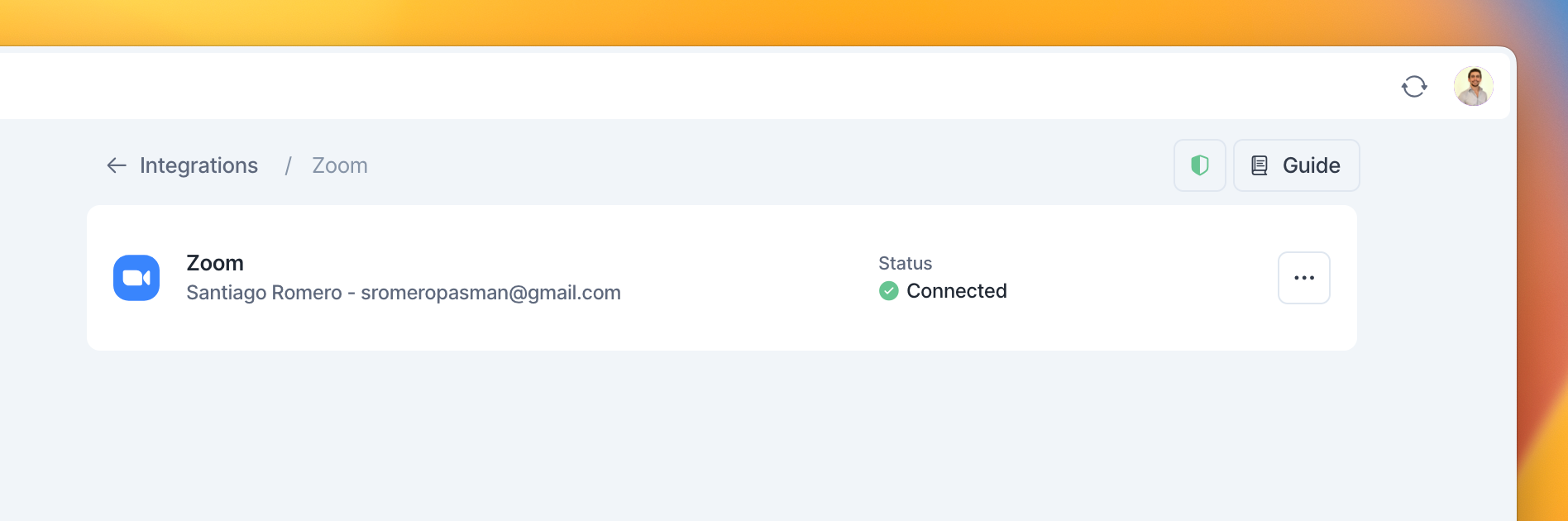
Go to Settings → Integrations → And click on Zoom!
How to create an event with a Zoom link
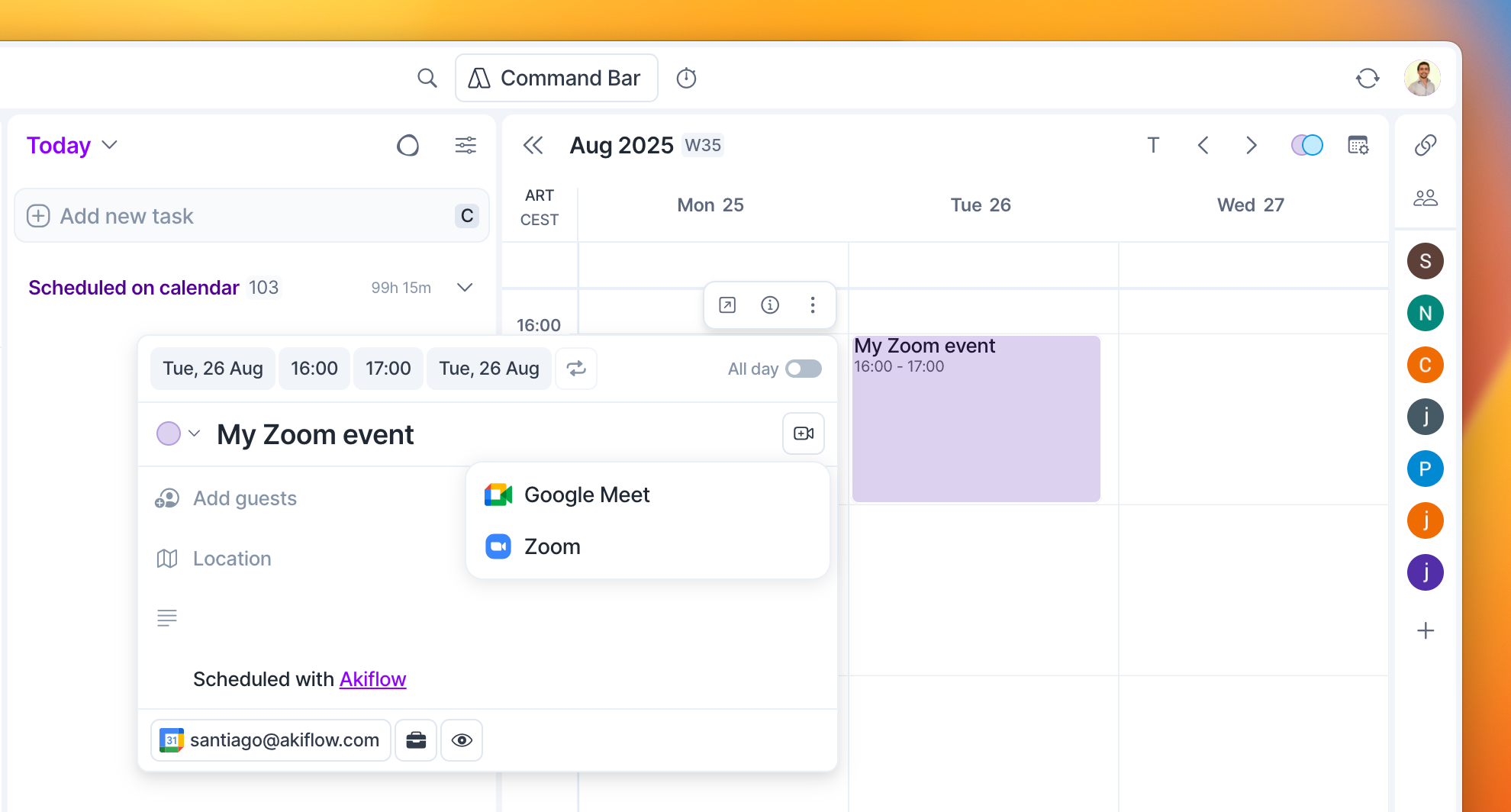
Click on the "Conference" field of an event popup and select Zoom.
How to create a Zoom meeting from Akiflow
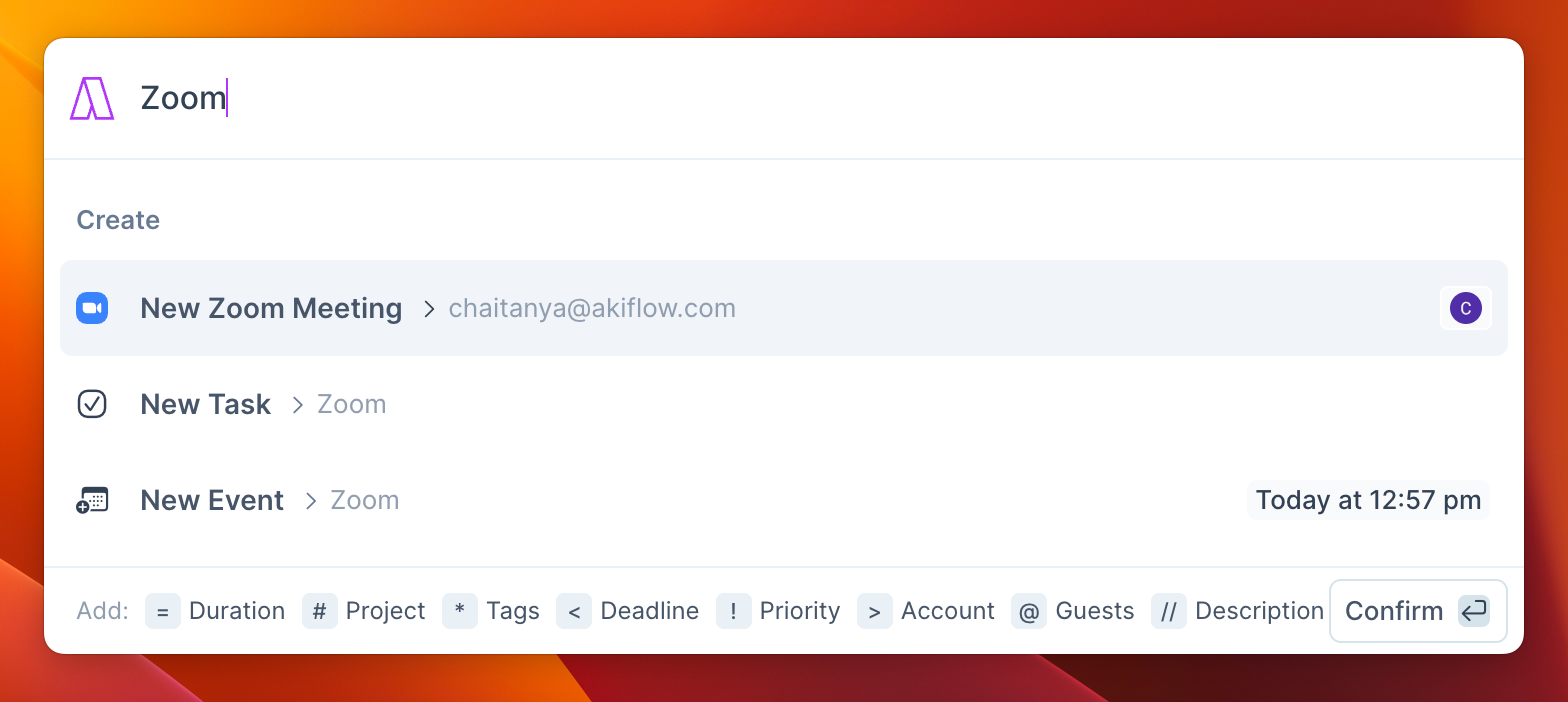
Hit Cmd/Ctrl + E (or your custom shortcut) to open the Command Bar and type Zoom to create a New Zoom Meeting.
The link to the meeting will be copied to the clipboard so you can quickly share it everywhere!
How to disconnect the Zoom meeting integration from Akiflow
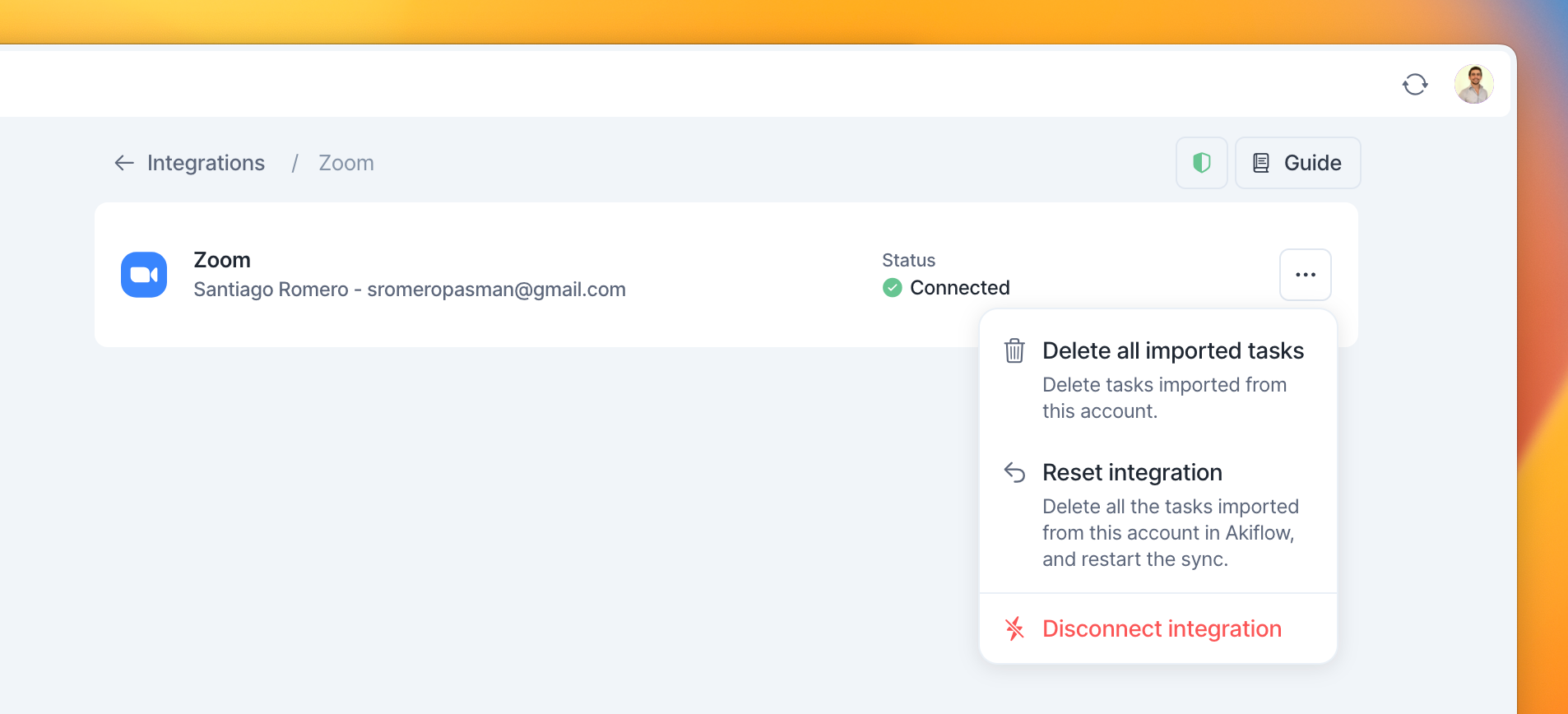
Go to Settings → Integrations → Zoom and hit on Disconnect
How to disconnect the Akiflow integration from Zoom
You can also remove the Akiflow integration from your Zoom account.
Login to your Zoom Account on the web and navigate to the Zoom App Marketplace.
You can find the Zoom Marketplace at the following address: https://marketplace.zoom.us/
Click Manage → Added Apps or search for the Akiflow app.
Click the Akiflow app.
Click Remove.
By removing the Akiflow integration, Akiflow will no longer be able to create Zoom meetings for the events you create in your calendar. Akiflow will also not be able to update already created meetings.
FAQ
Can I connect more accounts?
Can I connect more accounts?
You can connect as many Zoom accounts as you want!
Can I set Zoom as my default conference tool in Akiflow?
Can I set Zoom as my default conference tool in Akiflow?
Yes. You can choose Zoom as the default separately for each connected Google Calendar, Outlook Calendar, or iCloud Calendar account. Go to Settings → Tasks, Events, Slots → Default conference tool, select the calendar account you want to configure, then choose a connected Zoom account. Repeat for any other calendar accounts.
For iCloud Calendar, Zoom is the supported option for generating a meeting link in Akiflow. You can also paste an existing meeting link into an event’s Location field.
Was this helpful?
Still need help? Ask the team