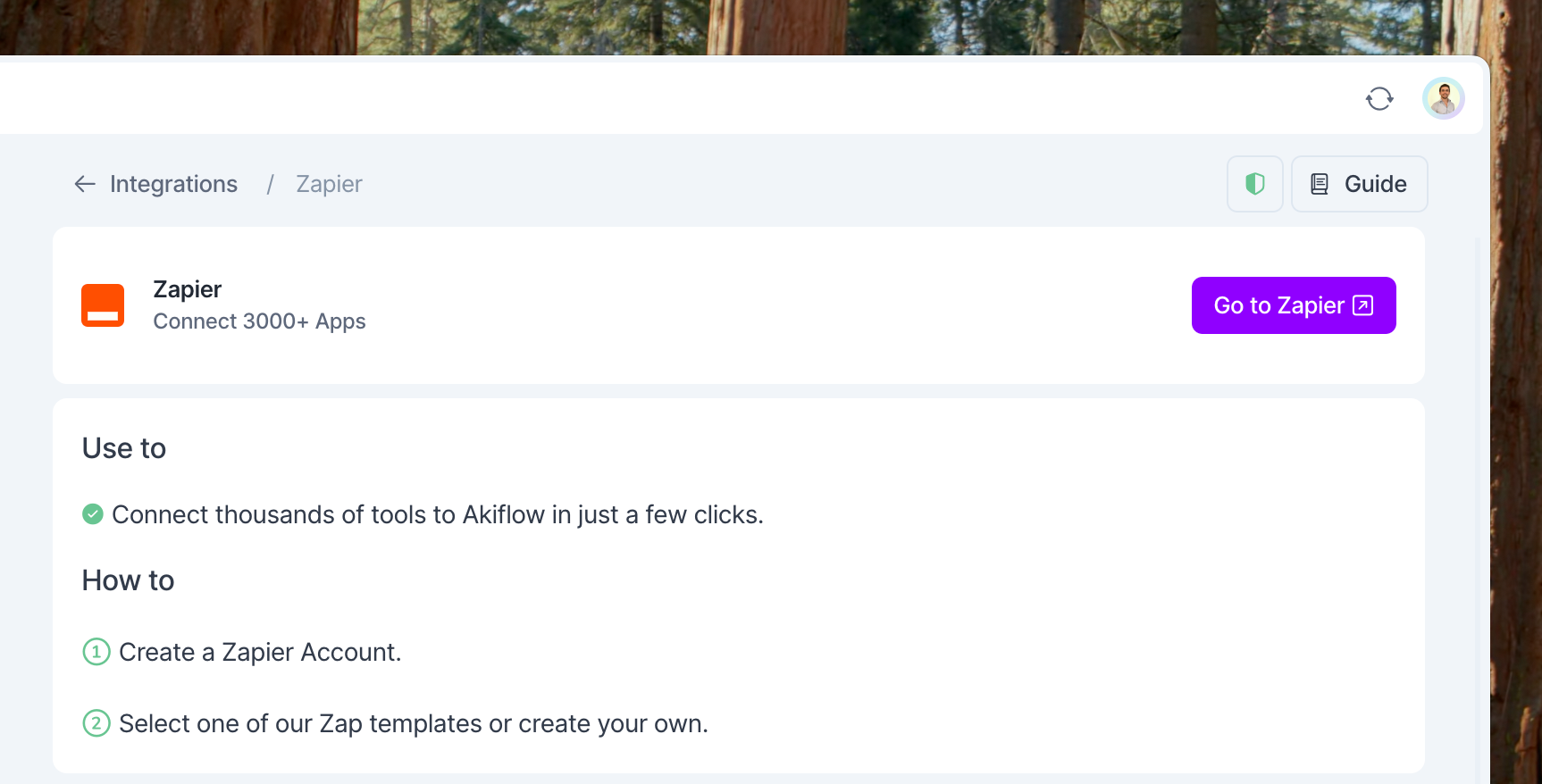
Zapier
Zapier is a tool that automates the connections between different web applications. You can create and edit these connections ("Zaps") in few clicks, building a workspace that fits perfectly the way you work.
What can I integrate with Zapier
There are 3000+ apps that you can integrate with Zapier. Some examples are Office 365 Emails, Google Tasks, Jira Service Desk, Gitlab, monday.com, Hubspot, etc.
How to integrate with Zapier
Go to Zapier and signup → My Apps → Search Akiflow → Add Akiflow to your apps.
In Settings → Integrations, you can find all the steps to create Zaps between Akiflow and your favorite tools.
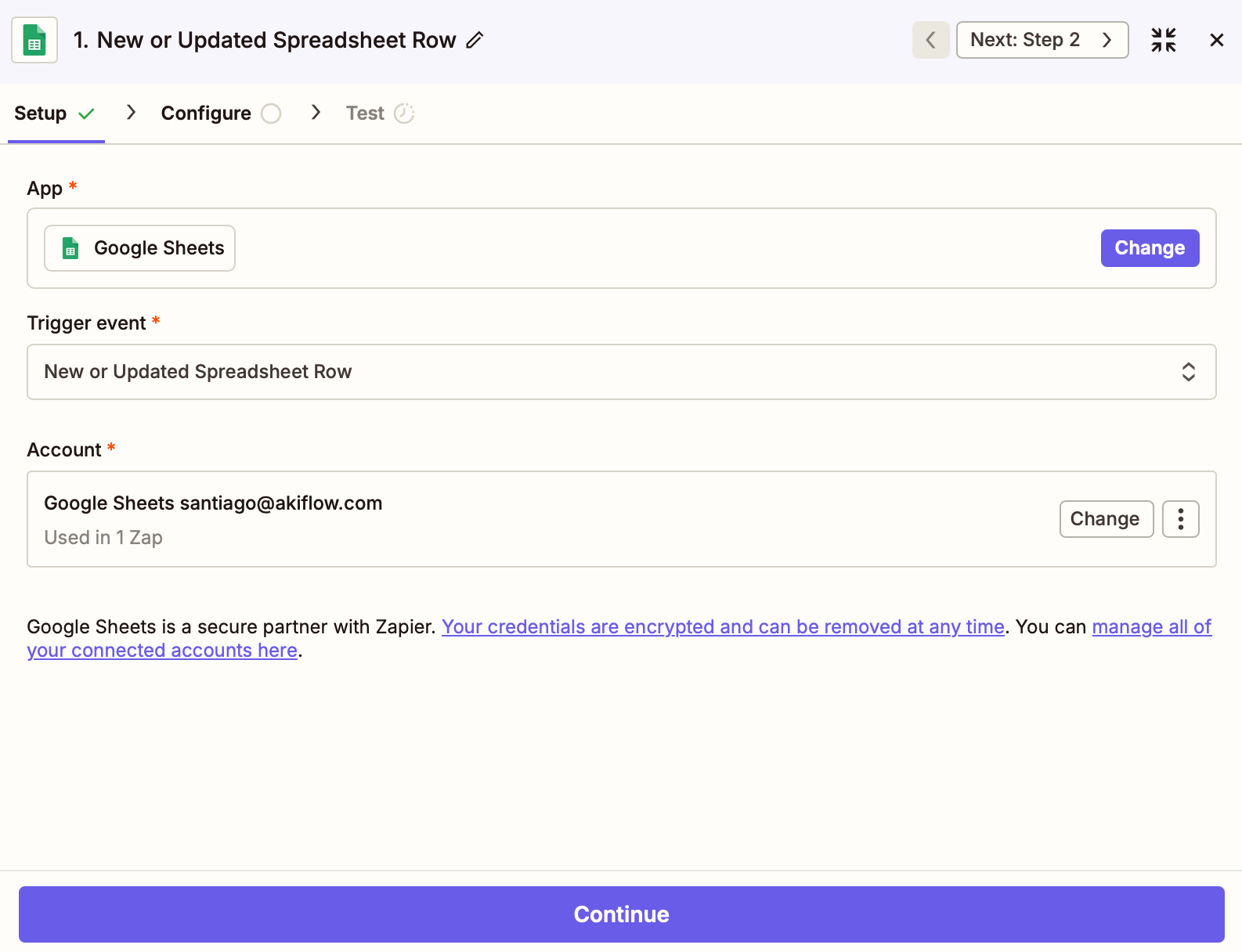
What does Akiflow import via Zapier?
You can customize which tasks to import from your tools for every Zap you create. This is the Trigger. For example, you can select only tasks assigned to you or from specific projects.
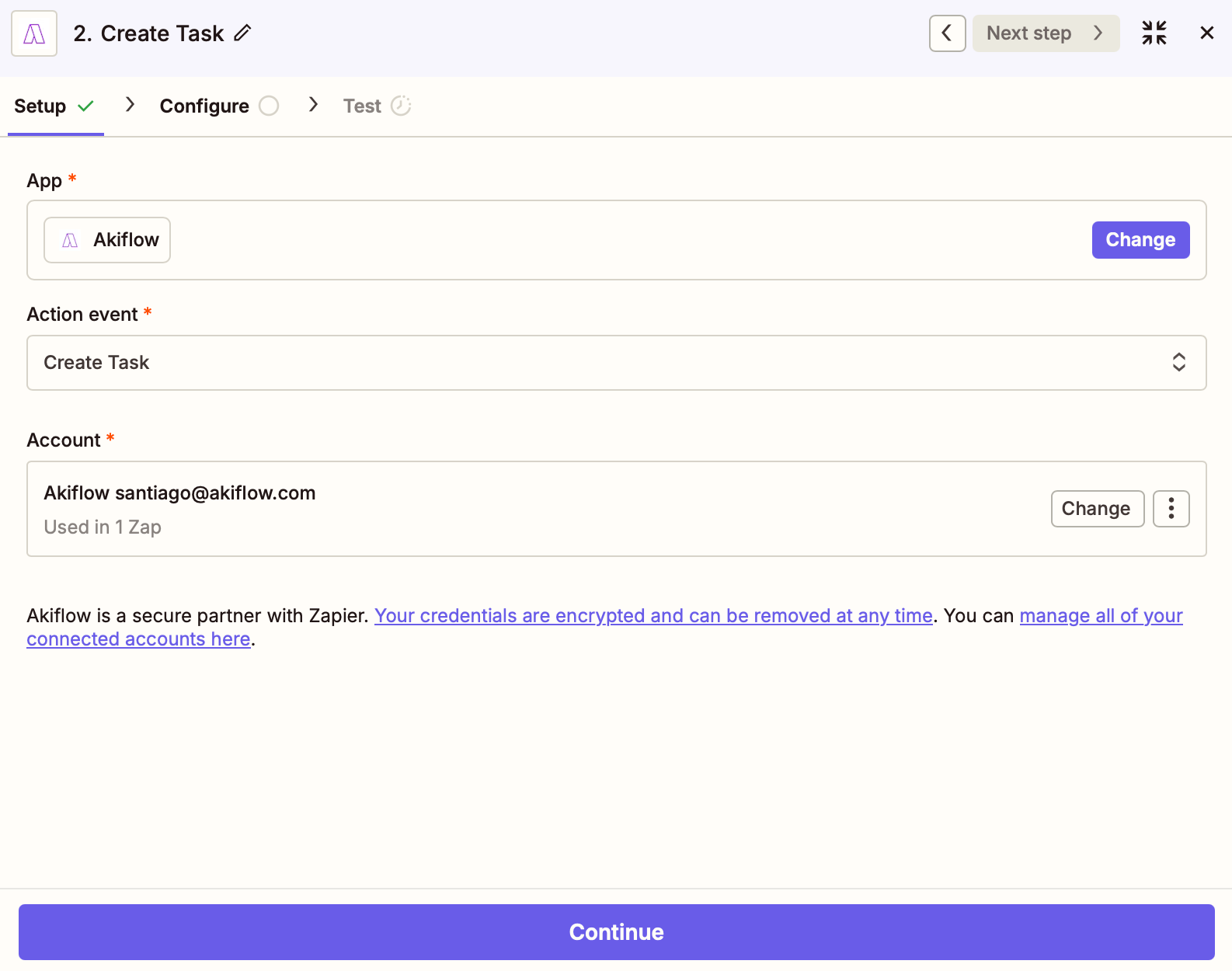
How does the task show up in Akiflow?
You can also customize which information from the task to import (title, description, etc.) and how to display them in Akiflow. This setting is called Action.
Pro tip: You can configure how tasks are imported. Fields like date, duration, priority, deadline and project can be dynamically set using data from your trigger.
Start a Zap from Akiflow
Akiflow can also start a Zap. Use it to send what happens in Akiflow to your other tools, for example to mark a task done in your CRM when you complete it in Akiflow.
There are two Akiflow triggers in Zapier:
Task Created: runs when a new task is created in Akiflow.
Task Completed: runs when a task is marked as done in Akiflow.
Both run within a few seconds of the change.
How to set it up
In Zapier, create a new Zap and choose Akiflow as the trigger app.
Pick Task Created or Task Completed and connect your Akiflow account.
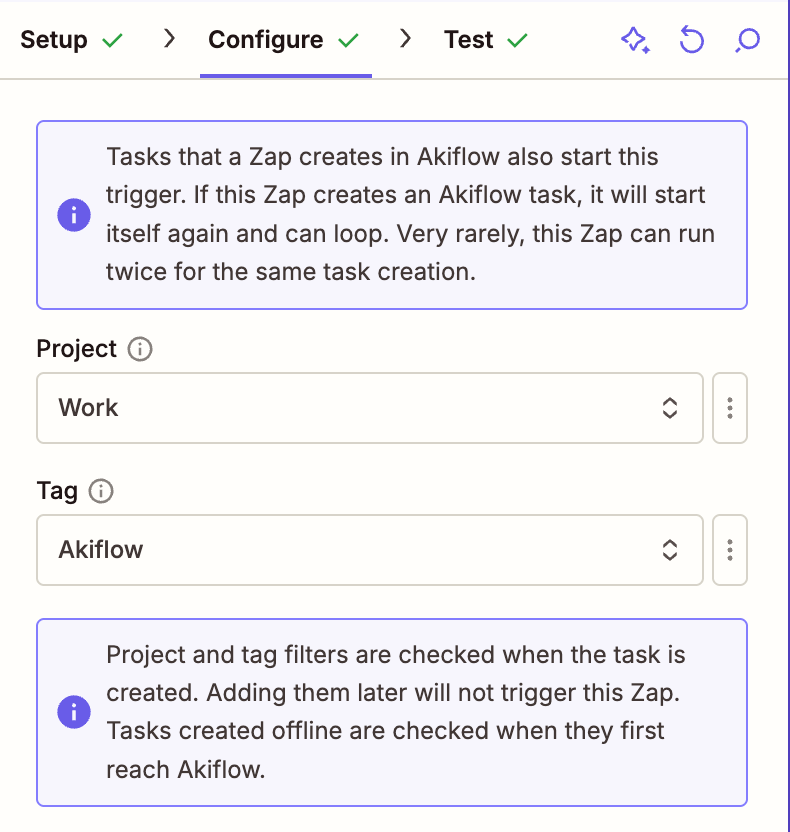
Optional: choose a Project and/or a Tag so the Zap only runs for those tasks.
Test the trigger. Zapier loads a few of your recent tasks as examples.
Add the action in your other tool and turn the Zap on.
When each trigger runs
Task Created runs for tasks created in any Akiflow app, by Aki, through the Akiflow MCP, or by a Zapier or IFTTT step that creates an Akiflow task.
It does not run for tasks imported from your connected apps, like Gmail, Asana or Notion.
A repeating task runs it once, when the series is created.
The Project and Tag filters are checked when the task is created. Adding a project or tag later will not start the Zap.
Tasks created offline are checked when they first reach Akiflow.
Task Completed runs when you mark a task as done in Akiflow, from any Akiflow app, Aki or the Akiflow MCP. This includes tasks imported from your connected apps.
It does not run when a task is completed in the other app and that change syncs to Akiflow.
A repeating task runs it once for each occurrence you complete.
Reopening a task does not run it. Completing the task again runs it again.
Only tasks that have the chosen project or tag when you complete them start the Zap.
Avoid loops: tasks that a Zap creates in Akiflow also start the Task Created trigger. If a Zap starts on Task Created and also creates an Akiflow task, it will start itself again. Use a Project or Tag filter, or a Zapier Filter step, to keep the Zap's own tasks out.
Task details you can use in later steps
Every run sends the task's details, which you can map into the next steps of your Zap:
Task ID, Title, Description and Links
Completed, Planned date and Planned time (in UTC, for example 2026-11-09T18:30:00Z), plus the task's Time zone
Due Date, Duration (seconds) and Priority
Project (ID and name)
Tag names and Tag IDs, as plain text separated by commas, for example "Akiflow, Client X"
Source Integration and Origin task ID, for tasks that came from another app or from a Zapier or IFTTT step
Recurring task ID, for occurrences of repeating tasks
Trigger ID, which is different for every run
Example Zaps
When you complete a task tagged "Client X" in Akiflow, post a message in a Slack channel.
When you complete a task, add a row to a Google Sheet to keep a log of your work.
When you create a task in a project, create a matching card in Trello.
When you complete a task, email the person who asked for it.
Supported Fields & Limitations
The Create Task action in Zapier supports the following fields:
Title (required)
Status
Date / Datetime
Duration (in seconds)
Priority
Daily Goal (true/false)
Due Date
Description
Project
Link
FAQ
Synching has taken more than 10 minutes, why?
Synching has taken more than 10 minutes, why?
If you are in the Free/Starter Zapier Plan, it can take up to 15 minutes to sync your tasks into Akiflow.
Which tools can I connect via Zapier?
Which tools can I connect via Zapier?
Connect +3000 apps directly from Zapier.
I imported too many tasks, what can I do?
I imported too many tasks, what can I do?
Multi-select tasks from Zapier and hit backspace→ How to bulk edit tasks
How my Zap settings are reflected in Akiflow?
How my Zap settings are reflected in Akiflow?
Here's an example:
A task imported into Akiflow can include a title, a planned date, a duration (in seconds), a description, and a link to the original task source.
When I delete a task on Akiflow, what happens to my source tasks?
When I delete a task on Akiflow, what happens to my source tasks?
When you delete a task on Akiflow, nothing happens to the source task imported via Zapier.
How are Zapier and Akiflow synched?
How are Zapier and Akiflow synched?
It can take up to 15 minutes to import your tasks in Akiflow.
When you import a task via Zapier, it’ll be shown in your Akiflow Inbox or Today pages.
Changes you make in Akiflow are not sent back to the other tool automatically. To send them, add a separate Zap that starts with the Akiflow Task Created or Task Completed trigger.
Can I assign tags to tasks created via Zapier?
Can I assign tags to tasks created via Zapier?
No. Tags are not available as a field in the Akiflow Create Task Zapier action, this is a current limitation of the integration. If you need to organize tasks, you can use the Project field as an alternative.
Does Akiflow support Zapier automations from Akiflow to other apps?
Does Akiflow support Zapier automations from Akiflow to other apps?
Yes. Use the Task Created and Task Completed triggers to start a Zap when you create or complete a task in Akiflow. See "Start a Zap from Akiflow" above.
Other changes, like editing or deleting a task, can't start a Zap yet.
I added a project or tag to a task, but my Task Created Zap didn't run. Why?
I added a project or tag to a task, but my Task Created Zap didn't run. Why?
Task Created checks the Project and Tag filters only when the task is created. Adding a project or tag to an existing task does not start the Zap. Set the project or tag when you create the task.
Why did my Zap run twice for the same task?
Why did my Zap run twice for the same task?
Very rarely, a Zap can run twice for the same task creation or completion. If a duplicate would cause a problem, add a step in Zapier that checks whether the task was already handled, for example by looking up its Task ID.
I completed a task in my other app, but my Task Completed Zap didn't run. Why?
I completed a task in my other app, but my Task Completed Zap didn't run. Why?
Task Completed only runs when you mark the task as done in Akiflow. When a task is completed in a connected app and that change syncs to Akiflow, the Zap does not run.
Was this helpful?
Still need help? Ask the team