Outlook Calendar
Go to Settings → Calendars → Add calendar → Outlook Calendar to connect your account.
Features
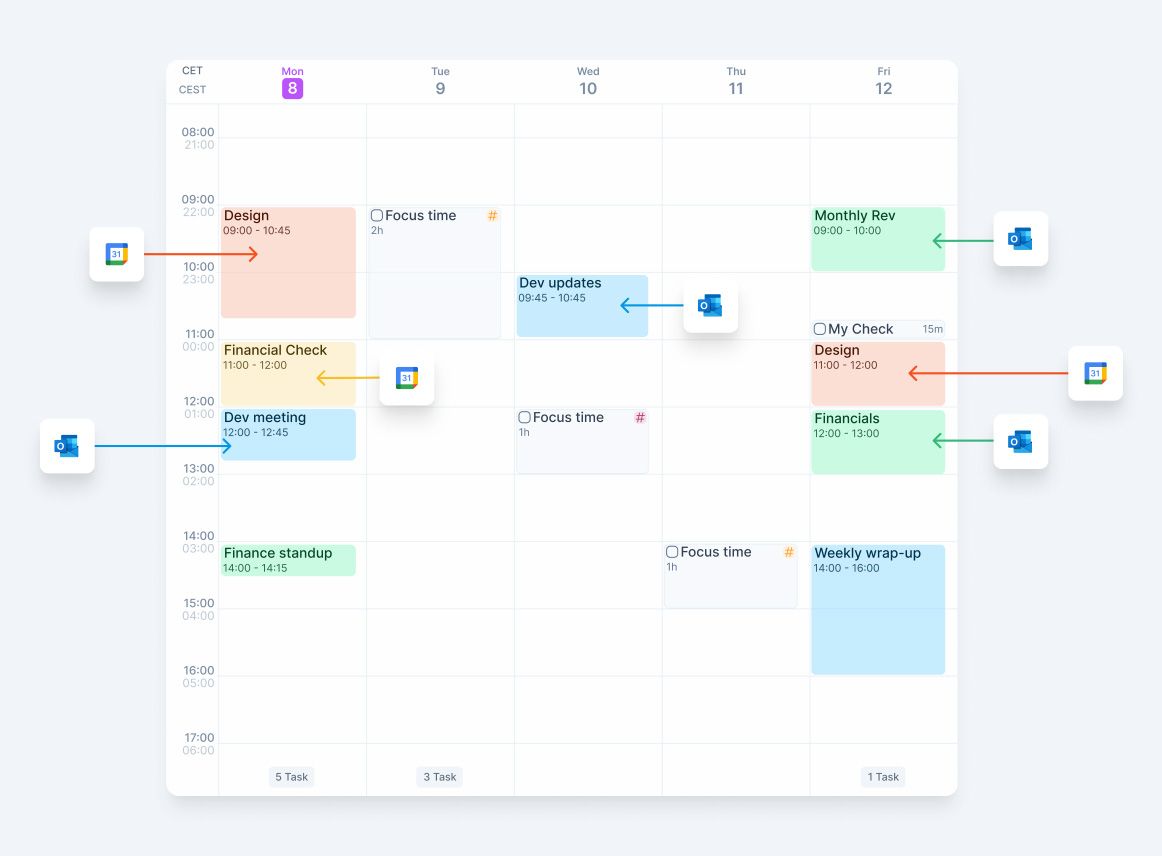
Multi-Calendar Connection
You can have a seamless overview of all your Outlook events by connecting all your Outlook calendars to Akiflow.
Also use Google or iCloud? Connect those accounts separately using the Google Calendar or iCloud Calendar guides, even if you view all your calendars in Apple Calendar.
2-way Sync
You can easily create, edit, and delete your Outlook events directly from Akiflow and everything will be synched with Outlook!
Reminders
In Akiflow, open Settings → Calendars and select your Outlook Calendar account. The bell beside each calendar controls reminders for calendar events only.
On desktop and mobile:
Outlook Calendar events: Enable both the calendar’s bell and event reminders in Settings → Notifications.
Tasks and Time Slots: Use their respective reminder settings and timing in Settings → Notifications. Turning off an Outlook calendar’s bell does not silence Akiflow reminders for tasks or Time Slots locked to that calendar.
Tasks inside a Time Slot: The Time Slot sends the reminder, rather than each task inside it.
Read more in the Notifications section of Settings.
Set up your preferences
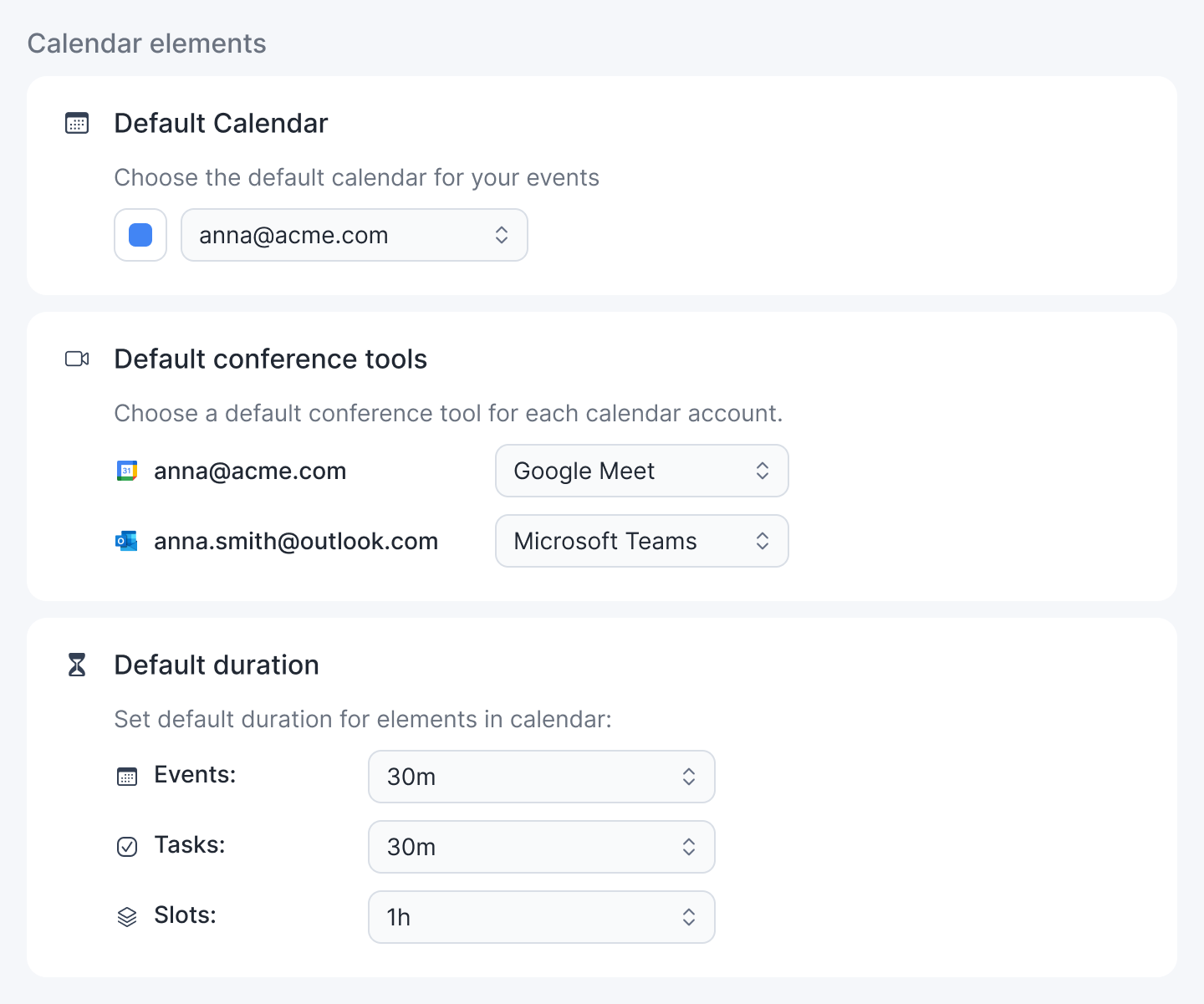
Go to Settings → Tasks, Events, Slots to choose your default calendar for new events, a default conference tool for each calendar account (Teams or Zoom for Outlook accounts), default durations and more.
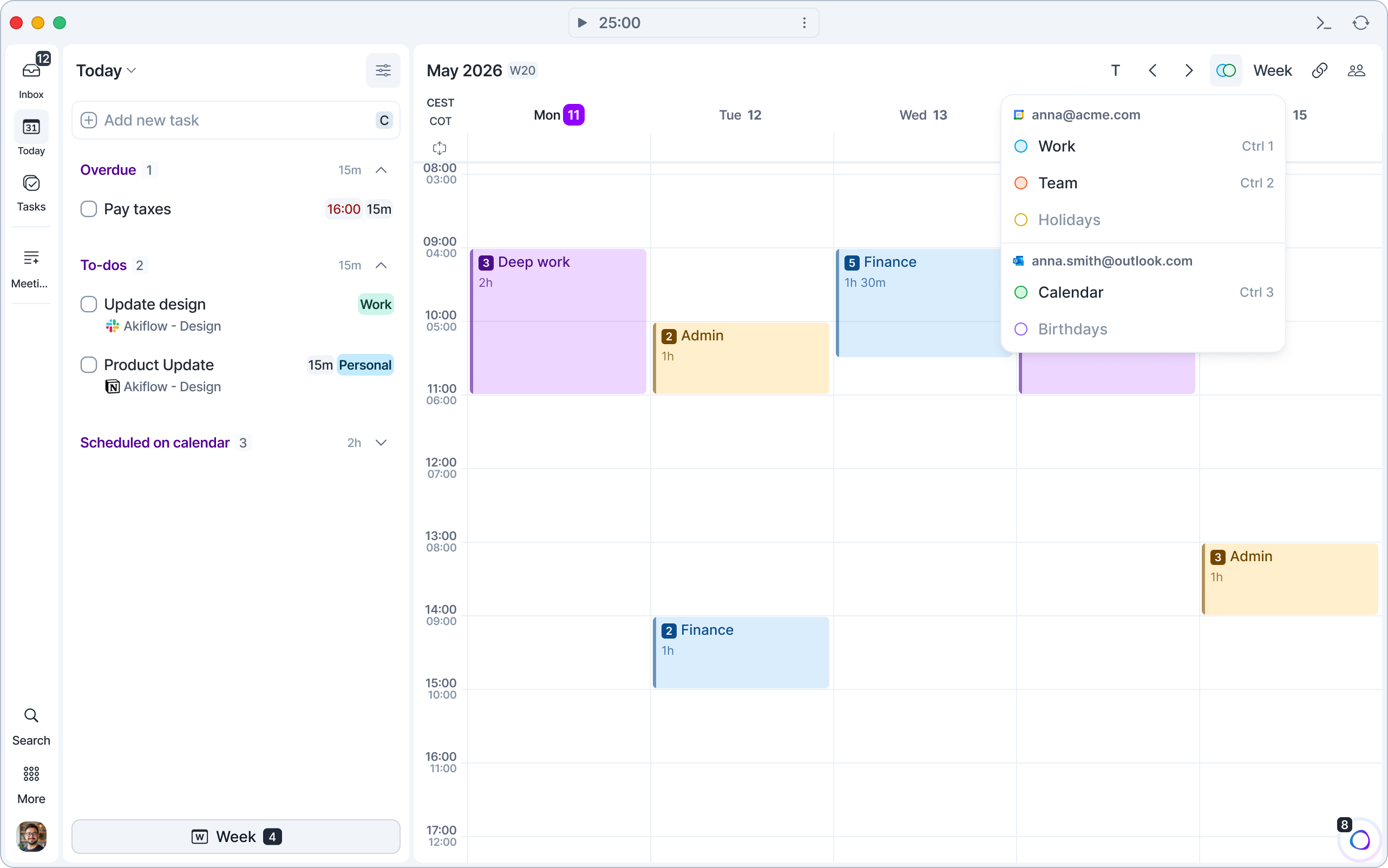
Use keyboard shortcuts or the view button at the top right of your calendar (it shows your current view, like Week) to change the number of days. Click the Calendar Visibility button (two overlapping circles) next to it to choose which calendars to display, and hover a calendar to turn its notifications on or off with the bell. Learn more in Customize Your Calendar.
Press O on an event to open it in Outlook.
To show or hide a calendar with the keyboard, assign it a shortcut in Settings → Calendars: Ctrl 0 to 9 on Mac, Ctrl Alt 0 to 9 on Windows. The shortcut also appears next to the calendar in the Calendar Visibility list.
Work & Personal Tags
Work and Personal tags help Aki better understand your calendar, so we require them to keep everything running smoothly.
To make things easier, Akiflow will automatically update the right tag based on your email provider. If your account is something like gmail.com or yahoo.com, we mark it as Personal. If it looks like a company domain, we mark it as Work.
You can set these tags during onboarding and also update them later in Settings when connecting new accounts. You can always change the tag if needed.
Your Work and Personal tags stay in sync across desktop and mobile.
FAQ
Why do you ask for permission to connect to Outlook Calendar?
Why do you ask for permission to connect to Outlook Calendar?
Maintain access to data you have given Akiflow for Outlook Calendars access to → keep your Akiflow and Outlook Calendars synched
Read your profile → know the name and email address associated with your calendar
Have full access to your calendar → See, create, edit, and delete events directly from Akiflow
Read your contacts → Invite all your contacts to your events
Can I connect more accounts?
Can I connect more accounts?
You can connect as many Outlook Calendar accounts as you want!
How can I see my tasks on Outlook Calendar?
How can I see my tasks on Outlook Calendar?
Go to Settings → Tasks, Events, Slots → Lock tasks + Lock Time Slots.
You’ll see all your scheduled tasks in your Outlook Calendar. Keep in mind this only applies to the specific calendar you’ve selected for locking your tasks and time slots.
Show single events on Outlook Calendar by clicking the lock icon on the task popup.
Can I choose which calendars to see in Akiflow?
Can I choose which calendars to see in Akiflow?
Yes. Use the Calendar Visibility button at the top right of your calendar, or the keyboard shortcuts you assign to each calendar in Settings → Calendars. For reminders, use Settings → Calendars and Settings → Notifications as explained above.
I can't see shared Outlook calendars in Akiflow. Why?
I can't see shared Outlook calendars in Akiflow. Why?
I can see a shared calendar, but not the events. Why?
I can see a shared calendar, but not the events. Why?
How are Outlook Calendar and Akiflow synched?
How are Outlook Calendar and Akiflow synched?
Akiflow and Outlook Calendar are synched in real time. When you create or edit an event in Outlook Calendar, it’ll be shown in your Akiflow calendar. Any changes you make in Akiflow, will be reflected on Outlook Calendar.
Can others see my tasks if I use a shared Outlook Calendar?
Can others see my tasks if I use a shared Outlook Calendar?
Why do week numbers in Akiflow not match Outlook?
Why do week numbers in Akiflow not match Outlook?
Akiflow and Outlook can use different default settings for when the week starts (for example, Sunday vs Monday). Since week numbering depends on the start day of the week, this can cause the week numbers to appear different between the two apps.
To align them, go to Settings → Appearance (under Calendar Settings) → Week starts on in Akiflow and make sure it matches the same setting in Outlook.
Was this helpful?
Still need help? Ask the team