ClickUp
You can now keep track of all your ClickUp projects directly from Akiflow.
How to integrate with ClickUp
Go to Settings → Integrations → And click on ClickUp!
Hit on “Connect”
Add your spaces
Configure your import options
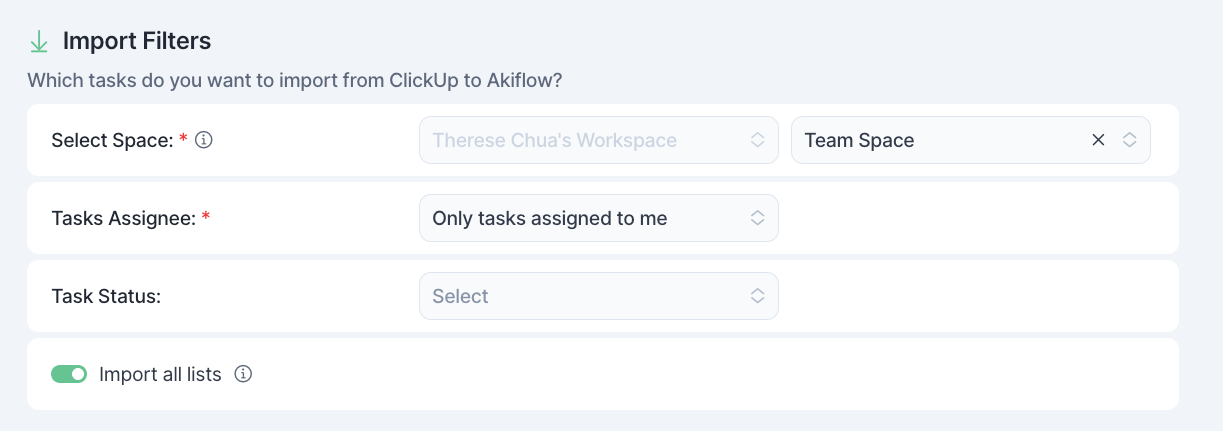
How to configure your Spaces
Akiflow imports your tasks from your connected teams and selected spaces.
Task assignee: Choose whether to import all tasks from your workspace or only those assigned to you.
Task status: Select which task status in ClickUp should trigger the task to be sent into Akiflow.
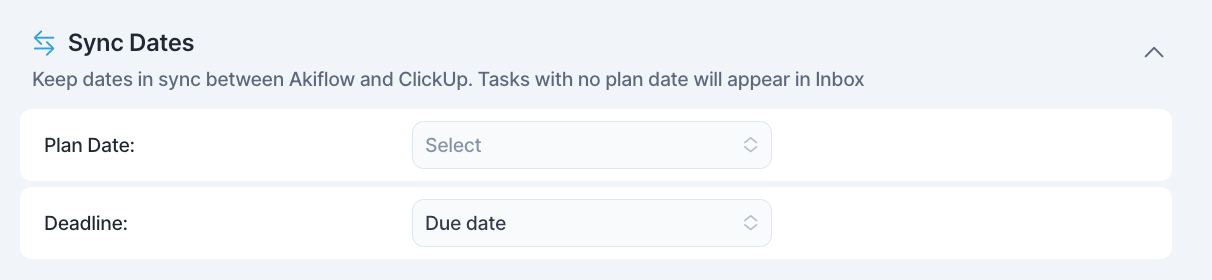
How to Sync dates
Plan Date: Choose whether the ClickUp Start Date should set a planned date in Akiflow. If you select ‘None’, tasks will be sent to your Akiflow Inbox without a set date.
Deadline: Select ‘Due Date’ to import the ClickUp due date as a deadline in Akiflow.
ClickUp tasks planned for a date only (no time) are imported with a time in Akiflow due to ClickUp’s APIs.
Date-sync limitation
ClickUp requires a task’s Start Date to be on or before its Due Date, while Akiflow lets you plan a task after its deadline.
If your configured Akiflow dates would make the ClickUp Start Date later than the Due Date, ClickUp will reject the date update. Akiflow will keep your Plan Date and Deadline, while the dates in ClickUp will remain unchanged. Any other supported task changes will continue to sync.
To sync the dates, move the Plan Date to the Deadline or earlier, remove one of the dates, or set either Plan Date or Deadline to None in Settings → Integrations → ClickUp.
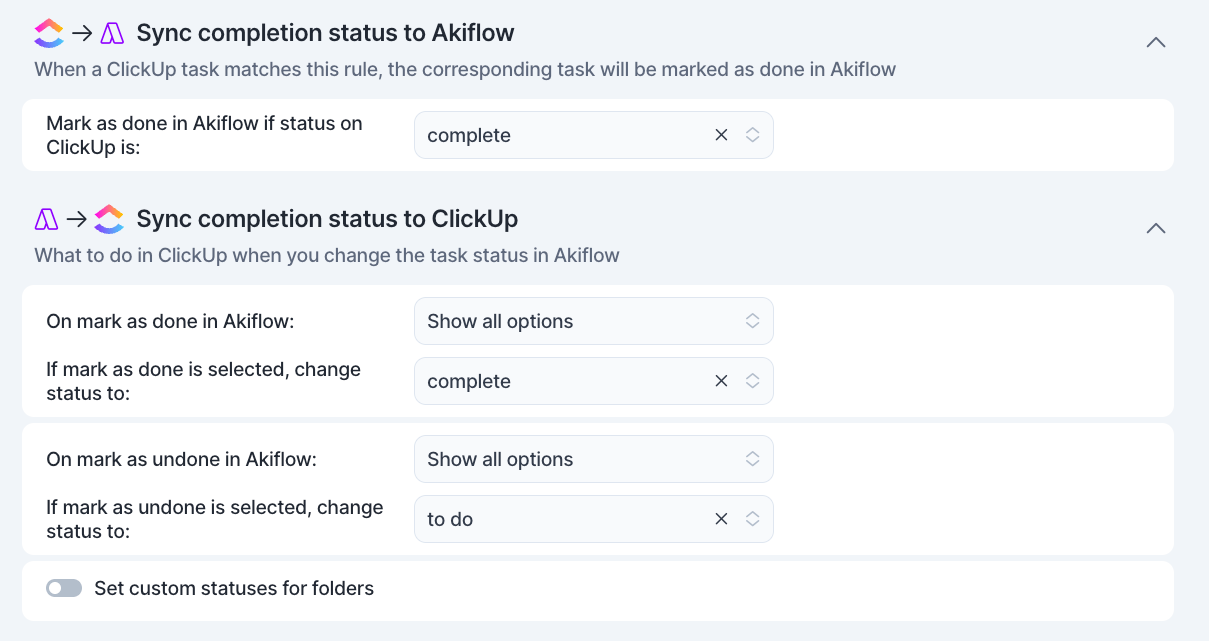
Sync Completion status
ClickUp → Akiflow
A task is marked Done in Akiflow when it moves to any status in ClickUp's Done or Closed group.
It’s marked as not done again when it moves to the status you chose for Undone, or to a status you selected under Task status.
Akiflow → ClickUp
Define how the task status in ClickUp should update when you mark a task as Done or Undone in Akiflow.
Lists with their own statuses
In ClickUp, a List can use its own statuses instead of its Space's or Folder's. If the status you chose for Done or Undone doesn't exist in that List, Akiflow uses one of the List's own statuses instead:
Done: the List's first status in the Done or Closed group.
Undone: the List's first status in the Not started group.
If the List has no matching status, the task's status in ClickUp stays unchanged.
Tip: Hit O as "Open" on a selected task to be redirected to your ClickUp task
FAQ
Can I connect more accounts?
Can I connect more accounts?
You can connect as many ClickUp accounts as you want!
How does Akiflow import dates and times from ClickUp?
How does Akiflow import dates and times from ClickUp?
Due to ClickUp APIs, if you don’t set a specific time for a task in ClickUp, the task is planned in Akiflow at 4 am (creation timezone).
You can decide not to import the planned date. If you do, we suggest you always add a time in ClickUp or check your today page to be sure not to lose any tasks.
What happens when I complete a ClickUp task in Akiflow?
What happens when I complete a ClickUp task in Akiflow?
A popup will appear with the following options:
Mark as complete in clickUp
Go to ClickUp
Do nothing
We can remember your choice if you select that option!
I imported too many tasks, what can I do?
I imported too many tasks, what can I do?
Pick which ClickUp tasks to delete:
Multi-selecting tasks and hit
backspace→ How to bulk edit tasks:
Delete all your tasks
Go to Settings → Integrations → ClickUp
Click on the button “Delete all imported tasks”. This action will delete all the tasks imported so far from ClickUp in Akiflow. Nothing will happen to your source tasks in ClickUp.
Disconnect your ClickUp account by clicking on ‘Disconnect Integration’ option in the top right corner of this page.
Reconnect ClickUp by going back to Integrations → ClickUp
Start from scratch
Click on the button “Reset Integration”. This action will delete all the tasks imported so far from ClickUp in Akiflow and then re-import them again according to the new import options. Nothing will happen to your source tasks in ClickUp.
When I delete a task on Akiflow, what happens to my ClickUp tasks?
When I delete a task on Akiflow, what happens to my ClickUp tasks?
When you delete a task on Akiflow, nothing happens to the source task in ClickUp.
How are ClickUp and Akiflow synched?
How are ClickUp and Akiflow synched?
Akiflow and ClickUp are 2-way synched.
Any changes you make in Akiflow to the task's title, planned date, deadline, time estimates, and status (done/undone) will be reflected on ClickUp and the other way around!
Can I import tasks using Custom statuses?
Can I import tasks using Custom statuses?
Yes, Akiflow fully supports ClickUp custom statuses. When you configure the ClickUp integration, the Task status dropdown shows all custom statuses from your selected Space, so you can filter imports by any status you've set up in ClickUp (not just the default To Do/In Progress/Complete).
Where statuses come from
Akiflow pulls statuses at the Space level. This means:
When you select a Space, the dropdown shows that Space's statuses.
If a Folder uses its own statuses, turn on Set custom statuses for folders to choose Done and Undone for that Folder.
Lists can't be set up separately. If a List uses its own statuses, see Lists with their own statuses under Sync Completion status.
What if I delete a status in ClickUp that Akiflow was using?
What if I delete a status in ClickUp that Akiflow was using?
If a status you've configured gets deleted in ClickUp, Akiflow will flag a configuration error in the integration settings, prompting you to reconfigure that field.
Why didn’t my task dates update in ClickUp?
Why didn’t my task dates update in ClickUp?
ClickUp cannot accept a Start Date that is after the Due Date. If your Akiflow Plan Date and Deadline create that combination, Akiflow keeps your dates as entered and leaves the ClickUp dates unchanged. Other supported task changes continue to sync normally.
Was this helpful?
Still need help? Ask the team