Slack
Go to Settings → Integrations → And click on Slack!
Save Messages to turn them into tasks
Messages you save in Slack are automatically imported as tasks into your Akiflow inbox.
To save a message on desktop, hover over it, click More actions and select Add to saved. On mobile, tap and hold the message, tap More actions and select Save for later. If you remove the message from your saved items in Slack, the task is marked as done in Akiflow.
Adding a message to your To-dos imports it too: hover over the message and click Add to-do. After that, Slack doesn't share changes in To-dos with other apps, so completing a to-do or adding it back in Slack isn't sent to Akiflow. To bring a message into Akiflow again, save it or use the Create a task shortcut below.
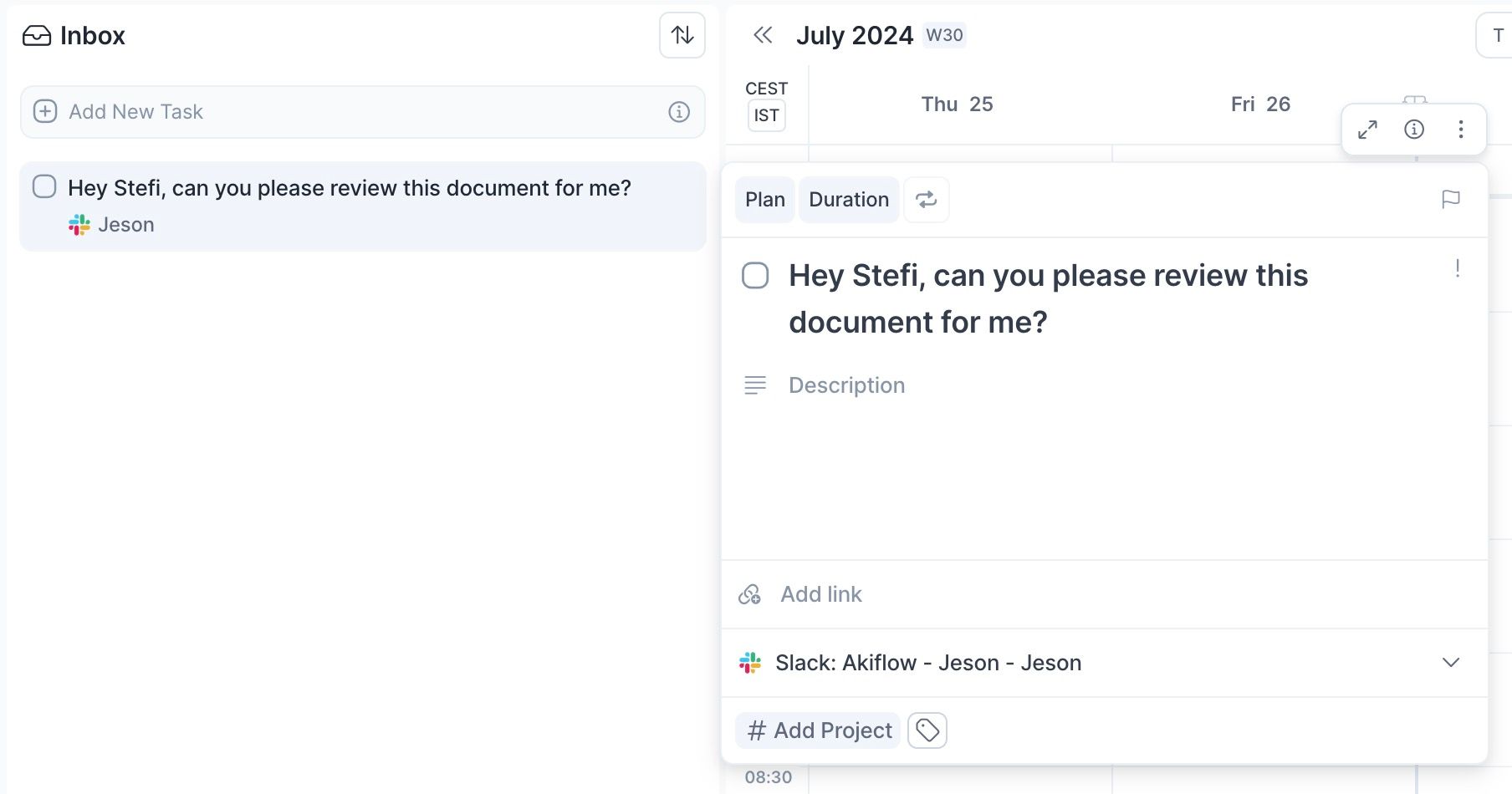
Hit O as Open on a task to be redirected to the Slack source message
Akiflow Shortcut to save tasks
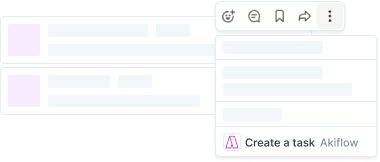
You can click on the 3 dots on a selected message and select Create a task.
It may be hidden under More message shortcuts.
FAQ
What permissions is the Slack integration asking for?
What permissions is the Slack integration asking for?
The permission is titled content and info about channels, but this refers to basic information and not the full content of the conversation. This is better explained in the OAuth process if you expand the accordion. We only have the full content of messages you save or send to Akiflow, not all of your messages.
This scope was also approved by Slack who made a thorough review of the app integration, and were deemed appropriate and not too broad. Slack also conducted a penetration test for our app that was considered successful.
Can I connect more accounts?
Can I connect more accounts?
You can connect as many Slack accounts as you want!
Will Akiflow import my already saved messages from Slack?
Will Akiflow import my already saved messages from Slack?
Akiflow will import only the messages you save from the moment you connect Slack.
To bring in a message you saved before connecting, remove it from your saved items in Slack and add it to saved again, or use the Create a task shortcut on it.
What happens in Slack when I complete an imported task in Akiflow?
What happens in Slack when I complete an imported task in Akiflow?
Nothing changes in Slack. Slack doesn't let apps like Akiflow update your To-dos or saved items, so the message stays there until you clear it in Slack.
What happens in Akiflow when I complete or remove a message in Slack?
What happens in Akiflow when I complete or remove a message in Slack?
If you remove a message from your saved items in Slack, the task is marked as done in Akiflow.
If you complete a to-do in Slack's To-dos, nothing changes in Akiflow, because Slack doesn't share To-dos with other apps. Complete the task in Akiflow instead.
I completed a to-do in Slack and added it back. Why isn't it in Akiflow?
I completed a to-do in Slack and added it back. Why isn't it in Akiflow?
Slack doesn't share To-dos with other apps, so completing a to-do and adding it back isn't sent to Akiflow, and the task isn't reopened.
To bring the message back, use the Create a task shortcut on it, or add it to your saved items. If you already completed the task in Akiflow, it's reopened in your Inbox.
When I delete a task on Akiflow, what happens to the original message?
When I delete a task on Akiflow, what happens to the original message?
When you delete a task on Akiflow, nothing happens to the source task (your Slack message).
Was this helpful?
Still need help? Ask the team