Outlook Email
Go to Settings → Integrations → Outlook Email → and Connect!
How to integrate with Outlook Email
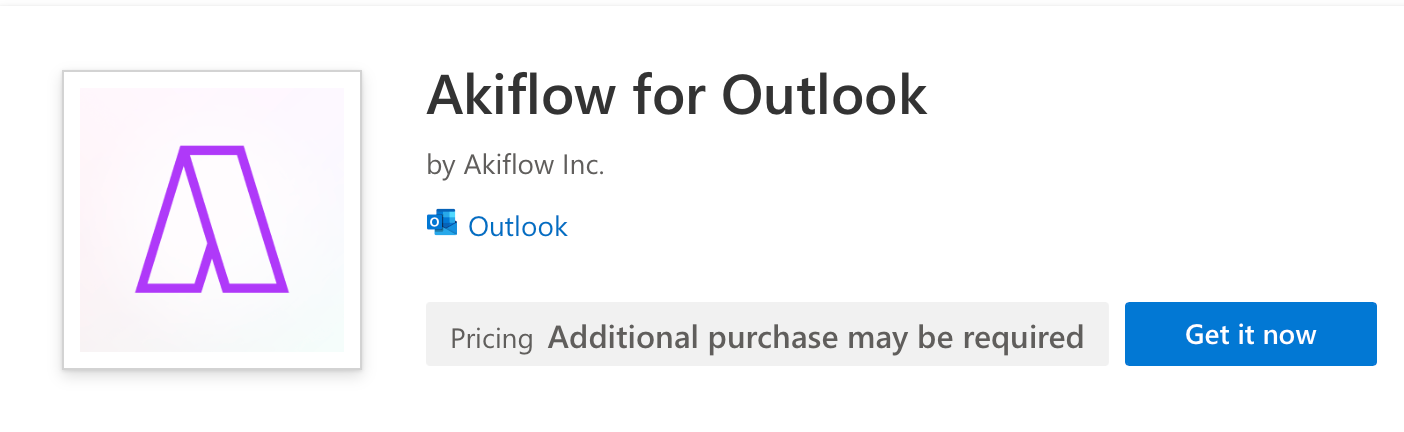
Akiflow will be added to Outlook as an app.
When you click the Connect button, you'll be redirected to Outlook’s app page where you can add Akiflow to your account.
Click Get it now and follow the Outlook installation steps.
You may be asked to log in to your Akiflow account. Make sure you're signed in on the web during the process. This can affect the effectiveness of the connection.
How to import your emails as tasks
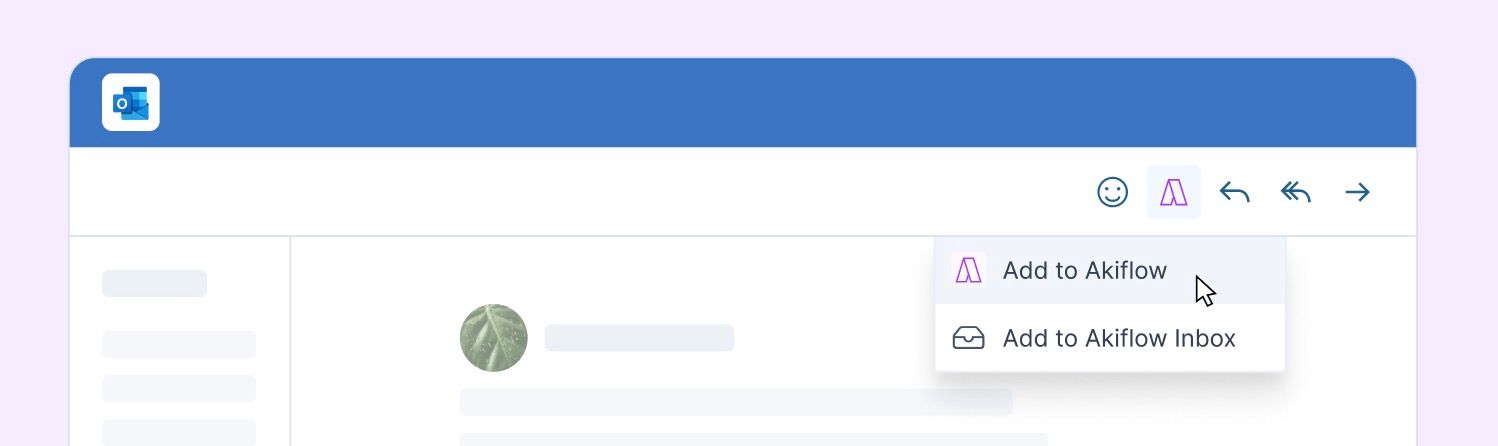
Inside each Outlook email, you'll find the Apps button in the top-right corner. Once your account is integrated, Akiflow will appear as an option within that menu.
Click the Akiflow icon to choose how you'd like to import the email into your task list.
You can either:
Add to Akiflow Inbox - Akiflow imports the email as a task straight to the Inbox!
Add to Akiflow - Add more information to your task before importing it into Akiflow. You can edit the task title, plan date, priority and description.
Which emails should I import into Akiflow?
Ask yourself: how long would it take to complete this right now?
< 2 minutes → Do it right now!
> 2 minutes → It's a task! → Push it to your Inbox
Hit O as Open on a task to be redirected to the Outlook Email source email
How to import Flagged Emails to Akiflow
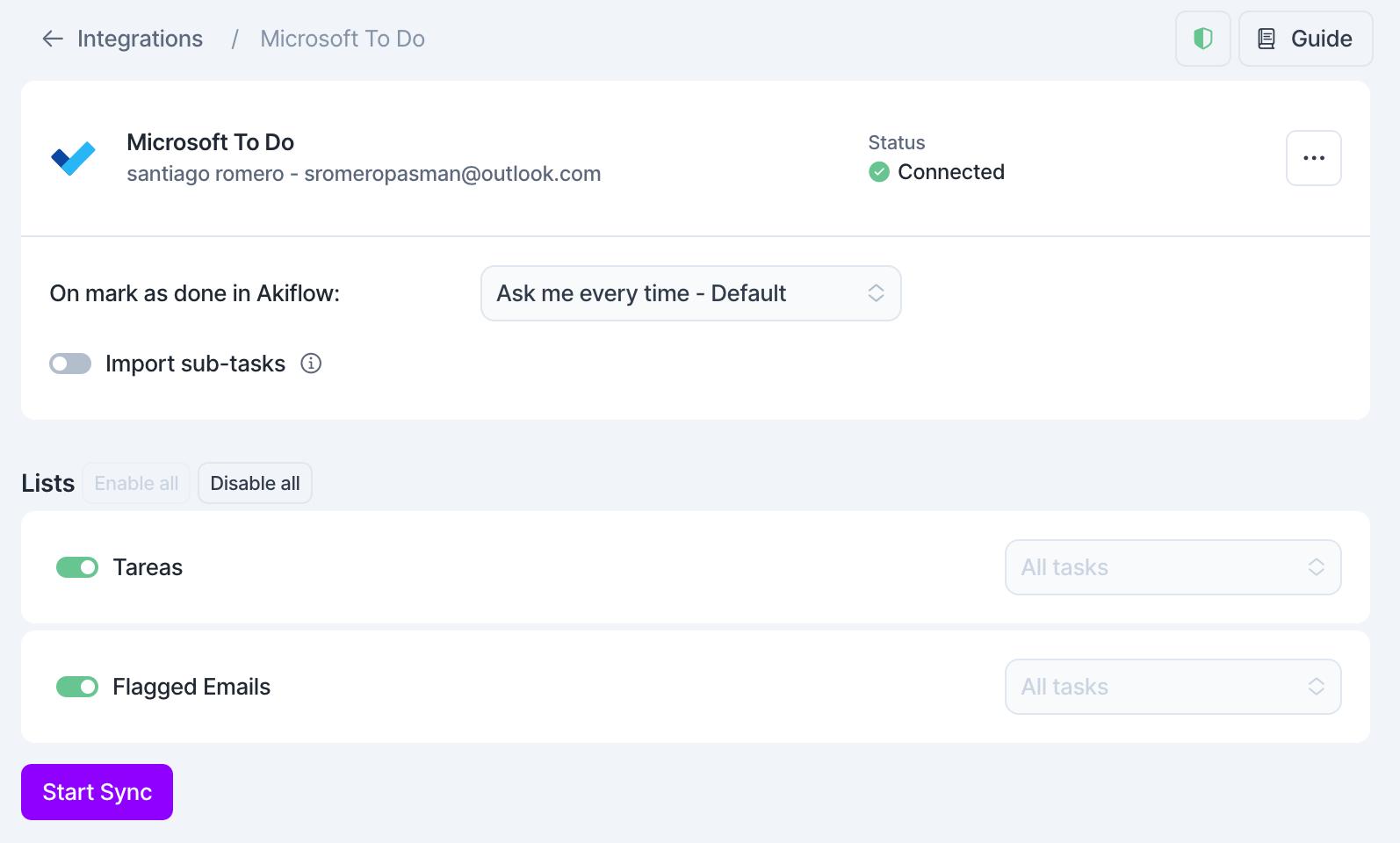
Integrate Microsoft To Do to Akiflow.
Use the Flagged Emails list to import all flagged emails into Akiflow.
Work & Personal Tags
Work and Personal tags help Aki better understand your email accounts, so we require them to keep everything running smoothly.
To make things easier, Akiflow will automatically update the right tag based on your email provider. If your account is something like gmail.com or yahoo.com, we mark it as Personal. If it looks like a company domain, we mark it as Work.
You can set these tags during onboarding and also update them later in Settings when connecting new accounts. You can always change the tag if needed.
Your Work and Personal tags stay in sync across desktop and mobile.
FAQ
Can I connect more accounts?
Can I connect more accounts?
You can connect as many Outlook Email accounts as you want!
What happens when I mark a task as done in Akiflow?
What happens when I mark a task as done in Akiflow?
When you mark a task as done on Akiflow, nothing happens to the source task (your email).
When I delete a task on Akiflow, what happens to my email?
When I delete a task on Akiflow, what happens to my email?
When you delete a task on Akiflow, nothing happens to the source task (your email).
How are Outlook Email and Akiflow synched?
How are Outlook Email and Akiflow synched?
Akiflow imports your emails into Akiflow when you select the Akiflow icon on the top right and select either Add to Akiflow Inbox or Add to Akiflow. Any changes you make in Akiflow, won’t be reflected on Outlook Email.
Why do email links open in Outlook Web App instead of the Desktop App?
Why do email links open in Outlook Web App instead of the Desktop App?
The ability to open emails in the Outlook desktop app rather than the web app is not something Akiflow can control, as it’s determined by how Microsoft’s ecosystem handles email links.
Outlook generates web-based links (e.g., https://outlook.office.com/mail/...) that are designed to open in the Outlook web app by default. This behavior isn’t governed by the Outlook API, which primarily focuses on programmatic access to emails, calendars, contacts, and tasks, but rather by system-level settings in the operating system.
Redirecting such links to the desktop app requires specific handling by Microsoft’s software, and Akiflow doesn’t have access to modify this functionality.
Why do Outlook email links open in a browser or redirect to a Microsoft page?
Why do Outlook email links open in a browser or redirect to a Microsoft page?
This behavior is caused by limitations in Microsoft's ecosystem and is not something Akiflow can control.
Outlook email links are web-based links that are designed to open in a browser rather than directly in the Outlook desktop or mobile app.
In some cases, if you're not signed in to the Outlook account associated with the email, Microsoft may redirect you to a generic Outlook or Microsoft page instead of opening the email.
To access the email correctly, make sure you're signed in to the correct Outlook account in your browser before opening the link.
My Outlook Email account isn’t appearing in Akiflow or emails sent to Aki aren’t being processed. What should I do?
My Outlook Email account isn’t appearing in Akiflow or emails sent to Aki aren’t being processed. What should I do?
If your Outlook Email account doesn't appear in Akiflow or emails sent to Aki aren't being processed, reconnect Akiflow from the Outlook add-in:
Open any email in Outlook.
Find the Akiflow icon. Depending on your Outlook version, it may appear in the top-right corner of the email or inside the three-dot menu.
Open Akiflow and select Add to Akiflow.
Do not click Create Task. Instead, select Settings in the top-right corner of the Akiflow panel.
Select Log out.
On the next screen, select Log in and sign back into your Akiflow account.
Return to Akiflow and confirm that the Outlook account appears under Settings → Integrations → Outlook Email.
After reconnecting, emails sent to Aki should be processed normally. If the issue persists, contact Akiflow Support.
Was this helpful?
Still need help? Ask the team