Attach files to a task
Keep screenshots, PDFs, documents, and other files alongside the task they belong to. You can add files on desktop, web, iOS, and Android, and access completed uploads across your devices.
Add files on desktop or web
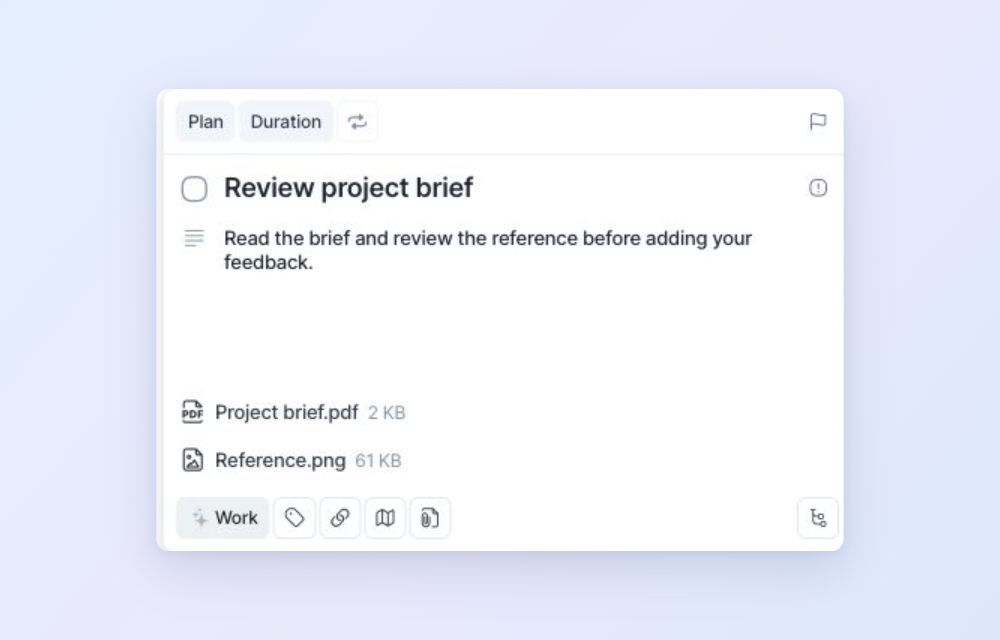
Open a task, or start creating a new one.
Click the paperclip button (Attach file) at the bottom of the task.
Select one or more files to upload.
You can also drag files anywhere onto an open task window, or paste a copied file or screenshot with Cmd + V on Mac or Ctrl + V on Windows. To add a copied URL as a task link, paste it while the task is open and your cursor is outside a text field. Pasting inside a text field keeps the normal text-paste behavior.
If you are creating a new task, remember to save it to keep its attachments.
Create Inbox tasks by dropping files
Drag files into Akiflow’s main window. Each accepted file creates a separate Inbox task named New task with attachment. You can rename the tasks afterward.
One drop can create up to 10 tasks. Files that do not meet the attachment requirements, and extra files beyond that limit, are skipped. Dropping files inside an open task attaches them to that task instead.
Add files on mobile
Open a task, or start creating a new one.
Tap the paperclip button.
Choose Take photo to use your camera, Choose from library for photos, or Browse files for documents, videos, audio, and other files.
Select the files you want to attach, or take a photo.
Allow camera or photo access if your phone asks for permission. If camera access is off on iOS, use Open Settings in the message to enable it. If you are creating a new task, save it to keep its attachments.
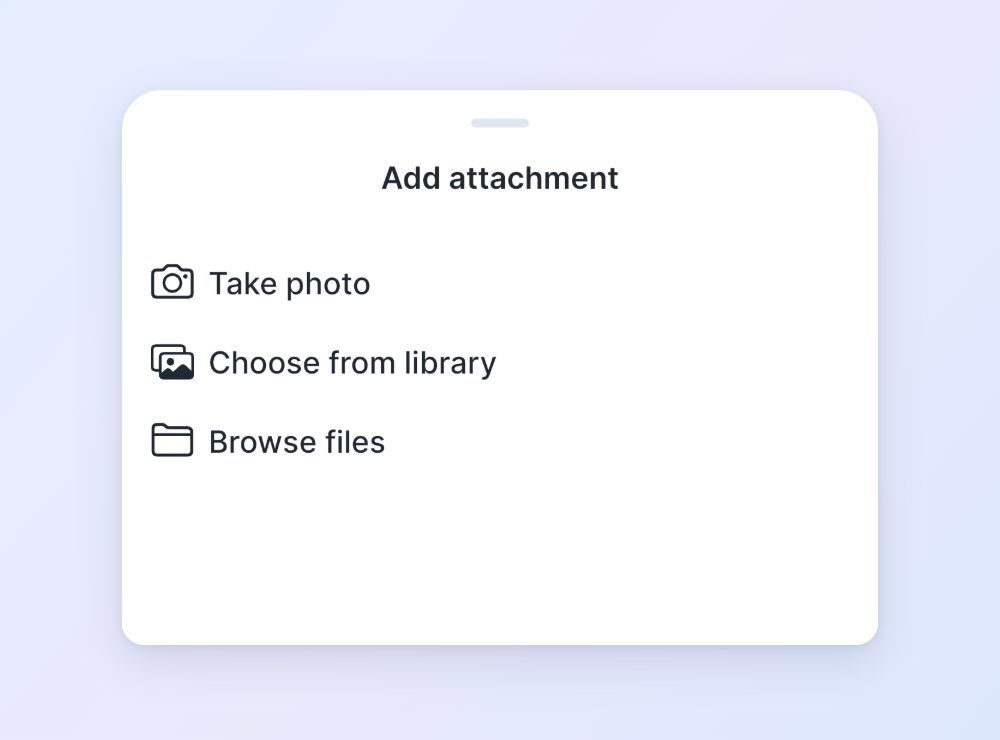
Add attachment menu on iPhone.
When a task has more items than fit in its attachment and link preview, tap View all to open Links & Attachments.
Create a task from a shared file on mobile
Open a file or select files in another app, such as Photos or Files.
Open that app’s Share menu.
Choose Akiflow.
Akiflow creates one task in your Inbox with the accepted files attached. Tap View in the task-created message to open it, or find it in Inbox. You can edit the task’s title afterward.
Sharing several files creates one task containing those files, up to the attachment limit. Check any warning shown after sharing: files that exceed a limit or cannot be read may be skipped.
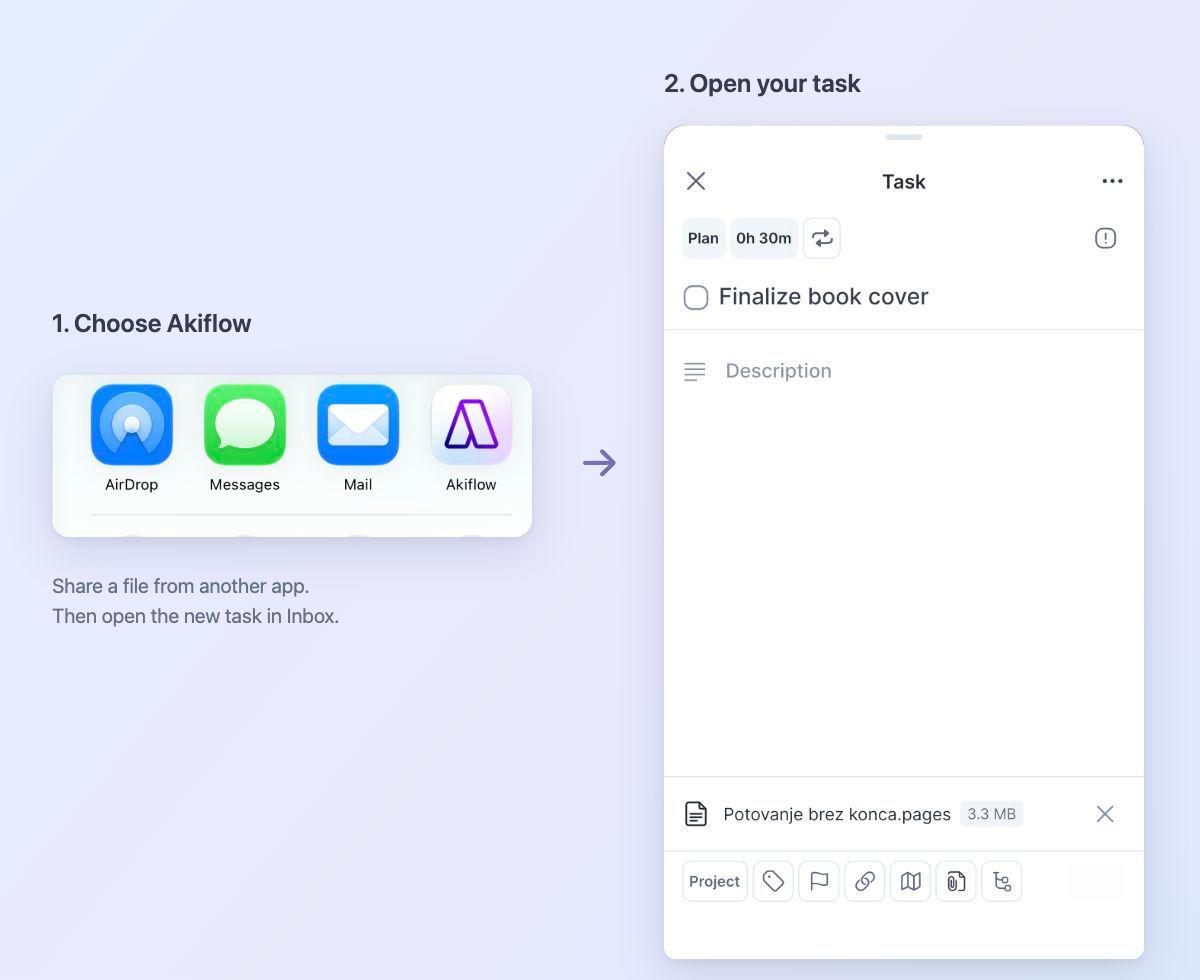
Sharing a file to Akiflow on iPhone. You can rename the new task afterward.
Open or download an attachment
Open the task to find its attachments. Tasks with completed attachments show a paperclip in task lists.
Desktop and web: Click a supported image or PDF to open Akiflow’s preview. Hover over an attachment and click Download to save it. Other file types are download-only; clicking their filename does not open a preview.
iOS and Android: Tap an attachment to open it. JPEG, PNG, GIF, and WebP images open in Akiflow. Other files, including PDFs and HEIC images, open through your phone’s normal external opening or download flow. The image viewer’s menu also includes Download.
Uploading a file does not guarantee it can be previewed inside Akiflow. You may need a compatible app to open it.
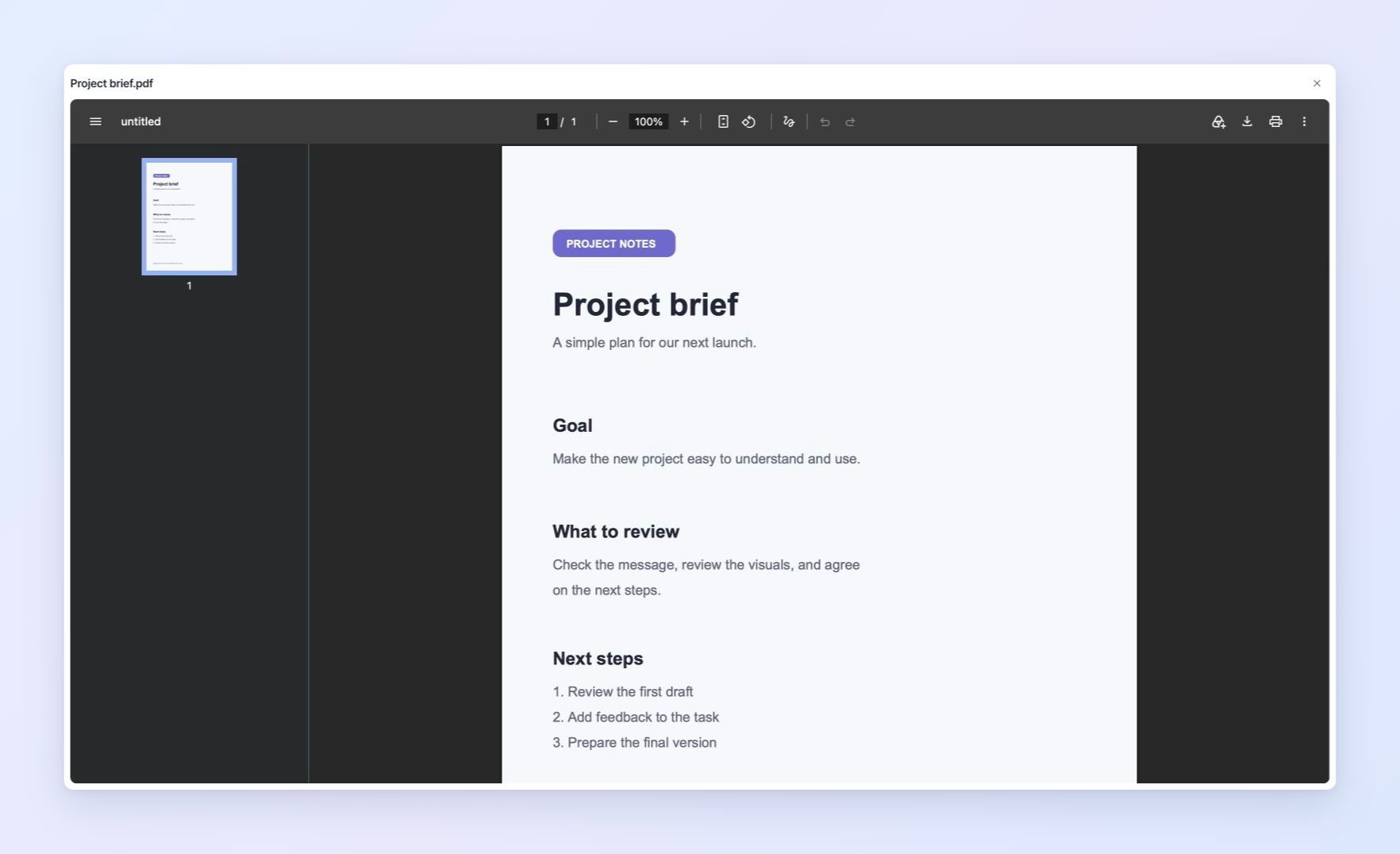
PDF preview on the web app. Mobile uses your phone's external opening or download flow.
File and storage limits
All file types are supported within the limits. Empty files cannot be uploaded.
Attachment storage is shared across your account. There is no daily upload-count limit, and storage does not reset each month.
If an upload would exceed your remaining storage, remove attachments you no longer need and try again. A smaller file may still fit.
Reaching the storage limit does not stop you from opening, downloading, or removing existing attachments while you have access to Akiflow.
Remove an attachment
On desktop or web, hover over the attachment and click Remove file. On mobile, tap the × beside the attachment, or choose Delete image from the image viewer’s menu. Confirm by selecting Remove.
Removing an attachment permanently deletes that attachment from the task and frees its storage. Download a copy first if you want to keep it elsewhere.
Moving a task to Trash keeps its attachments and continues to use storage, so you can restore the task with its files. Permanently deleting the task removes its attachments and frees their storage.
Attachments on recurring tasks
Attachments belong to the whole recurring series on desktop, web, iOS, and Android.
Adding a file from any occurrence makes it available throughout the series. Removing it from any occurrence removes it from the whole series.
The series has one shared limit of 10 attachments. Each file counts once toward your account storage.
Uploads and connection problems
You can continue editing a task while its files upload. Wait until the files appear with an upload status before closing the task window, and save a new task before leaving it. Started uploads can continue while Akiflow stays open, but unfinished uploads are not preserved through a full app restart.
If a failed upload offers Retry, use it to try again, or remove the failed upload. Files rejected because of a limit or an unreadable source may need to be selected again after you resolve the problem. Successfully uploaded files remain attached even if another file fails.
An internet connection is required to open, download, or remove completed attachments. Desktop and web also require a connection to add files.
On mobile, files added to a new task before it syncs can show Waiting for connection and begin uploading when you reconnect. Keep the app open until they finish. Adding files to an already-synced task requires a connection. An upload interrupted after it starts may need Retry.
Frequently asked questions
Are attachments copied when I duplicate a task?
No. The original task keeps its attachments, and the duplicate starts without them. Download and attach the files again if you need them on both tasks.
Can I share attachments with someone else through Akiflow?
Task Attachments is for your personal files. Akiflow does not provide attachment-sharing controls or public sharing links.
Are files imported automatically from integrations?
Files from connected tools, such as email or Slack, are not automatically imported as task attachments. Add the file yourself, or use your phone’s Share menu where supported.
Was this helpful?
Still need help? Ask the team