Daily Dashboard
The Daily Dashboard is a quick way to see what is happening now, what is coming next, and what Aki has prepared for your day. Use it to join meetings, complete planned tasks, open time slots, read your Daily Briefs, and review meeting documents from one place.
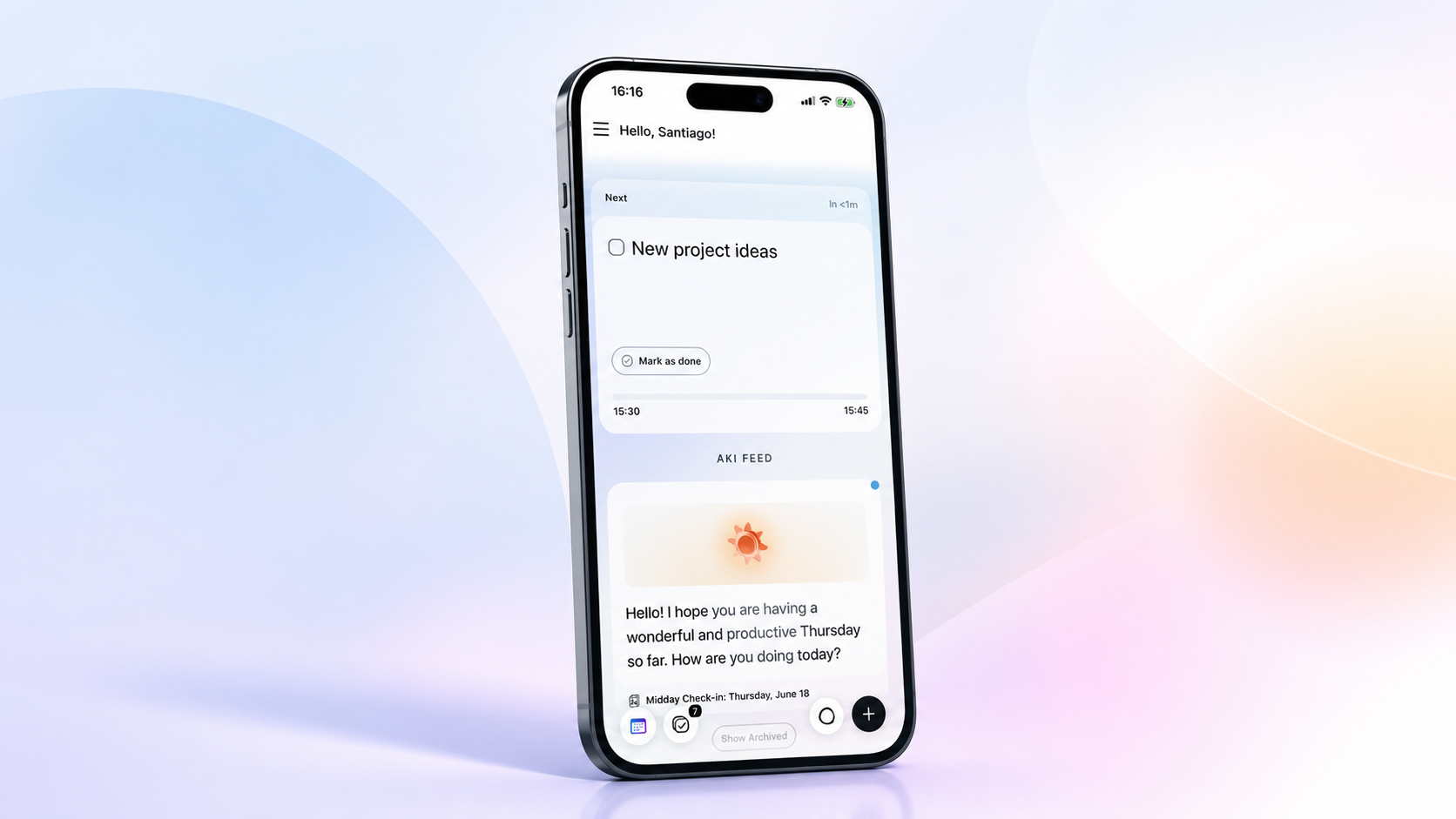
Open the Daily Dashboard
Open Akiflow on mobile.
Tap the Dashboard icon in the bottom bar.
Tap the Calendar icon to go back to your calendar.
If you do not see the Dashboard icon, update the Akiflow mobile app first.
Tour of the Daily Dashboard
The Daily Dashboard has two main sections:
Live Activity shows your current and next scheduled items.
Aki Feed shows Daily Briefs, Aki conversations, and meeting transcripts.
The top of the Dashboard greets you by name, then shows Live Activity cards, followed by your Aki Feed.
Live Activity
Live Activity helps you act on the next few hours without opening each task or event manually.
It can show:
Timed events
Planned tasks with a start time and duration
Time slots
Cards are labeled Ongoing when they are happening now and Next when they start soon. Ongoing items appear first, followed by upcoming items.
Each card shows its title, time, and progress. Tap a card to open the task, event, or time slot.
Event actions
Event actions
For events, you may see actions such as:
Join to open the meeting link
Quick Email to email attendees
If the event has a location, open the event to view or open the location from the event details.
Task actions
Task actions
For tasks, you can:
Mark the task as done
Open the linked source, when the task came from an integration or has a link
Time slot actions
Time slot actions
For time slots, tap the card to open the time slot.
If a time slot contains tasks, the card shows how many tasks are still incomplete. Tasks inside a time slot are represented by the time slot, not as separate Live Activity cards.
Aki Feed
Aki Feed collects the Aki updates that matter for your day.
You may see:
Daily Briefs
Aki conversations
Meeting transcripts
Tap any feed card to open it.
Unread cards can show a small indicator. Older cards move out of the main feed automatically. When available, tap Show Archived to view archived cards and Hide Archived to collapse them again.
Daily Briefs
Daily Briefs are recurring Aki messages that appear in Aki Feed and open as Aki chats.
Each brief is generated from your Akiflow data, such as your calendar, planned tasks, time slots, integrations, and Aki memory.
Morning Brief
Morning Brief
The Morning Brief helps you start the day with context.
It can include:
A recap of today
Meetings and time slots
Docs of the day
Birthdays found from your calendar
Weather, when Aki has your location
A suggested next action
If Aki needs your city for weather, tap Set location in the Weather message.
Midday Check-in
Midday Check-in
The Midday Check-in gives you a quick read on the rest of the day.
It can include:
What you have completed so far
Overdue or open tasks
What is still planned today
A focus suggestion for the next part of the day
Evening Wrap-up
Evening Wrap-up
The Evening Wrap-up helps you close the day.
It can include:
Completed work
Tasks still planned for today
A short preview or suggestion for what to handle next
Manage Daily Briefs
Daily Briefs can be turned on or off, and their schedule can be changed.
On desktop:
Open Settings.
Go to AI Center > Workflows.
Open the Briefs section.
Select the brief you want to change.
Change Status, Time, or Recurrence.
Click Save.
Daily Briefs are system Aki messages. You can disable them or change when they run, but you cannot delete them or edit their prompt, title, or emoji.
On mobile, workflow messages may tell you to use the desktop app to edit or disable that workflow.
Additional information
For more information about meeting documents, transcripts, notifications, and offline use, open the corresponding sections below. Each section explains how the feature works, what information is available, and any relevant settings or limitations.
Meeting documents
Meeting documents
Aki Feed can show meeting-related documents when they are ready.
Transcripts
Transcripts
After a recorded meeting, a transcript card can appear in Aki Feed. Depending on the card, you may be able to:
Open the transcript
View action items
Draft a follow-up email
Some document details require an internet connection to open.
Notifications
Notifications
When a Daily Brief or Aki update is ready, Akiflow may send a notification. Tap the notification to open the related brief, chat, or document.
If you are not receiving notifications, check:
Akiflow notification settings
Your device notification permissions
Focus or Do Not Disturb settings on your device
Offline use
Offline use
The Dashboard can show recently loaded feed cards while offline.
Some actions still need a connection, including:
Loading new Aki updates
Opening transcript details
Saving Daily Brief schedule changes
When you are back online, Akiflow refreshes the feed and syncs pending read updates.
FAQ
Why is Live Activity empty?
Why is Live Activity empty?
Live Activity only shows items with a specific time that are happening now or starting soon.
It does not show:
All-day events
Unscheduled tasks
Overdue tasks
Completed tasks
Tasks inside a time slot as separate cards
If you have no upcoming activity, Akiflow shows a "Nothing left to do Today" state.
Why do I see "No calendar"?
Why do I see "No calendar"?
This appears when Akiflow has no visible calendar to use for events and there are no planned items to show in Live Activity.
Connect a calendar account to see your events.
Can I customize the order of Dashboard sections?
Can I customize the order of Dashboard sections?
No. The Dashboard order is fixed: Live Activity first, then Aki Feed.
Can I edit a Daily Brief prompt?
Can I edit a Daily Brief prompt?
No. Daily Brief prompts are managed by Akiflow. You can turn Daily Briefs on or off and change when they run only on Desktop app.
Is Daily Dashboard available on desktop?
Is Daily Dashboard available on desktop?
The Daily Dashboard view is available only on the mobile app.
On desktop, you can manage Daily Briefs from Settings > AI Center > Workflows, open related Aki chats and documents, and use the Planner Live Activity experience when it is enabled.
Was this helpful?
Still need help? Ask the team