Akiflow for Apple Watch
Capture tasks, check off your lists and see what's happening now or next, right on your wrist. The Apple Watch app works together with Akiflow on your iPhone.
Before you start
You need:
An Apple Watch with watchOS 10 or later, paired with your iPhone.
The Akiflow iPhone app, version 2.83 or later, signed in to your account.
The Watch app is a companion to the iPhone app. It uses your iPhone's sign-in and data, so there is nothing to sign in to on the Watch, and it needs your paired iPhone to stay up to date.
Install the app
The Watch app comes with the Akiflow iPhone app, so there is nothing separate to download.
Update Akiflow on your iPhone.
If Automatic App Install is on in your iPhone's Watch app, Akiflow appears on your Watch on its own. Otherwise, open the Watch app on your iPhone, scroll to Available Apps and tap Install next to Akiflow.
Open Akiflow on your iPhone once, then open Akiflow on your Watch. Your lists arrive from your iPhone.
Until the first sync, the Watch shows Open Akiflow on your iPhone to sync your tasks.
Your lists
Home shows five lists: Inbox, Today, This week, This month and All tasks. Inbox and Today show how many tasks you have left to do.
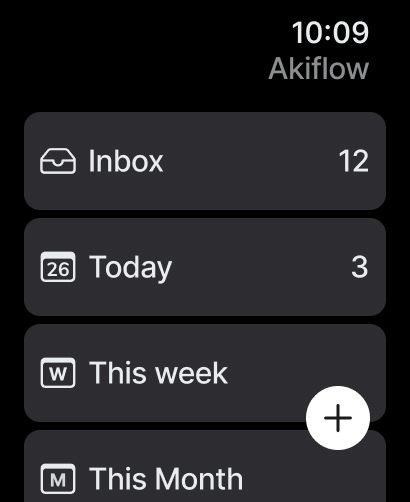
Home on Apple Watch. Scroll down for All tasks.
Each list matches your iPhone: the same tasks, sections, sorting and filters. To change how a list is sorted or filtered, or whether it shows completed tasks, change it on your iPhone and the Watch follows.
Today is split into Overdue, To-dos, Scheduled on calendar and Done. Done starts collapsed: tap its header to open it.
This week and This month show the overdue and to-do tasks planned for the current week and month.
All tasks may show Loading all tasks from your iPhone… the first time on a large account.
The Watch has no search, date navigation, sorting or filters of its own. Events and time slots don't appear in the lists. You can see them on the complication and in notifications.
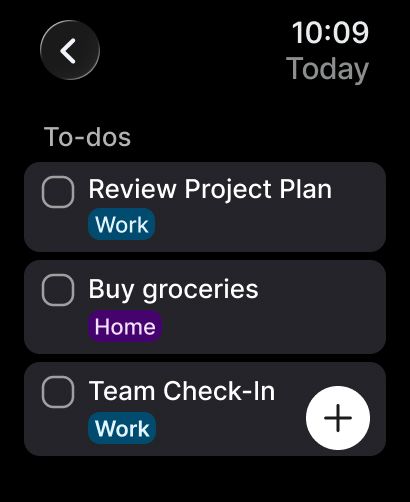
The Today list. Rows show the task's time and project when it has them.
Tap a task to see its details: when it's scheduled or planned, its duration, project and calendar.
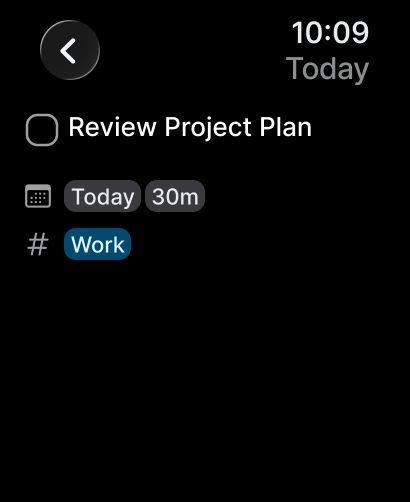
Task details. Tap the checkbox to complete the task.
Complete a task
In a list: swipe right on a task and tap Complete. On a completed task, the same swipe shows Reopen.
In task details: tap the checkbox next to the title.
The task moves out of the list and the counts on Home update straight away, even when your iPhone isn't nearby.
The Watch doesn't show the questions your iPhone sometimes asks when you complete a task. Instead:
Tasks from integrations follow the action you saved for that integration, for example marking the item done in the original app. If you haven't saved an action, the task is completed in Akiflow only.
Recurring tasks complete this occurrence only.
Tasks with subtasks complete on their own. Their subtasks stay as they are.
Capture a task
Tap + in the bottom-right corner of Home or any list.
Dictate, scribble or type the task, depending on what your Watch offers, then tap Done.
Akiflow confirms with Created, or Queued if your iPhone is out of reach. A queued task reaches your Inbox the next time your Watch can reach your iPhone.
The task goes to your Inbox with exactly the text you entered. The Watch doesn't read dates, times, projects or tags from it, so Call John tomorrow 3pm is saved as written. Plan it later on your iPhone or computer.
Dictation uses your Watch's built-in dictation. Aki isn't available on Apple Watch.
Complications
Add Akiflow to your watch face to see what's happening now, or what's next today: a task, event or time slot, with a countdown.
To add it, touch and hold your watch face, tap Edit, swipe to the complications, tap a slot and choose Akiflow.
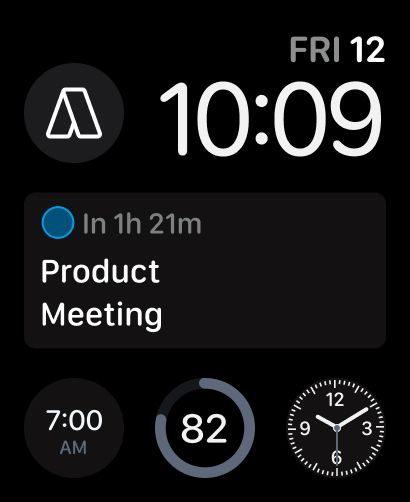
The circular complication (top left) and the rectangular complication counting down to the next event.
Which item it shows:
Something happening now comes first. If several overlap, the one that started earliest.
Otherwise, the next item later today.
All-day items, completed tasks and time slots whose tasks are all done are skipped.
When nothing is left today, it shows All done. Tomorrow's items appear after midnight.
Tap the complication to open the item it shows. When it shows All done, tapping opens Home. Completing a task on your Watch updates the complication straight away.
Event and time slot details are read-only. They show the time, duration, calendar and, for a time slot, its project and how many of its tasks are done.
On full-color watch faces, an event's dot uses its calendar's color. Other faces use their own colors.
Notifications
Your Watch gets the same Akiflow notifications as your iPhone, using your settings in Settings → Notifications in the iPhone app. There are no separate Watch settings, and you won't get the same alert twice.
Tap a notification on your Watch to open its task, event or time slot in Akiflow. Notifications don't have a Complete button: open the task and tap its checkbox.
Away from your iPhone
Your lists and details stay available when your Watch can't reach your iPhone, even after you restart the Watch. A line at the top of the list shows iPhone not connected and when the lists were last updated.
You can still capture and complete tasks. They are saved on your Watch and sent as soon as your Watch can reach your iPhone again. The lists also refresh when you open the app and when changes arrive from your iPhone.
If the line says Not updated today, open Akiflow on your iPhone.
Changes that weren't delivered
If a change can't be delivered, Home shows a row such as 1 not delivered. Tap it to see what happened:
Signing out and switching accounts
Signing out of Akiflow on your iPhone removes your data from the Watch, which then shows You're signed out. If you sign in with another account, the Watch shows only that account's tasks.
What the Watch app doesn't do
Edit, plan, reschedule or delete tasks. You can complete and reopen them.
Show a calendar or let you browse, edit or complete events and time slots.
Search, or show Someday, Projects or Tags.
Aki or Siri.
Work on its own without a paired iPhone, or on Wear OS watches.
FAQ
Why don't I see Akiflow on my Watch?
Why don't I see Akiflow on my Watch?
Check that your Watch runs watchOS 10 or later and that Akiflow on your iPhone is version 2.83 or later. Then install it from the Watch app on your iPhone under Available Apps.
Why does my Watch keep saying "Open Akiflow on your iPhone"?
Why does my Watch keep saying "Open Akiflow on your iPhone"?
The Watch hasn't received your lists yet. Make sure you're signed in on your iPhone, open Akiflow there, and keep your Watch nearby.
Why does the complication say "All done"?
Why does the complication say "All done"?
Nothing else is happening later today. All-day items aren't shown, and tomorrow's items appear after midnight.
Why doesn't my task have the date I said?
Why doesn't my task have the date I said?
Tasks captured on the Watch are saved exactly as you dictate or type them, in your Inbox. Plan them on your iPhone or computer.
Can I use Akiflow on my Watch without my iPhone?
Can I use Akiflow on my Watch without my iPhone?
Partly. You can browse your lists and capture and complete tasks while your iPhone is out of reach. Everything syncs once your Watch can reach your iPhone again.
I still need help
I still need help
Contact support@akiflow.com with your Watch model, watchOS version, Akiflow version on your iPhone, and what your Watch shows.
Was this helpful?
Still need help? Ask the team