Travel Time
Block the time you need to get to an event, keep it in sync with your calendar, and get notified when it's time to leave.
What is Travel Time?
Travel Time adds a block right before an event for the time it takes you to get there. It moves with the event, blocks the time on your connected calendar, and Akiflow notifies you when it's time to leave.
Travel Time is one-way, added manually to each event, and always ends when the event starts.
Set your defaults
Akiflow estimates travel from your default starting location, using your default transport mode.
On desktop and web: open Settings → Appearance and find Travel time. Set Starting Location and Transport mode.
On mobile: open Settings → Calendar Appearance and find Travel time. Set Starting location and Transport mode.
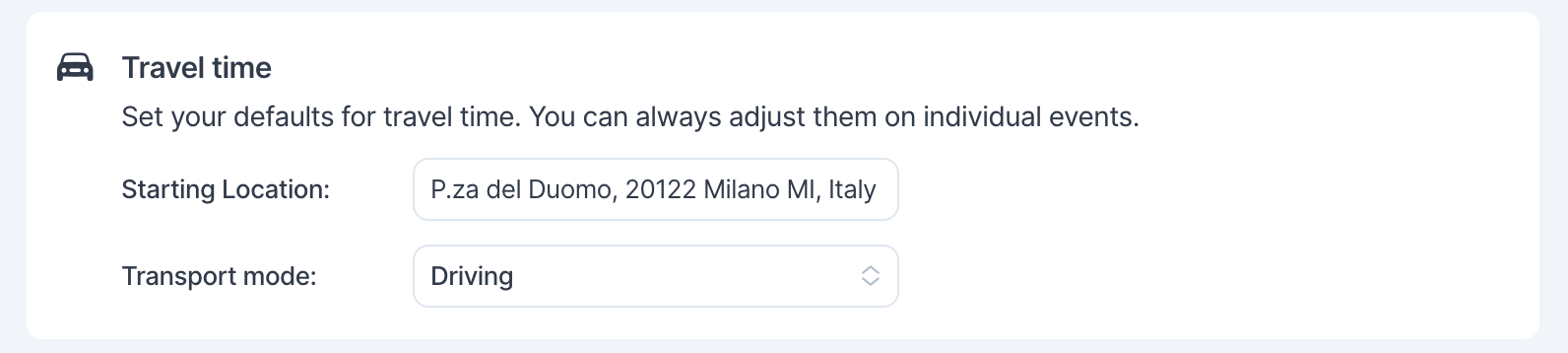
Transport mode can be Driving, Cycling or Walking. Driving is the default. Changing your defaults affects only Travel Time you add afterwards. Existing Travel Time keeps its starting location, mode and duration.
Add Travel Time to an event
Open the event.
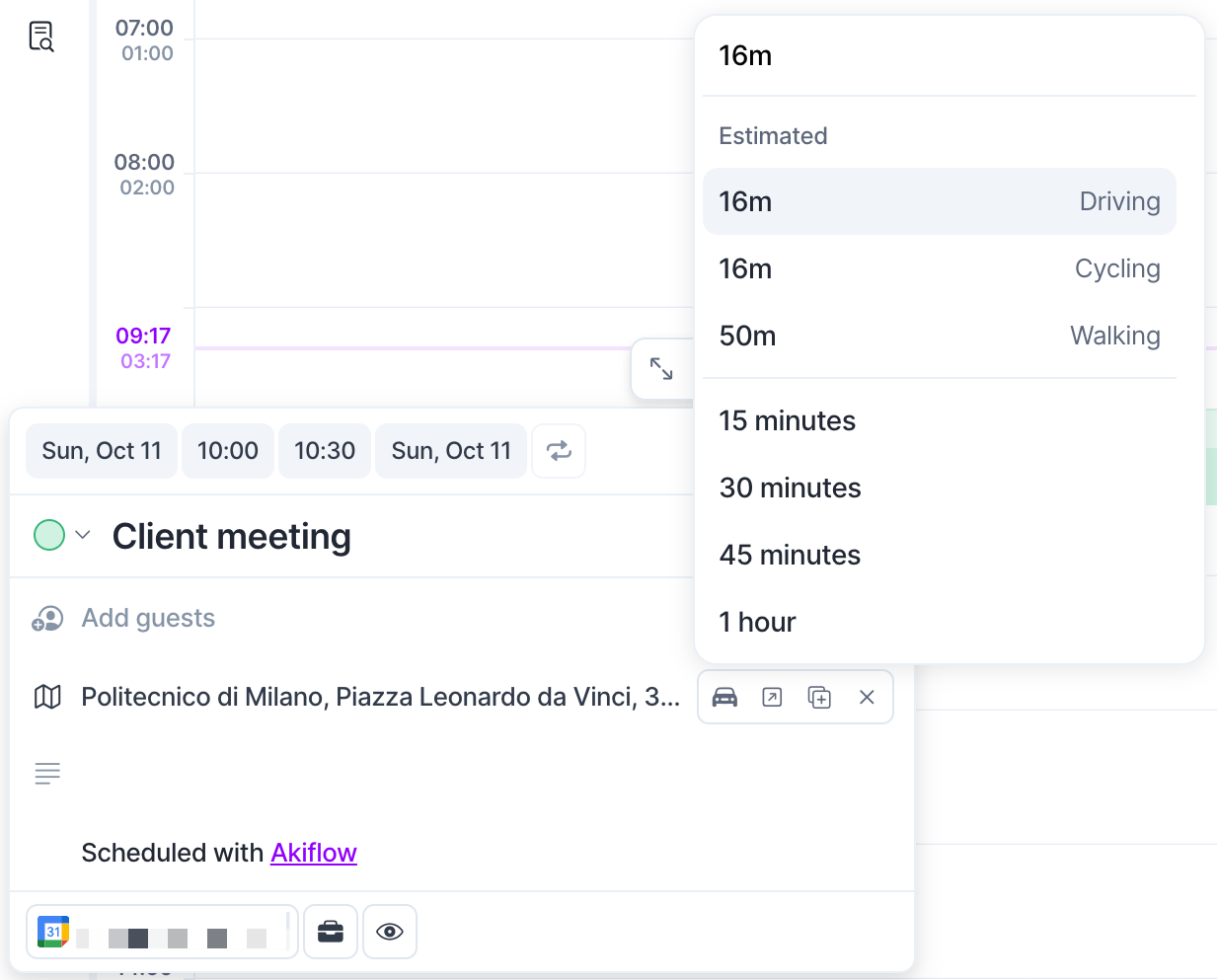
Select the car icon in the location row (Add travel time). On desktop, it appears when you hover over the location.
Next to Travel time, choose a duration:
Under Estimated, pick the estimate for Driving, Cycling or Walking. Estimates are rounded up to the next minute.
Or pick 15 minutes, 30 minutes, 45 minutes or 1 hour, or type your own duration, such as "20m" or "1 hour" (1 minute to 24 hours).
Select Add Travel time on desktop, or Add on mobile.
The Travel Time block appears on your calendar right before the event, in a lighter shade of the event's color. Blocks of 15 minutes or more show the icon of your transport mode (car, bike or walking) and the duration, for example "45m travel". Shorter ones show only the shaded area: open the event to see how long it is.

Without a location or starting location
The event doesn't need a location. Without one, Travel Time opens straight to the durations: pick a preset or type your own.
An estimate needs both the event's location and a starting location. If you haven't set a default, select From and choose where you start. You can still pick a preset or type a duration without one.
Use a different starting location for one event
Select From in the Travel Time controls and search for another place. This changes only this event, not your default.
Edit or remove Travel Time
Click or tap the Travel Time block, or open the event, then select the Travel Time button in the location row. Once an event has Travel Time, that button shows the icon of its transport mode and its duration, for example a bike and "30m".
Change it: pick a different duration or estimate, or another starting location under From, then select Update.
Go back to the estimate: after typing your own duration, open the durations and pick one under Estimated.
Remove it: select Remove. The event itself stays unchanged.
You can't drag or resize the Travel Time block on the calendar. Make all changes from the event.
When the event changes
You move the event (in Akiflow, Google Calendar, Outlook or iCloud): Travel Time moves with it and keeps its duration.
You delete the event: its Travel Time is removed too.
You change or remove the location: Travel Time stays as it is. Akiflow doesn't recalculate it on its own. Open the Travel Time controls to see a new estimate; it's applied only when you select Update.
Which events can have Travel Time?
Travel Time works on timed events, with or without a location, including:
Recurring events (the whole series or a single occurrence)
Events you were invited to, as long as they're on a calendar you can edit
It isn't available for:
All-day events
Events on read-only calendars. You'll see: Travel time isn't available because this calendar is read-only.
Tasks and Time Slots locked to your calendar
Any event while you're offline. You'll see: Travel time needs an internet connection.
Recurring events
When you add, edit or remove Travel Time on a recurring event, Akiflow asks which events to change:
This event: only this occurrence.
This and following events: this occurrence and all later ones. The new series keeps Travel Time.
All events: the whole series.
Each occurrence with Travel Time gets its own leave-by notification.
Make "this and following events" changes in Akiflow. If you make that change in Google Calendar or Outlook, they create a new series that has no Travel Time (earlier events keep theirs). To fix it, add Travel Time to the new series in Akiflow.
Leave-by notification
When Travel Time starts, Akiflow notifies you that it's time to leave and when the event starts. The notification uses the duration saved on the event and doesn't change with traffic. When you move the event or change its Travel Time, the notification moves too.
Leave-by notifications follow your event reminders. You get them when event reminders are on in Settings → Notifications and the calendar's bell is on in Settings → Calendars. You don't get them for events you've declined.
Travel Time in Google Calendar and Outlook
To block your time for others, Akiflow adds a separate event called Travel time to the same calendar, ending when your event starts. It's private and marked Busy, with no guests and no reminders. You won't see it as a separate event in Akiflow.
Change Travel Time only from Akiflow. Moving, editing or deleting the Travel time event in Google Calendar or Outlook doesn't change anything in Akiflow: the block, its duration and the notification stay. Akiflow may also put the Travel time event back the next time the original event changes. To remove Travel Time, remove it from the event in Akiflow.
Travel Time in iCloud
Apple Calendar has its own travel time, so for iCloud events Akiflow uses it instead of adding a separate event. The two stay in sync both ways:
Travel Time you add, change or remove in Akiflow shows on the same event in Apple Calendar.
Travel time you add in Apple Calendar shows in Akiflow as a fixed duration.
If you change the duration in Apple Calendar, Akiflow uses the new duration and no longer keeps the transport mode or starting location.
Removing travel time in Apple Calendar removes it in Akiflow.
Good to know
Estimates don't include traffic. Akiflow calculates them when you add or update Travel Time and doesn't update them later. Add some extra time if traffic matters for your trip.
Walking and Cycling estimates may be less accurate. They come from Google's beta routing for these modes. Driving estimates aren't affected.
Travel Time that starts before midnight is shown only on the event's day. For example, for a 1:00 AM event with 2 hours of Travel Time, the block shows from midnight to 1:00 AM. Your calendar's Busy time and the leave-by notification still use the full 2 hours, so you're notified at 11:00 PM.
Overlaps are allowed. Travel Time is added even if it overlaps another event. Neither event is moved or shortened.
FAQ
Will guests be notified when I add Travel Time?
Will guests be notified when I add Travel Time?
No. Adding, changing or removing only Travel Time never sends updates to the event's guests.
Why is there a "Travel time" event in my Google Calendar or Outlook?
Why is there a "Travel time" event in my Google Calendar or Outlook?
Akiflow creates it so people checking your availability see that time as busy. Manage it from the original event in Akiflow.
I deleted the "Travel time" event in Google Calendar or Outlook. Why is Travel Time still in Akiflow?
I deleted the "Travel time" event in Google Calendar or Outlook. Why is Travel Time still in Akiflow?
Changes to that event outside Akiflow aren't synced back. Open the original event in Akiflow and select Remove in the Travel Time controls.
I changed the meeting's location. Why didn't Travel Time update?
I changed the meeting's location. Why didn't Travel Time update?
Akiflow keeps your Travel Time until you choose to update it. Open the Travel Time controls to see a new estimate, then select Update.
Why can't I see how long my Travel Time is on the calendar?
Why can't I see how long my Travel Time is on the calendar?
The calendar shows the duration only on blocks of 15 minutes or more. Open the event to see it.
Can Akiflow add Travel Time automatically or use my current location?
Can Akiflow add Travel Time automatically or use my current location?
No. You add Travel Time to each event yourself, starting from your saved location or one you choose. Akiflow doesn't use your device's location or where your previous event was.
Can I add travel time after an event, or for the return trip?
Can I add travel time after an event, or for the return trip?
No. Travel Time is one-way and always ends when the event starts.
Is public transport supported?
Is public transport supported?
Not yet. You can choose Driving, Cycling or Walking, or type your own duration.
I still need help
I still need help
Contact support@akiflow.com with your device, Akiflow version, the calendar the event is on (Google, Outlook or iCloud), and what you expected to happen.
Was this helpful?
Still need help? Ask the team