Customize Your Calendar
Learn how to personalize your Akiflow calendar view to match your schedule, focus, and work style.
Customizing your Akiflow Calendar
Show/Hide Your Accounts
Choose which calendar accounts you want to display in Akiflow and manage event reminders for each one. You can access these settings by clicking the Calendar Visibility button (the colored circles) in the calendar header. These controls work with connected Google Calendar, Outlook Calendar, and iCloud Calendar accounts. Follow the linked guides for connection steps and supported calendars.
Set custom shortcuts to toggle your calendars and declutter your view in a flash.
Head to Settings > Calendars to set them up!
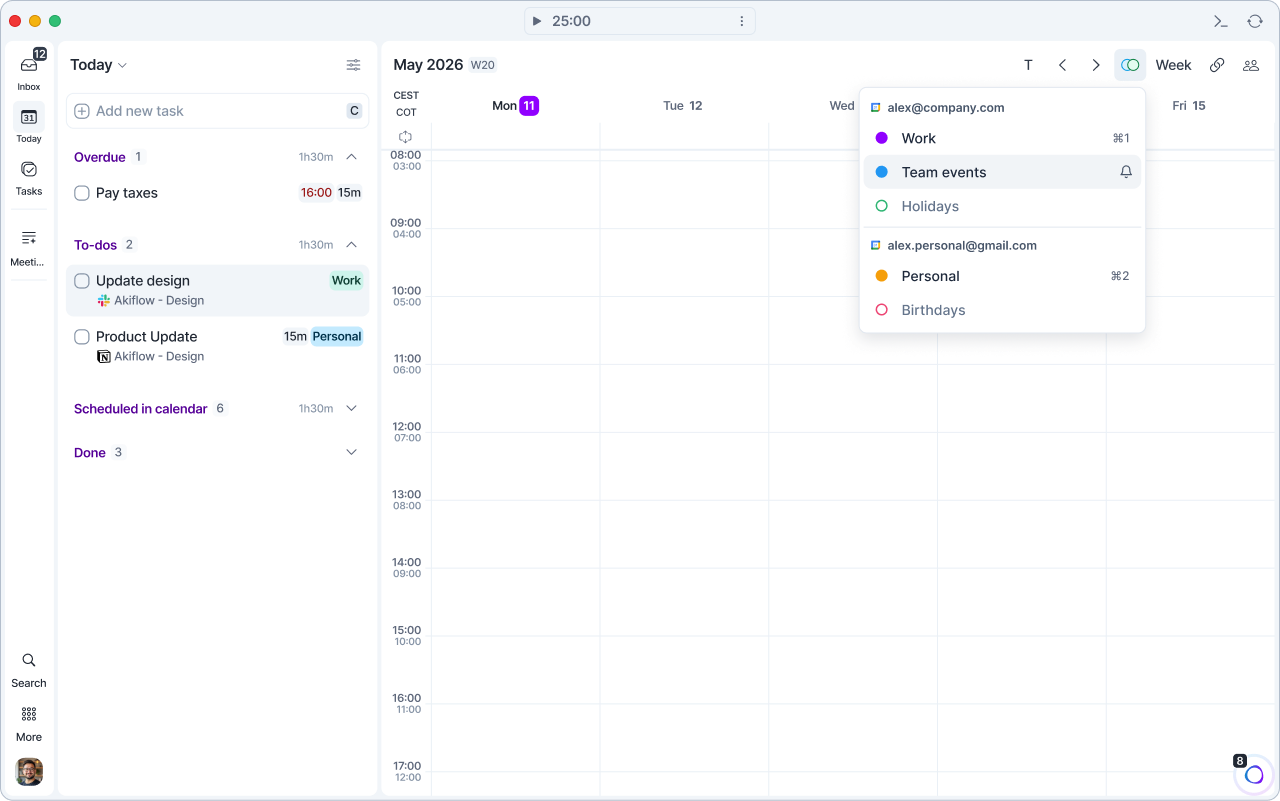
Calendar view
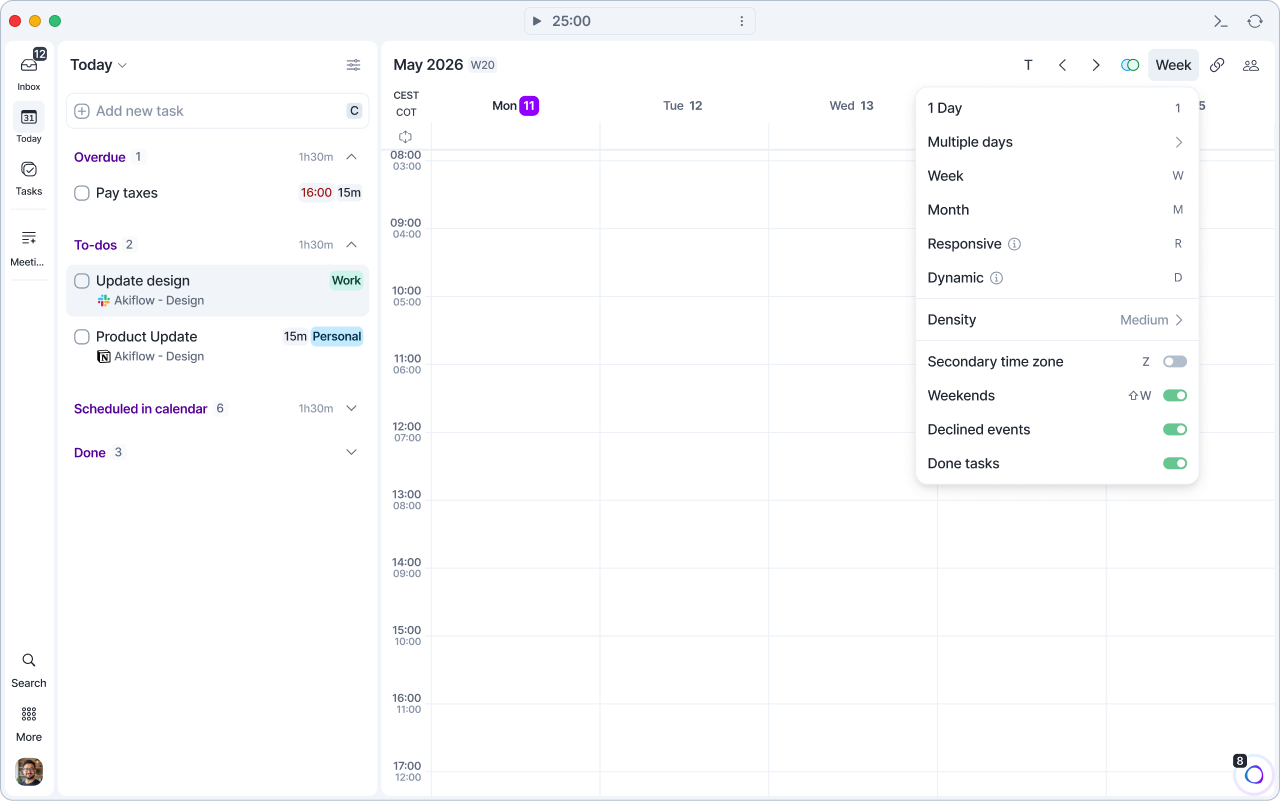
Click the view button in the calendar header (it shows your current view, for example Week) to open the view menu:
1 Day
1Multiple days: 2 to 6 days
2to6Week
Wor7Month
M(not available while Meet with is open)Responsive
R: the number of days adapts to your calendar's width, from 1 day on a narrow calendar up to a full week. It never switches to Month.Dynamic
D: shows today plus the remaining days of your week, starting today. It follows your Week starts on and Weekends settings.
Only one of Responsive and Dynamic can be on at a time. Press the same key again, or pick a fixed view, to go back to your previous view.
Press 0 or click the task list toggle at the left of the calendar header to hide the task list and see only your calendar.
Resize the task list and calendar columns by dragging the border between them.
Calendar density
Quickly customize the amount of information displayed in your calendar. This is especially helpful if you have a larger screen!
Open the view menu > Density and pick Small, Medium or Large. You can also set it in Settings > Appearance > Calendar density.
Other calendar settings
Quick toggles in the view menu:
Secondary time zone
Weekends
Shift WDeclined events
Done tasks
In Settings > Appearance you can also set Week starts on, your work hours (Day starts at and Day ends at), the Time format and your default Calendar view.
Tasks in your calendar automatically use their project's color.
You can use the Z shortcut or type Secondary Time Zone in the Command Bar to edit your secondary time zone.
FAQ
Can Akiflow automatically block time across multiple calendars?
Can Akiflow automatically block time across multiple calendars?
Not natively. Akiflow does not support automatic time blocking or syncing across multiple calendar accounts. As a workaround, you can manually lock tasks or Time Slots to a specific calendar using the Lock feature, which blocks that time on your connected calendar and shows you as busy.
Can I change the order of calendars in the Show/Hide menu?
Can I change the order of calendars in the Show/Hide menu?
Why does Akiflow show a different week number than my calendar or OS?
Why does Akiflow show a different week number than my calendar or OS?
Akiflow determines week numbers based on the day your week starts. You can configure this in Settings → Appearance → Week starts on.
If Akiflow shows a different week number than another calendar app or your operating system, make sure both apps are using the same start day for the week (for example, Sunday vs Monday). Different start days can result in different week numbering.
Where can I change the time format (12h / 24h)?
Where can I change the time format (12h / 24h)?
You can change the calendar time format from your Appearance settings.
To do this:
Click your avatar at the bottom of the menu on the left (or press Cmd , on Mac / Ctrl , on Windows)
Open Settings
Go to Appearance under Calendar Settings
Find the Time format option
Select either 12-hour or 24-hour
This setting updates how times are displayed across your calendar view.
Why are my task due dates showing as a different week (or appearing overdue) on web vs the mobile app?
Why are my task due dates showing as a different week (or appearing overdue) on web vs the mobile app?
This is usually caused by a mismatch in the Week starts on setting between platforms. When this setting is left on System Default, Akiflow tries to detect your system's first day of the week automatically. The mobile app does this reliably, but on web this detection is less consistent, which can shift week numbering and make a task that's correctly due "this week" appear as due "last week" (and therefore overdue).
Fix: Go to Settings → Appearance → Week starts on on web (and desktop, if you use it) and set it explicitly to the same day used on mobile, instead of leaving it on System Default.
Was this helpful?
Still need help? Ask the team