Google Calendar
Go to Settings → Calendars → Add calendar → Google Calendar to connect your account.

Features
Multi-Calendar Connection
You can have a seamless overview of all your Google events by connecting all your Google calendars to Akiflow.
Also use Outlook or iCloud? Connect those accounts separately using the Outlook Calendar or iCloud Calendar guides, even if you view all your calendars in Apple Calendar.
2-way Sync
You can easily create, edit, and delete your Google events directly from Akiflow and everything will be synched with Google!
Work & Personal Tags
Work and Personal tags help Aki better understand your calendar, so we require them to keep everything running smoothly.
To make things easier, Akiflow will automatically update the right tag based on your email provider. If your account is something like gmail.com or yahoo.com, we mark it as Personal. If it looks like a company domain, we mark it as Work.
You can set these tags during onboarding and also update them later in Settings when connecting new accounts. You can always change the tag if needed.
Your Work and Personal tags stay in sync across desktop and mobile.
Preferences
Go to Settings → Tasks, Events, Slots to select your Primary Calendar, set a default conference tool, and explore other customization options for new events.
You can easily tailor your calendar view in Akiflow using keyboard shortcuts or the view button at the top right of your calendar (it shows your current view, like Week). Adjust the number of visible days, layout density, and visibility preferences to fit your workflow. Learn more in Customize Your Calendar.
Click the Calendar Visibility button (two overlapping circles) at the top right of your calendar to turn connected calendars on or off. Hover a calendar to turn its notifications on or off with the bell. This gives you full control over what is displayed and helps you stay focused on what matters each day.
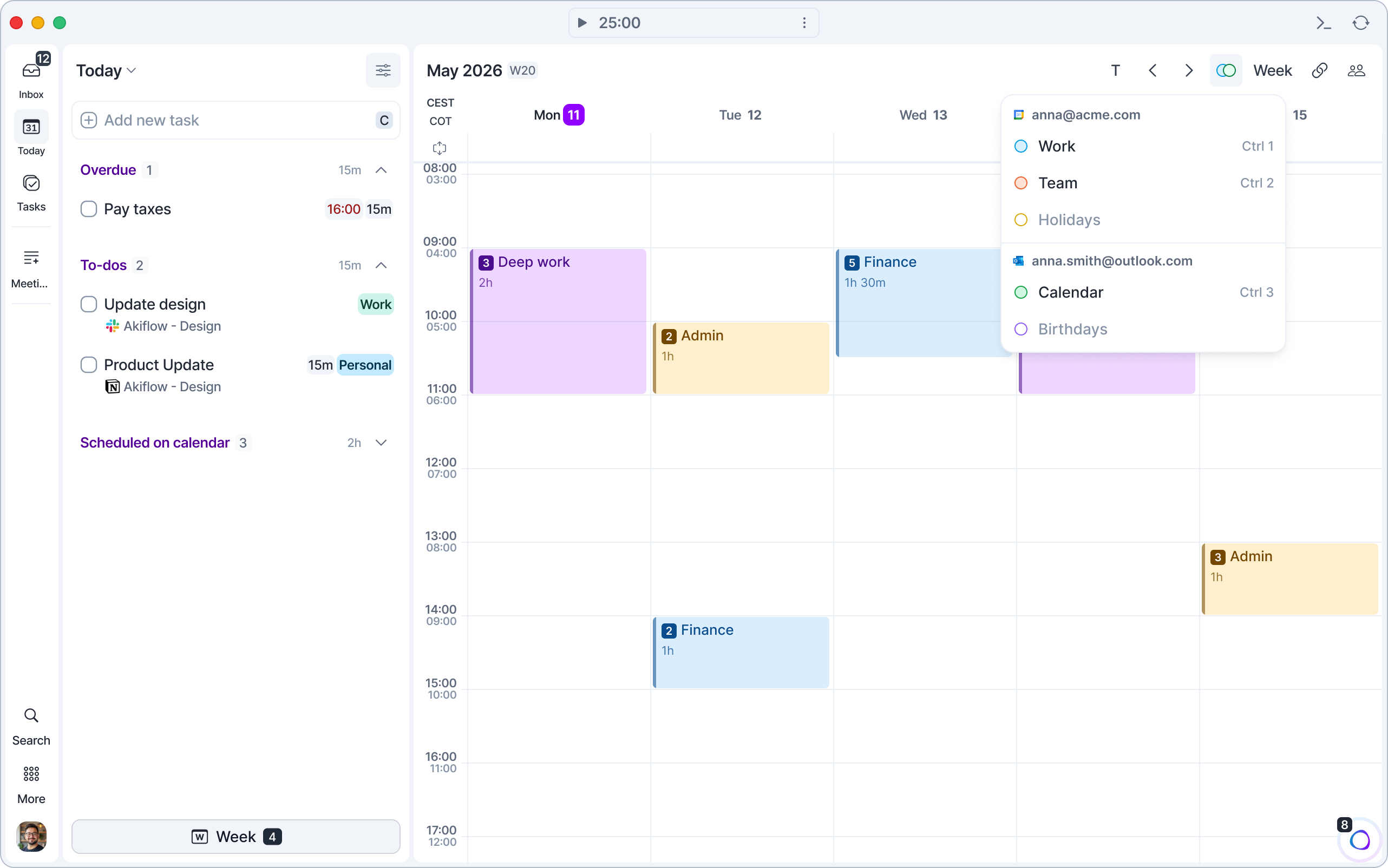
Press O on an event to open it in Google Calendar.
To show or hide a calendar with the keyboard, assign it a shortcut in Settings → Calendars: Ctrl 0 to 9 on Mac, Ctrl Alt 0 to 9 on Windows. The shortcut also appears next to the calendar in the Calendar Visibility list.
Hidden Calendars
Akiflow respects Google Calendar's Hide from list setting. If you've hidden a calendar in Google Calendar, it won't appear in Akiflow's calendar selection dropdowns when creating tasks or events, and it won't show up in Settings → Calendars.
How it works
When you hide a calendar in Google Calendar (using Hide from list), Akiflow automatically:
Removes it from task and event creation dropdowns
Hides it from your calendar settings page
Continues syncing events from that calendar (existing events remain visible)
How to show a hidden calendar in Akiflow
Open Google Calendar in your browser
Find the calendar in your calendar list (you may need to show hidden calendars)
Click the three dots next to the calendar name
Uncheck Hide from list
Wait a few moments for Akiflow to sync
The calendar will now appear in all Akiflow dropdowns and settings.
Reminders
In Akiflow, open Settings → Calendars and select your Google Calendar account. The bell beside each calendar controls reminders for calendar events only.
On desktop and mobile:
Google Calendar events: Enable both the calendar’s bell and event reminders in Settings → Notifications.
Tasks and Time Slots: Use their respective reminder settings and timing in Settings → Notifications. Turning off a Google calendar’s bell does not silence Akiflow reminders for tasks or Time Slots locked to that calendar.
Tasks inside a Time Slot: The Time Slot sends the reminder, rather than each task inside it.
Read more in the Notifications section of Settings.
FAQ
Why do you ask for permission to connect to Google Calendar?
Why do you ask for permission to connect to Google Calendar?
See and download your contacts → Invite all your contacts to your events
See and download contact info automatically saved in your Other contacts → Invite your other contacts to your events
See, edit, share and permanently delete all the calendars that you can access using Google Calendar→ See, create, edit, and delete events directly from Akiflow
Can I connect more accounts?
Can I connect more accounts?
Yes! You can connect as many Google Calendar accounts as you want!
How can I see my tasks on Google Calendar?
How can I see my tasks on Google Calendar?
Go to Settings → Tasks, Events, Slots → Lock tasks + Lock time Slots
You’ll see all your scheduled tasks on Google Calendar if the lock toggle is on. Take into account that this will only apply to the specific calendar you choose.
Show single events on Google Calendar using the lock icon on the task popup.
Can I choose which calendars to see in Akiflow?
Can I choose which calendars to see in Akiflow?
Yes. Use the Calendar Visibility button at the top right of your calendar, or the keyboard shortcuts you assign to each calendar in Settings → Calendars.
How are Google Calendar and Akiflow synched?
How are Google Calendar and Akiflow synched?
Akiflow and Google Calendar are synched in real time. When you create or edit an event in Google Calendar, it’ll be shown in your Akiflow calendar. Any changes you make in Akiflow, will be reflected on Google Calendar.
I can’t integrate my Google Calendar, what do I do?
I can’t integrate my Google Calendar, what do I do?
Here are some reasons why you might be having issues with integrating your Google Calendar to Akiflow:
Google Workspace account
One potential cause could be related to your Google Workspace account. If you are on a paid Google Workspace plan, please make sure that you don’t have any missed payments as this can temporarily close email access. While access to Google services is restored after payment, the calendar integration in Akiflow may stop working silently without visible indications in either Akiflow or Google Calendar. To resolve this, please delete the affected calendar from Akiflow and reconnect it.
Browser-related issues
If you’re having troubles integrating your Google Calendar using browser A, please try and use another browser to check if this solves the problem. Please also let our Support team know which browser you were facing issues with so that we can look into it!
I don’t see my Google Tasks in Akiflow
I don’t see my Google Tasks in Akiflow
At the moment we’re not able to import your Google Tasks via the native integration. You may use IFTTT or Zapier to set up this integration.
Why isn't my calendar showing up in Akiflow's dropdowns?
Why isn't my calendar showing up in Akiflow's dropdowns?
If a calendar is missing from task or event creation dropdowns, it's likely hidden in Google Calendar. Akiflow respects Google Calendar's Hide from list setting to reduce clutter.
To make it visible again:
Open Google Calendar
Find the hidden calendar in your calendar list
Click the three dots next to the calendar
Uncheck "Hide from list"
Akiflow will show it after the next sync
Why aren’t my tasks showing up in Google Calendar?
Why aren’t my tasks showing up in Google Calendar?
Tasks only sync to Google Calendar when they are locked to a specific time slot. To enable this, go to Settings > Tasks, Events, Slots and turn on Lock tasks + Lock time Slots. Once a task is locked to a time slot, it will automatically appear in your synced Google Calendar. If a task is not locked, it will only be visible inside Akiflow.
Why aren’t my sub-calendars enabled after connecting Google Calendar?
Why aren’t my sub-calendars enabled after connecting Google Calendar?
When you first connect a Google Calendar account to Akiflow, only your primary calendar is enabled by default. Sub-calendars are imported but not toggled on automatically.
To enable your sub-calendars, go to Settings → Calendars or click the Calendar Visibility button at the top right of your calendar, and turn on the ones you want to see in Akiflow.
Note: Calendar visibility settings in Akiflow are not synced two-way with Google Calendar, changes made in Google Calendar won’t automatically reflect in Akiflow.
Can others see my tasks if I use a shared Google Calendar?
Can others see my tasks if I use a shared Google Calendar?
I enabled "Guests can modify event" in Google Calendar, but changes made by guests don't show up in Akiflow. Why?
I enabled "Guests can modify event" in Google Calendar, but changes made by guests don't show up in Akiflow. Why?
This is a known Google Calendar API limitation. Even with that permission enabled, Google only lets guests edit their own local copy of the event. Those changes are not synced back to the original event. Because of this, Akiflow (and any other calendar app) has no way to receive or display them. If you need an update visible to everyone, the organizer should edit the event directly.
Why am I still seeing the reconnect pop-up after removing my Google account?
Why am I still seeing the reconnect pop-up after removing my Google account?
Google Calendar and Gmail are connected to Akiflow as two separate integrations, even if they use the same Google account.
This means each integration has its own connection and permissions. If one of them becomes disconnected, you'll see a reconnect prompt specifically for that integration.
For example:
If your Gmail connection needs to be reconnected but your Google Calendar connection is still working, removing or reconnecting Google Calendar won't resolve the issue.
Likewise, if your Google Calendar connection requires attention, removing or reconnecting Gmail won't remove the pop-up.
To stop seeing the reconnect prompt, make sure you reconnect or remove the specific integration that is requesting authorization. You can check the status of each integration separately in Settings → Integrations.
Was this helpful?
Still need help? Ask the team