Aki Workflows
Take charge of your recurring tasks and routines with Aki Workflows. Whether you need reminders, updates, or smart notifications, Aki helps you stay on top of your tasks and events effortlessly.
Getting started
Here’s how to get started with Workflows:
Open Settings and, under AI Center, click Workflows. The AI Workflows page is where you manage all your workflows and automations.
Click Add new in the Active Workflows section to start from scratch, or pick a ready-made workflow from Workflows Templates (hover a template and click Add).
Write what Aki should do in the Prompt, then set the Time and Recurrence.
Click Save and let Aki handle the rest!
Which kind of workflows can I build?
Deliver your daily weather forecast each morning
Review your schedule for conflicting events
Monitor Bitcoin prices and alert you when it drops below $80k
Provide a daily overview of your schedule
Check tomorrow's weather and schedule your morning run
Replan your overdue tasks
Creating and Managing Workflows
Setting up a Workflow
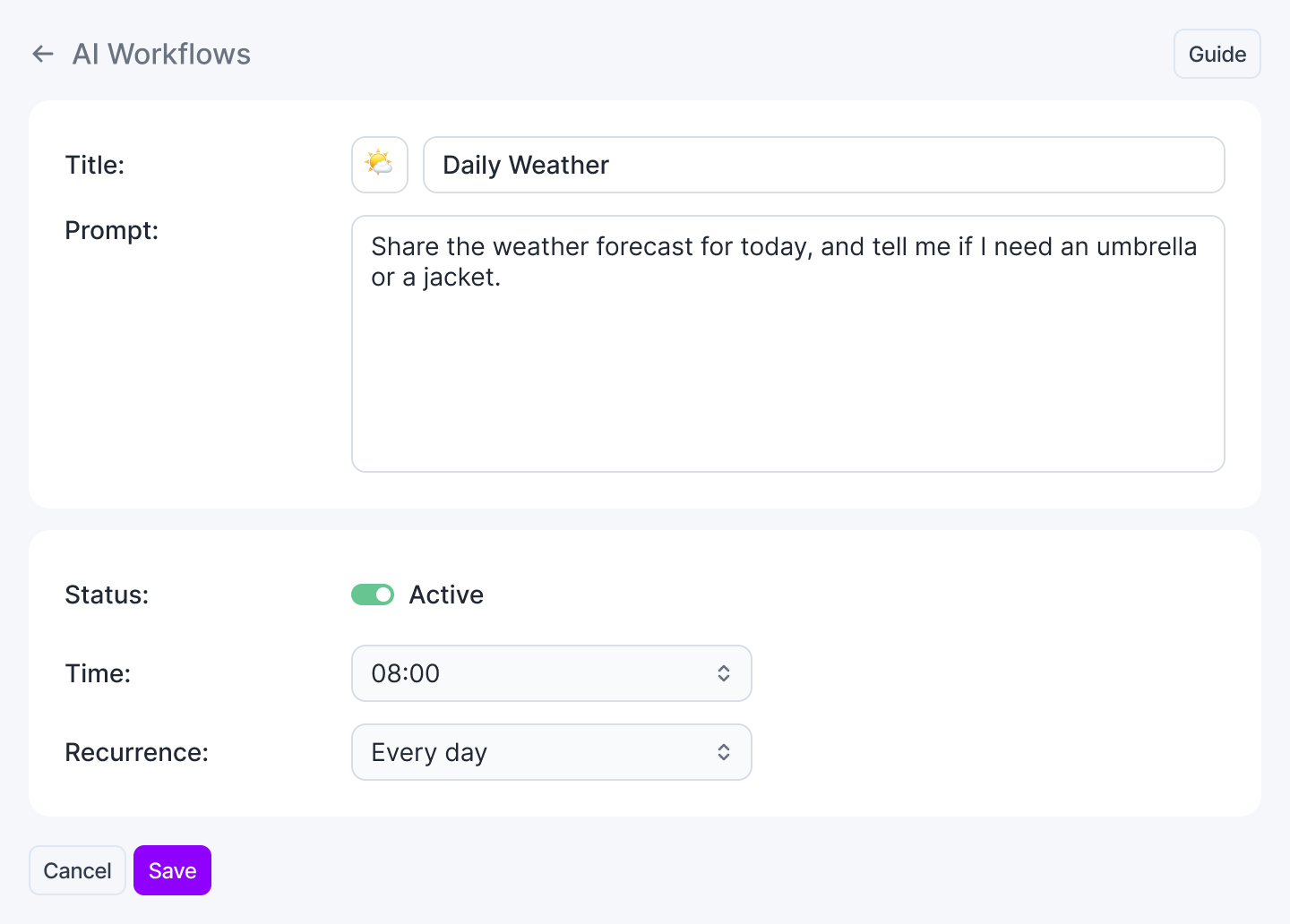
Title: Give your workflow a clear name that describes its purpose and you can also choose an emoji that visually represents it
Prompt: Define what Aki should say or do when the workflow runs (up to 5,000 characters)
Status: Enable or disable the workflow anytime
Time: Pick the time Aki runs the workflow, on the hour or half hour
Recurrence: Choose how often it runs. Pick a suggestion like Every weekday, set a Custom repeat, or type it in plain words, such as "every day"
Save: Once you're happy with your setup, hit Save to activate it! Title and Prompt are required.
Viewing Your Active Workflows
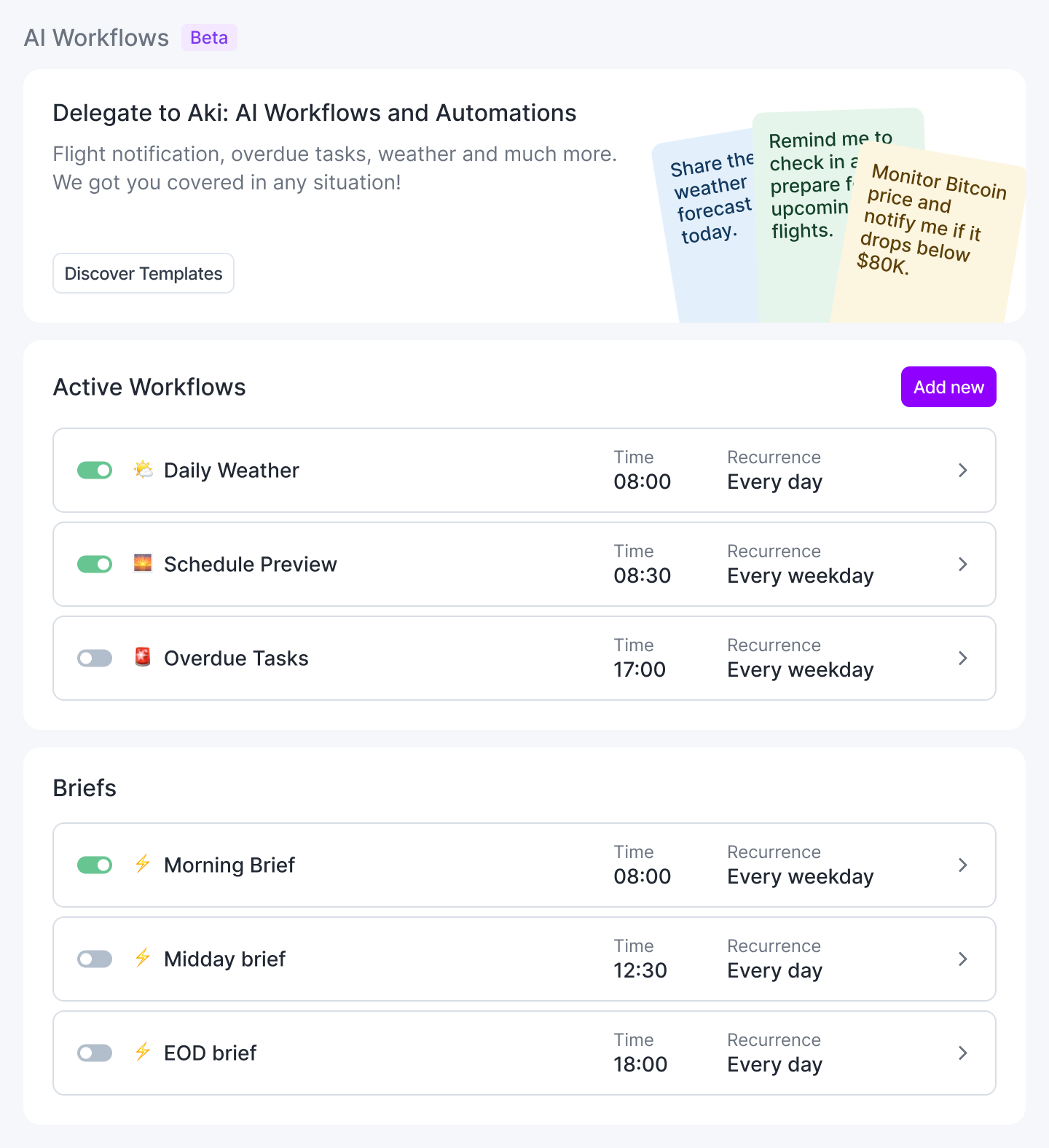
The Active Workflows section gives you a clear overview of all the workflows you created, with the time and recurrence of each. Use the toggle on a row to turn that workflow on or off. The change saves right away.
If you have Daily Briefs, a Briefs section below lists them. These are the recurring Aki messages that appear in the Daily Dashboard. Briefs are system messages: you can turn them on or off and change their time and recurrence, but you can't edit their prompt or delete them.
Workflows Tips
Quick edits with Aki: Create or modify workflows directly in your chat with Aki
Keep it simple: Create separate workflows for each task to ensure clarity and avoid confusion
Merged Messages: Workflows scheduled within the same 15-minute window are combined into a single message, sent at the time of the earliest one, so you stay informed without unnecessary notification overload
Smart send: Aki only sends messages when they’re relevant and useful, avoiding unnecessary notifications.
Using Workflow Templates
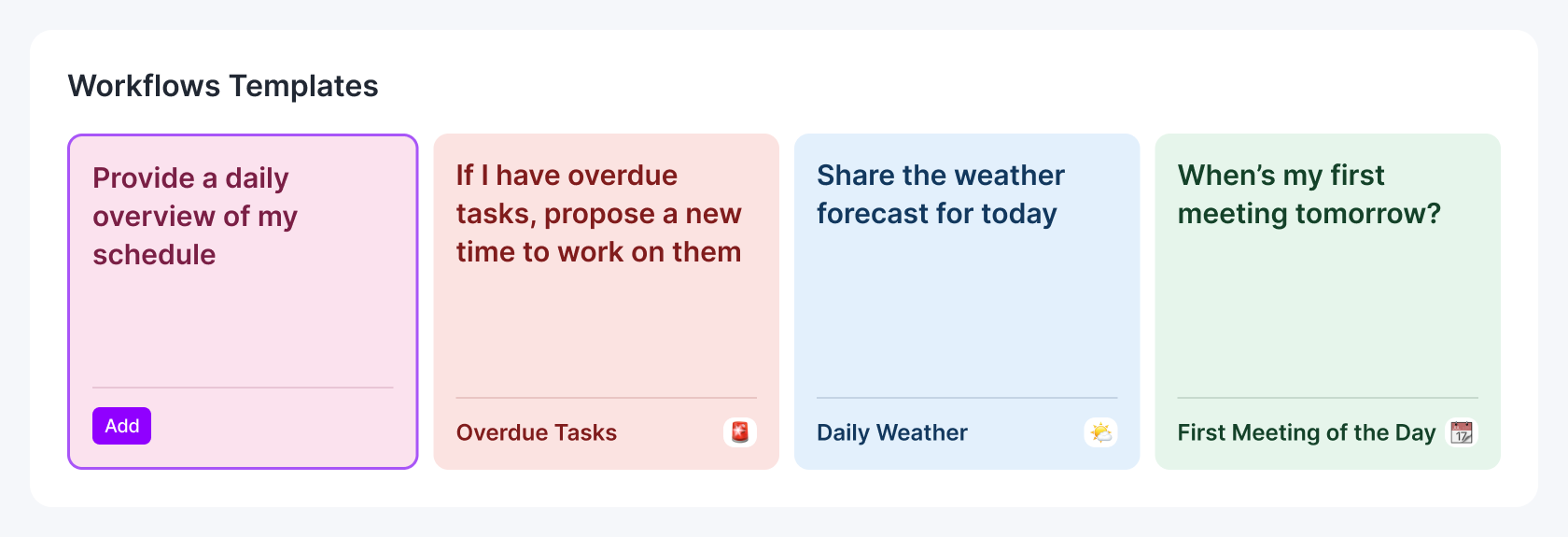
Not sure where to start? Use a template! Click Discover Templates at the top of the page to jump to Workflows Templates, hover a template and click Add, then adjust the details and click Save. Here are a few templates to get you started:
Provide a daily overview of my schedule
If I have overdue tasks, propose a new time to work on them
Share the weather forecast for today
When’s my first meeting tomorrow?
FAQ
How do I edit a workflow?
How do I edit a workflow?
Go to the Active Workflows section
Click on the workflow you want to modify
Adjust the title, prompt, time, recurrence, or status as needed
Click Save to apply the changes
How do I delete a workflow?
How do I delete a workflow?
To remove a workflow you no longer need:
Navigate to the Active Workflows section
Find the workflow you want to delete
Click on it, then click the three-dot button next to the page title and select Delete
Click Delete Workflow to confirm. This can't be undone.
How do I enable or disable a workflow?
How do I enable or disable a workflow?
To turn a workflow on or off:
Go to the Active Workflows section
Locate the workflow you want to change
Click the toggle on its row to turn it on or off
Changes are saved automatically
How do I know what workflows (or automations) I have active?
How do I know what workflows (or automations) I have active?
There are 2 ways you can check this. First is by going to the Active Workflows section:
Go to Settings > AI Center > Workflows
Look at the Active Workflows section. Workflows that are on have their toggle switched on
Each workflow will display its title, time, and recurrence settings
Click a workflow to edit or delete it, or use its toggle to turn it off
Second is by asking Aki: “What are my active automations?” or “What are my active workflows?” and Aki will list them for you.
Was this helpful?
Still need help? Ask the team