Recurrent Tasks
You can plan tasks, events or time slots to be recurrent in Akiflow.
How to make a task recurring
Open the task popup, click on the recurrence icon and choose the recurrence of the task. You can always use "Custom repeat" to customize the recurrence to your needs!
You can also set the recurrence using natural language when creating a task. This works both in the app and through the Command Bar. Try: Pay bills June 1st every month or Check XYZ every week on Thursday.
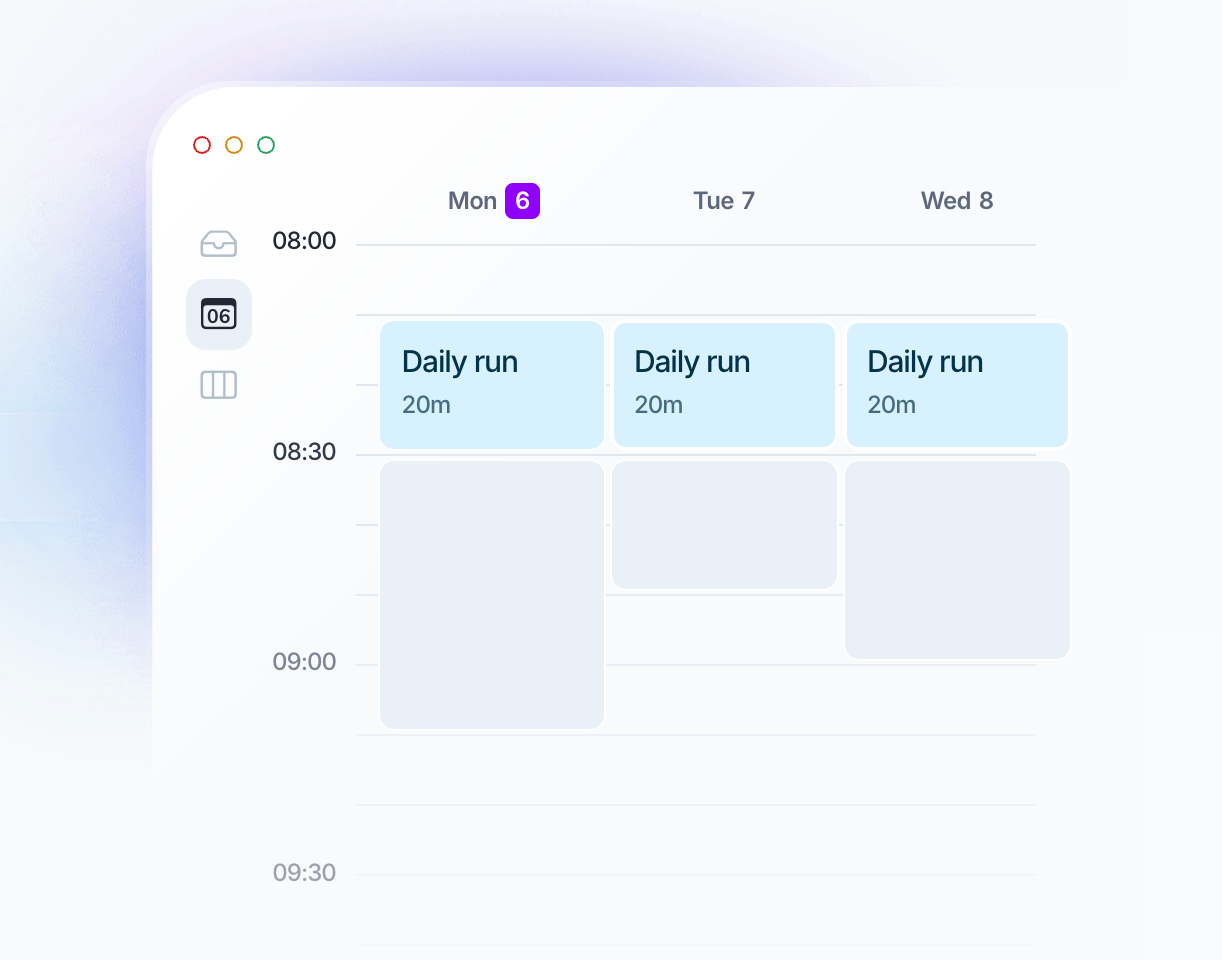
How to edit recurring tasks
When you move or edit a recurring task, Akiflow may ask whether to apply the change to only this occurrence or to this and future occurrences.
To move just one occurrence to Inbox, Someday, or a time window such as This week or This month, choose Only this if prompted. The occurrence stays part of its series:
Its attachments stay available. Adding or removing an attachment still updates the shared attachments for the series.
No duplicate is created on the day the occurrence was originally planned.
Future occurrences keep their existing schedule.
Choose Remove recurrence only if you want to detach the task from its series. Depending on the scope you choose, removing recurrence from a scheduled occurrence can also stop future occurrences. A detached task no longer shares the series’ attachments.
If you move the first occurrence of a recurring task, event, or time slot within the same day, Akiflow automatically applies the change to that occurrence only. In this case, no confirmation modal is shown, as this is expected behavior by design.
Create routines with Time Slots
Slots can be set to recur, just like tasks and events. You can have recurring tasks inside a recurring Slot: select Copy the Slot recurrence to always find this task in the slot. Editing the Slot’s date and time will also affect the tasks inside.
FAQ
How can I stop Natural Language from being detected when I type?
How can I stop Natural Language from being detected when I type?
If Akiflow recognizes part of your text as Natural Language but you want to keep it as plain text instead (for example, writing "Today" without scheduling the task), simply press ESC while typing.
Pressing ESC cancels the Natural Language detection, allowing you to continue typing without Akiflow interpreting dates or scheduling keywords.
Why do I see older overdue recurring tasks after updating?
Why do I see older overdue recurring tasks after updating?
The Akiflow app on desktop, web, and mobile now shows past recurring task occurrences from the start of the recurrence, including those older than one year.
After updating, you may therefore see older unfinished occurrences in your overdue tasks. These are existing occurrences becoming visible.
This does not change the schedule of future occurrences.
Was this helpful?
Still need help? Ask the team