Schedule Optimizer
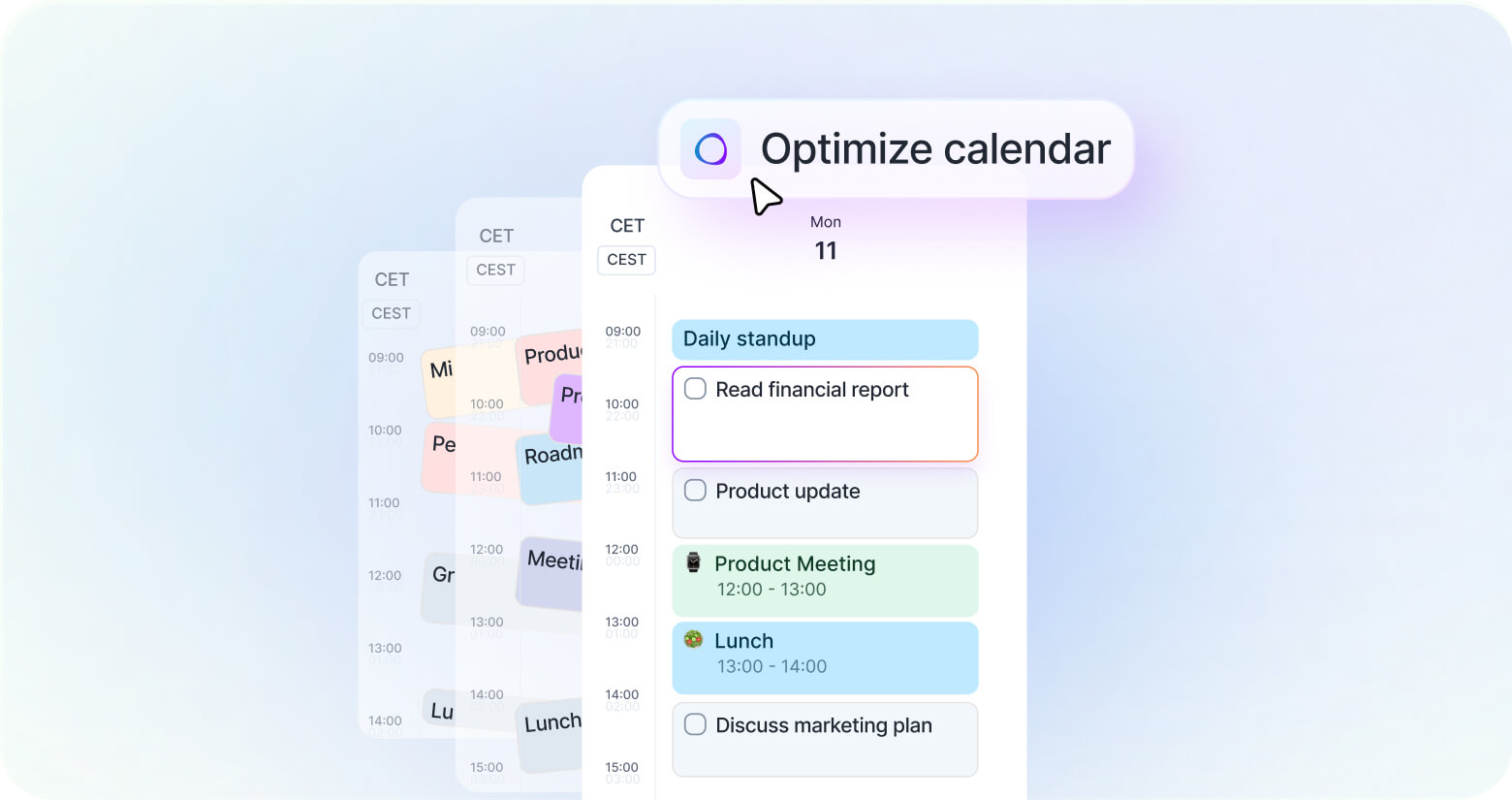
Schedule Optimizer is designed for the moments when your plan no longer matches reality. It helps you keep your day organized when plans change. Whether a task takes longer than expected, finishes early, gets moved, or you want to fit in an unplanned task, Schedule Optimizer helps you quickly adjust your day. It lets you choose when to optimize your schedule, so you're always in control.
What is Schedule Optimizer?
Schedule Optimizer helps you keep your day organized when plans change.
It gives you two ways to adjust your schedule without manually dragging every task around:
Optimize schedule - reflows the tasks in your calendar after you resize or move a task.
ASAP - plans one task into the next available slot today.
Schedule Optimizer is available on Akiflow desktop and web.
Optimize schedule
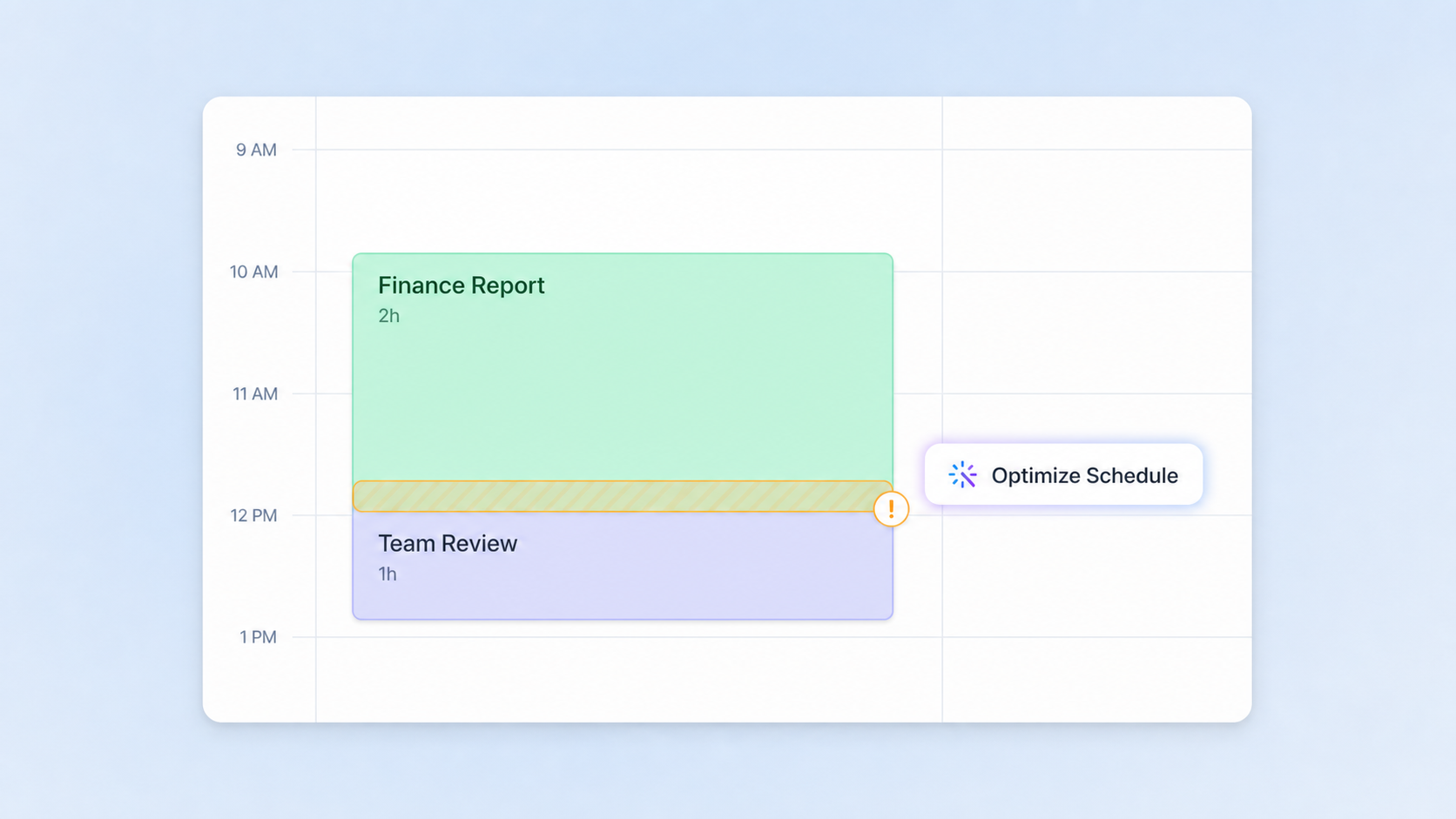
Optimize schedule appears on your calendar when Akiflow detects that a task change can be cleaned up.
You may see it after you:
Resize a task so it overlaps with another task.
Shorten a task and create room for the following tasks to move up.
Drag and drop a task over another task.
When you click Optimize schedule, Akiflow adjusts the affected tasks below that point in your calendar.
How to use Optimize schedule
Open Akiflow on desktop or web.
Resize a task or drag it to a new time.
If Akiflow can improve the schedule, click Optimize schedule.
Akiflow moves the affected tasks into available slots.
Use Undo from the confirmation toast if you want to restore the previous schedule.
If you do nothing, the Optimize schedule button disappears after a few seconds and your manual change stays as it is.
What Optimize schedule changes
Optimize schedule only works on the affected part of your day.
It can move tasks that come after the task you resized or moved. It keeps their order, so a task that was before another task stays before it.
Optimize schedule does not move:
Calendar events.
Time slots.
Recurring task instances.
Tasks above the task you changed.
Tasks that are already completed.
Akiflow also avoids scheduling tasks in the past.
If the affected tasks cannot fit on the same calendar day, Optimize schedule will not appear. Your manual resize or drag-and-drop remains unchanged, so you can decide what to move yourself.
Plan a task with ASAP
ASAP lets you plan a single task into the next available slot today.
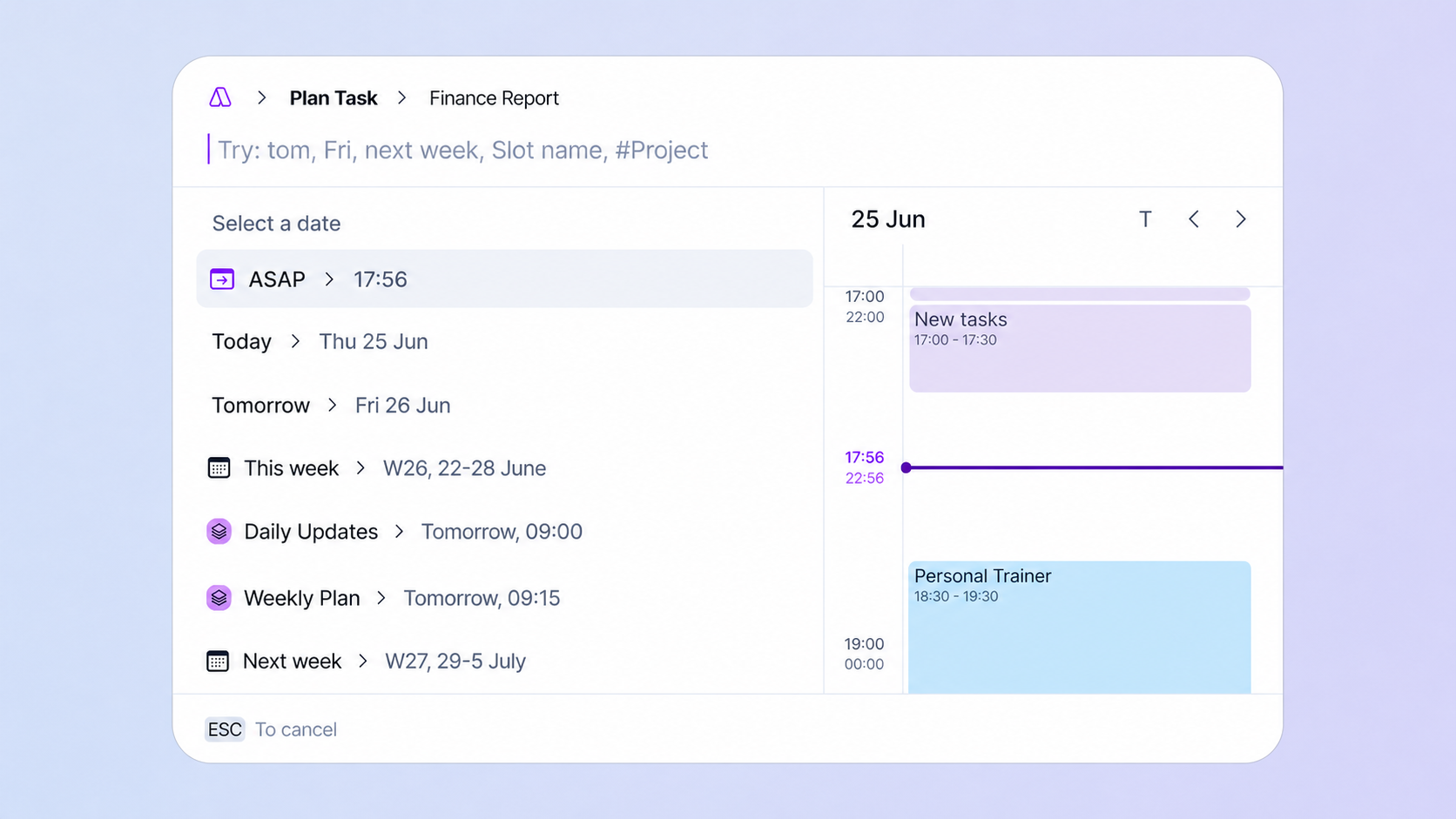
You can find ASAP in the Plan or Replan menu for a task. It appears above the usual date suggestions and shows the time Akiflow found, for example:
ASAP 2:30 PM
How to use ASAP
Open the Plan or Replan menu for a task.
Click ASAP.
Akiflow places the task into the first available slot today.
Use Undo from the confirmation toast if you want to remove the planned time.
ASAP also works from the command bar when planning a selected task with the P shortcut.
How ASAP finds a slot
ASAP looks for the first available slot today that can fit the task.
It uses:
The task duration.
Your default task duration if the task has no duration.
Your working hours.
Your existing scheduled tasks.
Calendar events and time slots as fixed blocks.
If the slot shown in the menu becomes unavailable before you click ASAP, Akiflow recalculates the slot when you click it and uses the new available time.
ASAP always targets today, even if you are viewing another day on your calendar.
When ASAP is unavailable
ASAP may be disabled when Akiflow cannot plan the task safely.
This can happen when:
There is no available slot today.
The task duration cannot fit in the remaining working hours.
More than one task is selected.
Your working day has already ended.
When ASAP is disabled, you can still use the other Plan and Replan options.
Recurring tasks
ASAP can replan a recurring task instance for today.
When you use ASAP on a recurring task instance, Akiflow changes only that instance. The rest of the recurring series stays unchanged.
Optimize schedule does not move recurring task instances.
What Schedule Optimizer does not do
Schedule Optimizer is intentionally focused on quick, user-approved schedule adjustments.
It does not:
Run automatically without you choosing it.
Plan multiple selected tasks with ASAP.
Plan all Inbox tasks at once.
Move affected tasks into another calendar day.
Split long tasks into smaller blocks.
Reorder tasks by priority, project, or deadline.
Move calendar events or time slots.
Work on mobile.
FAQ
Why don't I see Optimize schedule?
Why don't I see Optimize schedule?
Optimize schedule appears only when Akiflow can produce a valid same-day result.
You will not see it if there is nothing to optimize, if the task overlaps a calendar event or time slot, or if keeping task order would push a task into the next calendar day.
Why is ASAP greyed out?
Why is ASAP greyed out?
ASAP is greyed out when Akiflow cannot find a valid slot today, when multiple tasks are selected, or when the task cannot fit into your remaining working hours.
Does ASAP schedule for the day I am viewing?
Does ASAP schedule for the day I am viewing?
No. ASAP always schedules for today.
If you are looking at tomorrow or another future day, ASAP still finds the first available slot today.
Can I undo Schedule Optimizer changes?
Can I undo Schedule Optimizer changes?
Yes. After using Optimize schedule or ASAP, Akiflow shows a confirmation toast with Undo.
Does Schedule Optimizer move meetings?
Does Schedule Optimizer move meetings?
No. Calendar events are fixed. Schedule Optimizer works around them.
Does Schedule Optimizer move time slots?
Does Schedule Optimizer move time slots?
No. Time slots are fixed. Schedule Optimizer uses them as blocks when calculating available space.
Can Schedule Optimizer plan my whole week?
Can Schedule Optimizer plan my whole week?
No. ASAP plans one task for today, and Optimize schedule only adjusts affected tasks within the same calendar day.
Is Schedule Optimizer available on mobile?
Is Schedule Optimizer available on mobile?
No. Schedule Optimizer is available on desktop and web.
Was this helpful?
Still need help? Ask the team