Task features
Discover all the features that make managing tasks in Akiflow simple and powerful.
Task features & Shortcuts
Planned time
Press P on a selected task to plan it for a specific date, time, or time frame when you want to work on it.
Duration
Use = or cmd/ctrl + = depending on your keyboard layout, to edit a task duration.
Repetition
Create recurring tasks to automate your routines. Open the task, select Recurrence, and choose how often it repeats: daily, weekly, monthly, or on specific days.
Lock Time on Calendar
Lock a task on the calendar to block time on your connected calendar and make it visible to others. You can set its visibility as Public, Private or Busy, depending on how you want others to see your planned tasks.
By default, tasks are not locked. To enable task lock, go to Settings → Tasks, Events, Slots and enable Lock Tasks. This setting syncs across desktop, web, and mobile.
Deadline
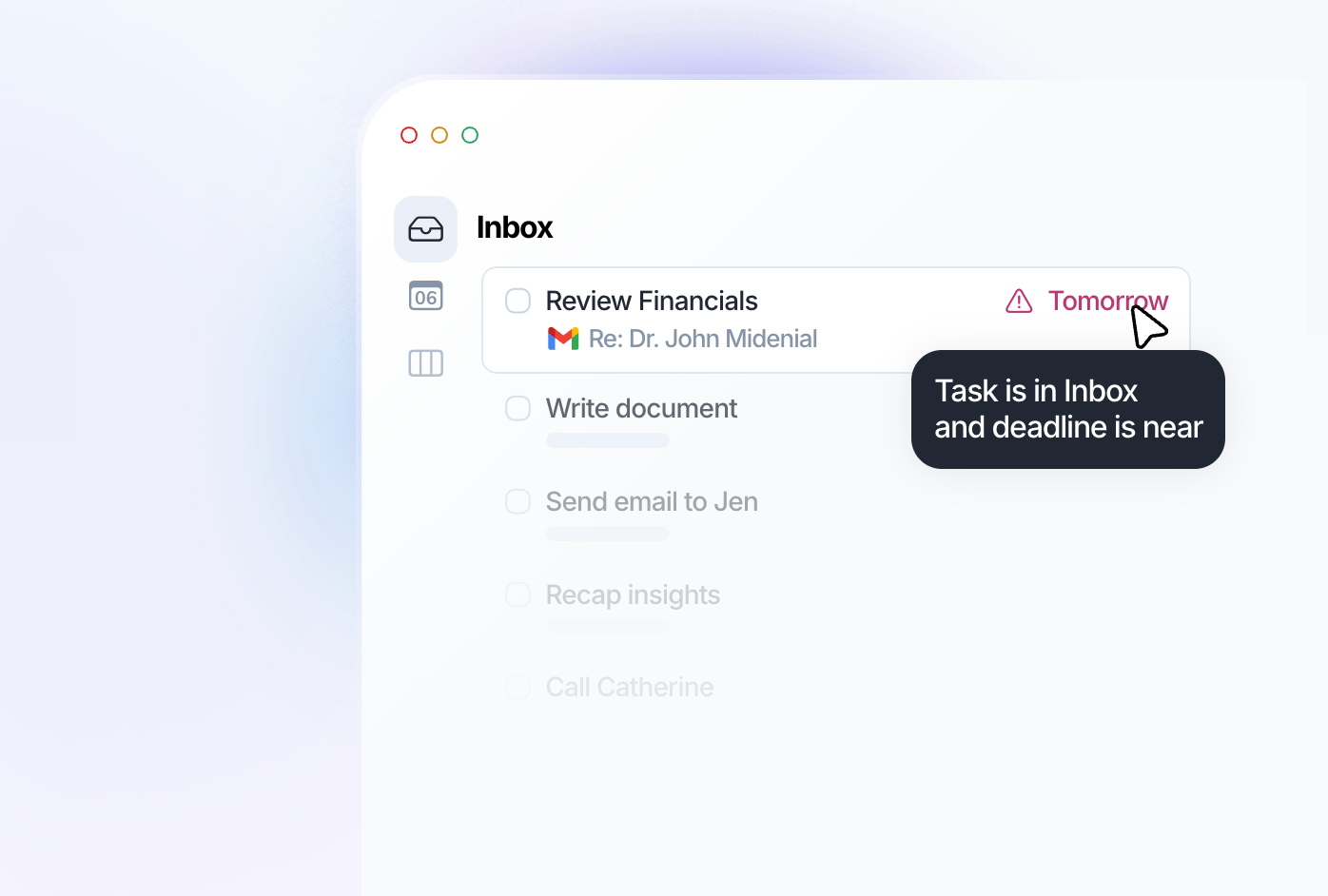
Use < to set the deadline for your task. Deadlines appear at the top of your calendar, helping you easily track upcoming due dates and stay on schedule.
Title
Press Tab to jump directly to the task title after opening the task popup. Press / (or Cmd F on Mac / Ctrl F on Windows) to open Search and type the task name to find it quickly.
Checkbox
Hit E on a selected task or click on the checkbox to mark it as done.
Description
Take notes directly on your task using rich text formatting. Press F to open Focus mode and work on your task with no distractions.
Priority
Hit ! on a selected task or click on this icon to edit its priority.
Links
When you capture tasks from your browser, the source links will appear in this field. You can also add links manually from here. Hit the letter o on selected tasks to open all links.
Projects
Assign a project to a task by pressing # on the selected task. Once assigned, you can find all tasks under that project by opening it from the Tasks panel (hover Tasks in the menu on the left), or from its pin if you pinned it to the menu.
Color-code tasks by project
Your tasks will inherit the color of their assigned project, making your calendar more organized and visually easier to scan. Keep in mind that a task must be assigned to a project for its color to appear. Project colors are only visible when tasks are time blocked on your calendar and will not be displayed in task lists such as Today, Inbox, or other planned time frames.
Tags
Assign and remove tags by hitting * on a selected task. Once assigned, you can find all tasks under that tag by opening it from the Tasks panel (hover Tasks in the menu on the left), or from its pin if you pinned it to the menu.
Status History
Open the Info icon on a task to view its status history. You’ll see when it was created and last edited.
Customize your menu
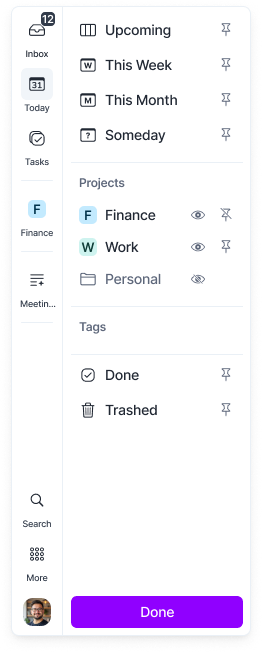
Inbox, Today and Tasks are always in the menu on the left. Hover Tasks to open the Tasks panel with Upcoming, This Week, This Month, Someday, your projects and tags, Done and Trashed.
Pin to menu: right-click a section, project or tag in the Tasks panel and choose Pin to menu. You can pin up to 5 items.
Edit Views: right-click an empty spot in the menu and choose Edit Views to hide or show projects and tags, or pin them.
Show Labels: in the same right-click menu, turn the labels under the icons on or off.
See Navigating Akiflow for the full tour.
FAQ
Where can I find my completed or deleted tasks?
Where can I find my completed or deleted tasks?
Hover Tasks in the menu on the left to open the Tasks panel, then pick Done (tasks you completed) or Trashed (deleted tasks, which you can restore from there). You can also pin Done or Trashed to the menu.
If you still can't find a task, use Search (/, or Cmd F on Mac / Ctrl F on Windows) to locate it by its title or description.
Does changing the visibility setting affect existing tasks?
Does changing the visibility setting affect existing tasks?
No, changing the visibility setting does not retroactively update existing tasks. This setting is trigger-based and only applies to tasks created after the change. Any previously created tasks will retain their original visibility settings and must be updated manually if needed.
Was this helpful?
Still need help? Ask the team