Your Inbox
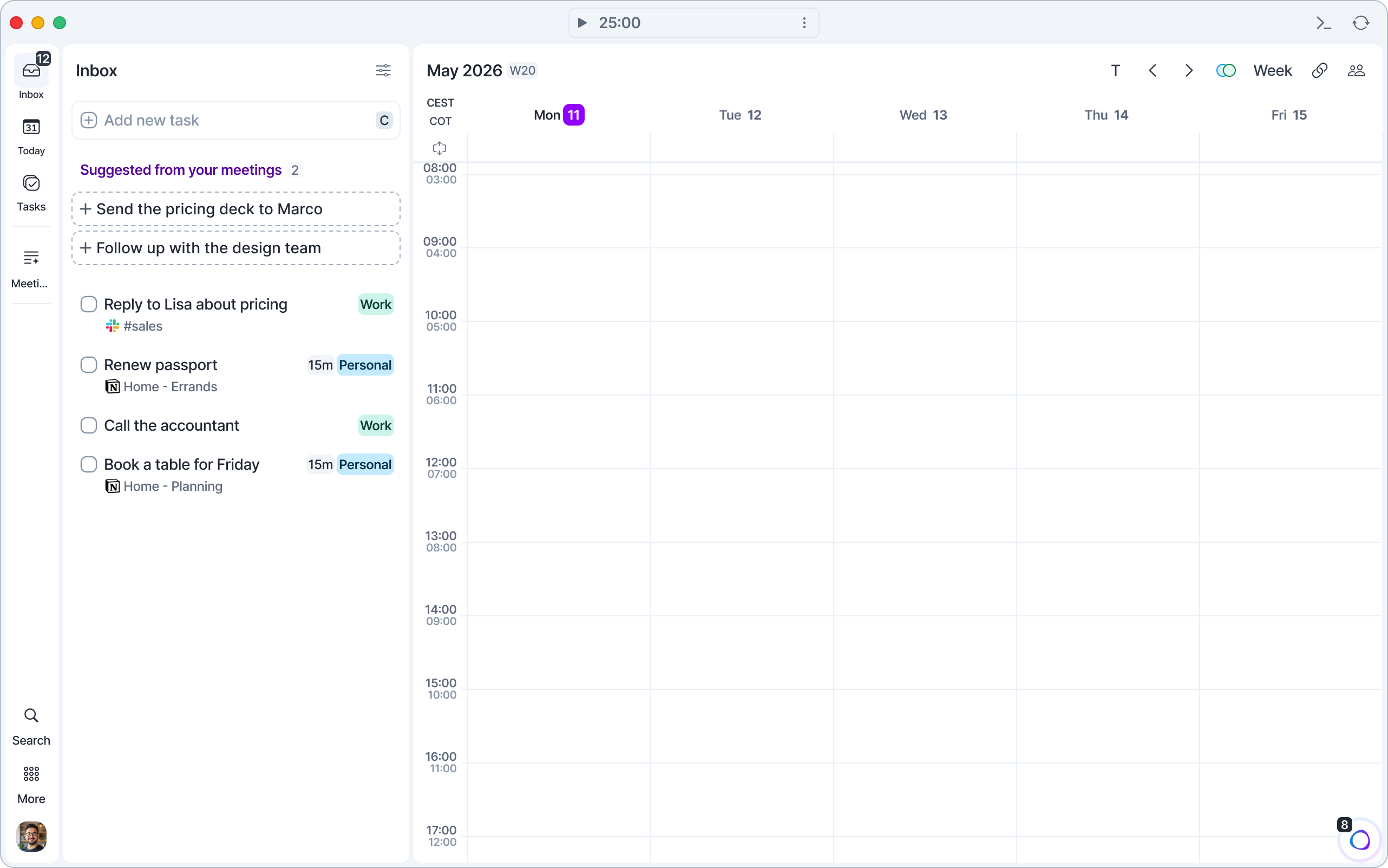
The Inbox is where all your new tasks are collected. These unplanned tasks, which are created in Akiflow or imported from your integrations, are separated from your schedule (Today page), so they won't impact what you already have planned.
Importing Tasks into your Inbox
There are several ways to capture or import tasks into your Inbox. This is the first step in the task management methodology that Akiflow is built on, known as the capturing phase.
Create tasks manually: You can quickly add tasks directly to your Inbox by clicking the
Add new taskfield. Add a title, description, and any relevant tags or due dates. You can use our Mobile App to capture on the go.Command bar: Press Cmd/Ctrl + E to open the Command Bar, then type your task.
You can also use natural language. For example: Call John.Integrations: If you have connected tools like Slack, Gmail, Notion, ClickUp, Asana or Todoist, Akiflow can automatically import new items or messages as tasks.
You can manage these integrations in Settings → Integrations.Aki: Ask Aki, your AI assistant, to create tasks for you using natural language through text, voice, or WhatsApp. For example: “Add a task to follow up with Sarah into my inbox.”
Methodology
Execute right away: If a task takes less than 2 minutes to execute → Do it now and use the shortcut
Eto mark it as donePlan: if it takes more time → Hit
Pand plan it or just drag and drop it to an open slot on your calendar. You can either plan for a specific date, date & time or a more broad time frame like “This Week” “Next Month” and review your tasks while doing the Rituals and in the Upcoming Page.Plan for Someday: If the task isn't actionable anytime soon → Press
CmdSon Mac (CtrlSon Windows) to plan it for Someday. You'll find these tasks under Someday in the Tasks panel (hover Tasks in the menu on the left), on the Upcoming Page, or during your Rituals.
View options
Click the view options button at the top right of the Inbox:
Compact view: hides task descriptions and details for a cleaner list. Tasks with a description are marked with a paragraph icon. This applies to all your task lists. You can also type "compact" in the Command Bar.
Show subtasks in Inbox: show or hide subtasks in your Inbox.
Sort By: Newest on top (default), Oldest on top, Priority, Deadline, Integrations, Projects. Shortcut:
ShiftS.Group By: see below.
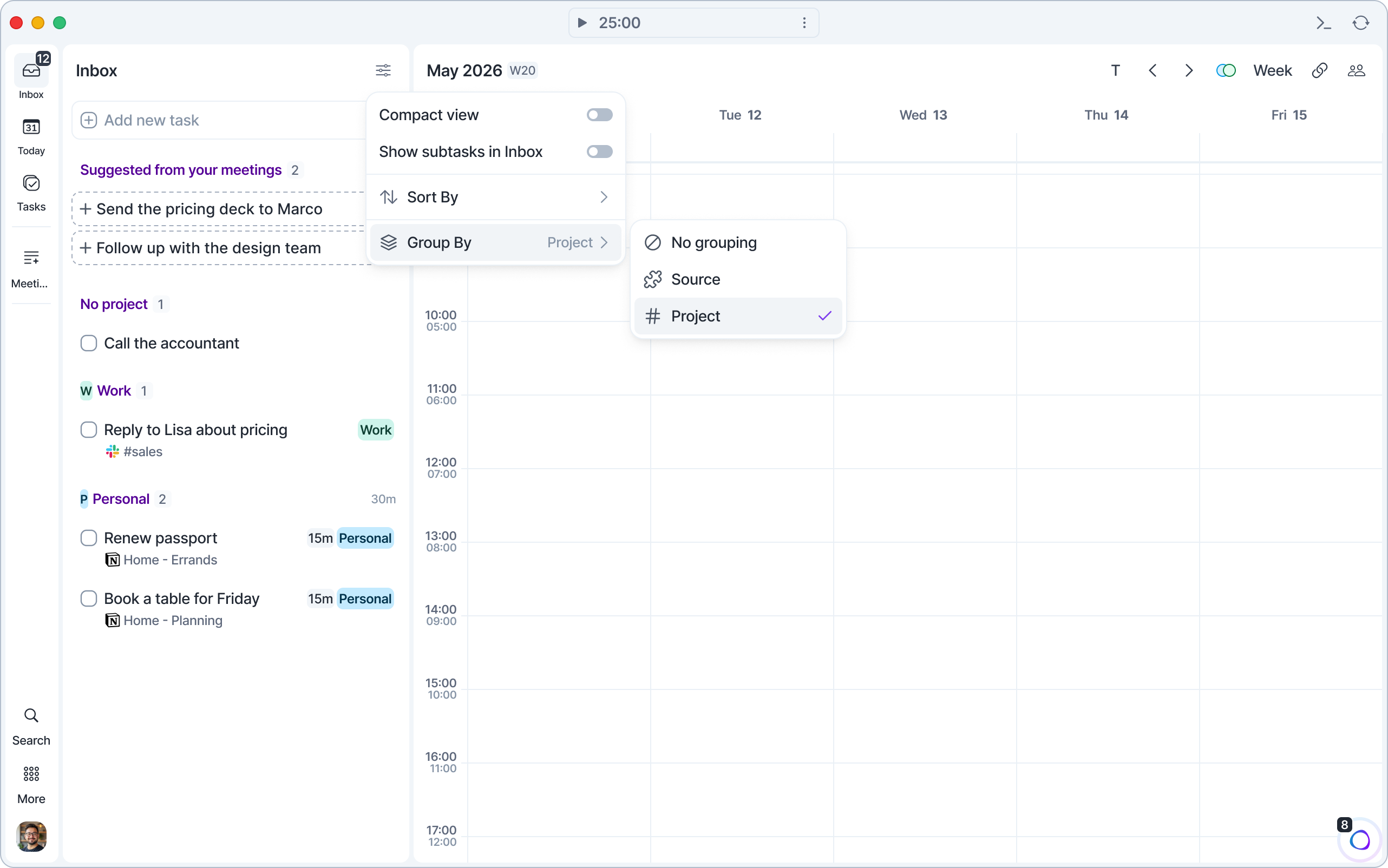
Group your Inbox
Open the view options, choose Group By and pick:
No grouping (default): one list.
Source: a section for each source, Akiflow first, then each integration (for example Gmail or Slack).
Project: a section for each project, No project first, then your projects in menu order.
Each section shows how many tasks it has and their total duration. Your choice syncs across your devices.
With Project grouping, drag a task to another section to change its project. With Source grouping, tasks can't be dragged between sections.
On mobile: open the Inbox menu and tap Group by. You get the same options, but the section headers don't show the total duration.
Suggested from your meetings
If you use the Meeting Assistant, action items from your recent meetings appear at the top of your Inbox under Suggested from your meetings. Click + to turn one into a task, or hover over it and click X to dismiss it. You can turn suggestions off in your Meeting Assistant settings.
Need help?
Reach out to our team at support@akiflow.com. We're happy to help!
Join our community to ask questions, share your workflow tips, and connect with other Akiflow users who can help you get even more out of Akiflow.
Was this helpful?
Still need help? Ask the team