Navigating Akiflow
A quick tour of the Akiflow menu on desktop and web: where your views live, how to pin your favorites, and where everything moved.
Your menu at a glance
The menu runs down the left side of Akiflow. From top to bottom:
If you click Inbox, Today or a pin while you're already on that page, the task list hides so the calendar gets more room. Click again to bring it back. The I, T and U shortcuts work the same way, and 0 hides or shows the task list (on Upcoming, it hides or shows the calendar).
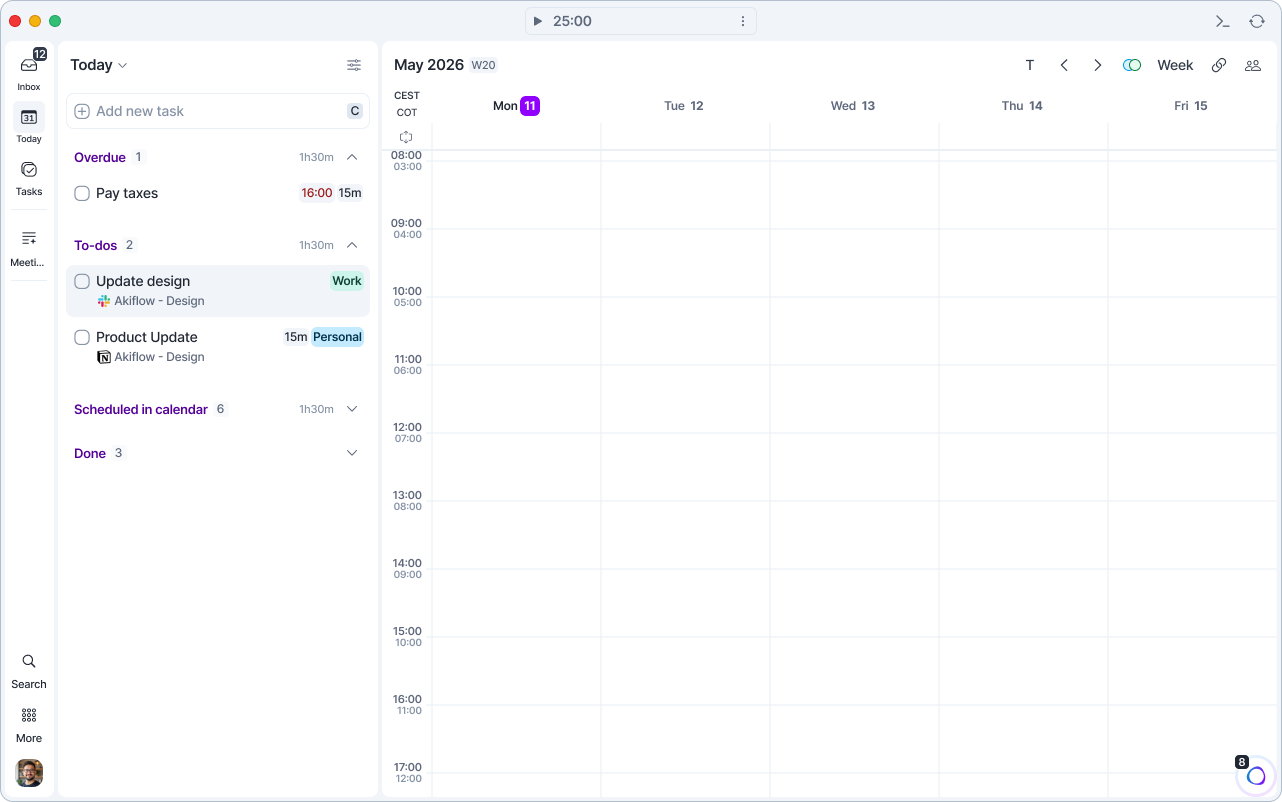
The Tasks panel
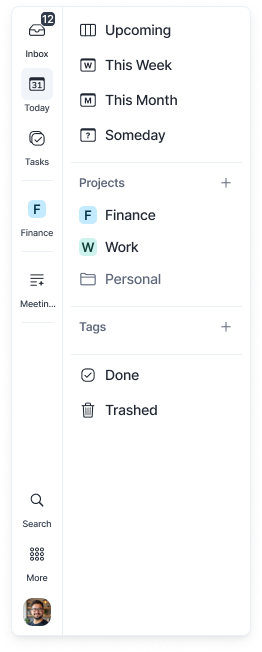
Hover over Tasks to open the Tasks panel. It holds:
Upcoming: hover over the arrow to choose Overview, Days, Weeks or Months
This Week and This Month
Someday
Projects: use Add project or folder to create new ones
Tags
Done and Trashed
Click any row to open it. The panel closes on its own.
Moving tasks: drag a task onto Tasks and the panel opens, so you can drop it on a project, tag, This Week, This Month or Someday.
Pin your favorites to the menu
Pin the views, projects and tags you use most so they're always one click away.
Pin an item
Hover over Tasks to open the Tasks panel.
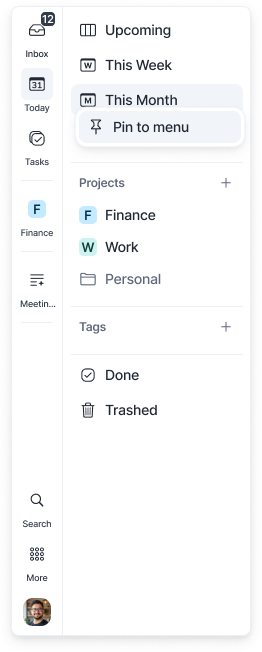
Right-click a view, project or tag.
Choose Pin to menu.
You can pin up to 5 items. Folders can't be pinned, but the projects inside them can.
Reorder or remove pins
Reorder: drag a pin up or down in the menu.
Remove: right-click a pin and choose Unpin.
Use your pins
Plan or organize tasks: drop a task on a pinned project or tag to assign it. Drop it on a pinned This Week, This Month or Someday to plan it there.
Block time for a project: drag a pinned project onto the calendar to create a time slot.
Customize your menu
Right-click any empty space in the menu or the Tasks panel to see two options.
Show Labels
Turn this off to hide the text under the menu icons for a more compact menu. Labels are on by default.
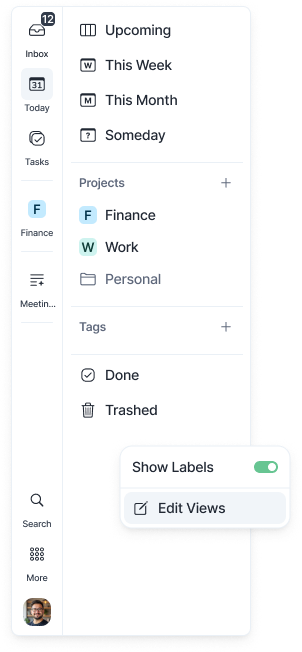
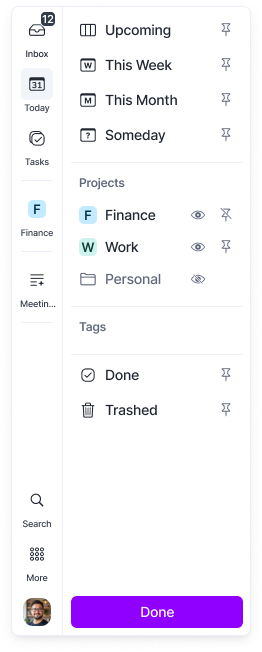
Edit Views
Choose what shows in your Tasks panel and menu:
Click the eye next to a project, tag or folder to hide or show it.
Click the pin next to a view, project or tag to pin or unpin it.
Click Done (or press Esc) when you're finished.
The More menu
Click More to open:
Rituals: Daily Planning, Daily Shutdown, Weekly Planning and Weekly Shutdown. Learn more about Rituals.
Statistics: Learn more about Stats.
Your avatar menu
Click your avatar at the bottom of the menu to open:
Settings (
Cmd,on Mac orCtrl,on Windows), Integrations and ShortcutsContact support: chat with our team
Help Center: Repeat onboarding, How to use guide, Request a feature, Webinars and Ask our community
Your teams, or Create your team
Links to download the Desktop or Mobile app, if you haven't used them yet
The calendar header
Calendar tools now sit in the header above your calendar:
T: jump back to today (
CmdTon Mac orCtrlTon Windows, in the desktop app)‹ ›: previous and next period
Calendar Visibility: choose which calendars to show
View menu: shows your current view. Switch between 1 Day, Multiple days, Week, Month, Responsive and Dynamic, and change density and display options. Learn more.
Share availability (
S): Learn moreMeet with (
@): Learn more

Where did everything go?
If you used Akiflow before version 2.83, here's where to find things now:
FAQ
How many items can I pin?
How many items can I pin?
Up to 5. To pin something new when you're at the limit, unpin another item first.
Why can't I pin a folder?
Why can't I pin a folder?
Folders can't be pinned, but you can pin any project inside them.
Where are my Done and Trashed tasks?
Where are my Done and Trashed tasks?
Hover over Tasks in the menu and choose Done or Trashed. You can also pin either one to the menu.
My window is small and I can't see Search or my avatar.
My window is small and I can't see Search or my avatar.
Scroll the middle of the menu. Inbox, Today, Tasks and your avatar always stay visible.
Need help?
Reach out to our team at support@akiflow.com. We're happy to help!
Join our community to ask questions, share your workflow tips, and connect with other Akiflow users who can help you get even more out of Akiflow.
Was this helpful?
Still need help? Ask the team