Jira
You can now keep track of all your Jira issues directly from Akiflow.
How to integrate with Jira
Go to Settings → Integrations → And click on Jira!
Hit on Connect
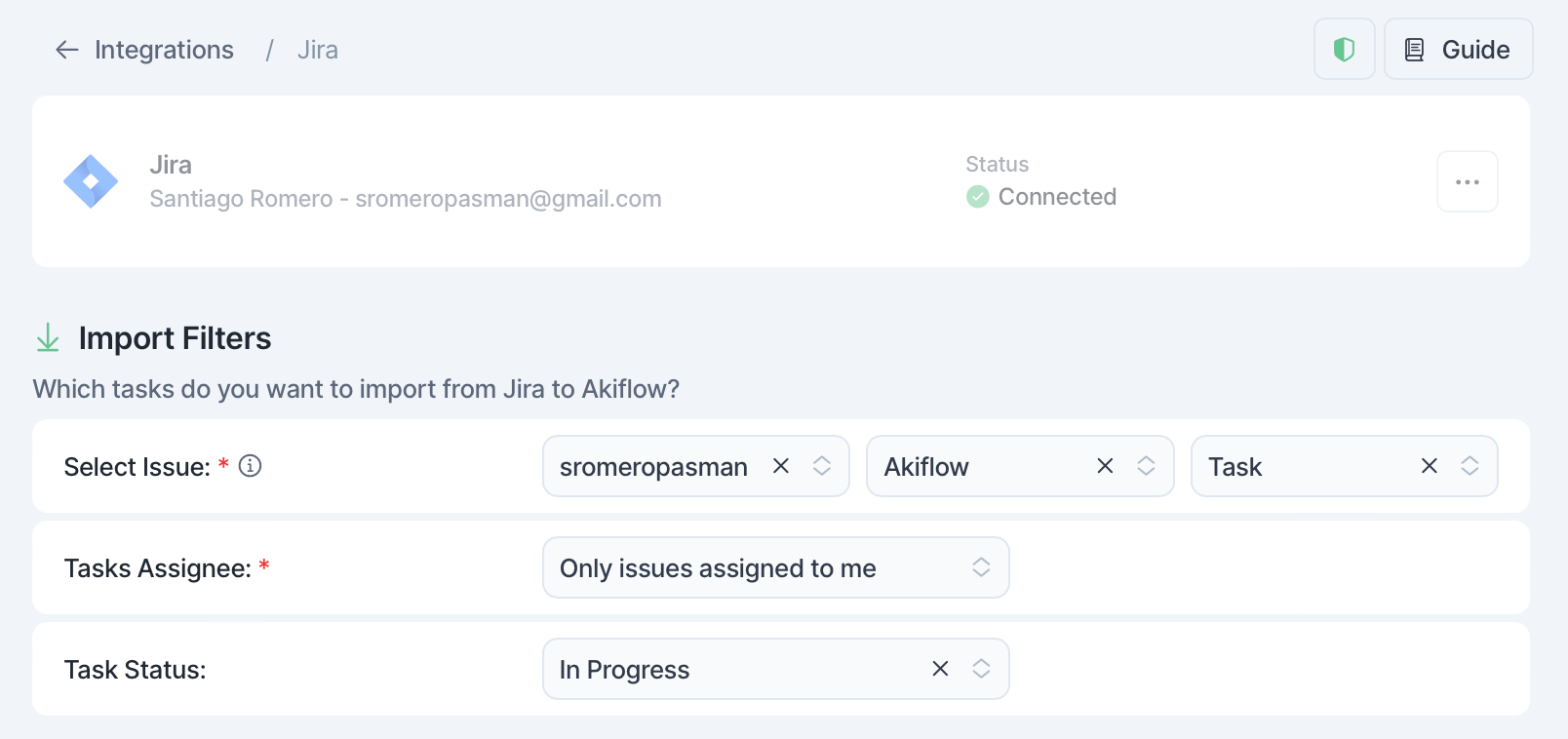
Add your Issues
Configure your import options

How to configure your Issues in Akiflow
Assignee: you can import all tasks or only those assigned to you.
You can choose which Jira tasks Akiflow imports based on their current status.
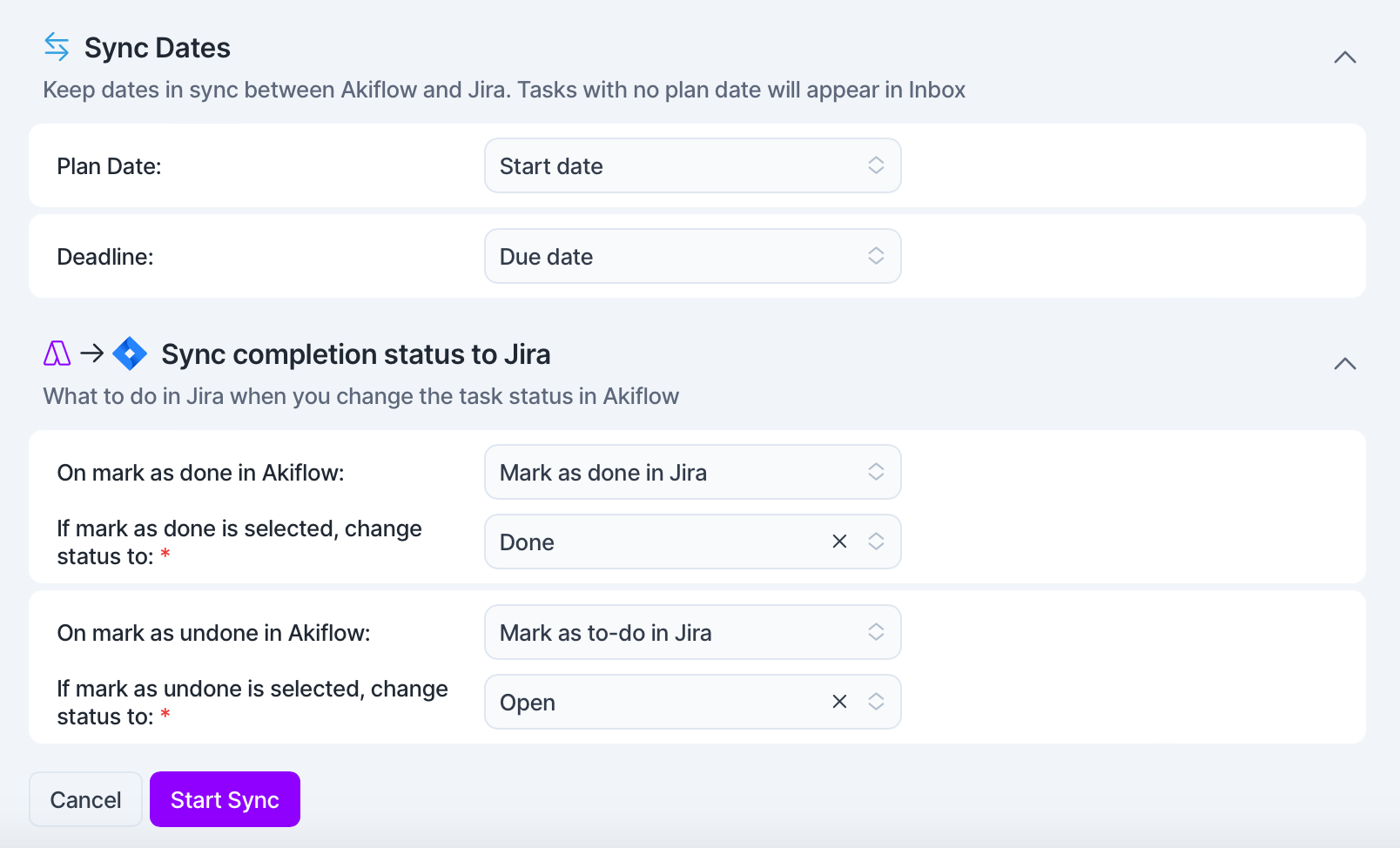
Sync dates & Completion status
Select Scheduled date: plan automatically your tasks for their Jira planned date.
Select from your custom Jira fields in this dropdown. Selecting None will push your tasks to your Inbox.
Select Deadline date: import automatically the deadline from Jira to your Akiflow tasks. Select from your custom Jira fields in this dropdown.
Completion status: This setting lets you define what happens in Jira when you change a task’s status in Akiflow. You can choose to automatically mark the issue as done, open it directly in Jira, or do nothing. If you select to sync statuses, you can also pick which specific Jira status (like Done, Open, or In Progress) the task should switch to.
Tip: Hit O as Open on a selected task to be redirected to your Jira task
FAQ
Can I connect more accounts?
Can I connect more accounts?
You can connect as many Jira accounts as you want!
What happens when I complete a Jira task in Akiflow?
What happens when I complete a Jira task in Akiflow?
A popup will appear with the following options:
Mark as done in Jira
Go to Jira
Do nothing
We can remember your choice if you select that option!
I imported too many tasks, what can I do?
I imported too many tasks, what can I do?
Pick which Jira tasks to delete:
Multi-selecting tasks and hit
backspace→ How to bulk edit tasks
Delete all your tasks
Go to Settings → Integrations → Jira
Click on the button Delete all imported tasks. This action will delete all the tasks imported so far from Jira in Akiflow. Nothing will happen to your source tasks in Jira.
Disconnect your Jira account by clicking on the bin icon in the top right corner of this page.
Reconnect Jira by going back to Integrations → Jira
Start from scratch
Go to Settings → Integrations → Jira
Set up your new import options
Click on the button Reset integration This action will delete all the tasks imported so far from Jira in Akiflow and then re-import them again according to the new import options. Nothing will happen to your source tasks in Jira.
When I delete a task on Akiflow, what happens to my Jira tasks?
When I delete a task on Akiflow, what happens to my Jira tasks?
When you delete a task on Akiflow, nothing happens to the source task in Jira.
How are Jira and Akiflow synched?
How are Jira and Akiflow synched?
Akiflow and Jira are 2-way synched.
Any changes you make in Akiflow to the task's title, planned date, deadline, and status (done/undone) will be reflected on Jira and the other way around!
Was this helpful?
Still need help? Ask the team